

If you are working with files in Airtable and you need to merge multiple PDF documents in a predefined order into a single file read on. ActiveMerge Document Merge combines PDF attachments from Airtable cells into a single PDF per record.
You pick the attachment fields and the order they go in, and the finished PDF is written back in your Airtable database.
Typical uses: payment orders, client packets, case files, approval bundles. Anything where each record holds the same set of documents every time.
If you need to merge records data from Airtable and generate PDF documents see this page.
Can Airtable merge PDFs on its own?
No. Airtable stores attachments but has no way to combine them, and this is the part most people get stuck on.
The scripting extension does not help either. Airtable’s script environment has no PDF library, so a script can read attachment URLs and reorder them, but it cannot open two PDFs and write out one. Anything that actually merges the pages has to happen outside Airtable, then come back as a new attachment.
That is the gap Document Merge fills. Airtable keeps the records and the ordering logic, ActiveMerge does the merge, and the finished file lands back on the record where your other automations can reach it.
Sign up here and test it free. Also, see our video demo here.
What you need
- An Airtable connection with access to the base and permission to update records
- One record for each PDF bundle you want to create
- At least one source attachment field, plus a separate attachment field for the output
- At least two PDFs per record across the source fields you select
Source files must be PDFs, the output is a PDF, and each source file can be up to 20 MB.
Prepare your Airtable table
Create a separate Attachment field for the merged output. Do not reuse a source field, because ActiveMerge overwrites the output field with the finished PDF.
There are two ways to organize the source PDFs.
Option 1: One attachment field with multiple PDFs
Use one field when every record has a single ordered list of source files.
| Payment order | Merged PDF |
|---|---|
Invoice.pdf, Approval.pdf, Supporting-documents.pdf |
Empty before processing |
ActiveMerge follows Airtable’s attachment order inside Payment order:
Invoice.pdf -> Approval.pdf -> Supporting-documents.pdf
Option 2: Multiple attachment fields in a fixed order
Use several fields when each type of document always sits in the same place in the final file.
| Invoice | Supporting documents | Approval | Merged PDF |
|---|---|---|---|
Invoice.pdf |
Packing-list.pdf, Receipt.pdf |
Approval.pdf |
Empty before processing |
Select the source fields in this order in ActiveMerge:
InvoiceSupporting documentsApproval
Which gives you:
Invoice.pdf -> Packing-list.pdf -> Receipt.pdf -> Approval.pdf
ActiveMerge works through the fields top to bottom, and the files inside each field keep Airtable’s attachment order. You can select up to 12 source fields, which is enough for most document packets.
Example: a weekly payment order
A payment order record holds five documents that always go in the same sequence. Give each one its own attachment field, then select the fields in that sequence:
| Cover sheet | Invoice | Purchase order | Delivery note | Approval | Payment order PDF |
|---|---|---|---|---|---|
Cover.pdf |
Invoice.pdf |
PO-4471.pdf |
Delivery.pdf |
Approval.pdf |
Empty before processing |
Every record built this way comes out in the same order, so the vendor gets an identical packet every week. If one document is missing on a record, that record fails validation instead of producing a packet with a hole in it.
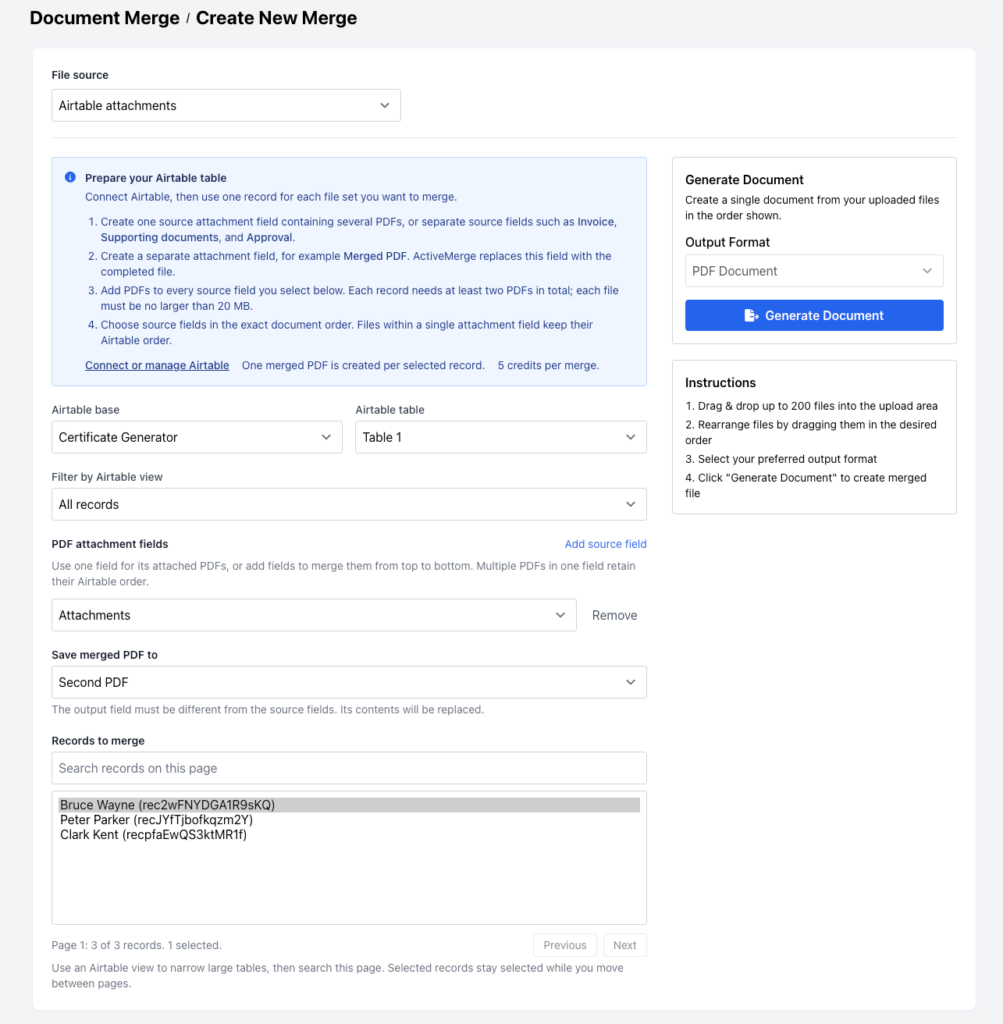
Merge the files
- Go to Document Merge and select Create New Merge.
- Set File source to Airtable attachments.
- Select your Airtable base and table.
- Pick an Airtable view if you want to limit which records show up, such as
Ready for mergeorThis week. - Under PDF attachment fields, select a single source field, or add several in the order you want them merged.
- Under Save merged PDF to, select the separate output attachment field.
- Select one or more records.
- Click Generate Document.
ActiveMerge queues one merge per record you selected. The button stays disabled until the batch finishes, and the result panel shows progress along with any records that failed.
Working with large tables
Document Merge loads Airtable records 100 at a time.
- Pick an Airtable view to narrow the result set on the server before you start selecting records.
- Use Search records on this page to filter what is currently on screen.
- Use Previous and Next to page through the view.
- Anything you have already ticked stays ticked as you move between pages.
A single batch can cover up to 50 records. For more than that, run a second batch once the first one finishes.
Validation rules
ActiveMerge checks your selection before it queues the batch.
- Every source field you selected must hold at least one PDF on every record you selected.
- Each record needs at least two PDFs in total across those fields.
- You cannot select the same source field twice.
- You can select at most 12 source fields.
- The output field has to be different from all of the source fields.
- ActiveMerge rejects attachments that are not PDFs.
ActiveMerge reads the records again while it processes them, so if someone removes or swaps an attachment after you start the batch, that record fails instead of producing a bad merge.
Credits and results
Each merged record costs 5 credits, no matter how many PDFs went into it, you can have 5, 10 or more PDF files in a record.
When a merge succeeds, ActiveMerge writes the PDF to the output attachment field on that record. You can close the page while the batch runs.
If ActiveMerge generates the PDF but Airtable refuses the write-back, the document is still in your Document Merge history, and the result tells you which record it belongs to.
—
A note on a related feature: ActiveMerge also has an Airtable automation that polls a base and generates documents from a template. That one fills placeholders in a Word or PowerPoint template from field values, and it does not read attachment fields. If your goal is combining PDFs that already exist on the record, Document Merge is the feature you want.
Merging PDFs outside Airtable
If you are building a pipeline in Make, n8n, or your own code, ActiveMerge has a merge endpoint that takes files directly:
POST /api/document-merge/merge
API-KEY: your-api-key
Send at least two files with format set to pdf and you get back a temporary download URL that stays valid for 24 hours. Each call costs 5 credits, the same as a record merged from the UI.
This endpoint works on files you upload, not on Airtable records, so fetching the attachments and writing the result back is your job. The table above is the simpler route if your documents already live in Airtable.
Sign up here and test it free.
FAQ
Can I merge PDF attachments in a specific order rather than alphabetically?
Yes, and that is the point of selecting fields in sequence. ActiveMerge never sorts by filename. It follows the order you set, so the output is the same every time.
How many records can I merge at once?
Up to 50 per batch. Run another batch once the first finishes if you have more.
Does the original attachment get replaced?
No. Source fields are left alone. Only the output field is overwritten.
What happens if a record is missing one of its PDFs?
That record fails validation and the rest of the batch continues. You get told which record it was.
Can I merge Word files from Airtable this way?
Not from Airtable attachments, which are PDF only. Word merging is covered in merging Word documents.
—
Troubleshooting
A source field does not appear
Only Attachment fields can be used as a PDF source or output. Check the field type in Airtable, then reload the table selection.
A record fails because a source field is empty
Every source field you selected needs at least one attachment on every record you selected. Either add the missing PDF or drop that field from the merge configuration.
A record fails because it has fewer than two PDFs
Add another PDF to the source field you already selected, or add a second source field that has a PDF on that record.
The merged PDF is not written back to Airtable
Check that the Airtable connection still has edit permission for the base and that the output field is an Attachment field. Your application URL also has to be publicly reachable, otherwise Airtable cannot fetch the generated file.

