
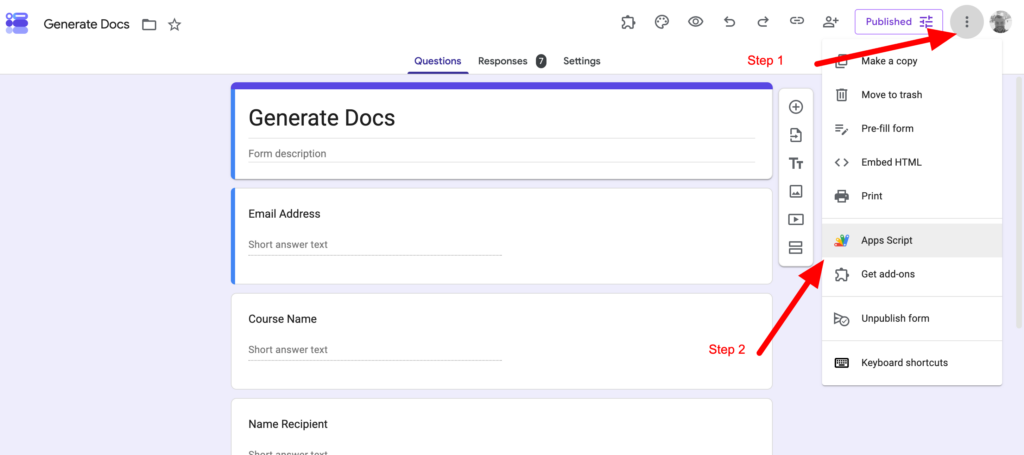
How Document Generation from Google Forms Work:
The integration runs through Google Apps Script. After creating the form, you open the script interface and paste in the provided code.
What the script does is straightforward: it connects your Google Form to Active Merge and tells the system which template to use.
There are two key values to plug in:
1. Your template ID
The template ID points the script to the file you want to generate from. Create a template with placeholders for the form data and add it to ActiveMerge.
2. Your API key
The script also needs an API key from ActiveMerge. You create that key in the API and integrations area of the platform.
Once those values are in place, save the project and install the trigger. Then run it.
That trigger is what turns the setup from a manual tool into an automatic one. Every time someone submits the form, the script can generate the document without any extra work.
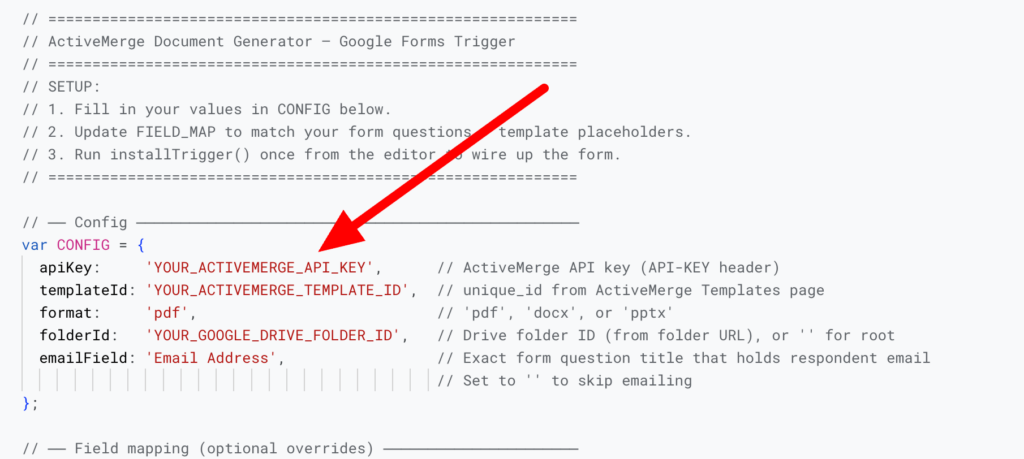
Choose Where the File Goes and What Format It Uses
After you install the trigger, you configure how to create the output.
You can choose the file format based on the template type:
- PDF for finished documents
- PPTX for PowerPoint templates
- Word for Word documents
You also set the folder ID for Google Drive.
That tells the system where to save the generated file. Instead of leaving files scattered around, each document lands in the right Drive folder automatically.
There is one more practical point here: permissions. Once you run the script, Google will ask for access so the automation can work properly. That is normal, and you have to approve it before the trigger can run on its own.
Add Email Delivery
Generating the file is one part of the workflow. Sending it is another.
If you want the document attached to an email, you need an email field in the form. That way, the system knows where to send the finished file. In the demo, the email address is included as one of the form fields for that reason.
FAQ
What do I need to get started?
You need a Google Form, a document template, an Active Merge API key, and a Google Apps Script using the provided code.
Does the form field order have to match the template?
No. The fields can appear in any order in Google Forms, as long as the script maps the right form answers to the right template placeholders.
Can I generate more than certificates?
Yes. The same workflow can generate Word documents, PowerPoint files, reports, and other template-based documents.
Can the document be emailed automatically?
Yes, but you need an email field in the form so the system knows where to send the finished file.
Where does the generated file get saved?
You choose a Google Drive folder by entering the folder ID in the script settings.