
Move your existing document templates to ActiveMerge without rebuilding every field by hand. The Template Migration tool reads an editable export from your current document-generation provider, converts supported placeholders to ActiveMerge syntax, and creates a Word template you can preview, verify, download, and save.
Best for: teams moving invoices, proposals, contracts, certificates, reports, and other automated documents from another platform.
You must be signed in to an ActiveMerge account with a verified email address to use the migration tool.
Why use Template Migration?
Recreating a complex template field by field is slow and easy to get wrong. Template Migration gives you a practical starting point by carrying the reusable content into an editable DOCX and showing exactly how recognized placeholders were changed.
With one conversion, you can:
- Convert supported provider placeholders to ActiveMerge’s
{field_name}format - Turn supported repeating blocks into
{item.field}line-item placeholders - See a source-to-ActiveMerge placeholder map
- Run the converted file through ActiveMerge’s standard template checks
- Review a rendered preview and any migration warnings
- Download the DOCX for editing or save it directly to your template library
The result remains editable, so you can make final layout and formatting adjustments in Microsoft Word, Google Docs, or another DOCX-compatible editor.
Supported providers and source files
Choose the profile that matches the service that created the template:
- Documint
- PDFMonkey
- PDF Generator API
- Plumsail Documents
- Formstack Documents
- Other provider
The migration uploader accepts editable source exports up to 5 MB in these formats:
| Source format | Extension |
|---|---|
| HTML | .html, .htm |
| JSON | .json |
| Plain text | .txt |
| Handlebars | .hbs, .handlebars |
PDF, DOCX, PPTX, and XLSX files are not migration-page sources. If your template is already a Word, PowerPoint, or Excel file, upload it from Templates → New Template instead. During upload, ActiveMerge automatically converts ordinary provider-style fields such as {{customer_name}} to {customer_name} while preserving recognized double-brace e-signature fields. Excel formulas are left unchanged.
The tool needs the provider’s editable template source, not a generated PDF. A PDF contains the finished appearance but usually no reusable template logic for ActiveMerge to convert.
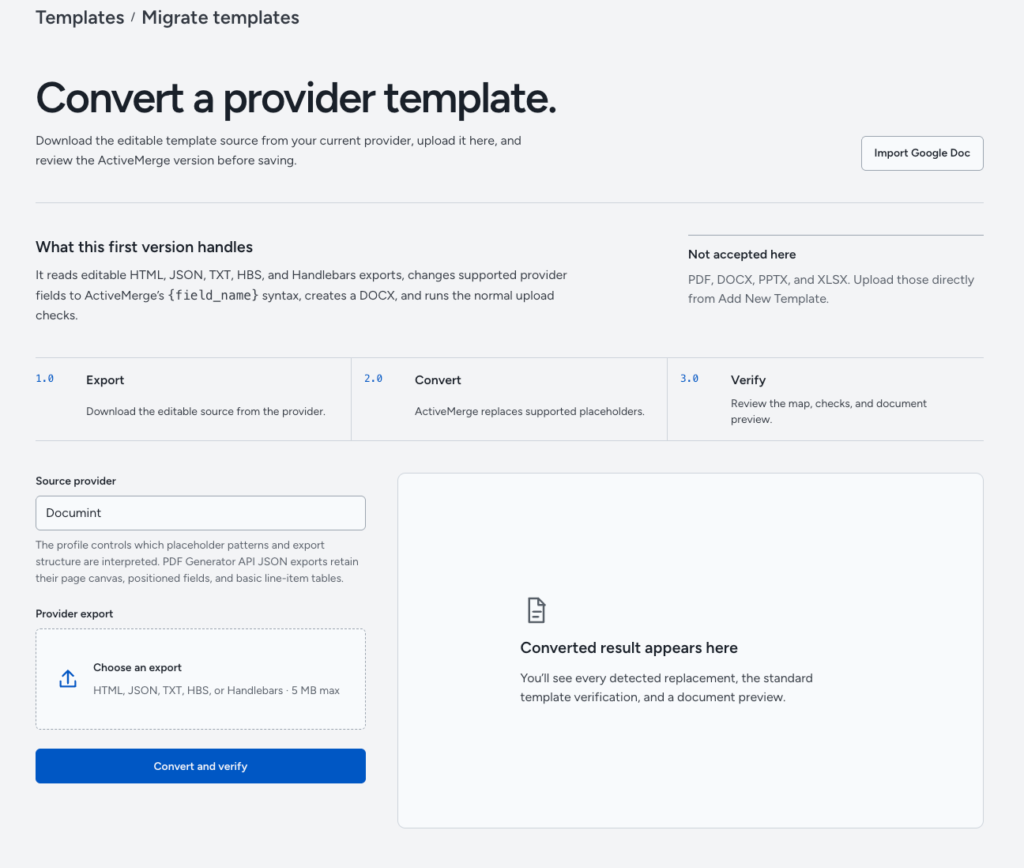
How to migrate a template
1. Export the editable source
Open the template in your current provider and download or copy its editable HTML, JSON, text, or Handlebars source. The exact export name differs by provider, but look for an option such as Export, Download template, HTML, JSON, or Source.
Do not upload a sample PDF generated from the template.
2. Open Template Migration
In ActiveMerge, go to Templates, select Migrate templates, or open Template Migration directly.
3. Select the source provider
Choose the provider that created the export. The selected profile tells ActiveMerge which placeholder patterns and export structure to interpret.
If the provider is not listed, choose Other provider. This profile recognizes common double-curly-brace fields as well as placeholders written with square brackets, ${...}, or angle brackets such as <<...>>.
4. Upload and convert
Choose the provider export and select Convert and verify. ActiveMerge will:
- Read the editable source.
- Convert recognized fields and repeating rows.
- Create an editable DOCX template.
- Run the normal ActiveMerge placeholder checks.
- Prepare a preview of the converted document.
5. Review the result
Before saving, check all three parts of the result:
- Placeholder map: shows each original provider field and its ActiveMerge replacement.
- Verification: confirms how many placeholders passed the standard template checks. If verification fails, the file is marked Needs review and cannot be saved from this screen.
- Document preview and warnings: show the converted layout and identify anything that needs manual attention.
You can also select Download DOCX to inspect or edit the file locally.
6. Name and save the template
Enter a unique template name and select Save template. The converted file is added to your ActiveMerge template library, ready to connect to a data source and use in a generation job.
After saving, run a test with sample data before using the template in production.
What gets converted?
The converter supports the most common field patterns used by HTML and Handlebars-style template systems.
| Provider source | ActiveMerge result |
|---|---|
{{customer_name}} |
{customer_name} |
{{ customer name }} |
{customer_name} |
{{invoice.number}} |
{invoice_number} |
{{ total | money }} |
{total} plus a formatting warning |
A supported Handlebars each block |
Fields become {item.field} |
A supported Liquid for block |
Fields become {item.field} |
Placeholder names are normalized to use letters, numbers, and underscores. For example, spaces and punctuation become underscores.
Repeating rows and line items
Supported Handlebars {{#each ...}} blocks and Liquid {% for ... %} blocks are converted to ActiveMerge line-item placeholders such as:
{item.description}
{item.quantity}
{item.price}
After conversion, make sure all line-item placeholders are placed in a single table row. ActiveMerge repeats that row once for each item in your data. See Repeating line items for the required table structure.
PDF Generator API JSON templates
PDF Generator API canvas JSON receives dedicated handling. ActiveMerge reads its pages, positioned fields, basic font styling, and supported dynamic tables, then rebuilds them as a native Word layout with ActiveMerge placeholders.
The result is designed to be editable and render consistently across Word-compatible tools. Exact pixel positioning, canvas-only artwork, and some provider-specific design details are not retained, so carefully review the DOCX and its generated output. Multi-page templates are created as separate Word sections, and page breaks may need adjustment.
What requires manual review?
Providers do not all use the same layout, formatting, and logic systems. The converter preserves useful content where possible and reports changes it cannot reproduce safely.
Review these areas after every migration:
- Conditional logic and helpers: provider-specific
if,unless,case, and helper logic is removed. Visible content is kept where possible. - Formatting filters: provider date, currency, number, uppercase, and lowercase helpers are removed. Reapply the intended formatting in the ActiveMerge workflow or source data.
- Images: images embedded in HTML exports are removed. Add approved images to the converted DOCX after downloading it.
- Partials and provider metadata: comments, partial-template references, and provider-only metadata have no direct ActiveMerge equivalent and are removed.
- Advanced CSS and layouts: some HTML/CSS styling cannot be represented exactly in Word. Text and placeholders are retained when possible, but the document may need formatting adjustments.
- Repeating content: verify that
{item.field}placeholders occupy one table row and test them with multiple line items. - Page breaks, headers, and footers: inspect these carefully, particularly in multi-page and canvas-based templates.
Migration is intended to remove repetitive setup work, not to guarantee a pixel-perfect copy between two different template engines.
Importing a Google Doc instead
If the template is a Google Doc rather than a provider export, select Import Google Doc on the migration page.
- Open the document in Google Docs and select Share.
- Under General access, choose Anyone with the link and keep Viewer access.
- Copy the document URL.
- In ActiveMerge, enter a template name and paste the public Google Docs URL.
- Select Import document.
ActiveMerge imports the document as a DOCX template. Only make a document public if its contents are safe to share through a public link; you can change its Google sharing settings again after the import finishes.
Troubleshooting
The export is rejected
Confirm that the file is HTML, HTM, JSON, TXT, HBS, or Handlebars, is no larger than 5 MB, and is not empty. Rename-changing a PDF or Office file does not turn it into an editable source export.
The JSON export cannot be read
Export the template again without editing the JSON file. For a general JSON export, ActiveMerge looks for readable template markup in values such as html, content, template, body, or markup. If the provider offers HTML or Handlebars, try that format instead.
No placeholders were found
Check that the exported source includes the field tags, not only static or already-merged sample content. Try the correct provider profile first, then Other provider if the source uses a common alternative placeholder style.
A repeating section does not behave correctly
Open the converted DOCX and place its {item.field} placeholders together in one table row. The migration tool converts supported field syntax, but complex provider loop layouts may still need to be rebuilt as an ActiveMerge repeating row.
The preview is unavailable
Download the converted DOCX and inspect it locally. A preview failure does not necessarily mean the DOCX conversion failed.
The template cannot be saved
Resolve any verification error first and use a template name that is not already present in your account. You can download the DOCX, correct it, and upload it through Templates → New Template.
Frequently asked questions
Will the migrated template look exactly like the original?
Not always. Basic HTML structure and supported formatting can carry over, but Word and browser/canvas template engines render documents differently. Advanced CSS, exact canvas positioning, images, conditional logic, and provider-specific helpers may require manual work.
Can I upload a PDF for conversion?
No. Upload the editable source used to create the PDF. If you only have the final PDF, you will need to recreate the reusable template in Word or obtain the source from the original provider.
Can I migrate an existing DOCX, PPTX, or XLSX file?
Those files do not use the migration-page converter. Upload them directly from Templates → New Template. ActiveMerge converts ordinary {{data_fields}} to {data_fields}, normalizes their names, and preserves recognized e-signature fields such as {{signature_1}}. In Excel workbooks, formulas are not modified and rich-text formatting is retained.
Does the tool migrate line items?
It converts supported Handlebars and Liquid repeating blocks, along with supported PDF Generator API dynamic tables, to {item.field} placeholders. Always inspect the table structure and test with more than one item before production use.
Can I edit the converted template?
Yes. Select Download DOCX, edit the file in a DOCX-compatible editor, then upload the revised file to ActiveMerge. You can also save the verified conversion directly and download it later from your template library.
How long is the converted download available?
Converted migration files are temporary. ActiveMerge removes files older than 24 hours during migration workspace cleanup, so download or save the result when you finish reviewing it.
Move your templates, not your busywork
Keep the fields and content you have already built, move them into an editable ActiveMerge template, and spend your time checking the result instead of recreating it from scratch.