

Sometimes you just need everything in one file. A report split across five sections, a contract with a cover letter and several exhibits, a proposal where each team member wrote their own chapter.
How to merge documents into one file
The ActiveMerge Document Merge tool allow to merge multiple Word documents into a single Word document without any copy-pasting. If you want the document to be PDF you can try our free file merge tool.
ActiveMerge is a tool for automatic document generation, it can be used for merge files but also for mail merge data in a Word template or mail merge Excel to Powerpoint.
What you can merge
| Input files | Output formats |
|---|---|
| Word files (.docx) | Word document (.docx) |
| Word files (.docx) | ePUB eBook |
| Word, PDF, text, images |
The Word-to-Word path uses a Python-based merge engine, so the output is a proper .docx file — not a PDF converted back to Word. Formatting, styles, and tracked changes stay intact.
When to use this
A few situations where document merge saves a lot of time:
- Contracts with exhibits. You have a base agreement and a set of schedules or attachments that change per client. Merge them into one deliverable.
- Reports with sections owned by different people. Each person works in their own file. Merge when it’s time to send.
- Proposals. Cover letter, capability statement, case studies, pricing. All separate files during drafting, one PDF or Word file when it goes to the client.
- Legal bundles. Witness statements, evidence documents, and a cover sheet combined for court filing.
- Employee onboarding packets. Offer letter, benefits summary, handbook acknowledgment — all in one file per employee.
- Training manuals. Chapters drafted separately, merged into the final manual before distribution.
ActiveMerge is great also to merge data from spreadsheets to reusable templates to generate documents. We have multiple integrations for document generation and automations.
How to merge documents in a single file
- Sign up for an ActiveMerge account.
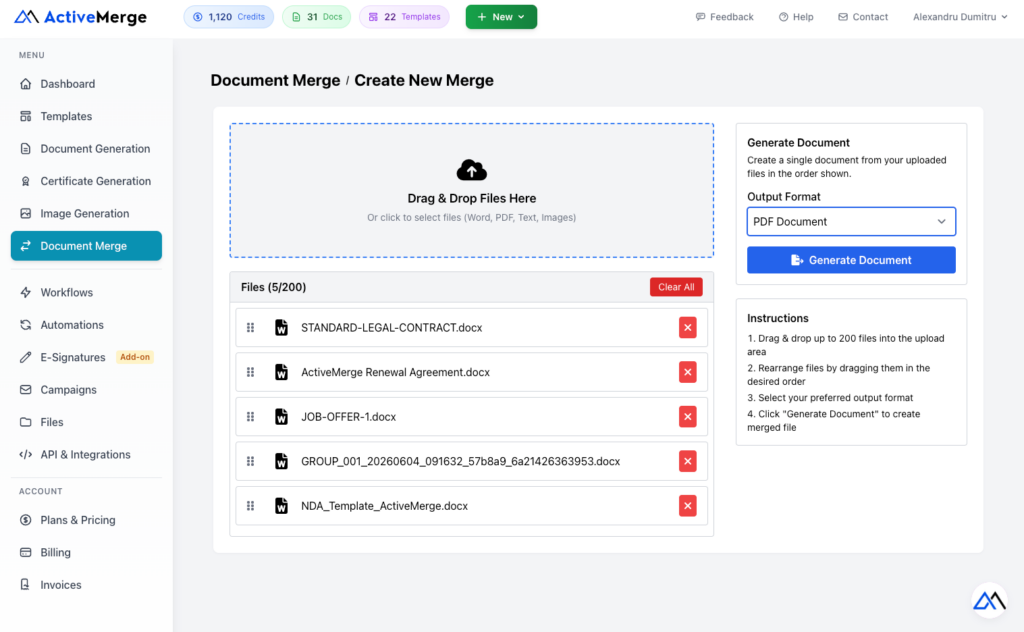
- Go to Document Merge in the left sidebar and click New Merge.
- Drag your files into the upload area, or click to select them from your computer. You can add up to 100 files at once.
- Drag the files into the order you want them to appear in the final document.
- Select your output format (Word, PDF, or ePUB).
- Click Generate Document , then download the result.
Output format options
Word (.docx)
Merges your files directly in one Word file. All input files must be .docx. The output is a native Word file you can continue editing.
Accepts Word files, PDFs, plain text files, and images (JPG, PNG). Converts everything and merges into one PDF. Good when you need a final, locked-down version.
ePUB
Merges all .docx files and converts the result to ePUB format. Useful for internal eBooks, training guides, or any content that will be read on an e-reader or mobile device. Requires that all input files are .docx.
Word merge options
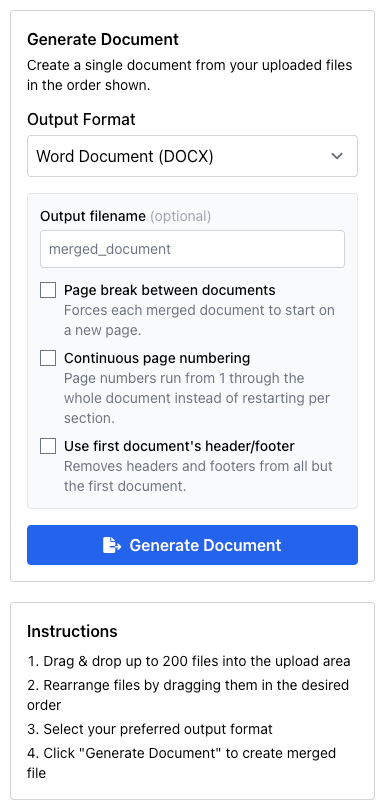
When your output format is Word or ePUB, you get four extra options:
Custom output filename
Set the name for your downloaded file. If you leave it blank, the file is named merged_document_[timestamp]. No need to rename after downloading.
Page break between documents
Forces each source document to start on a new page in the merged output. Without this, the merged documents flow directly into each other — the last paragraph of document one runs straight into the first paragraph of document two.
Turn this on if your source documents do not already end with a page break.
Continuous page numbering
If your documents use page numbers, this option makes them run continuously from 1 through the whole merged file instead of restarting at 1 for each section. Useful for reports, proposals, and anything with a table of contents.
Removes the headers and footers from every document except the first. Useful when your source documents each have their own branding and you want the merged result to carry just one consistent header and footer throughout.
File limits and supported types
| Word / ePUB merge | PDF merge | |
|---|---|---|
| Max files | 200 | 200 |
| Accepted file types | .docx only | .docx, .pdf, .txt, .jpg, .jpeg, .png |
| Max file size | 20 MB per file | 20 MB per file |
Note: .doc files (the older Word format) are not supported. If you have .doc files, open them in Word and save as .docx first.
Merging via the API
If you need to automate merges — for example, combining generated documents as part of a larger workflow — you can use the API endpoint directly.
POST /api/document-merge/merge
Send the files as multipart/form-data:
files[]        = first.docx
files[]        = second.docx
files[]        = third.docx
format         = docx
output_filename = final-report          (optional)
page_break      = true                  (optional)
continuous_numbering = true             (optional)
strip_headers_footers = false           (optional)
The response includes a temporary URL to the merged file, valid for 24 hours.
See the API docs for authentication details and a full example.
Credits
Each merge costs 5 credits regardless of how many files you combine or which output format you choose.
Common questions
The merged document looks fine but page numbers are wrong.
Turn on Continuous page numbering in the Word merge options. Each source document likely has its own page number restart set at section 1.
Headers from my individual files are showing up throughout the merged document.
Enable Use first document’s header/footer. This links all sections after the first to the first document’s header and footer, removing the per-file variations.
The documents are merging but running together without a break.
Your source documents probably don’t end with a page break. Enable Page break between documents and the merge engine will insert one between each file.
I’m getting a file type error when I try to upload a .doc file.
The merge engine requires .docx format. Open the file in Word, go to File > Save As, and choose .docx.
I want to merge more than 200 files.
Split the job into batches: merge the first 200 into one file, then merge that result with the next batch.

