

“Autofill” in Microsoft Word usually means one thing: you have a document that repeats (a contract, offer letter, quote, certificate) and you want the changing details to fill themselves in. Word has no single autofill button for that, but there are four ways to get there, from built-in features to a full automation workflow.
This guide walks through all four, shows where each one breaks, and then shows step by step how to autofill a Word template automatically with ActiveMerge, so a spreadsheet row, a form submission, or an API call produces a finished document in seconds.
In this guide
- What people mean by “autofill in Word”
- Four ways to autofill Word, compared
- Option 1: Word’s built-in tools
- Option 2: Mail merge, and where it runs out
- Option 3: Macros and Power Automate
- Option 4: A document automation service (ActiveMerge)
- Tutorial: autofill a Word template with ActiveMerge
- Autofill from a form, Zapier, Make or the API
- Real examples
- Template design tips
- Troubleshooting
- Security
- FAQ
What people mean by “autofill in Word”
The phrase covers four different needs. Knowing which one you have decides which method fits.
| You want to… | Example | Best method |
|---|---|---|
| Re-use the same text without retyping | Your address block, a standard clause | AutoText / Quick Parts |
| Fill one document from a few typed answers | A personal letter with name and date | Content controls, fields |
| Create many personalised copies from a list | 200 certificates, 50 offer letters | Mail merge or document automation |
| Fill documents automatically when something happens | New form submission → finished contract | Document automation with triggers |
The first two are about typing less. The last two are about not typing at all. This article focuses on the last two, with the first two covered briefly so you can pick the lightest tool that works.
Four ways to autofill Word, compared
| Built-in (AutoText, content controls) | Mail merge | Macros / Power Automate | ActiveMerge | |
|---|---|---|---|---|
| Setup effort | Low | Medium | High | Low to medium |
| Data source | Typed by hand | Excel, Outlook, Access | Custom-built | Excel, CSV, Airtable, Notion, forms, CRM, API |
| Volume | One at a time | Batch, from desktop | Batch, if built | Single or thousands |
| Runs without you | No | No (you press Finish) | Yes, if built and maintained | Yes, triggered by forms, Zapier, Make or API |
| Works without desktop Word | No | No | Partly | Yes, runs in the cloud |
| Output | DOCX | DOCX, PDF | Whatever you code | DOCX, PDF, XLSX, PPTX |
| Repeating rows (line items) | No | Awkward | Custom code | Supported through templates |
| Maintenance | None | Fragile links to the source file | Someone must own the code | Template-based; edit the Word file |
Option 1: Word’s built-in tools
These fill Word faster, but they don’t pull in outside data.
AutoText and Quick Parts
Save a block of text you reuse (a signature block, boilerplate paragraph, company address) and insert it from Insert → Quick Parts. Good for static text, not for data that changes per document.
Content controls
Developer → Rich Text / Plain Text / Drop-Down / Date Picker controls add fill-in boxes to a document. Pair them with Document Properties and the same value can appear in several places at once: type the client name once and it updates the title page, header and signature block.
Fields and document properties
Insert → Quick Parts → Field can pull in things like the date, file name, or a custom property. Useful for dates and references.
Where this stops
You (or your colleague) still open the file and type each value. No external data, no batches, no triggers. Fine for a letter a week. Not fine for a contract per sale.
Option 2: Mail merge, and where it runs out
Word’s Mailings → Start Mail Merge is the classic answer. You connect a Word document to an Excel sheet, insert merge fields («First_Name»), preview, and merge to a new document or to email.
It works well for letters, labels and envelopes. People hit its limits with business documents:
- Fragile data connection. If the Excel file moves, is renamed, or has the sheet reordered, the link breaks or merges the wrong column. Dates and currencies often come through formatted wrongly because Word reads the stored value, not what the cell displays.
- Everything lands in one big file. Merging 200 records gives you one 200-page document by default, not 200 files, unless you add add-ins or macros to split and name them.
- Line items are painful. An invoice with a variable number of rows doesn’t fit the one-row-one-document model. Workarounds exist but are clumsy.
- No conditional documents by default. Showing a clause only for certain customers requires
IFfields, which are hard to write and debug. - Manual trigger. Someone has to open Word and press the button each time.
- Needs desktop Word. Not a fit for a web form, a CRM, or a server.
- No path to delivery. Emailing the result, saving it to a folder, or sending it for signature are separate manual steps.
If your need is “a one-off batch of letters, once a month”, mail merge is fine. If it is “every time a deal closes”, you’ve outgrown it.
Option 3: Macros and Power Automate
VBA macros and Microsoft Power Automate can automate Word. They can replace placeholders, loop through rows, and save files.
The catch: you now own software. Someone has to write it, test it, keep it running when Office updates, and fix it when a template changes. Power Automate’s Word actions also depend on specific connectors and licence tiers. This is a good fit if you have in-house developers and unusual requirements, and a poor fit if you simply need documents to fill themselves.
Option 4: A document automation service (ActiveMerge)
ActiveMerge keeps what’s good about Word (you design the document in Word) and removes the manual parts:
- You keep your own Word template. Upload a DOCX with simple placeholders such as
{customer_name}. - Data comes from where it already lives. Excel or CSV files, Airtable, Notion, web forms, Google Forms, WordPress form plugins, Zapier, Make, or the API.
- It runs in the cloud. No desktop Word needed, no macros, and no link to a file on someone’s laptop.
- Output in the format you need. DOCX when the recipient must edit, PDF when it must be final. XLSX and PPTX templates work too.
- Automatic triggers. A form submission or a row in a table can generate the document with nobody pressing a button.
- Delivery and signing. Email or pass the file onwards, and send it for e-signature (see online contract signing).
In effect it is mail merge that runs without you.
Tutorial: autofill a Word template with ActiveMerge
We’ll use an offer letter. The same steps apply to contracts, quotes, certificates, invoices or reports.
Step 1: Prepare your Word template
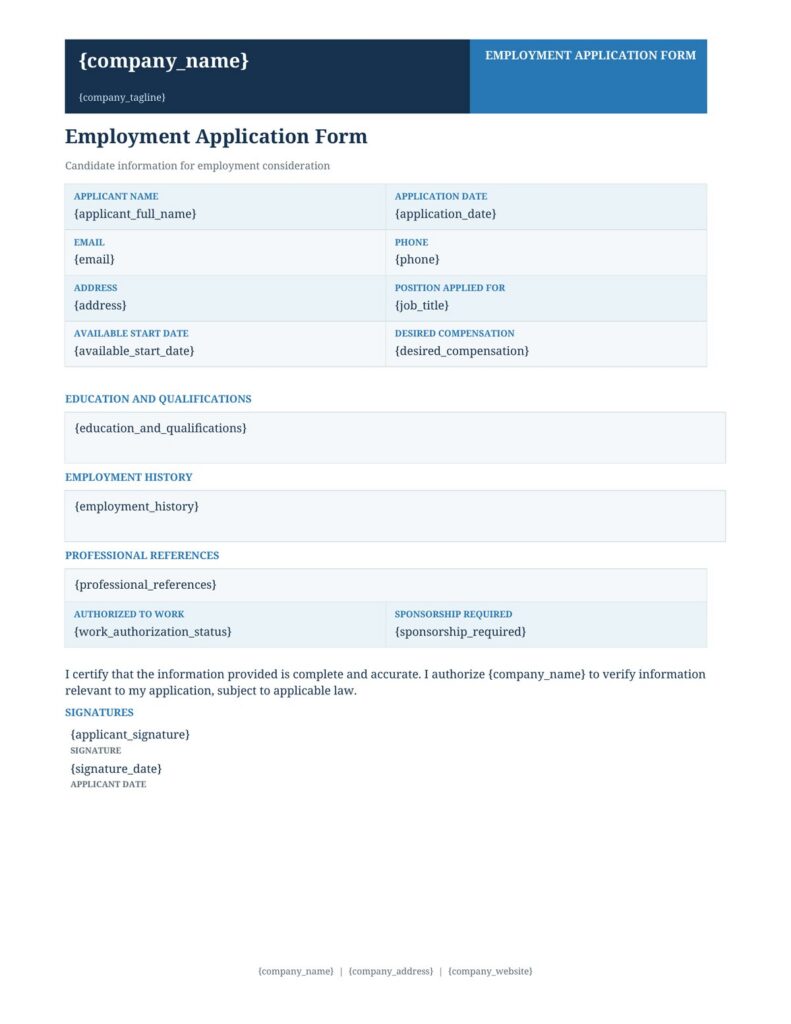
Open your existing letter in Word and replace each part that changes with a placeholder in curly braces:
Dear {candidate_name},

We are pleased to offer you the position of {job_title} at {company_name},
starting on {start_date}, with an annual salary of {salary}.

Please confirm your acceptance by {response_deadline}.

Sincerely,
{manager_name}
Tips:
- Use short, lowercase names with underscores (
start_date, notStart Date (DD/MM)). - Type each placeholder in one go, or paste as plain text. Word sometimes splits text into separate formatting runs mid-word, which can break matching. If a placeholder doesn’t get replaced, retype it in a single stroke or format the whole placeholder identically.
- Keep formatting (font, bold, colour) on the placeholder itself; the filled value inherits it.
Step 2: Create your data
In Excel, Google Sheets or a CSV, make one column per placeholder and one row per document:
| candidate_name | job_title | company_name | start_date | salary | response_deadline | manager_name |
|---|---|---|---|---|---|---|
| Maria Lopez | Product Designer | Northwind Ltd | 3 November 2026 | €58,000 | 20 October 2026 | Sam Okafor |
| Jin Park | Data Analyst | Northwind Ltd | 10 November 2026 | €52,000 | 20 October 2026 | Sam Okafor |
Write dates and money exactly as you want them to appear. Text is the safest format for values that must print a specific way.
Step 3: Upload the template to ActiveMerge
Create a free account (the homepage offers 25 free documents with no credit card, so you can test with real data). Go to Templates and upload your DOCX.
Step 4: Connect the data and map the fields
Choose your data source (upload the spreadsheet, connect Airtable or Notion, or use a form). Match columns to placeholders. If your column names equal your placeholder names, this takes seconds.
Step 5: Preview and generate
Preview a document from the first row and read it end to end. Fix typos in the template, not in the output. Then generate the full batch.
Step 6: Choose the output and delivery
- PDF for letters going out as final.
- DOCX if a manager will edit before sending.
- Download the files, email them, or pass them to the next step in your workflow.
Step 7: Make it automatic
Once the manual run works, replace “upload a spreadsheet” with a trigger (next section). From then on, the document creates itself.
Autofill from a form, Zapier, Make or the API
The real time saving comes when nobody starts the process.
| Trigger | How it works | Example |
|---|---|---|
| Web form (Google Forms, WordPress form plugins) | Each submission becomes a document | Client intake form → engagement letter |
| Airtable or Notion | A new or updated record generates a document | Status changes to “Approved” → contract |
| Zapier or Make | Connects 2,000+ apps to ActiveMerge | New HubSpot deal won → order form |
| API | Your system sends JSON, you receive a download URL | Your app creates a PDF statement on demand |
Using the API. Create an API key in your ActiveMerge account, send the template ID and your data as JSON (or form-encoded), and receive a temporary link to the generated file (valid for 24 hours, so download or store it in your system). Full request examples are in the API documentation.
Real examples of Word autofill
- HR: offer letters, employment contracts, onboarding checklists, reference letters, from your applicant tracker or a spreadsheet.
- Sales: quotes and proposals filled from a CRM deal record, then sent for signature.
- Finance: invoices with customer details and line items, generated per row or per order.
- Education and events: certificates, enrolment letters, and attendance confirmations for a whole cohort.
- Legal and real estate: NDAs, leases and consent forms filled from an intake form.
- Operations: purchase orders, delivery notes, and compliance reports from system exports.
Template design tips that prevent problems
- Design for the longest value. A 45-character company name or a three-line address shouldn’t wreck the layout. Use tables with flexible columns and avoid fixed-width text boxes around placeholders.
- Name placeholders for people.
{billing_address}is clearer than{f23}, and a colleague can maintain it a year from now. - Handle empty values. Decide what shows when a field is blank (nothing? “N/A”?) and put that in your data.
- Format in the data, not the document. Prepare
1,250.00or3 November 2026exactly as it should print. - Keep static legal text static. Only the parts that change should be placeholders.
- Version your templates. Keep a dated copy of each approved version so you can show which wording applied to which document.
- Test with ugly data. Long names, apostrophes, accented characters, empty fields, very large numbers.
- Add repeating rows deliberately. For tables like invoice line items, follow the documented syntax for repeated rows rather than copying rows by hand. [VERIFY: link to the repeating-rows section of the docs.]
Troubleshooting
| Problem | Likely cause | Fix |
|---|---|---|
| A placeholder appears unchanged in the output | Name mismatch (Client_Name vs client_name), or Word split the text into runs |
Match names exactly; retype the placeholder in one go |
| Value is blank | Empty cell or wrong column mapped | Check the data row and the mapping |
Date shows as 45987 |
Excel stored a date serial number | Convert the column to text in the format you want |
Leading zeros disappear (00123 → 123) |
Excel treated the ID as a number | Format the column as text |
| Formatting looks different from the template | Placeholder has mixed formatting | Apply one consistent format to the whole placeholder |
| Layout breaks on long values | Fixed-width boxes | Use tables with flexible cells |
| PDF fonts differ | Font not available in the rendering environment | Use common fonts or embed/check your brand font |
Security
Documents like contracts and offer letters contain personal data. ActiveMerge encrypts files in transit over HTTPS and at rest, processes on EU-hosted infrastructure, and deletes temporary generated files after 24 hours unless you save them. For sensitive documents, also restrict who can edit templates, and send final files by secure link or password-protect the PDF instead of relying on open attachments.
Frequently asked questions
Does Microsoft Word have an autofill feature?
Not a general one. Word has AutoText, Quick Parts, content controls, fields and mail merge. For automatic filling from outside data without opening Word each time, you need mail merge, custom automation, or a document automation service.
How do I autofill a Word document from Excel?
The built-in way is Mailings → Start Mail Merge, linked to your workbook. For a workflow that doesn’t need desktop Word and handles batches, line items and delivery, upload the template and spreadsheet to a service such as ActiveMerge and map columns to placeholders.
Can I autofill Word from a web form?
Yes, with a tool that accepts form submissions. ActiveMerge works with Google Forms, WordPress form plugins, and workflows built through Zapier or Make, so each submission produces a finished document.
Is this the same as mail merge?
It is the same idea (template + data), but cloud-based and automatic. You don’t need desktop Word, link files, or press a button each time, and output can be one file per record in DOCX or PDF.
Do I need to know how to code?
No. You add placeholders in Word and map columns. Coding is only needed if you choose to call the API from your own software.
Can I generate PDFs as well as Word files?
Yes. DOCX templates can be generated as DOCX or PDF.
Can it fill tables with a variable number of rows?
Yes, templates can include repeated line items such as invoice rows. See the documentation for the exact syntax.
How many documents can I make?
One or thousands per run. You can start with 25 free documents; see the pricing page for current plans.
What if my template has complex layouts, headers or images?
Build the template in Word as usual. Test with realistic data, and check headers, footers and tables in the preview before a full run.
Can I send the filled document for signature?
Yes. Generate the contract, then collect signatures online. See our guides on online contract signing and what document automation is.
The bottom line
If you fill the same Word document more than a few times a month, stop retyping it. Word’s built-in tools cover static text, mail merge covers an occasional batch, and a document automation service makes sense once documents should fill themselves from forms, spreadsheets or a CRM.
With ActiveMerge you keep your Word template, add {placeholders}, connect your data, and each new record produces a finished document.
Try it free: generate 25 documents from your own Word template →

