


Automating document delivery saves a lot of time when you need to send invoices, purchase orders, certificates, or other personalized files at scale.
Instead of generating files one by one and emailing them manually, ActiveMerge lets you create documents from templates, connect a data source, and send everything through your own email account in a few clear steps.
Generate documents from a template and data
ActiveMerge starts with a simple process: take a template, pair it with data, and turn that into finished documents.
The template can include placeholders for fields like name, date, item, quantity, or supplier details. The data can come from several places, including an array table, a Notion database, an Excel file, Zapier, or Make. If you want to test the flow first, sample data works too.
That matters because most document workflows break down in the same place: the information exists, but it lives in too many different systems. ActiveMerge connects those pieces and turns them into something usable.
View the video demo here.
Map the fields before you generate anything
Once the template is loaded, the next step is mapping the data to the document fields. That part is straightforward, but accuracy matters most here.
The workflow is simple:
- Load the template.
- Attach the data source.
- Check that each field matches the right placeholder.
- Choose the output format, such as PDF.
- Name the file clearly so it is easy to track later.
Before generating, preview the document. That step is worth keeping because it catches mistakes before they become messy batch errors. If a field is misplaced or a value looks wrong, you can fix it before sending anything out.
ActiveMerge also offers unlimited free previews, which makes it easier to confirm the layout without wasting credits.
Generate the files and keep a backup
After previewing, the documents can be generated in a few seconds. The system also shows how many credits the job will use before you confirm it, so you know exactly what the batch costs.
For example, a job with five records uses 10 credits.
Once the files are created, you can save them directly and download a backup copy. That backup is useful even if you plan to send everything automatically, because it gives you a local copy of the generated documents in case you need to resend or archive them later.
Connect Gmail and send the documents automatically
After generation, ActiveMerge lets you start a campaign right away. If you do not already have an email connection set up, you can add one directly inside the tool.
The email connection process includes:
- choosing Gmail as the sending account
- selecting the email address you want to use
- sending a test message to verify the connection
That verification step matters. It helps prevent delivery issues later by confirming the account works before the campaign goes out.
Once the connection is ready, you can create the campaign and link it to the document generation job. ActiveMerge automatically identifies the supplier email column, which saves time and reduces the chance of sending to the wrong address.
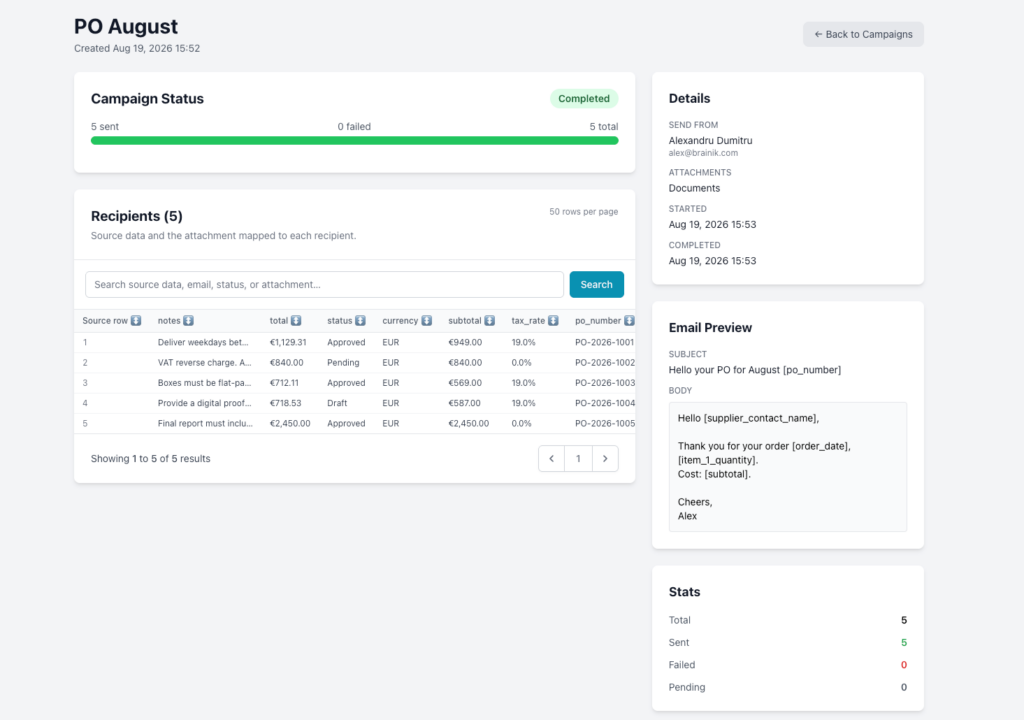
From there, you write the email subject and message in a simple editor. For a purchase order campaign, a subject like “Hello, your purchase order for August” works well, and the email body can include personalized fields such as order date, item, quantity, and cost.
Know the sending limits
One detail to keep in mind: sending limits depend on your account and email provider.
If you use SMTP, you need to stay within the allowed number of emails per hour or minute. Gmail also has its own limits, and those vary depending on the type of Google account you have. That means the system can handle automated sending, but you still need to respect the rules of the email service behind it.
FAQ
What kinds of documents can ActiveMerge send?
It can handle invoices, certificates, purchase orders, and similar personalized documents.
What data sources can it use?
It supports arrays, Notion databases, Excel files, Zapier, and Make connections.
Can I check the document before sending it?
Yes. You can preview the output before generating and sending anything.
Does it work with Gmail?
Yes. You can connect a Gmail account, verify it with a test email, and use it for campaign sending.
Are there sending limits?
Yes. Limits depend on the email provider and account type, especially if you use SMTP or Gmail.
The big advantage
ActiveMerge brings generation and delivery into one flow. You create the documents, verify the output, connect your email account, and send personalized files without jumping between tools. For teams that send recurring documents, that kind of automation removes a lot of manual work and makes the process much easier to repeat.

