

ActiveMerge can use an Excel workbook as an invoice template, merge one data row at a time, and generate a PDF invoice for every row. This is useful for teams that issue recurring invoices from Airtable, CSV files, or another system without manually editing and exporting a workbook.
For a typical workload, our users generate between 60 and 400 invoices per month. Generation averages about one document every one to two seconds, although the actual time depends on the workbook, images, line items, and queue activity. As a rough guide, 60 invoices take about one-two minutes of processing time and 400 invoices about 6–8 minutes.
What you need
- An
.xlsxinvoice template - A CSV, Airtable table, or other supported data source
- One row of data for each invoice
- ActiveMerge credits or a plan that covers the job
- Optional: an email address column if invoices will be sent automatically
1. Prepare your invoice data
Create one row per invoice. Keep column names simple and stable because they are used when mapping fields to placeholders.
Example CSV:
invoice_number,invoice_date,due_date,customer_name,customer_email,address,description,quantity,unit_price,subtotal,tax,total
INV-2026-1001,2026-08-01,2026-08-31,Acme Studio,billing@acme.example,12 Market Street; London,Website maintenance,1,850.00,850.00,170.00,1020.00
INV-2026-1002,2026-08-02,2026-09-01,Northwind Design,accounts@northwind.example,8 River Road; Bristol,Brand design package,1,1200.00,1200.00,240.00,1440.00
INV-2026-1003,2026-08-03,2026-09-02,Bluebird Events,finance@bluebird.example,44 Station Lane; Manchester,Event materials,3,275.00,825.00,165.00,990.00
Use numeric values for quantities, prices, tax, and totals. Format them in the Excel template rather than adding currency symbols to the source data. This keeps calculations and sorting reliable.
2. Create the Excel invoice template
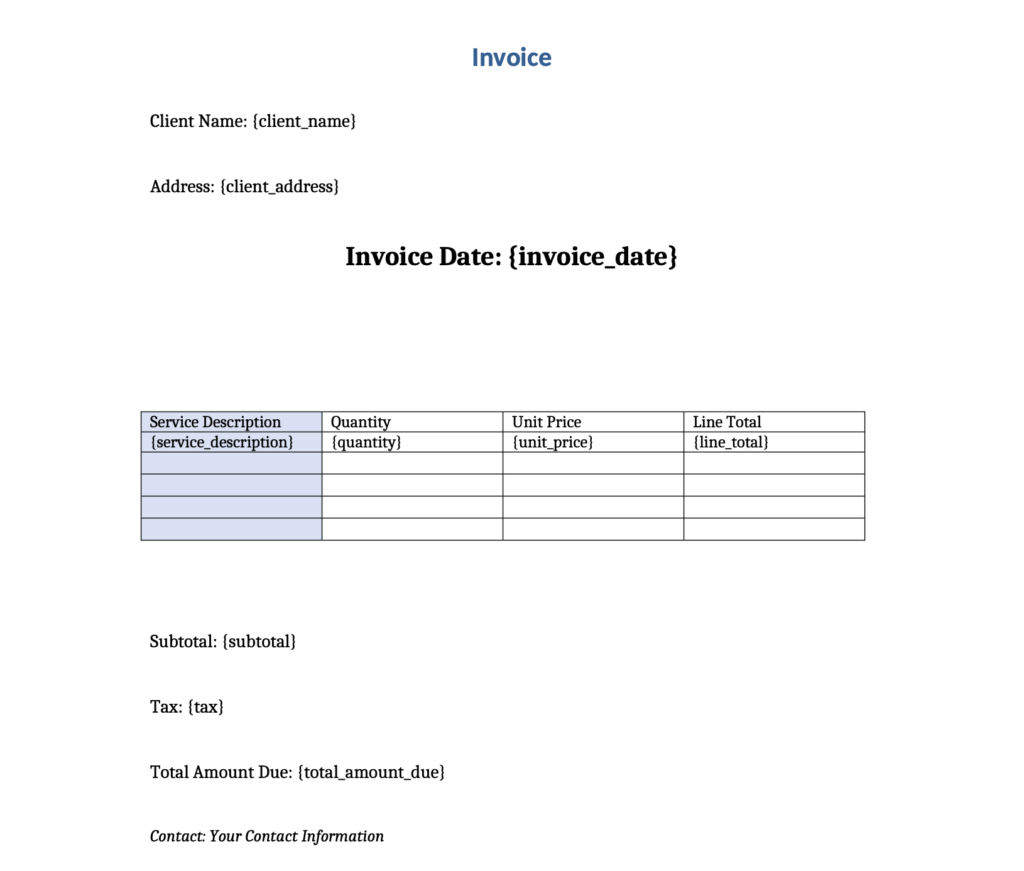
Design the invoice in Excel and place ActiveMerge placeholders in the cells where values should appear. Use curly braces around each field name:
INVOICE {invoice_number}

Invoice date: {invoice_date}
Due date: {due_date}

Bill to:
{customer_name}
{address}
{customer_email}

Description                 Quantity    Unit price      Amount
{description}               {quantity}  {unit_price}    {subtotal}

Subtotal: {subtotal}
Tax:      {tax}
Total due: {total}
The placeholder names should match the source columns. If a source column contains spaces, use the normalized placeholder name shown during field mapping (for example, Customer Name commonly becomes {customer_name}).
Formatting dates and money
Set the cell format in Excel before uploading:
- Date:
dd/mm/yyor another format required by your customers - Money: currency or a custom format such as
€#,##0.00 - Quantity: number with the required decimal places
The source value and the cell format are separate. If a date displays as yyyy-mm-dd, check the actual cell format in the uploaded workbook and confirm that the mapped value is a date rather than a text string.
Multiple invoice items
If each invoice can contain several products or services, use a repeating line-item row in the workbook. Put the item placeholders in one row, for example:
{{item.description}} {{item.quantity}} {{item.unit_price}} {{item.amount}}
Map the line-item source to the related items table or collection in your data source. Keep the item placeholders in the same row so ActiveMerge can repeat that row for each item.
3. Upload and map the files
In ActiveMerge:
- Start a new document-generation job.
- Upload the Excel template.
- Upload the CSV, or choose Airtable as the data source.
- Open field mapping and connect each placeholder to its matching column or field.
- Select PDF as the output format.
- Preview one document and verify the customer, date, totals, and page layout.
For Airtable, select the table containing one invoice per record. Make sure the email field is mapped to the correct invoice record; do not rely on row position alone when records may be reordered.
4. Generate the invoices
Run the job after checking the preview. ActiveMerge creates one PDF per selected data row. Keep the source row index and invoice number in your data so the generated files can be matched back to the original records.
For normal monthly workloads:
| Invoices | Average processing time |
|---|---|
| 60 | About 2 minutes |
| 100 | About 3–4 minutes |
| 200 | About 7 minutes |
| 400 | About 13–14 minutes |
These are averages, not guarantees. Large images, complex formulas, many line items, or a busy processing queue can increase the time. Leave the job running until its status changes to completed or failed; do not start duplicate jobs while the first job is still processing.
5. Send invoices by email
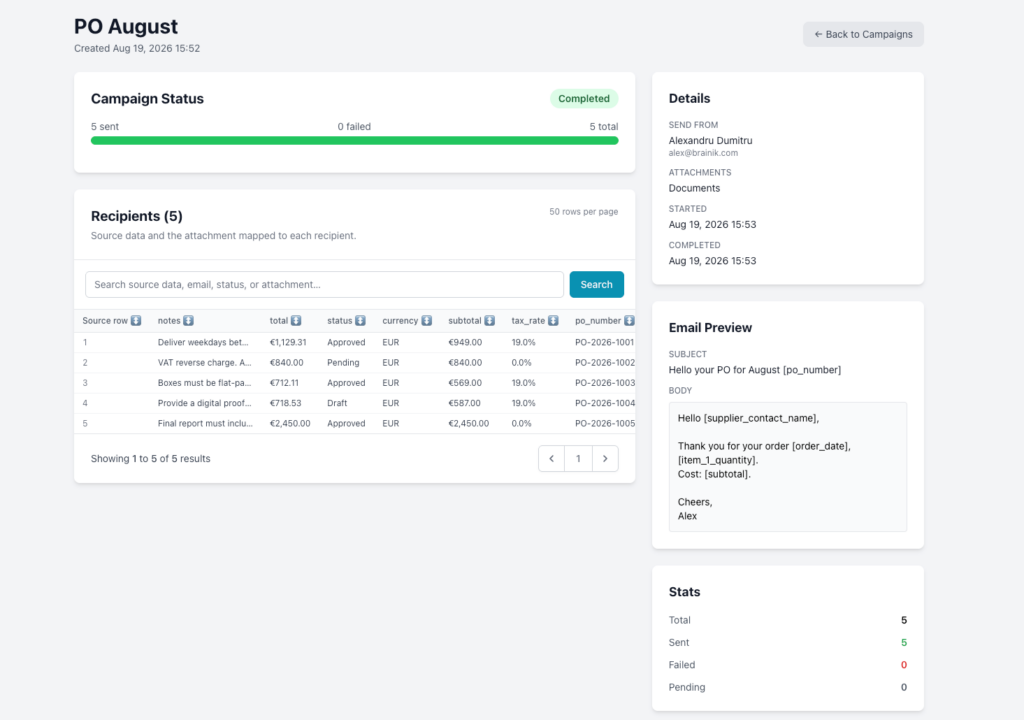
Add a customer email column such as customer_email and map it to the email recipient field. You can then use the generated PDFs as campaign attachments or connect the workflow to Airtable automation.
Before sending a batch:
- Check that every recipient address belongs to the correct invoice row.
- Test with your own address first.
- Confirm the sender connection and email subject.
- Review the campaign recipient count and attachment preview.
Troubleshooting
A date is displayed in the wrong format
Select the date cell in Excel, choose Format Cells, and apply the required format such as dd/mm/yy. Re-upload the template after changing the workbook formatting.
A value is missing or appears in the wrong invoice
Check the field mapping and the source row. For Airtable, confirm that the email, invoice number, and customer fields are on the same record. Avoid manually sorting or filtering data after mapping without testing a preview.
The job is slow
Reduce oversized images, simplify formulas, and avoid unnecessary worksheets. For larger jobs, use the job status page and allow the queue to finish rather than submitting the same batch again.
Recommended monthly workflow
For 60–400 invoices per month, keep one approved Excel template and one stable data view. Add new invoice rows to the source, test one preview, then run the batch. Archive the generated PDFs using the invoice number so every document can be found independently of its position in the source table.

