

If your contracts start life as an Airtable record (a deal, a client, a booking, a new hire), you can skip the manual copy-paste into a Word template. ActiveMerge reads the record’s fields, fills a contract template with that data, and produces a finished PDF or DOCX contract.
Connect it to e-signature and the contract can go out for signing the moment it’s generated.
This guide covers both ways to do it:
- On demand: generate one or many contracts whenever you choose
- Automatically: ActiveMerge watches an Airtable status field and generates a contract the instant a record is ready
What you need
- An Airtable base with the contract-relevant data (client, deal, dates, terms, pricing)
- A contract template in Word (
.docx) or PDF - An ActiveMerge account with Airtable connected
- Optionally, e-signature enabled if contracts should go out for signing automatically
Step 1: Structure your Airtable base
Keep one row per contract. A typical Deals or Contracts table looks like this:
| Field | Airtable field type | Example |
|---|---|---|
| Client Name | Single line text | Acme Studio |
| Client Email | legal@acme.example |
|
| Contract Start Date | Date | 2026-10-01 |
| Contract End Date | Date | 2027-09-30 |
| Contract Value | Currency | $24,000.00 |
| Payment Terms | Single line text | Net 30 |
| Scope of Work | Long text | Monthly SEO retainer covering... |
| Status | Single select | Draft, Ready to Generate, Sent for Signature, Signed |
| Generated Contract | Attachment or URL | Generated file link |
If the contract has repeating line items, such as deliverables, milestones, or pricing tiers, put those in a linked table (for example, Contract Line Items) rather than cramming them into one field. ActiveMerge can expand a linked table into a repeating table row in the document.

The Status field matters most if you plan to automate generation later. Set it up now even if you start with on-demand generation, so records stay easy to filter by contract stage.
Step 2: Build the contract template
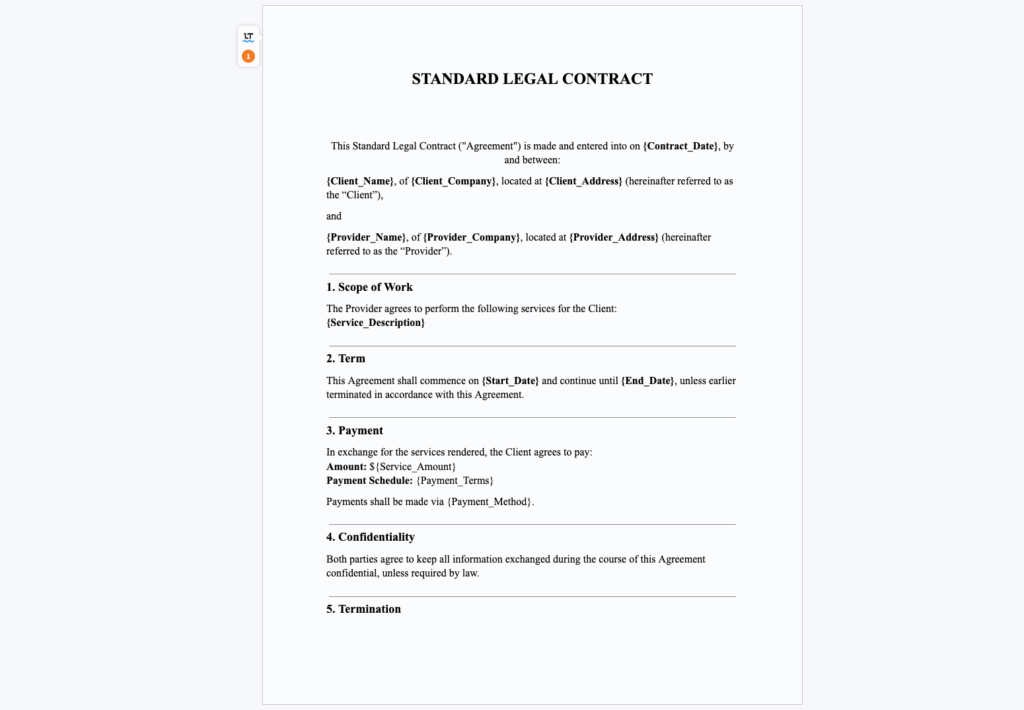
Create the contract in Word and add {placeholders} where Airtable values should go.
SERVICE AGREEMENT

This agreement is entered into between {Your_Company_Name} and {Client_Name}.

Term: {Contract_Start_Date} through {Contract_End_Date}
Contract Value: {Contract_Value}
Payment Terms: {Payment_Terms}

Scope of Work:
{Scope_of_Work}
Airtable field names with spaces become underscored placeholders: Client Name maps to {Client_Name}.
Keep the template’s legal language, formatting, and clause structure exactly as your team already uses it. ActiveMerge only replaces the placeholders; it doesn’t rewrite contract text.
Add repeating deliverables or pricing rows
If the contract includes a pricing table or milestone schedule pulled from a linked table, place one placeholder row inside a Word table:
| Deliverable | Due Date | Amount |
|---|---|---|
{{item.Deliverable}} |
{{item.Due_Date}} |
{{item.Amount}} |
Keep every {{item.*}} placeholder in the same row. That row is the loop template, and ActiveMerge repeats it once per linked record.
Upload the finished template to ActiveMerge and save it under Templates.
Step 3: Connect Airtable and generate on demand
For contracts you want to generate yourself, on your own schedule:
- Start a new document generation job in ActiveMerge.
- Choose Airtable as the data source.
- Connect your Airtable account, then select the workspace, base, and table.
- Select the saved contract template.
- Map Airtable fields to template placeholders. ActiveMerge suggests matches automatically, but review them, especially for currency and date fields.
- If the contract has repeating rows, select the linked line-items field as the source.
- Choose PDF if the contract should be sent as a fixed, client-ready file, or DOCX if your team still needs to edit clauses by hand before sending.
- Filter to the specific rows you want: a saved view, a single record, or every row matching a status.
- Generate a preview from one record first. Check dates, currency formatting, page breaks, and any repeating pricing table before running the full batch.
This is the right mode for contracts that need a human review step before every send, such as sales contracts with negotiated terms or agreements a manager signs off on before they go out.
Step 4: Automate contract generation from a status change
If contracts should generate the moment a deal reaches an agreed stage, with no one clicking Generate, set up an Airtable automation instead.
- Go to Automations → New Automation in ActiveMerge.
- Select Airtable Document as the automation type.
- Choose your Airtable base and contracts table.
- Set the status field and its values: trigger value (e.g.
Ready to Generate), in-progress value (Processing), success value (Generated), and failure value (Failed). - Select your saved contract template and output format.
- Map fields, including any linked line-items table.
- Choose a file field (a URL or attachment field) so the generated contract writes back to the Airtable record.
- Set the polling frequency: every 5, 15, 30, or 60 minutes.
Once saved, the flow looks like this:
Ready to Generate → Processing → Generated
                                ↘ Failed
Marking a record Processing before generation prevents the same deal from being picked up twice if two polling checks overlap. This is the same mechanism used for automated invoicing. See Automating document generation with Airtable for more on the polling and status-field behavior.
Step 5: Send the contract for signature automatically
A generated contract isn’t useful until it’s signed. If ActiveMerge’s e-signature feature is enabled, you can chain signing onto the same automation. The e-signature is using the credits system as the document generation does, no external tool is need or additional subscriptions.
- In the automation, enable Send for signature after generation.
- Add the signer’s name and email, mapped from
Client NameandClient Email, plus any internal countersigner. - Set signing order if both parties need to sign in sequence.
- Set an optional expiry date so stale contracts close automatically.
When the contract generates, it’s sent straight to the client’s inbox with a personal signing link, so there’s no separate upload to a signing tool.
Once every party signs, the completed PDF is emailed to everyone involved, and the signed file is written back to the Airtable record, so the Signed status and the final contract live next to the deal that produced it.
Step 6: Test before trusting the automation
Before pointing this at real deals:
- Create one test record with clearly fake data (e.g.
TEST: Acme Studio) and set it to your trigger status. - Watch the status move from your trigger value to
Processingto your success value. - Open the generated contract and check every placeholder, especially the pricing table and dates.
- If e-signature is chained in, confirm the test signer receives the signing email and that the signed copy writes back to the correct field.
- Only then move real deal records into the trigger status.
Handling failed contract generation
A record can move to your failure status for a few common reasons:
- A required field (client email, contract value) is empty
- A template placeholder has no matching Airtable field
- The linked line-items table has no rows when the template expects at least one
- Insufficient ActiveMerge credits
- An Airtable or document-generation API error
Fix the underlying data, then move the record back to your trigger status to reprocess it. If a contract already generated successfully and only the signature send failed, don’t regenerate the contract. Retry the signature send instead, so you don’t create a duplicate file for the same deal.
On-demand versus automatic contract generation
| On-demand generation | Airtable automation |
|---|---|
| You choose which records to include | ActiveMerge generates as records reach the trigger status |
| Preview before generating the batch | Each qualifying record is generated as soon as it’s found |
| Good for negotiated, reviewed contracts | Good for standardized agreements with fixed terms |
| Supports DOCX for further manual editing | Best paired with PDF and e-signature for a hands-off flow |
Many teams use both: on-demand generation for custom or high-value contracts that need a human read-through, and the Airtable automation for standard agreements, such as NDAs, standard service agreements, and renewal contracts, where the terms rarely change.
Frequently asked questions
Can Airtable generate contracts by itself?
Airtable can store and update contract data, but it doesn’t merge that data into a formatted Word or PDF contract, expand linked pricing tables into the document, or route the result to e-signature. ActiveMerge handles the document generation and signing; Airtable stays the source of deal data and status.
Does this work with contracts I’ve already built in Word?
Yes. Upload your existing .docx contract, add {placeholders} for the fields that vary per deal, and save it as a template. You don’t need to rebuild the contract’s legal language.
Can the contract include a pricing table with a variable number of line items?
Yes, using a linked Airtable table and a {{item.*}} loop row in the Word template, the same mechanism used for invoice line items.
Can the signed contract be saved back to Airtable automatically?
Yes, if e-signature is chained into the automation. The completed PDF writes back to the file field you selected on the source record.
Do I need Zapier or Make to connect Airtable and ActiveMerge?
No. ActiveMerge polls Airtable directly on a schedule you choose, or you can generate contracts on demand from a saved Airtable view.
What happens if a required field is blank?
ActiveMerge doesn’t generate a contract with missing required data silently. The record is marked with your failure status so you can fix it and reprocess, rather than sending an incomplete contract.
Start generating contracts from Airtable
Set up your Airtable table, save a contract template with placeholders, and connect the two in ActiveMerge. From there, contract generation is either a click away or fully automatic.
If e-signature is enabled, the whole path from deal record to signed, filed contract runs without anyone touching a Word document.

