

Creating employment contracts by hand is slow, repetitive, and easy to get wrong. Names get typed twice, dates slip, file names stay inconsistent, and the HR department ends up chasing corrections instead of moving new hires forward.
ActiveMerge solves that problem by connecting a contract template to a spreadsheet and turning the process into a repeatable workflow that generates the contracts from your Google Sheets data.
Once the template and data source are in place, the contract assembles itself. Employee details, company information, start dates, job titles, and addresses drop into the right placeholders.
From there, the contract can be exported, signed, stored, or sent automatically.
View the video version on our Yotube channel.
Start with the right template
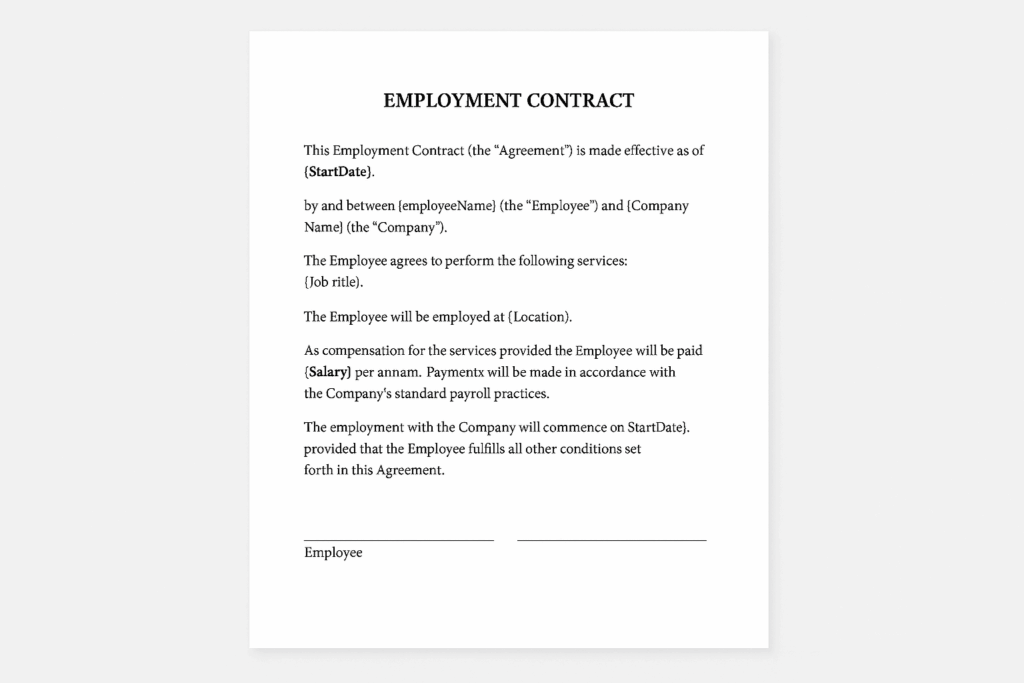
The first step is a clean contract template. ActiveMerge includes template options in a gallery, and there is also a simple AI tool for creating one if you need to start from scratch.
For employment contracts, a short, focused document is usually enough. In this case, the template is only two pages long. That matters because the goal is not to create a massive document. The goal is to create a reliable one.
Before moving forward, preview the template and make sure the placeholders line up with the information you plan to merge. A good template does most of the work later.
Connect Google Sheets as the data source
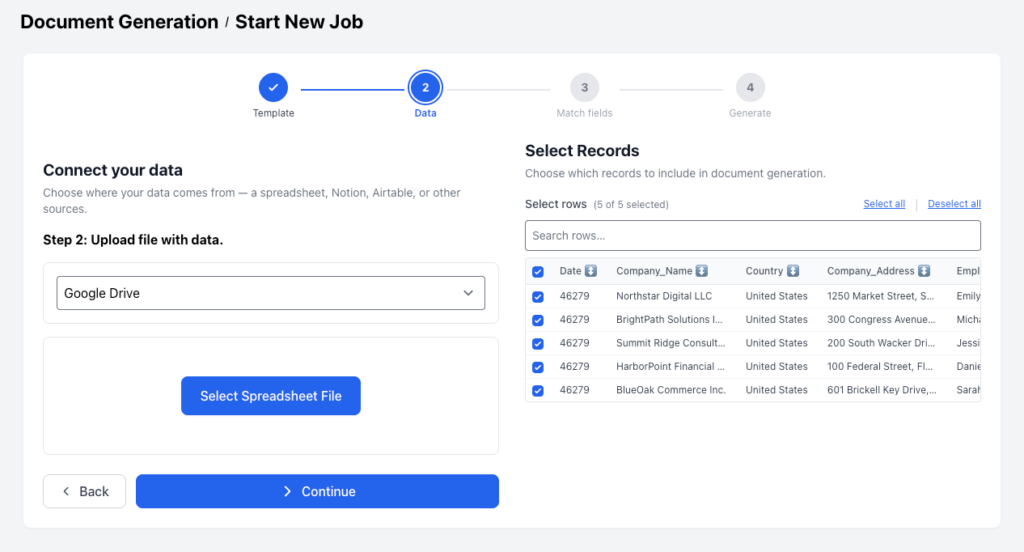
The next step is to pull employee data from Google Sheets. In ActiveMerge, that starts a new document generation job and then connects the spreadsheet through Google Drive.
If the account is already connected, the spreadsheet can be selected right away. If not, the system prompts you to connect a Google account first. Once the source is selected, the data is ready to use.
The spreadsheet headers matter. The fields at the top of the sheet should clearly identify the values you want in the contract, such as:
- date
- company name
- country
- company address
- employee name
- employee address
- position
- start date
That structure lets the system match the spreadsheet columns to the placeholders in the template.
Check field mapping before generating
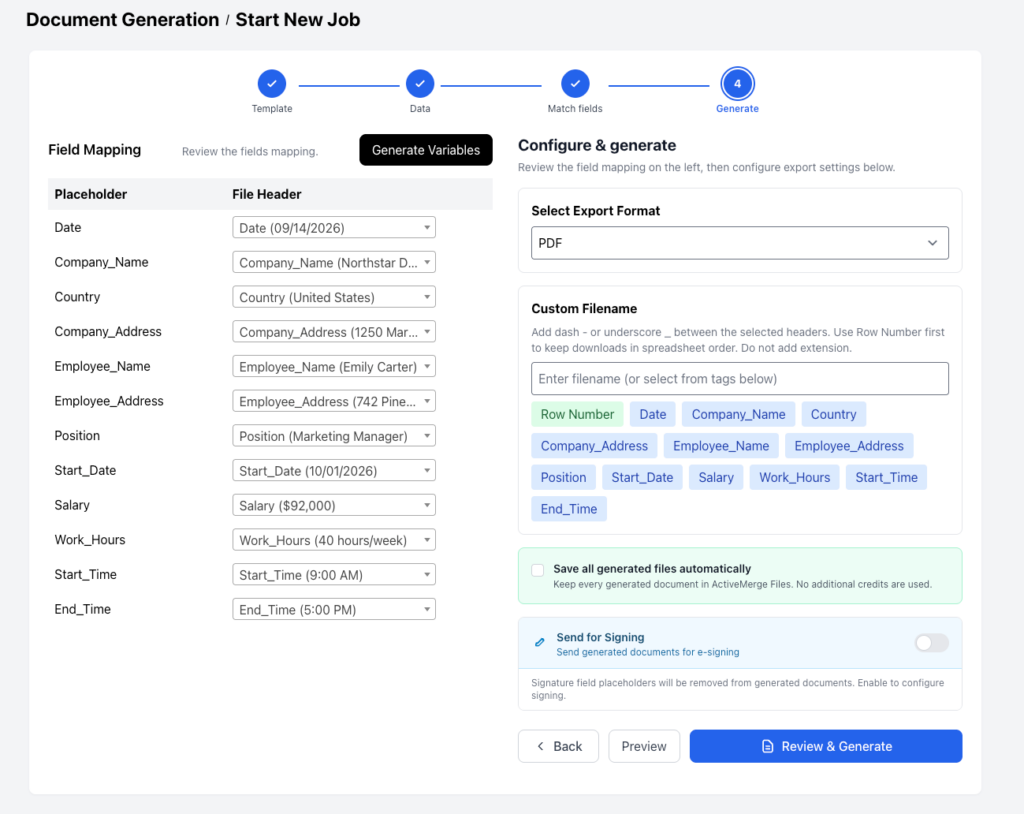
ActiveMerge can map fields automatically, which saves time. But automatic matching is only as good as the data structure you give it. If a placeholder and a spreadsheet header do not line up cleanly, you may need to assign the correct field manually.
That step is worth doing carefully. A quick check now prevents bigger mistakes later, especially when contracts are going out in bulk.
The preview is the best safety check. It lets you confirm that the placeholders are being replaced correctly and that the finished contract reads the way it should. If the first document looks right, the rest will usually follow the same pattern.
Choose the output and decide what happens next
After the fields are mapped, the workflow moves to output. ActiveMerge lets you export as either a Word document or a PDF. For employment contracts, PDF is often the safer choice because it keeps formatting stable.
You can also customize the file name. A simple naming pattern like date_employee name keeps documents easier to sort and find later.
From there, there are two important options:
- Send for signing
This creates a second job that routes the generated document into the eSignature flow so the employee can sign it through a link. - Send through campaigns
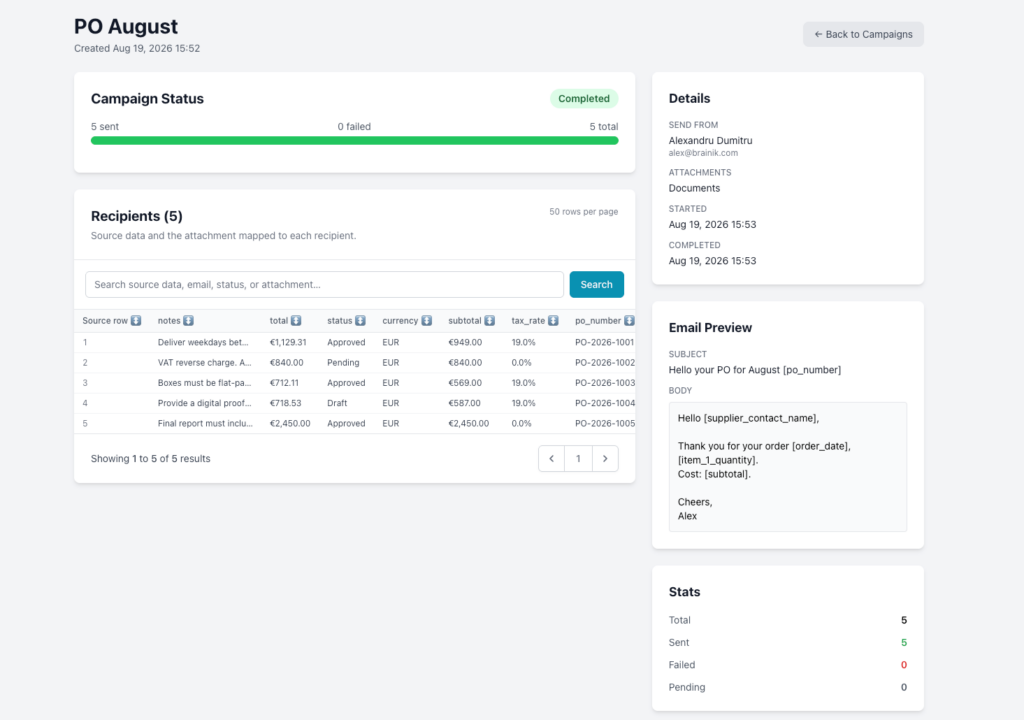
This lets you automatically email the generated contract to the employee using an email column from the spreadsheet.
That email column is essential. Without it, the system will not know where to send the contract.
Store, send, and reuse the same workflow
Once the documents are generated, they can be downloaded, saved in the file manager, or organized into a folder. The file manager also gives you flexibility after generation: you can send a contract for signing, share a preview link with collaborators, or download files locally.
The main advantage here is repeatability. Once the template and spreadsheet are set up correctly, the same process can handle bulk document generation for new hires or any other standardized paperwork.
FAQ
Can I use something other than Google Sheets?
Yes. ActiveMerge supports document generation from different sources like Airtable, Excel, Notion or via Make and Zapier but Google Sheets is a straightforward place to start for employment contracts.
Do I need to map every field manually?
Not always. Field mapping is automatic when the template placeholders and spreadsheet headers are clear. Manual mapping is there if anything needs correction.
Can the contracts be signed after generation?
Yes. You can send the generated contracts for eSignature so employees receive a link to sign them.
Can I send the contracts by email automatically?
Yes. If your spreadsheet includes an email column, you can use campaigns to send the generated contracts directly to each recipient.
The bottom line
If you regularly create contracts or other repeatable documents, the smartest move is to build one reliable template and connect it to structured data. Sign up for a free ActiveMerge account here.
That turns a manual, error-prone task into a workflow you can run over and over with minimal cleanup.

