

Law
If you’re specifically a paralegal handling client documents day to day, see our paralegal-focused guide.
See the full document generation for legal services overview for other roles across the firm.
firms deal with a high volume of legal paperwork every day—especially contracts. Whether it’s NDAs, service agreements, employment contracts, or partnership deals, preparing these documents manually takes time, invites error, and slows down the pace of client service.
Even with templates, legal professionals often waste hours copying and pasting names, dates, and deal terms. When contract volume increases, so do mistakes, delays, and bottlenecks.
This is where legal document automation becomes essential for modern law firms that want to scale contract workflows without increasing manual workload.
Active Merge streamlines the document creation with its automated mail merge process. By connecting a contract template with data from a spreadsheet, you can automatically generate personalized documents at scale—without manual edits or copy-paste work.
In this guide, we’ll cover:
- Why traditional contract creation wastes time
- How legal document automation helps law firms scale faster
- A step-by-step overview of using Active Merge for contracts
- Real-world use cases for legal professionals
You’ll learn how to:
- Create a contract template using Google Docs
- Organize client data in Google Sheets
- Use Zapier to generate and email contracts automatically with Active Merge
This setup helps legal teams save hours and reduce errors when handling repetitive contract workflows. Let’s start!
Manual Contract Creation Slows Legal Work Down
Lawyers are not data-entry clerks—but traditional contract preparation often turns them into just that.
Without legal document automation, law firms often waste valuable billable hours on repetitive administrative work instead of client strategy.
Here are common problems law firms face with manual workflows:
- Repetitive Copy/Paste Work – Even with templates, teams have to manually insert details like client names, clauses, dates, and payment terms—again and again.
- Risk of Human Error – A missed name, wrong date, or misplaced clause can create legal exposure or invalidate a contract.
- No Version Control – Sending drafts back and forth creates multiple versions of a document, making it hard to track changes and maintain consistency.
- Limited Scalability – When contract volume increases (e.g., onboarding clients, vendor renewals, or partner agreements), legal teams can’t keep up—without hiring more staff.
Why Legal Document Automation Is Essential for Modern Law Firms
Legal document automation allows law firms to standardize contract workflows, reduce drafting time, and eliminate repetitive administrative tasks. Instead of manually editing each agreement, firms can rely on structured legal document automation systems to generate accurate, compliant documents instantly.
What Is Active Merge?
Active Merge is a cloud-based document generation tool built for professionals who regularly prepare large volumes of personalized documents. It is designed specifically to support legal document automation, helping firms generate accurate, compliant contracts at scale.
With Active Merge, law firms can:
- Upload a contract template (Word, PDF, or PowerPoint)
- Add a spreadsheet with the necessary details
- Automatically generate hundreds of contracts—customized, accurate, and ready to send
It’s ideal for firms that want to eliminate manual editing, reduce errors, and accelerate client service.
Supported file types:
- Microsoft Word (.docx)
- PDF (.pdf)
- PowerPoint (.pptx)
You can also connect form data from tools like Google Forms, CRMs, or web apps using Zapier, Make, or even WordPress plugins like Gravity Forms.
Step-by-Step: How Law Firms Can Automate Contract Creation with Active Merge, Google Sheets, and Zapier
Creating customized legal contracts doesn’t need to be a manual, repetitive process. Using Active Merge, you can create, personalize, and distribute contracts at scale—with zero copy-pasting. This guide will walk you through the full workflow using Active Merge, Zapier, Google Docs, and Google Sheets.
This automation is ideal for:
This workflow is a practical example of legal document automation in action, helping firms streamline high-volume contract generation.
- Engagement letters
- NDAs
- Service agreements
- Client onboarding contracts
- Retainer agreements
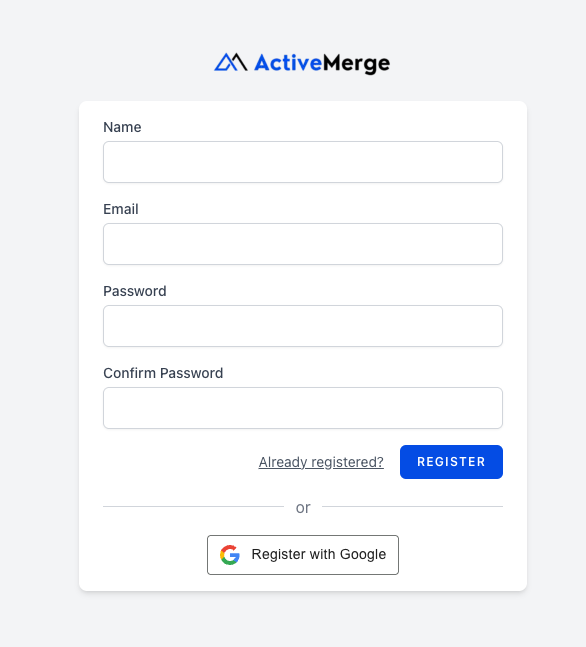
Step 1: Create an Active Merge Account
Start by creating your free account at Active Merge. This is your main dashboard where you’ll manage your document templates, API keys, and integrations.
What You’ll Do Here:
- Create or upload document templates
- Generate and manage API keys
- Connect integrations like Zapier or WordPress
- Monitor generated documents
Tip: Active Merge is designed for secure, scalable legal document automation, ensuring sensitive client data is processed safely and efficiently. All data processing is encrypted and compliant with legal and business data standards.
Step 2: Create Your Contract Template in Google Docs
Write your contract template in Google Docs using merge fields (placeholders) in curly brackets. These fields will later be replaced with real client data pulled from your spreadsheet.
Example Placeholder Contract:
- This agreement is made on {StartDate} between {ClientName}, residing in {City}, and ABC Legal Firm.
- The agreement shall commence on {StartDate} and continue until {EndDate}. The scope of services includes: {ScopeOfWork}.
- Payment terms: {PaymentTerms}.
Next:
- Go to File > Download > Microsoft Word (.docx)
- Save the document locally
Don’t have a legal contract template ready? Visit the Free Templates section on Active Merge to download pre-built legal contracts you can customize.

Step 3: Upload the Template to Active Merge
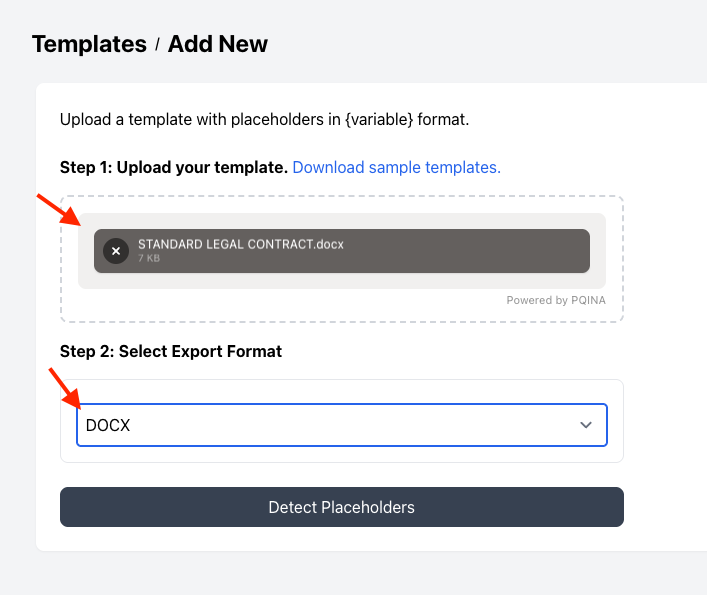
Log in to your Active Merge dashboard and upload the template.
How to Do It:
- Navigate to Templates in the top menu
- Click Add Template and upload the .docx file
- Click “Detect Placeholders”
- Confirm the detected fields
- Name your template
- Click Save
Important: Placeholders must exactly match the column headers you’ll use in your spreadsheet.

Step 4: Prepare Your Client Data in Google Sheets
Set up your spreadsheet with columns that match the placeholders in your contract.
Example Spreadsheet:
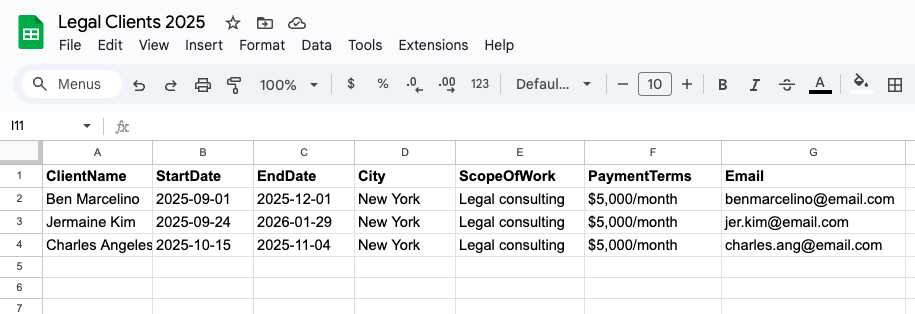
Each row generates a unique contract for that client.
This structured data approach is a core component of effective legal document automation, ensuring accuracy and consistency across all generated agreements.
Best Practice: Placeholder names must match column headers—avoid adding spaces or special characters.
Step 5: Connect Active Merge to Zapier Using Your API Key
To automate your document generation workflow, you need to link your Active Merge account with Zapier via an API key. This key acts like a secure password allowing Zapier to access your Active Merge account and trigger document generation automatically.
How to do it:
- Generate your API Key in Active Merge
- Log in to your Active Merge dashboard.
- Navigate to the API Keys section, usually found under your account settings or integrations menu.
- Click the “Generate New API Key” button.
- A new API key will appear—copy it immediately (for security reasons, you may only see it once).
- Keep this key secure and private.

- Connect Active Merge to Zapier
- Log in to your Zapier account.
- Start creating a new Zap or edit an existing one.
- For the Action app, search for and select Active Merge.
- When prompted to connect your Active Merge account, a pop-up will ask for your API key.
- Paste the API key you copied from Active Merge into the input field and authorize the connection.
- Once connected, Zapier will confirm the integration is successful and you can proceed to the next steps.

Without this connection, Zapier cannot trigger document generation inside Active Merge, so this API key link is critical for automation.
Step 6: Create the Zap in Zapier (Trigger & Action)
Now that your Active Merge account is connected to Zapier using your API key, it’s time to build an automation (called a Zap) that generates contracts from client data in Google Sheets. Each time you add a new row, Active Merge will create a personalized PDF contract using your template.
How to do it:
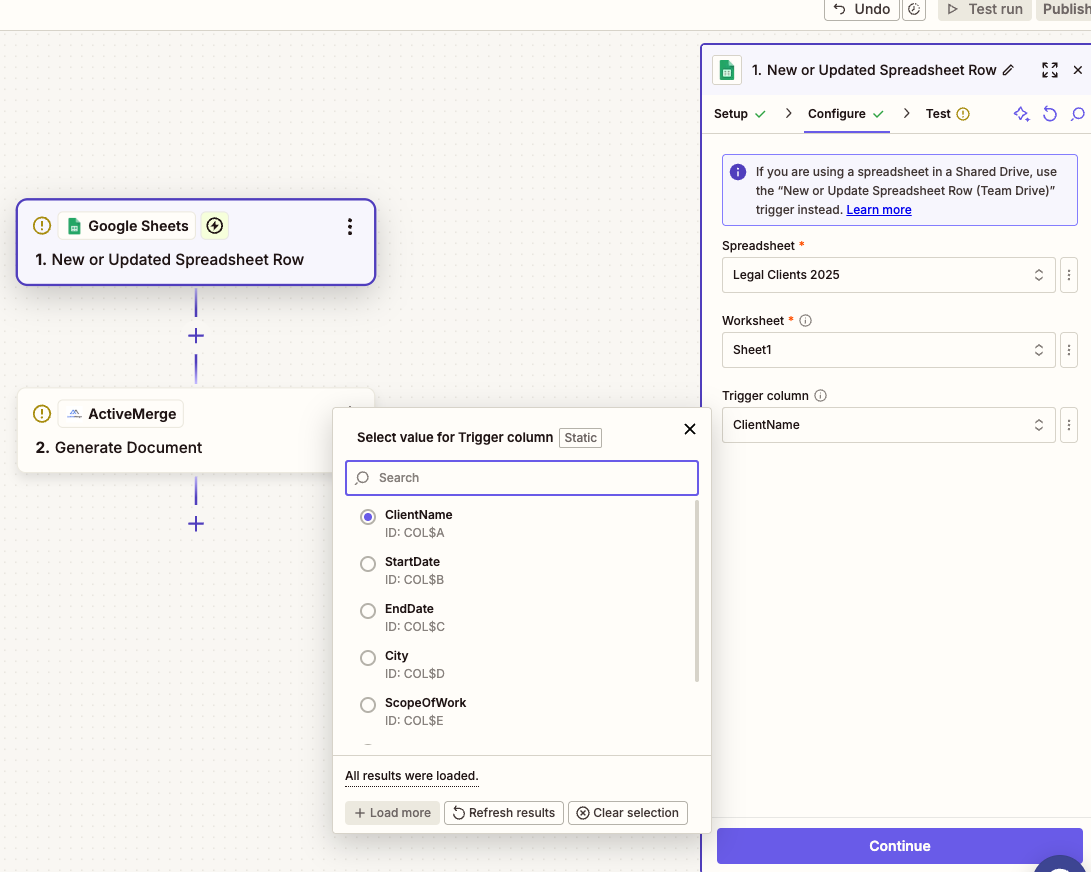
- Set Up Google Sheets as the Trigger
- In Zapier, create a new Zap and choose Google Sheets as the trigger app.
- Select the trigger event: “New Spreadsheet Row” (this means the Zap triggers whenever a new row is added to the selected sheet).
- Connect your Google account and authorize access to the specific spreadsheet.
- Choose the spreadsheet and worksheet that contains your contract data (make sure your spreadsheet is well organized with clear column headers).
- Test this step to ensure Zapier can pull data from your sheet — you should see a sample row’s data.
- Set Up Active Merge as the Action
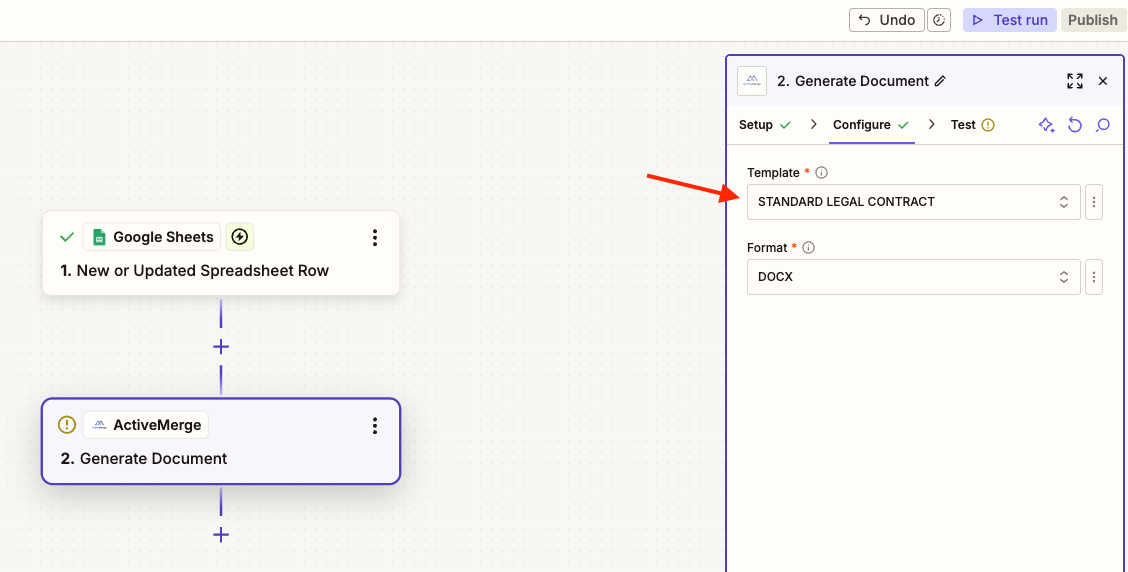
- For the action app, select Active Merge.
- Choose the action event: “Generate Document”.
- Connect your previously linked Active Merge account (via the API key).
- Select the template you uploaded earlier (e.g., “STANDARD LEGAL CONTRACT”).
- Choose your preferred document format (PDF or DOCX). PDF is recommended for contracts.
- Map each placeholder in your template to the corresponding Google Sheets column. For example:
- {ClientName} → ClientName
- {StartDate} → StartDate
- {EndDate} → EndDate
- {City} → City
- {ScopeOfWork} → ScopeOfWork
- {PaymentTerms} → PaymentTerms
- {Email} → Email
- Confirm the mapping is correct—this ensures your generated contracts have accurate and personalized data.
- Test the Action
- Use Zapier’s test function to generate a sample document using your template and data.
- Zapier will generate a document and provide a URL to preview it. Check the document for accuracy.
- If the test looks good, continue to the next steps (e.g., saving the document or sending via email).
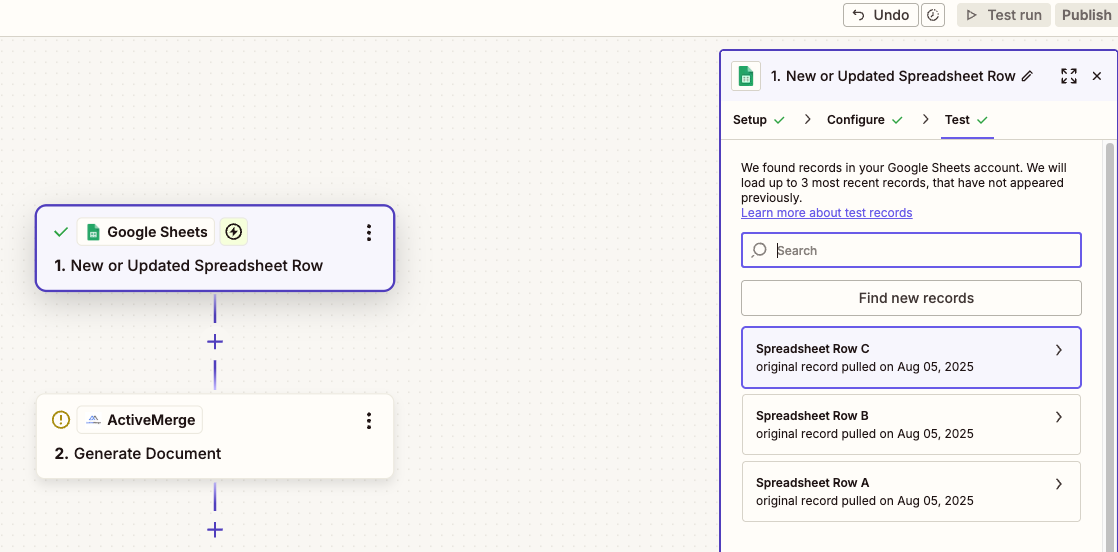
This step connects your data source (Google Sheets) with your document template (Active Merge) and automates document generation based on real data entries, eliminating manual work.
Step 7: (Optional) Save Contract to Google Drive
To automatically back up contracts:
- Action App = Google Drive
- Action Event = Upload File
- File = Document URL from Active Merge
- Choose a Drive folder like /Contracts
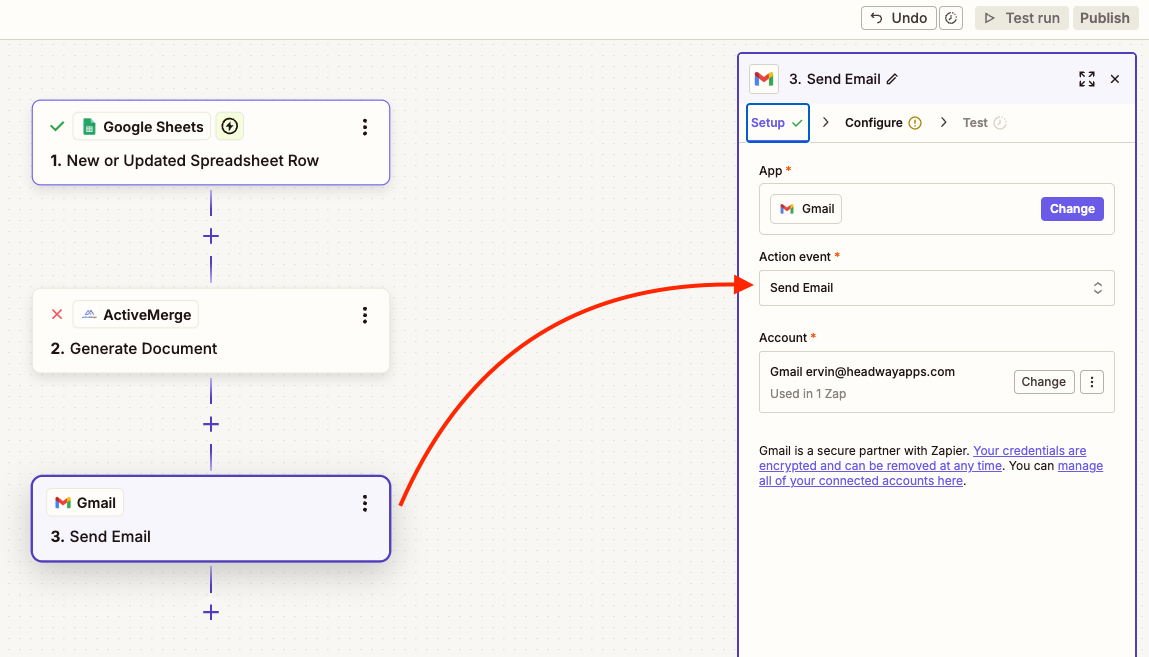
Step 8: Email Contract to the Client
Send the generated contract directly to the client.
- Action App = Gmail
- Event = Send Email
- To = Email (from Google Sheet)
- Subject = “Your Legal Contract from ABC Law Firm”
- Attach = File from previous step
Customize the message as needed. Run another test to confirm.
Step 9: Turn On Your Zap
After confirming the test works:
- Click “Publish” in Zapier
- Your automation is now live
Each time a row is added to your spreadsheet, Active Merge will generate and send a fully customized contract.

Use Case: Automating Retainer Agreements at Scale
A mid-sized law firm handling 50+ new retainer agreements per month previously assigned a paralegal to manually update Word templates. It took 1–2 hours daily.
After switching to Active Merge:
- The team updates one spreadsheet each week
- Contracts are generated in seconds
- The paralegal now focuses on client communication instead of document formatting
- Time savings: 20+ hours/month
Real-World Use Cases for Law Firms
Here are a few ways legal professionals use Active Merge:
Client Onboarding Agreements – Quickly prepare engagement letters, onboarding packages, and NDAs in bulk for new clients.
Partnership or Vendor Contracts – If you manage multiple vendors, generate standardized but personalized contracts for each one—fast.
Real Estate Lease Agreements – Generate customized lease documents, tenant disclosures, and addenda based on property and tenant data.
Litigation or Case Files – Use templates for recurring case documents like retainer agreements or deposition notices.
HR & Employment Law Support – If your firm supports employers, you can bulk-generate employment contracts, policy acknowledgments, or termination letters.
Start Automating Your Legal Contracts Today!
Document automation isn’t just a tech trend—it’s a practical solution for modern law firms looking to work smarter, not harder. By implementing legal document automation, firms can reduce operational costs, improve accuracy, and deliver faster turnaround times to clients. With Active Merge, you can streamline contract creation, reduce manual errors, and free up valuable time to focus on your clients and cases.
Why Law Firms Choose Active Merge
- No manual editing needed—just data + template
- Supports DOCX, PDF, and PPTX templates
- Zapier, Airtable and WordPress integrations available
- Secure, cloud-based system
- Easy for legal assistants or paralegals to manage
- Works great for solo attorneys to large firms
If your team is spending too much time preparing contracts, Active Merge helps you reclaim that time—without sacrificing accuracy or professionalism.
Ready to modernize your workflow? Start your first automated contract flow today at Active Merge and see how effortless legal document generation can be.

