Mail merge has traditionally been a slow, manual process. You prepare an Excel file, load a Word template, map fields, fix formatting issues, and repeat every time you need a new batch of documents.
Whether you’re generating contracts, certificates, reports, invoices, HR letters, proposals, or onboarding packs, the classic Excel-to-Word mail merge workflow is time-consuming and error-prone.
ActiveMerge simplifies the entire process. Instead of juggling Word settings or re-mapping fields, you upload your template once, connect your Excel file, preview the results, and instantly generate hundreds of documents—PDF or DOCX—within minutes.
This guide walks you through the full process step by step, using ActiveMerge’s Mail Merge Excel & Word feature.
Why ActiveMerge Makes Mail Merge Easier
Traditional mail merge has several limitations:
- Repetitive setup—mapping fields every time.
- Word formatting issues after merging.
- Slow processing for large batches.
- Limited export options.
- No built-in automation.
With ActiveMerge Mail Merge, you get:
- A simple interface for mass document generation.
- Support for PDF, DOCX, and PPTX outputs.
- Clean formatting that stays consistent.
- Fast generation—hundreds of files in minutes.
- No technical setup, no plugins, no Word required.
Step-by-Step: Mail Merge Made Simple with ActiveMerge
ActiveMerge’s document merge tool lets you create personalized documents in bulk using Excel data and a Word (.docx) template. Follow the steps below to generate professional documents quickly and reliably.
Step 1: Log In to Your ActiveMerge Account
Before generating documents, sign in to your ActiveMerge workspace.
- Go to ActiveMerge.com and click Login.
- Sign in using your business email.
- From the dashboard, locate the Mail Merge Excel and Word option under Document Generation.

Inside your account, you’ll see the following tools:
- Document Generation
- Document Merge
- Templates
- Workflows
- API Key
For this tutorial, we use Document Generation → Mail Merge Excel & Word.
Step 2: Prepare Your Excel File
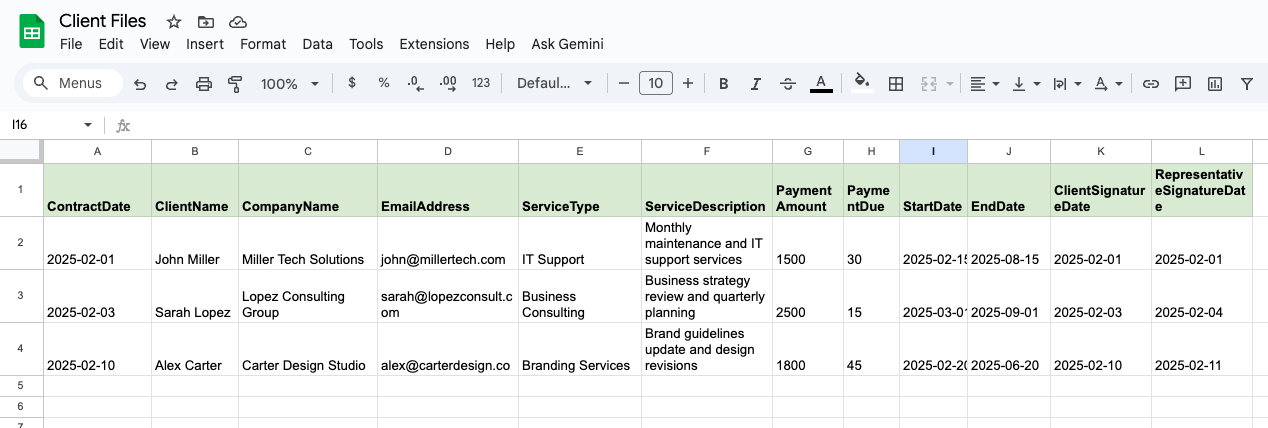
ActiveMerge reads your Excel file’s headers and maps them directly to placeholders in your template. Use clean, simple headings with no extra spaces.
Sample Excel structure (copy-friendly):
Tips:
- Use consistent date formats (YYYY-MM-DD recommended).
- Avoid blank columns—fill empty fields with “N/A.”
- Match header spelling exactly with your placeholders.
Step 3: Create Your Word Template
Create a Word document and insert placeholders where data should appear. Placeholders must follow the format {FieldName}.
Sample template (copy-ready):
Best Practices:
- Use clean formatting—avoid copy/pasting from PDFs.
- Keep placeholder names identical to Excel headers.
- Save as .docx.
Don’t have a template? Visit Active Merge’s Free Templates section to download template formats that you can customize.
Step 4: Upload Template to ActiveMerge
- Go to Document Generation → Mail Merge Excel & Word.

- Click Upload Template and choose your .docx file.
- ActiveMerge will auto-detect placeholders.

Verify detected fields. If any placeholders appear incorrect, update your Word template and re-upload.
Step 5: Upload Your Excel File
Upload your prepared spreadsheet.

ActiveMerge will scan your headers and match them to placeholders in the template. If a field is mismatched or missing, you will see a notice to correct it.

Step 6: Generate a Free Preview
Before generating hundreds of documents, preview one record. The preview lets you verify:
- Formatting
- Placeholder replacements
- Line spacing and page breaks
- Logo placement
- Dates and currency values

If anything looks incorrect, update your template or Excel data.

Step 7: Generate Your Documents in Bulk
Once the preview is approved:
- Click Generate Documents.
- Choose output format:
- PDF (recommended for contracts, reports, client-ready files)
- DOCX (editable format)
- PPTX (for slide decks)
- Click Generate.
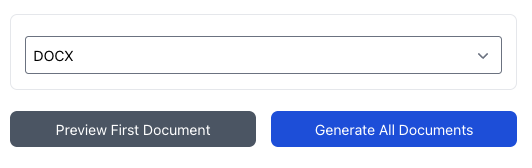
ActiveMerge will then process the entire Excel file and create one document per row.
You can generate up to hundreds of documents in minutes.
Step 8: Download Your Files
Once complete, ActiveMerge will provide a download link where you can retrieve:
- Individual documents for each row
- Or a ZIP folder containing all merged files

Store them in:
- Google Drive
- Dropbox
- OneDrive
- Your internal systems
This completes the bulk mail merge workflow.
Real-World Use Cases
Teams across industries use ActiveMerge for:
- Law firms → engagement letters, contracts, retainer agreements
- HR departments → employment offers, certificates, onboarding forms
- Finance teams → monthly statements, audit letters, client invoices
- Education → student certificates, letters, and forms
- Sales teams → personalized proposals and quotes
ActiveMerge replaces manual mail merge tasks with fast, automated generation.
Final Thoughts
Mail merge doesn’t have to be complicated or tied to desktop software. With ActiveMerge, you can generate hundreds—thousands—of personalized documents in minutes using nothing more than your Excel data and a Word-based template. No manual formatting, no copy-paste errors, and no need to install or maintain traditional mail-merge tools.
Whether you’re preparing contracts, proposals, certificates, reports, or client communications, ActiveMerge gives you a fast, secure, cloud-based workflow that scales with your business. If you want to save time, eliminate repetitive work, and produce perfectly formatted documents every time, ActiveMerge is the simplest way to do it.
Get started in minutes by uploading your template and Excel file—your first 25 documents are free. Visit ActiveMerge today!
Frequently Asked Questions
- Is ActiveMerge free to try?
Yes. You can generate up to 25 documents at no cost, and no credit card is required.
- What file formats can ActiveMerge generate?
You can output documents as PDF, DOCX, or PPTX depending on your needs.
- Do I need Microsoft Word installed on my computer?
No. ActiveMerge runs completely online, allowing you to generate documents without any local software.
- Can ActiveMerge handle large batches?
Yes. The platform is designed for high-volume mail merge and can generate thousands of documents reliably and efficiently.