

Drafting rental agreements is one of the most time-consuming yet critical tasks for real estate agencies and property managers. Every new lease requires precise wording, personalized details for each tenant, and compliance with local regulations. Doing this manually—copying, pasting, and reformatting contracts—creates unnecessary delays and increases the risk of errors.
- Why You Should Generate Rental Agreements Automatically
- What Is ActiveMerge’s Document Generation Feature?
-
Step-by-Step: How to Generate Rental Agreements Automatically with ActiveMerge
- Step 1: Register for an ActiveMerge Account
- Step 2: Prepare Tenant and Property Data
- Step 3: Upload Tenant Data to ActiveMerge
- Step 4: Upload Your Rental Agreement Template
- Step 5: Select the Export Format
- Step 6: Generate the Rental Agreements
- Step 7: Preview and Validate Agreements
- Step 8: Download or Share Rental Agreements
- Step 9: Automate the Workflow (Optional)
- Real-World Example
- Beyond Rental Agreements: Other Documents for Real Estate Agencies
- Best Practices for Agencies Using ActiveMerge
- Conclusion
This is where ActiveMerge’s Document Generation feature comes in. With just a few simple steps, agencies can automatically fill in data and generate rental agreements directly from their data source (Excel, CRM, Airtable), ensuring accuracy, consistency, and speed. and generate ready to sign documents, ensuring accuracy, consistency, and speed.
n this tutorial, we’ll walk you through exactly how real estate agencies can use ActiveMerge to generate rental agreements automatically.
Why You Should Generate Rental Agreements Automatically
Rental agreements are legally binding documents. They need to be precise, consistent, and free of errors. Yet, in practice, manual preparation often leads to:
- Wasted time: Hours spent on data entry that could be better used for client service.
- Errors and inconsistencies: Typos, missing fields, or outdated clauses that undermine professionalism.
- Compliance risks: Failing to include jurisdiction-specific requirements or properly updating renewals.
- Bottlenecks: Slow contract turnaround times frustrate both tenants and landlords.
For an agency managing multiple properties, automation solves these challenges by:
- Standardizing contracts across all tenants.
- Reducing administrative workload, allowing staff to focus on higher-value tasks.
- Improving tenant experience, with faster agreement turnaround.
- Ensuring accuracy and compliance by using one master template updated regularly.
In short, automation is not just about convenience—it’s about scalability and risk reduction.
What Is ActiveMerge’s Document Generation Feature?
ActiveMerge provides a Generate Document workflow that lets you generate rental agreements, contracts, letters, invoices, and certificates automatically by merging structured data with templates. For real estate agencies, this means you can generate dozens of rental agreements in one batch, with each contract customized for the individual tenant.
The process is simple but powerful:
- Upload your tenant or property data (usually from a spreadsheet).
- Upload a rental agreement template with placeholders for key details.
- Choose the output format (PDF, DOCX, or PPTX).
- Generate and download personalized contracts instantly.
This eliminates the need to re-type information or edit documents one by one.
Step-by-Step: How to Generate Rental Agreements Automatically with ActiveMerge
Let’s dive into the detailed tutorial. By following these steps, your agency can fully automate rental agreement generation.
Step 1: Register for an ActiveMerge Account
Before generating rental agreements, you’ll need to set up your ActiveMerge account.
- Go to the ActiveMerge registration page.
- Create an account using your work email and a secure password.
- Confirm your email address by clicking the verification link sent to your inbox.
- Log in to your new account.

Once logged in, you’ll arrive at the dashboard. This is the central hub where you can access key features such as Templates, Workflows, Document Merge, API Keys, and Document Generation.
Best Practice: If you’re part of a larger real estate agency, consider creating separate accounts for different team members or departments. This allows you to track who generated which documents and helps maintain security.
Step 2: Prepare Tenant and Property Data
The heart of document generation is the data you provide. ActiveMerge uses this data to personalize each rental agreement.
- Open a spreadsheet program such as Google Sheets or Microsoft Excel.
- Create column headers that match the details you need in your rental agreements. Common fields include:
- TenantName
- PropertyAddress
- LeaseStartDate
- LeaseEndDate
- MonthlyRent
- SecurityDeposit
- LandlordName
- Enter each tenant’s information in a new row. For example:

- Save the file in CSV or XLSX format.
Best Practice: Make sure your column headers exactly match the placeholders you’ll use in your contract template. This ensures smooth data mapping later.
Step 3: Upload Tenant Data to ActiveMerge
Now that your tenant spreadsheet is ready, it’s time to upload it.
- In your ActiveMerge dashboard, click Document Generation from the menu.
- Select Start New Job.

- Upload File with Data, drag and drop your spreadsheet file or browse to select it from your computer.
- If you’re unsure about the structure, download the sample file provided on the page to double-check formatting.

Once uploaded, ActiveMerge processes the file and prepares it for merging with your rental agreement template.
Step 4: Upload Your Rental Agreement Template
The template is the foundation of your automated rental agreements. It contains the contract text and placeholders that ActiveMerge will fill with tenant-specific data.
1. Prepare Your Template
- Open Microsoft Word, Google Docs, or any DOCX editor.
- Create your rental agreement with all standard clauses your agency uses (lease terms, rent, deposit, landlord and tenant obligations, etc.).
- Replace tenant-specific information with placeholders that exactly match your spreadsheet column headers.
Example Template Text with Placeholders:
| This Rental Agreement is made between {LandlordName} (“Landlord”) and {TenantName} (“Tenant”) for the property located at {PropertyAddress}. The lease shall start on {LeaseStartDate} and end on {LeaseEndDate}. The monthly rent shall be {MonthlyRent}, payable on the 1st of each month. A security deposit of {SecurityDeposit} is due prior to occupancy. |
2. Save the Template
- Save the document as a .DOCX file (Word format).
- Make sure it is cleanly formatted and placeholders are spelled exactly as in your data file.
3. Upload to ActiveMerge
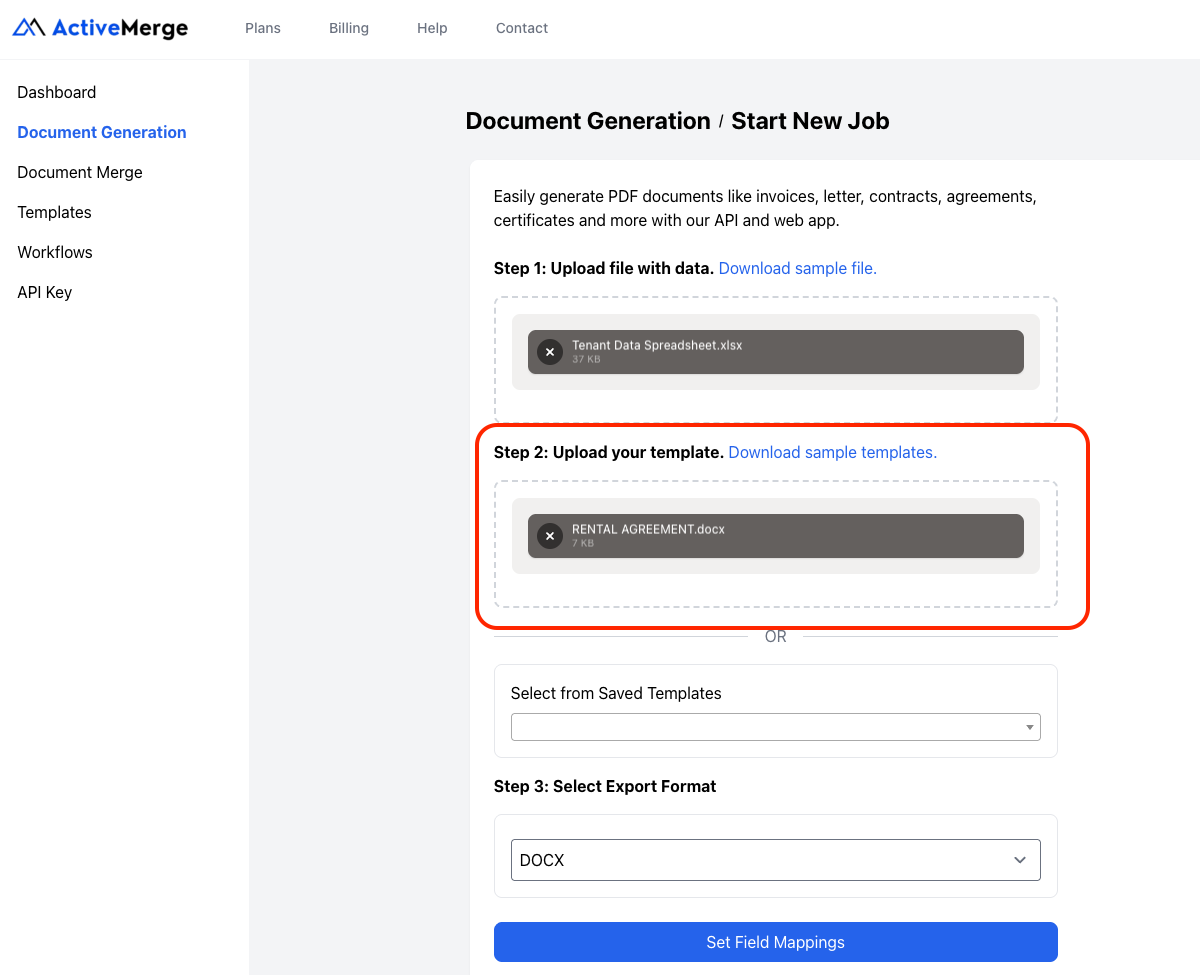
- In your ActiveMerge dashboard, go to Document Generation → Step 2: Upload Your Template.
- Drag and drop your DOCX template or select it from your computer.
- If you have previously uploaded templates, you can choose from Saved Templates instead.
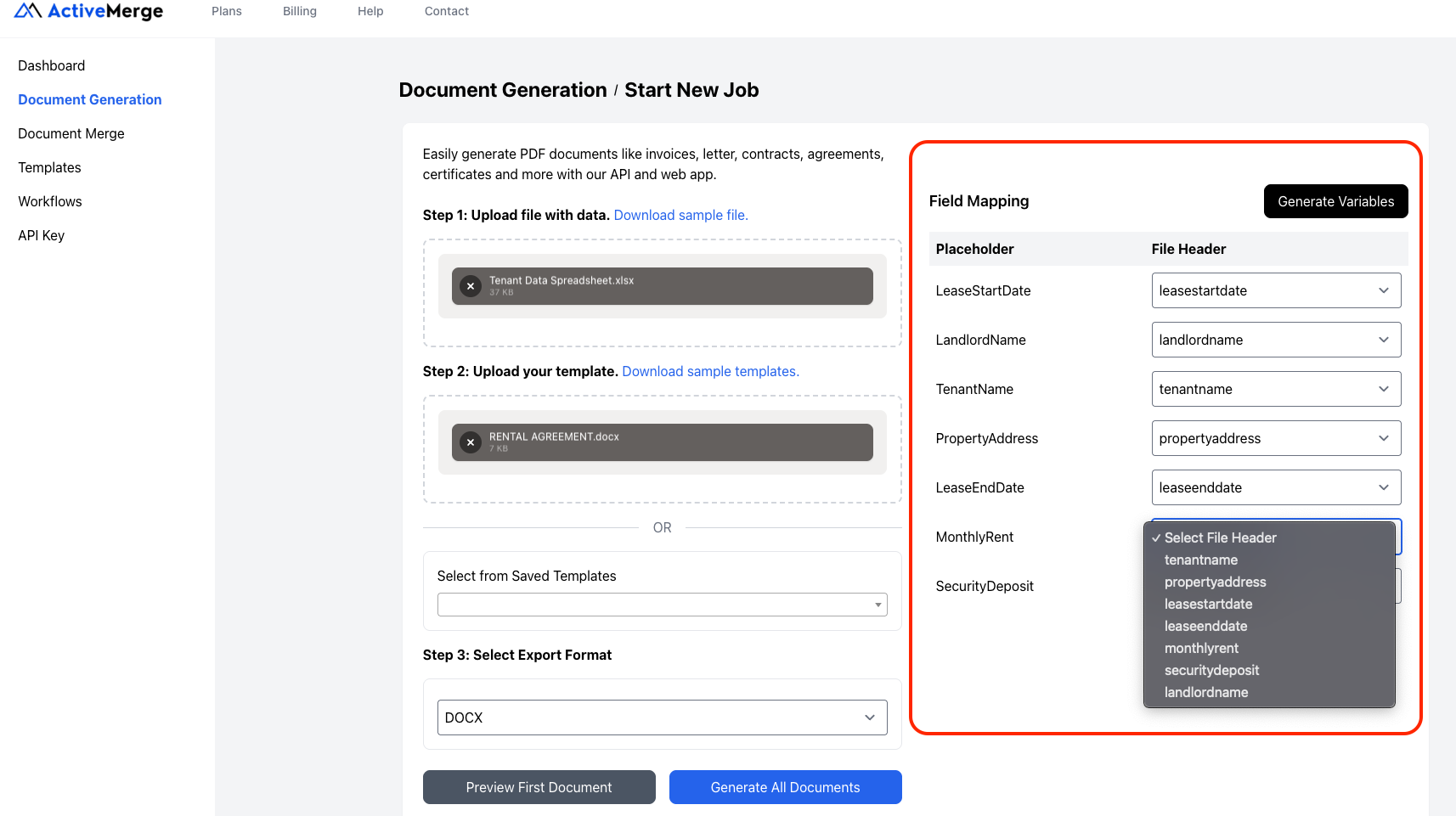
- Click Detect Placeholders to ensure ActiveMerge recognizes all the fields from your spreadsheet.
- Name your template and click Save.
Tips:
- Avoid spaces or special characters in placeholders. For example, use {TenantName} instead of {Tenant Name}.
- Keep optional sections flexible if some fields may not always be used.
After this step, your template is linked to your tenant data, and you’re ready to choose the export format and generate the documents in the next steps.
Don’t have a contract template ready? Visit the Free Templates section on Active Merge to download pre-built contracts you can customize.
Step 5: Select the Export Format
ActiveMerge gives you flexibility in choosing the format of your final documents.
- Under Step 3: Select Export Format, choose the output format you need.
- PDF: Best for finalized contracts to prevent further edits.
- DOCX: Useful if you want the option to make manual changes later.
- PPTX: Rarely used for contracts but available for presentations or property summaries.
- For rental agreements, select PDF to ensure a consistent, professional layout.
Step 6: Generate the Rental Agreements
With data and templates uploaded and your format selected, you’re ready to generate documents.
- Click Generate Documents. (With one click, ActiveMerge will generate rental agreements for every tenant listed in your spreadsheet)
- ActiveMerge will process your tenant data against the template and create a personalized rental agreement for each tenant.
- Depending on the size of your data file, generation usually takes just a few seconds.
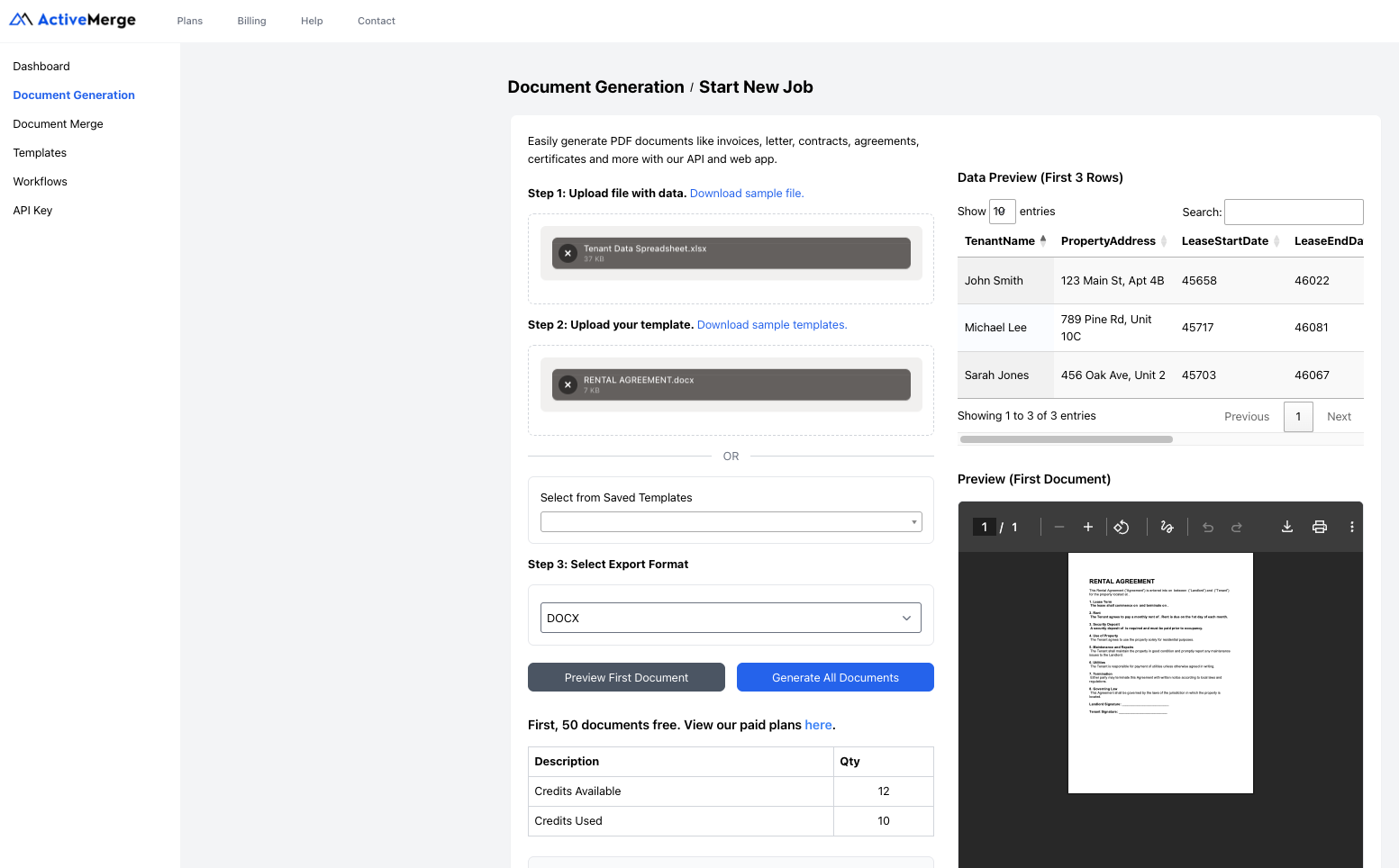
When the process is complete, you’ll see a list of generated documents with preview options.
Step 7: Preview and Validate Agreements
Before sending out contracts, it’s critical to review them for accuracy.
- Select one or more generated agreements and open the preview.
- Check that all placeholders have been filled correctly with tenant information.
- Look for formatting issues, alignment problems, or missing data fields.
- If errors are found, you can adjust your spreadsheet or template and regenerate the agreements.

Best Practice: Always preview at least two or three agreements—especially the first time you use a new template—to ensure the output is consistent.
Once validated, you can distribute the agreements to tenants. ActiveMerge gives you multiple options:
- Download as ZIP: Download all agreements in one file for storage or printing.
- Share via Email: Send agreements directly to tenants using integrated workflows.
- Save to Cloud Storage: Use integrations with Google Drive, Dropbox, or OneDrive to store agreements in designated folders.

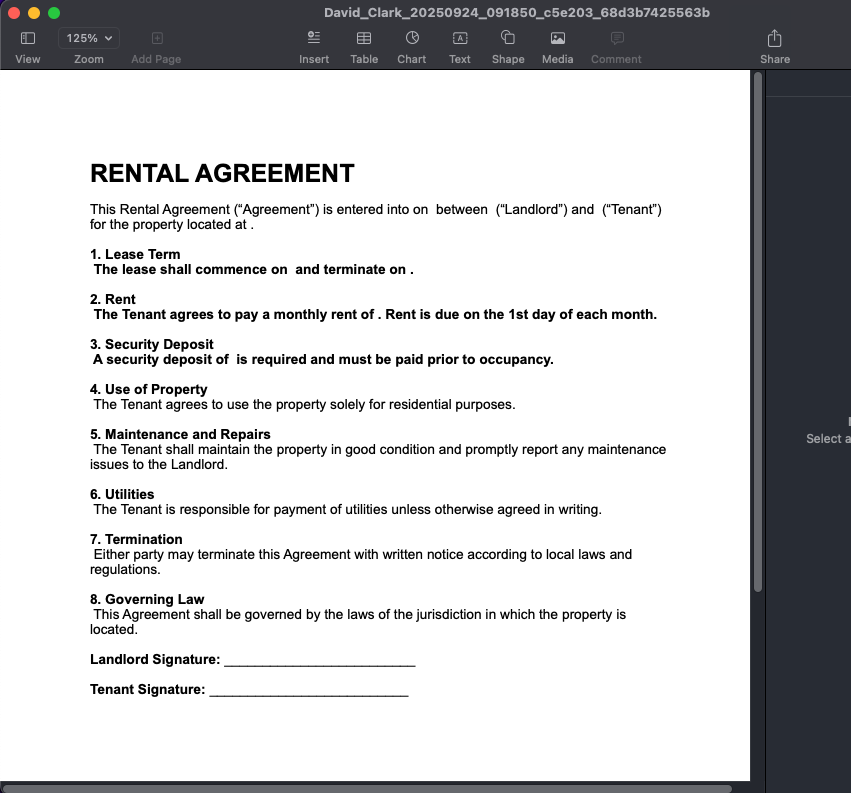
This flexibility ensures you can match the document delivery method to your agency’s workflow.
Step 9: Automate the Workflow (Optional)
For agencies handling large volumes of tenants, you can take automation one step further. By integrating ActiveMerge with tools like Zapier or Make, you can:
- Trigger rental agreement generation whenever a new tenant record is added to your property management system.
- Automatically send agreements to tenants by email.
- Store finalized agreements in a dedicated Google Drive or Dropbox folder.
This advanced setup eliminates almost all manual steps, turning rental agreement preparation into a completely hands-free process.
Real-World Example
Consider a property management agency handling 50 apartment units in a single building. Lease renewals all occur in October. Without automation, preparing and sending 50 contracts would take staff members several days. Each agreement must be updated with tenant names, unit numbers, dates, and rental amounts.
With ActiveMerge:
- The agency exports a tenant data sheet from their property management system.
- They upload one standardized lease template.
- ActiveMerge generates 50 personalized rental agreements in under a minute (This allows agencies to generate rental agreements at scale, without increasing administrative workload.)
Instead of spending days, the entire batch of contracts is ready in less than an hour, including review and validation.
Beyond Rental Agreements: Other Documents for Real Estate Agencies
ActiveMerge’s Generate Document feature is versatile. Real estate agencies can use the same process to automate many other types of property-related documents:
- Lease renewal letters for tenants.
- Property management agreements with landlords.
- Security deposit receipts upon move-in.
- Move-in and move-out inspection reports with customizable checklists.
- Eviction notices and late payment reminders for non-compliant tenants.
- Tenant welcome letters and onboarding guides.
Each of these documents follows the same three-step process: upload data, upload template, and generate documents.
Best Practices for Agencies Using ActiveMerge
- Maintain a library of templates. Store all your standard contracts, letters, and forms in ActiveMerge for quick access.
- Keep templates legally updated. Have your legal team review templates regularly to ensure compliance.
- Integrate with property management software. Use APIs or Zapier to sync tenant data automatically instead of uploading spreadsheets manually.
- Test with small batches first. Run a pilot with a handful of agreements before generating large batches.
- Use consistent naming conventions. Include tenant name, property address, and date in the file name for easier tracking.
Conclusion
Manually preparing rental agreements is no longer sustainable. Modern agencies need a faster way to generate rental agreements accurately and at scale. For modern real estate agencies. It wastes time, introduces errors, and delays tenant onboarding. With ActiveMerge, you can generate rental agreements in minutes instead of hours:
- Standardize their rental agreements.
- Merge tenant data automatically into contracts.
- Generate dozens—or even hundreds—of agreements in minutes.
- Improve accuracy, compliance, and tenant satisfaction.
Whether you manage five units or five hundred, automating rental agreements saves countless hours each month and ensures your agency operates more efficiently.
ActiveMerge turns what was once a tedious manual task into a streamlined, repeatable process that scales as your business grows. Now is the time to transform your agency’s document workflow. Start using ActiveMerge today and experience the difference automation makes in real estate contract management.
Frequently Asked Questions
What types of documents can ActiveMerge generate for real estate agencies?
ActiveMerge’s Generate Document feature can create a variety of property-related documents, including rental agreements, lease renewal letters, tenant welcome letters, move-in/move-out inspection reports, security deposit receipts, eviction notices, and property management agreements. Any document that uses structured data and placeholders can be automated.
How does ActiveMerge handle tenant-specific information in rental agreements?
ActiveMerge merges tenant data from spreadsheets or CSV files into your rental agreement template. Each placeholder in your template (e.g., {TenantName}, {LeaseStartDate}) is automatically replaced with the corresponding data for each tenant, producing personalized agreements instantly without manual editing.
Can I generate multiple rental agreements at once?
Yes. ActiveMerge supports batch document generation. You can upload a spreadsheet with multiple tenant records, and the platform will create a separate, fully customized rental agreement for each tenant in one click. This saves agencies hours of repetitive work.
In which formats can I export the generated documents?
ActiveMerge allows you to export generated documents in PDF, DOCX, or PPTX formats. For rental agreements, PDF is recommended to ensure the contract is professional, secure, and uneditable. DOCX is useful if you need to make additional edits, while PPTX is primarily for presentations or property summaries.

