

Generating a personalized certificate — or dozens of them — sounds like a task that should take minutes. In practice, it often eats up an afternoon: copy-pasting names, nudging text boxes, exporting slide by slide, and praying nothing shifts out of alignment.
There’s a better way, and it starts with merging your Excel data directly into a PowerPoint template.
Why PowerPoint + Excel Is a Powerful Combination
Most people think of mail merge as something you do in Word — a letter going out to a mailing list. But plenty of the most valuable documents a team produces live in PowerPoint: certificates of completion, personalized diplomas, event badges, award slides. The design lives in PowerPoint, and the data lives in Excel. Connecting the two automatically, rather than manually, is where the real time savings kick in.
That’s exactly what ActiveMerge is built for.
How to Mail Merge Excel with PowerPoint Templates
ActiveMerge recently launched a certificate generation tool designed specifically for this kind of job — taking a PowerPoint template and populating it with rows of Excel data to produce a unique, personalized file for every recipient.
Getting started takes just a few steps.
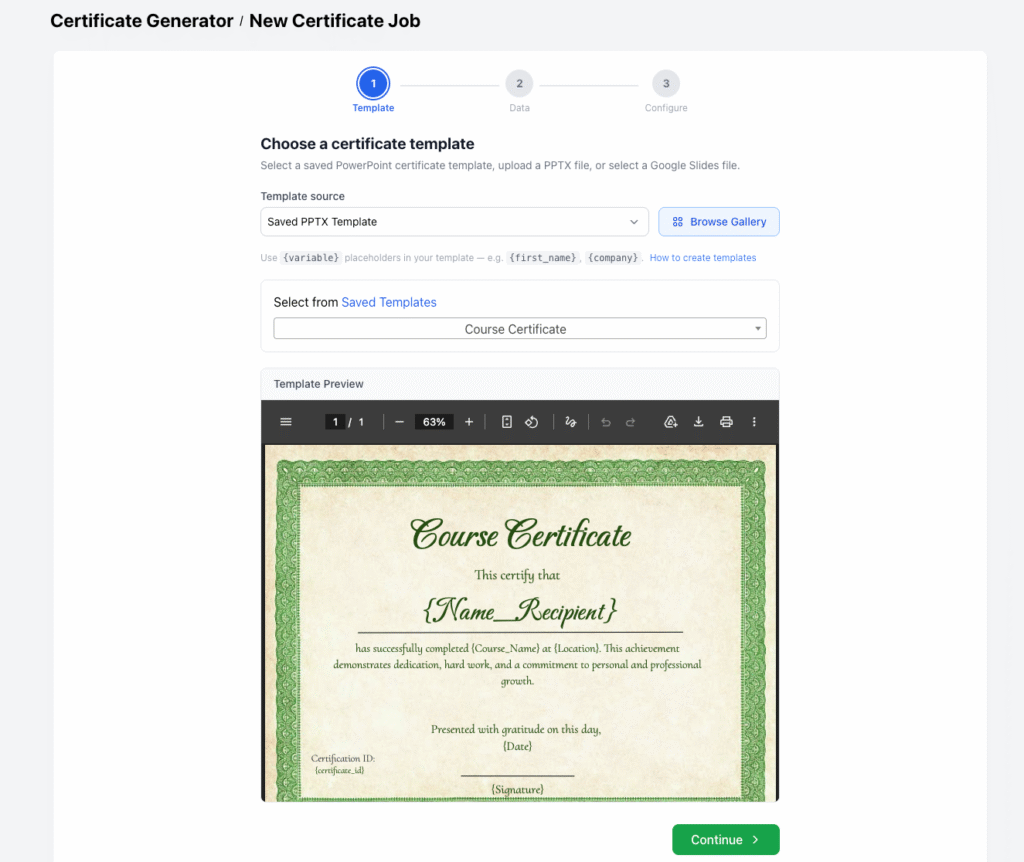
Step 1 — Upload Your PowerPoint Template
The process begins by uploading your .pptx template. The template can be as simple or as complex as you need. In a straightforward example, a certificate template might contain just four placeholders: Name, Achievement, Date, and ID. Those four fields cover the vast majority of real-world use cases, though the tool handles far more complex data structures when your project demands it.
Step 2 — Upload Your Excel Data
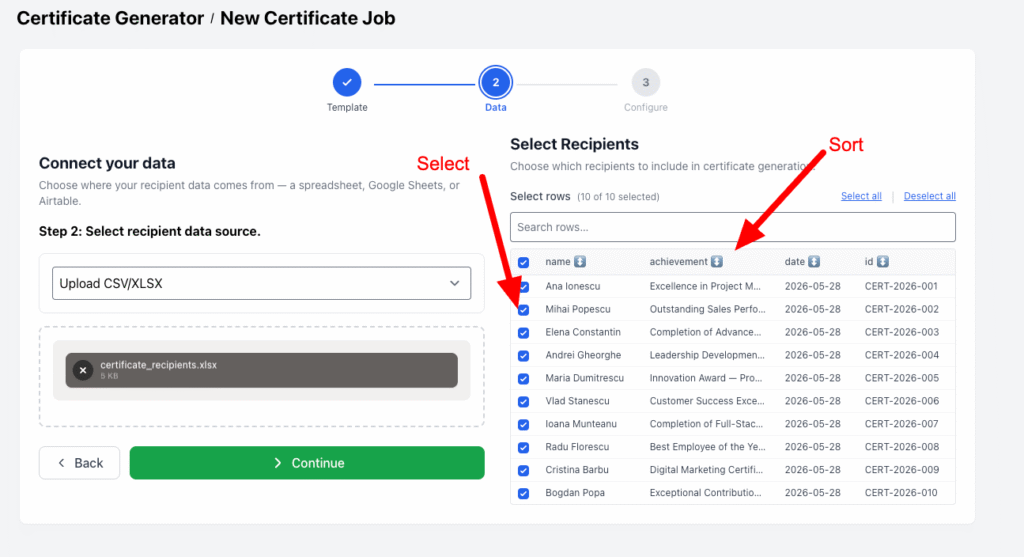
Next, you upload the Excel file holding your recipient data. Once uploaded, ActiveMerge displays a live preview of the data — every column, every row — and gives you the ability to sort and search before processing begins.
One particularly useful feature: you don’t have to merge the entire spreadsheet. You can select a single row, a handful of rows, or the full dataset. Only the rows you select get processed into certificates. This matters when you need to reissue one certificate without regenerating the entire batch, or when you want to do a quick spot-check before committing to a large run.
Step 3 — AI Placeholder Matching
Here’s where manual setup usually becomes tedious: mapping your template placeholders to the right spreadsheet columns.
ActiveMerge handles this automatically using an AI-powered placeholder matching tool. It reads your template fields and your Excel headers, then maps them without you lifting a finger.
After the automatic match runs, you can preview the very first certificate — real data, real layout — directly in the browser before generating anything. It’s a useful sanity check: see that every name, date, and ID lands exactly where it should, then close the preview and move on.

Step 4 — Generate and Download
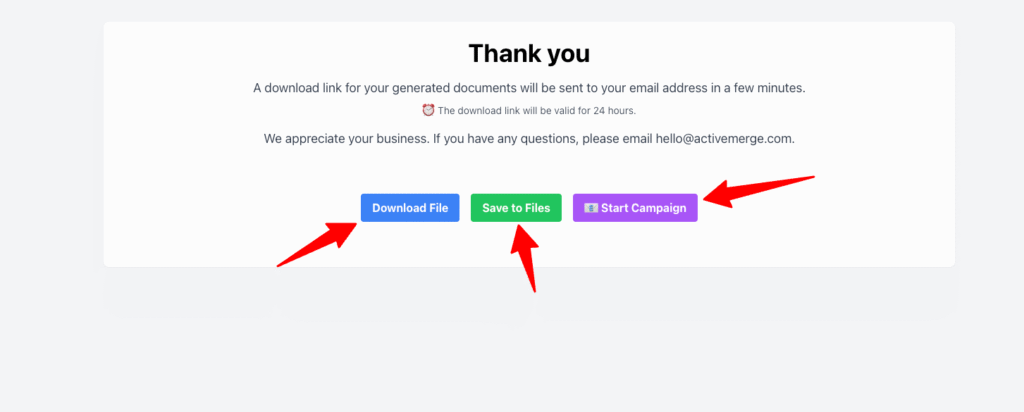
Click the button to start generation. The time it takes scales with the number of rows you’ve selected — a handful of certificates is nearly instant, a larger batch takes a few moments more. When the process completes, you download a single file containing all the finished, personalized certificates, ready to share or print.
You can also save the files to our cloud, otherwise they expire in 24 hours. Or if you have an email column in the source file you can even email the certificates directly from the Campaigns dashboard.
When This Approach Saves You the Most Time
The value compounds quickly at scale. Manually editing a PowerPoint slide for ten people is annoying but survivable. Doing it for a hundred people is genuinely painful.
Doing it for five hundred is a project in itself, with real risk of errors slipping through — a misspelled name, a wrong date, a duplicated ID.
With a mail merge workflow, the template is touched once. The data lives where it should, in a spreadsheet. The connection between the two is made in seconds.
Every output is consistent, and fixing a mistake means updating the source, not hunting through dozens of files.
Get Started
If you have a PowerPoint template and an Excel sheet ready to go, the whole process — from upload to downloaded certificates — takes only a few minutes.
Give it a try the next time a batch of personalized documents lands on your to-do list.

