
Extract Data from Any Document and Generate Instantly
Upload an invoice, scanned form, receipt, or any PDF and let AI read it, structure the data, and map it directly into your template placeholders — with no manual data entry and no CSV exports.
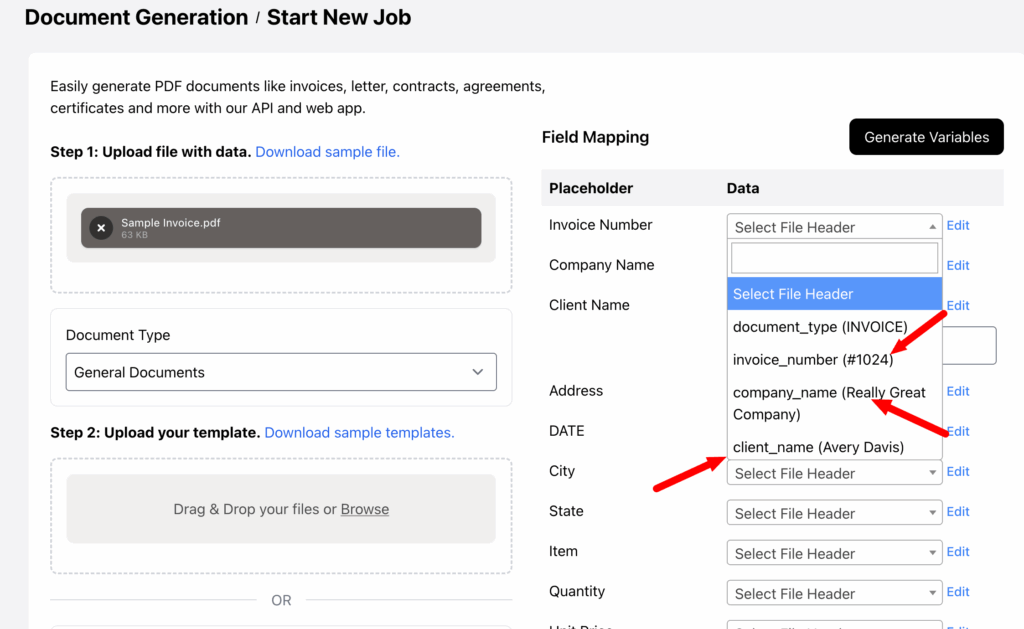
From Scanned Document to Generated File in Three Steps
AI OCR is built directly into the document generation workflow — no separate export step, no copy-pasting.
01
Upload Your Document
Upload an image or PDF — an invoice, a receipt, a scanned form, a contract, or any document containing the data you need. Supports JPEG, PNG, and PDF input.
02
AI Reads and Structures It
A two-layer AI pipeline first extracts all the raw text via OCR, then sends it to OpenAI to identify and structure every field into clean key-value pairs ready to merge.
03
Review, Edit, and Generate
Every extracted field is shown in an editable table. Fix anything, add custom values, then click Generate — the fields are mapped to your template placeholders automatically.
See It in Action
Watch how AI OCR extracts data from an invoice and maps it directly into a document template.
A Two-Layer AI Extraction Engine
Getting clean, structured data from a document is a two-step problem: first read the text accurately, then understand what every piece of text means. ActiveMerge uses a dedicated service for each layer.
Layer 1 — OCR Text Extraction
The raw document is processed by OCR.Space with table-aware parsing enabled, or by Google Document AI for specialist document types. This produces high-accuracy text with layout context preserved.
Layer 2 — AI Structuring
OpenAI GPT-4o reads the extracted text (or the image directly, for vision-capable inputs) and produces a flat JSON object of named key-value pairs. Every field name is chosen to be automation-friendly and ready to match template placeholders.
For PDF inputs, the file is sent directly to OpenAI’s Files API for native parsing — no quality lost in intermediate conversion.
Optimised Processors for Every Document Type
Not all documents are the same. ActiveMerge uses a specialist AI processor for each document category to maximise extraction accuracy.
Invoices
A dedicated Google Document AI invoice processor reads vendor details, line items, amounts, dates, and tax fields — the structured entities you expect on an invoice, extracted reliably every time.
- Vendor and client name & address
- Invoice number, date, due date
- Line items with quantity, unit price, and total
- Sub-total, tax, and grand total
Forms and Structured Pages
The form processor reads label–value pairs from structured pages: application forms, questionnaires, registration forms, order sheets, and similar layouts.
- Detects field labels automatically
- Handles multi-column form layouts
- Splits comma-separated values into individual fields
General Documents & PDFs
For everything else — letters, contracts, reports, receipts, any document that doesn’t fit a specific category — the general OCR + OpenAI vision pipeline extracts and labels every piece of text intelligently.
- JPEG, PNG, and PDF supported
- Handles scanned and digital documents
- Works across languages with auto-detection
Clean, Flat JSON — Ready for Any Template
The AI always produces a flat, one-dimensional JSON object — no nested arrays, no unpredictable structures. This makes the output directly compatible with any document template.
- Flat key-value pairs only — every field is a top-level key
- Address decomposition — street, city, state, zip, and country extracted as separate fields automatically
- Line items numbered sequentially —
item_1,item_1_quantity,item_2,item_2_quantityand so on - Automation-friendly field names — lower-case, underscore-separated, no special characters
- Editable before generation — review every extracted value in the UI and correct anything before clicking Generate
- Custom field values — add fields that weren’t in the document to supplement the extracted data
Auto-Mapped to Your Template Placeholders
Once the data is extracted, it flows directly into the field mapping step of document generation. You don’t need to rename fields or build a lookup table.
Smart Matching
Extracted field names are matched to your template placeholders using a 4-tier matching system: exact match, normalised match (case and punctuation ignored), pattern match, and fuzzy AI match. Most fields map automatically.
Review and Override
Every mapping is shown in the UI before generation. Override any automatic match, remap a field to a different placeholder, or leave it blank. The extraction step and the generation step are independent so you are always in control.
Add Custom Values
The extracted fields are a starting point, not a constraint. Add any value that isn’t in the source document — a signature date, an approval note, a custom reference number — directly in the table before generating.
Built for These Workflows
Invoice Processing
Receive a client invoice, upload it, extract all fields automatically, and generate a matching payment record, purchase order, or internal approval document — without retyping a single number.
Contract Data Extraction
Extract parties, dates, and key terms from signed contracts to populate internal CRM documents, onboarding packs, or summary reports — all from a single PDF upload.
Form Data Processing
Scan completed paper forms, extract every field automatically, and generate a structured digital document or populate a database record — closing the loop between paper and digital workflows.
Expense & Receipt Processing
Upload receipts from staff, extract vendor, date, and amount automatically, and generate expense reports or reimbursement letters without any manual data entry.
ID and Onboarding Documents
Extract information from identity documents or employee onboarding paperwork and use it to populate offer letters, NDA templates, or HR system documents.
Legacy Document Migration
Extract structured data from archives of scanned or older digital documents and use it to regenerate them in a modern branded template — at scale with Automations.
Frequently Asked Questions
What file types does AI OCR support?
Image files (JPEG, PNG) and PDF documents are supported as input. For PDFs, the file is sent to OpenAI’s native file parser so no quality is lost in image conversion. The output is always a structured set of key-value fields.
Which document types does the specialist processor support?
The specialist processors cover Invoices, Form-like pages, and General documents. Invoices use a dedicated Google Document AI processor trained on invoice structure. For all other documents, the general OCR + OpenAI vision pipeline handles extraction.
How accurate is the extraction?
Accuracy depends on document quality and clarity. Clean digital PDFs and high-resolution scans produce near-perfect extraction. Low-quality scans or heavily styled documents may require a few manual corrections — all fields are shown in an editable table before any generation happens, so you always have the final say.
Does AI OCR replace my data source (CSV, Google Sheets, Notion)?
No — it is an additional data source option. When starting a document generation job, choose “Upload a document” as your data source and the OCR pipeline runs automatically. You can still use CSV, Excel, Sheets, Notion, or Airtable for structured data.
Can I edit the extracted fields before generating?
Yes. Every extracted field is shown in an editable table. You can change any value, delete a field, or add new fields with custom values before clicking Generate. Nothing is sent to the template generation engine until you confirm.
Do extracted fields map automatically to my template placeholders?
Yes. The extraction output field names are matched against your template placeholders using a 4-tier system (exact, normalised, pattern, and fuzzy AI match). Most fields map without any manual work. You can review and override any mapping before generating.
Can I use AI OCR with Automations?
Currently AI OCR works in the interactive document generation flow. For automated, schedule-based generation use Notion or Airtable Automations as your data source.
Is my document data stored after extraction?
No. The uploaded document and the extracted text are processed in memory and never persisted to a database. Generated output files are stored for 24 hours and then automatically deleted.
Stop Retyping Data from Documents
Upload a document, let AI extract the data, and generate your file in seconds. Get started free — no credit card required.