
Document Automations That Run Themselves
Connect your Airtable base or Notion database, set a trigger condition, and ActiveMerge automatically generates the right document every time a matching record appears — no manual clicks, no missed rows.
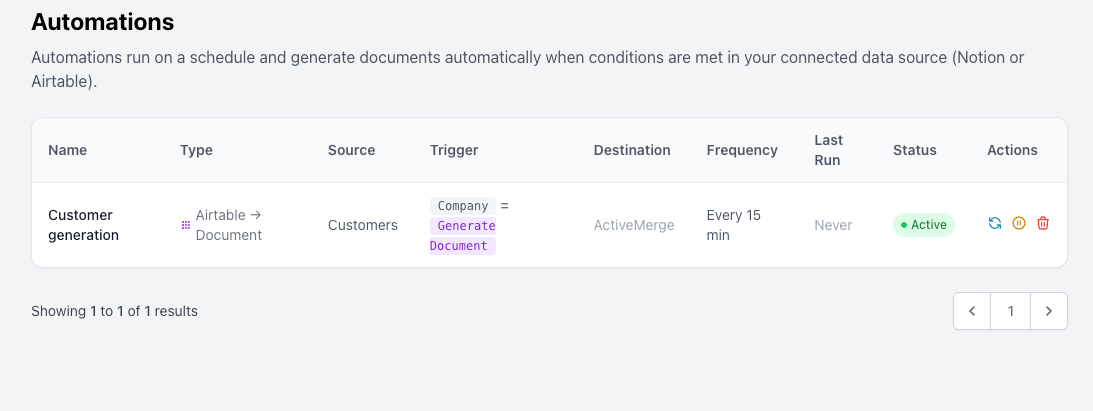
How Automations Work
Three steps from setup to fully automated document generation.

01
Connect Your Data Source
Link your Airtable base or Notion database to ActiveMerge. Choose the specific table or database you want to watch.
02
Set Your Trigger
Pick a status field and the value that means “ready to generate.” When a record hits that value, ActiveMerge picks it up automatically.
03
Generate & Deliver
ActiveMerge fills your template with the record’s data, generates the document, updates the record status, and optionally writes the file URL back — all without you touching anything.
04
Track & Control
Monitor every automation from your dashboard. Check run counts, last errors, and fire a manual check at any time with a single click.
Airtable Automation
ActiveMerge polls your Airtable base on a schedule and generates a document for every record whose status field matches your trigger value. The moment generation is complete, the record status is updated and the file URL is written back.
- Choose any base and table as your data source
- Trigger on any Single select or Single line text field — e.g. Status = “Ready to send”
- 4-step status flow: trigger → Processing → Done / Failed — prevents any record from being processed twice
- AI field mapping auto-maps Airtable column names to your template placeholders (spaces replaced with underscores)
- Line items support — use a multipleRecordLinks field to pull related records as line items into your template
- Write file URL back to a URL field in the same record after generation
- Instant trigger via Airtable Automations — use Airtable’s built-in webhook action to fire the generation immediately with zero polling delay
- Create status column directly from the setup UI if one doesn’t exist yet
Notion Automation
Connect your Notion workspace and choose a database. ActiveMerge watches for records that match your trigger status and generates a document for each one — then updates the record and writes the generated file link back.
- Watch any Notion database in your connected workspace
- Trigger on Select or Status properties — e.g. Status = “Ready to send”
- 4-step status flow: trigger → Processing → Done / Failed — no double-processing
- AI field mapping auto-maps Notion property names to template placeholders
- Relation support — use Notion relation properties to pull linked page data as line items
- Rich text, formulas, and rollups are read as plain text values
- Write file URL back to a URL property in the same page
- Instant trigger via webhook — use Zapier or Make to fire the generation the moment a Notion property changes
Flexible Scheduling and Instant Triggers
Run automations on a schedule that fits your workflow, or trigger them instantly from an external event.
Polling Schedule
Choose how often ActiveMerge checks your source for new records to process:
- Every 5 minutes — time-sensitive workflows like contracts and invoices
- Every 15 minutes — standard use (default)
- Every 30 minutes — low-volume or batch workflows
- Every 60 minutes — overnight or end-of-day processing
Instant Webhook Trigger
Skip the polling delay entirely. Each automation exposes a unique webhook URL. POST to it from any external system and the generation fires immediately:
- Airtable built-in Automations — send a webhook when a record status changes
- Zapier or Make — trigger from any app in your stack
- Any HTTP client — include the
automation_idin the body - Named webhook tokens for secure, revokable access
Manual “Check Now”
Need to test or re-run without waiting? Use the Check Now button on any automation in your dashboard to fire an immediate check and see the result in real time. Perfect for:
- Testing a new automation with a single record
- Debugging a stuck or failed row
- Forcing a run after fixing data in your source
Choose Where Generated Files Go
Every automation can deliver the generated document to one or more destinations, and write the file URL back to the source record.
ActiveMerge Storage
Generated documents are saved to your ActiveMerge cloud storage automatically. Access, download, or share them from your file library at any time.
Dropbox
Connect Dropbox and have every generated file deposited into a folder of your choice automatically. Options include:
- Custom folder path per automation
- Conflict mode: rename, overwrite, or fail
- Create a Dropbox shared link and write it back to the source record
Write File URL Back to Source
After a successful generation, ActiveMerge can write the direct download link to the generated document back into the original Airtable record or Notion page — so your team always has the file link right where the data lives.
AI-Powered Field Mapping
Getting your data fields to match your template placeholders is the most tedious part of any document automation setup. ActiveMerge does it for you automatically.
- 4-tier matching: Exact match → Normalized match → Pattern match → Fuzzy AI match
- Spaces to underscores — a Notion property called “Client Name” maps to
{Client_Name}automatically - Review and override any mapping before saving — you always have the final say
- Line items mapping for related records and linked tables
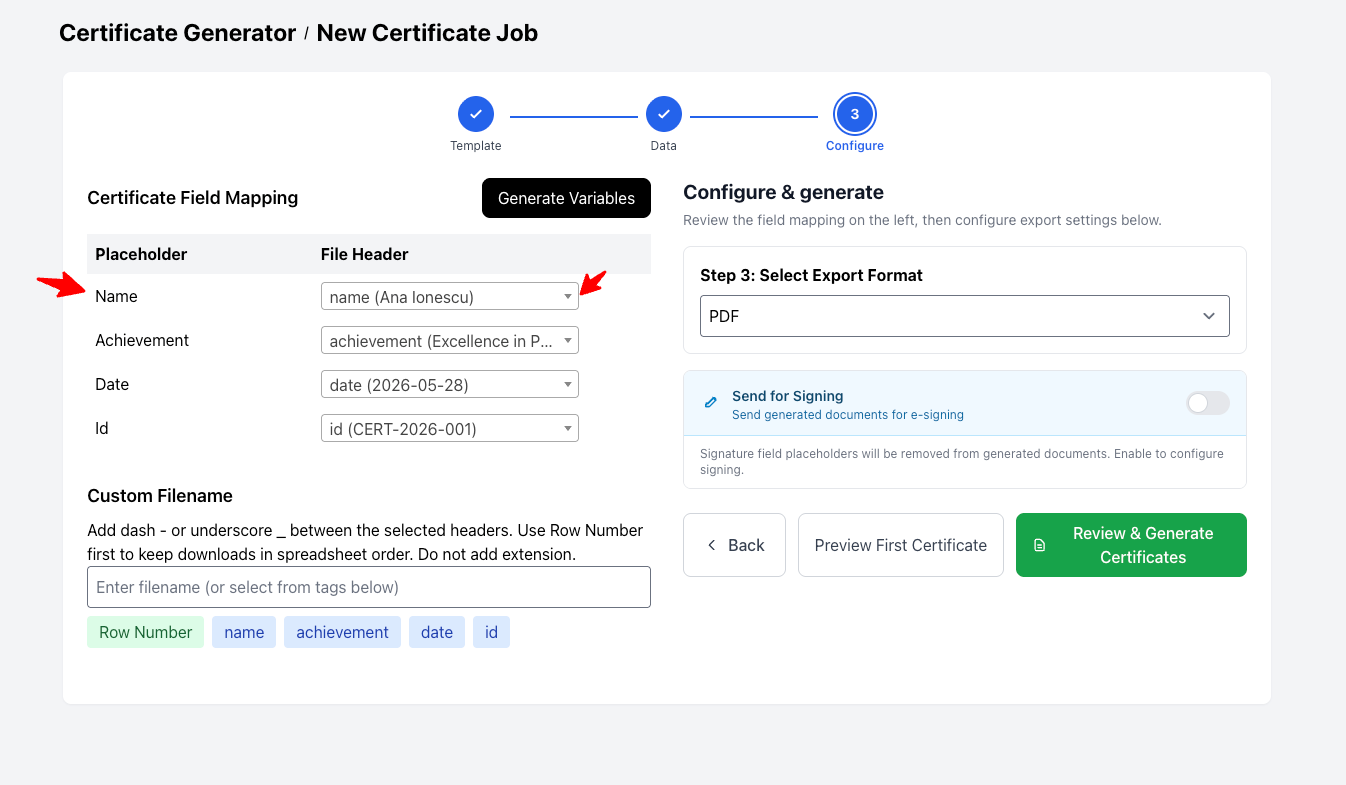
- Custom filename templates — use data field values in your output filenames
Built for These Workflows
Any workflow where a database record changing status should trigger a document is a perfect fit for ActiveMerge Automations.
Invoice Generation
Keep your invoice data in Airtable or Notion. When a deal is marked “Approved,” ActiveMerge generates a branded PDF invoice, writes the file link back to the record, and optionally emails it to the client.
Contract Creation
Store client details and contract parameters in your CRM. When a record hits “Ready to send,” ActiveMerge populates your contract template, saves it to Dropbox, and updates the record status to “Sent.”
HR Onboarding Documents
Add a new hire to your Notion database, set their status to “Generate docs,” and ActiveMerge automatically creates their offer letter, NDA, and onboarding pack — one job, multiple templates via Workflows.
Scheduled Reports
Set records to your trigger value on a schedule using Airtable or Notion automations, and ActiveMerge generates fresh reports every hour, day, or week without any manual intervention.
Certificates and Diplomas
When a learner completes a course and their record is marked “Complete,” ActiveMerge instantly generates a personalized certificate and writes the download link back for them to access.
Sales Proposals
Sales teams enter deal data into a base. When a record is marked “Proposal ready,” a fully populated proposal PDF is generated and deposited straight into the account’s Dropbox folder.
Frequently Asked Questions
Which data sources does Automations support?
Currently Airtable and Notion. Connect your workspace, pick a base or database, and you are ready to set up your first automation.
How quickly does an automation run after a record changes?
On the polling schedule you set: every 5, 15, 30, or 60 minutes. For instant triggering with no delay, use the built-in webhook URL to fire the automation the moment the record changes in Airtable or Notion.
What prevents a record from being processed twice?
As soon as a record is picked up, ActiveMerge immediately updates its status field to your “in progress” value. Even if the next poll runs before the job finishes, that record will not match the trigger condition again.
Can I use related records or linked tables as line items?
Yes. For Airtable, map a multipleRecordLinks field as your line items source. For Notion, use a relation property. ActiveMerge fetches the linked records and makes their data available as repeating rows in your template.
Can the generated file be written back to the source record?
Yes. Select a URL field (Airtable) or URL property (Notion) during setup and ActiveMerge will write the direct download link to the generated document back into that field after every successful generation.
Can generated files go to Dropbox?
Yes. Connect your Dropbox account, set a folder path, and choose how to handle naming conflicts. You can also have ActiveMerge create a Dropbox shared link and write it back to the source record.
Can I use custom filenames for generated files?
Yes. Enter a filename template during setup. You can include data field values in the filename — for example, use the client name and date from the record to produce a unique filename for each output.
How do I test an automation before it runs on a schedule?
Use the Check Now button on any automation in your dashboard. It runs an immediate check and you can see the result straight away without waiting for the next scheduled poll.
Can I pause an automation without losing its settings?
Yes. Use the toggle in the Automations list. Paused automations keep all their configuration intact and can be resumed at any time.
Start Automating Your Documents Today
Connect Airtable or Notion, set your trigger, and let ActiveMerge handle the rest. Get started free — no credit card required.