

In sales and marketing, documents are constant—proposals, pitch decks, brochures, pricing sheets, client letters, and case studies.
- I Why Sales Proposal Automation Matters
- II What You’ll Build
-
III
Step-by-Step: Sales Proposal Automation with ActiveMerge Workflows
- III.I Step 1: Create an ActiveMerge Account
- III.II Step 2: Prepare Your Client or Prospect Data in Google Sheets
- III.III Step 3: Build Your Proposal and Marketing Templates
- III.IV Step 4: Upload Templates to ActiveMerge
- III.V Step 5: Build a Multi-Document Workflow
- III.VI Step 6: Connect Data and Map Fields
- III.VII Step 7: Preview and Generate Documents
- III.VIII Step 8: Automate Delivery & Storage
- IV Conclusion
- V Frequently Asked Questions
Manually creating and personalizing these documents slows down teams, introduces errors, and consumes time that should be spent closing deals or running campaigns. As deal volume increases, sales proposal automation becomes essential for teams that need to personalize documents quickly without slowing down the sales cycle.
ActiveMerge supports sales proposal automation with its powerful Workflows feature. By pulling client or prospect data from Google Sheets, your CRM, or spreadsheets, you can automatically generate entire sets of proposals and marketing materials at once—branded, accurate, and ready to send.
Instead of recreating proposals and decks from scratch, your team can prepare polished materials in seconds, while ensuring brand consistency and accuracy.
Why Sales Proposal Automation Matters
Sales proposal automation helps teams eliminate repetitive formatting, reduce pricing errors, and accelerate turnaround time. Instead of manually editing each proposal, sales proposal automation ensures documents are generated accurately using structured CRM or spreadsheet data.
What You’ll Build
By following this guide, your sales and marketing team will set up an automation system that creates:
- A library of branded templates (Sales Proposals, Pitch Decks, Brochures, Client Letters).
- An ActiveMerge Workflow that generates multiple personalized documents at once for each prospect or campaign.
- Automated storage and delivery in Google Drive, Dropbox, or OneDrive, plus optional notifications in Slack or email.
This ensures every proposal, brochure, or deck is generated fast, accurately, and securely.
Step-by-Step: Sales Proposal Automation with ActiveMerge Workflows
Sales and marketing teams handle a wide range of repetitive but essential documents—from proposals to brochures and pitch decks. Manually preparing these files for every prospect is time-consuming, error-prone, and often inconsistent.
With ActiveMerge Workflows, your team can generate entire sets of materials in minutes by combining structured client data with reusable templates. Below, we’ll walk you through each step to set up, automate, and streamline your proposal and marketing document generation process.
Step 1: Create an ActiveMerge Account
The first step is to establish your workspace inside ActiveMerge, where all of your automation will take place.
- Go to the ActiveMerge Registration Page and sign up with your work email.
- Once logged in, you’ll land on the Dashboard—this is the central hub where you’ll manage templates, workflows, and integrations.

From the dashboard, you’ll see these main sections:
- Document Generation – Create one-off documents from data and templates.
- Document Merge – Combine multiple files (case studies, product sheets) into a single PDF.
- Templates – Upload, edit, and organize your standard templates.
- Workflows – Build automated processes that generate multiple documents at once.
- API Key – Connect ActiveMerge securely with your CRM or other apps.
This setup ensures you have all the tools you need to start automating repetitive proposal and marketing tasks in one place.
Step 2: Prepare Your Client or Prospect Data in Google Sheets
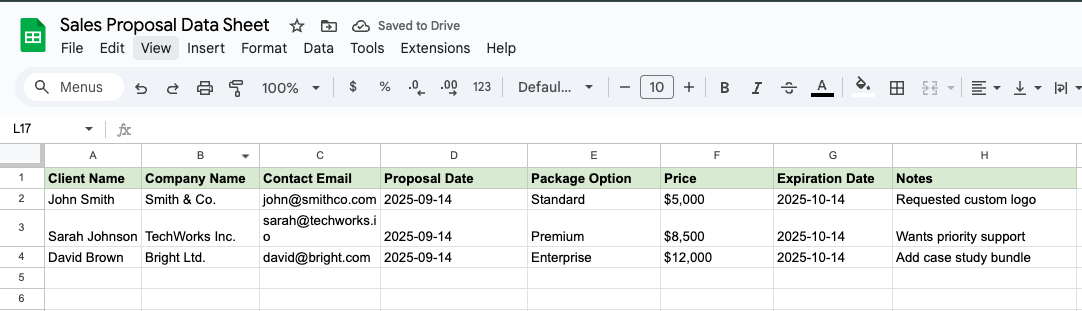
Purpose: Centralize client and campaign information to merge into multiple templates automatically. Structured data is the foundation of effective sales proposal automation, ensuring every proposal pulls accurate and consistent information.
- Open Google Sheets and create a new spreadsheet for your prospect or campaign data.
- Use column headers that match the placeholders you’ll use in templates.
Example Google Sheet:
Best Practices:
- Keep headers short and clear – e.g., “Company” instead of “Client Company Name.”
- Match headers with template tags – If your template uses {ClientName}, your sheet must have a ClientName column.
- Normalize your data – Pricing should follow consistent formats (e.g., $5,000 not “5k”).
- Avoid blanks – Use “TBD” instead of leaving cells empty to prevent incomplete documents.
- Segment by campaign – Use different sheets (or tabs) for different product lines, services, or regions.
Step 3: Build Your Proposal and Marketing Templates
Purpose: Create standardized, reusable templates for the most common sales and marketing documents.
Here are three examples you can start with:
Example 1: Sales Proposal Template (Word/Google Doc)
Example 2: Marketing One-Pager (PDF/Doc)
Example 3: Follow-Up Email Template (Optional Extra Document)
Template Rules:
- Always wrap placeholders in curly braces ({ClientName}).
- Align placeholders with your Google Sheet headers.
- Add your company’s branding – logos, disclaimers, and consistent design.
- Keep formatting professional and consistent – clean fonts, consistent headings.
- Maintain a template library for all document types (proposals, brochures, letters, decks).
Step 4: Upload Templates to ActiveMerge
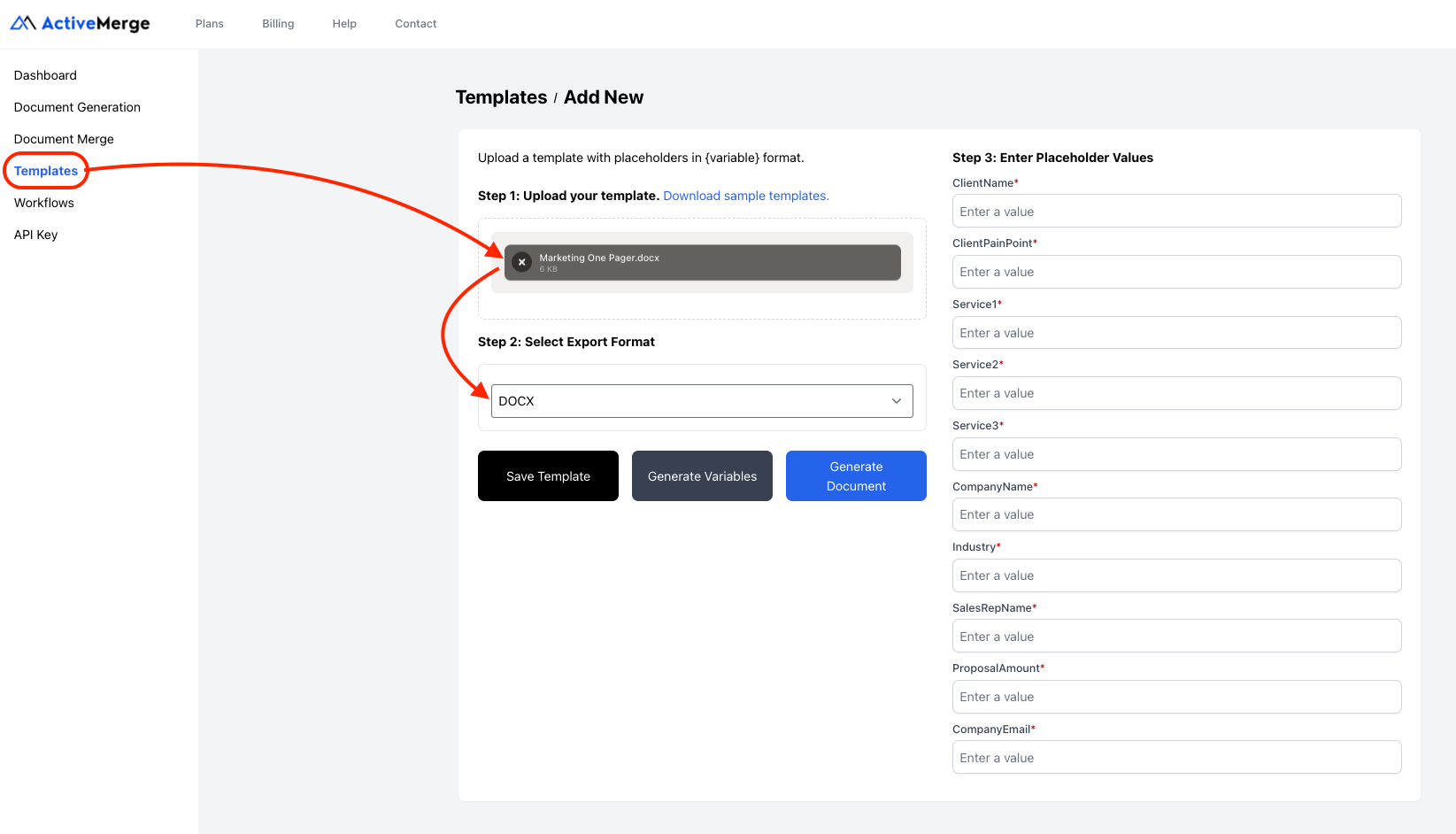
- In your ActiveMerge dashboard, go to Templates → Add Template.
- Upload your prepared Word, PDF, or PowerPoint templates.
- ActiveMerge will scan for placeholders.
- Example: It will detect {ClientName} and suggest mapping it to your Google Sheet’s “ClientName” column.
- Save each template with a clear name and version (e.g., Proposal_v1, Deck_v1, Letter_v1).
Best Practice: Keep version history (Proposal_v1, Proposal_v2, etc.) to track updates without breaking workflows that use older templates.
Step 5: Build a Multi-Document Workflow
Purpose: Bundle multiple documents into a single automated process per client or campaign. This workflow structure enables full sales proposal automation, generating complete proposal packages without manual preparation.
- Go to Workflows → Add New.
- Select Generate multiple types of documents with one workflow.
- Upload your client or campaign data (Google Sheets, CSV, or CRM export).
- Select the templates you want bundled (e.g., Proposal, Deck, Client Letter).
- Choose your output format:
- PDF → Polished, client-ready documents that cannot be altered.
- Word/PPT → Editable drafts for customization before sending.
- Save Workflow.

Pro Tip: Create reusable workflows for frequent scenarios:
- New Prospect Pack (Proposal + Letter + Deck).
- Event Follow-Up (Brochure + Case Study + Letter).
- Regional Campaign Kit (Proposal + Pricing Sheet + Flyer).
Step 6: Connect Data and Map Fields
Purpose: Ensure your client data populates correctly into each document.
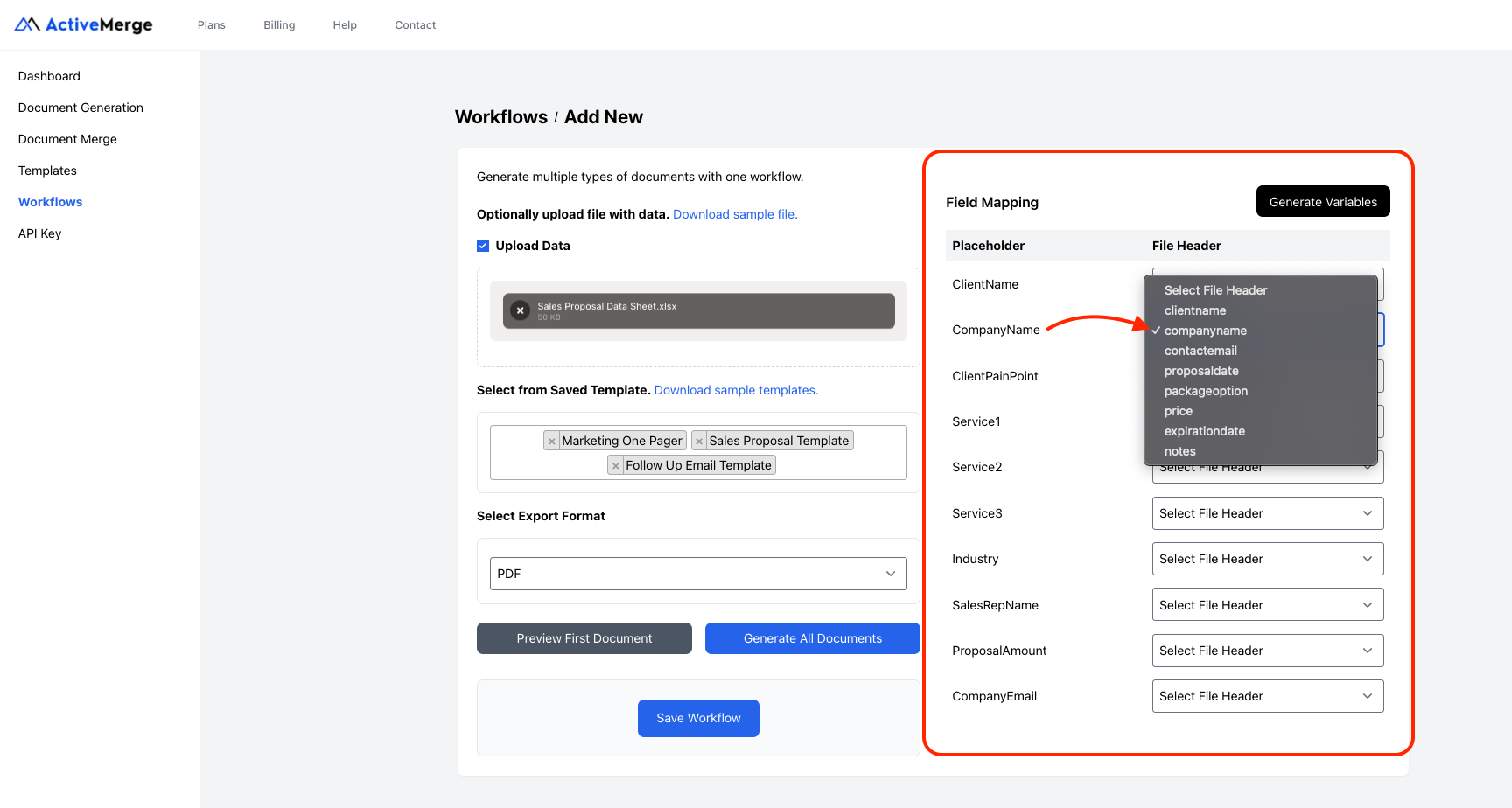
- After uploading data and selecting templates, ActiveMerge shows a Field Mapping Screen.
- This screen lists your placeholders and the matching spreadsheet headers.
Example Field Mapping:
| Placeholder | File Header |
| {ClientName} | ClientName |
| {Company} | Company |
| {ServicePackage} | ServicePackage |
| {Price} | Price |
| {Rep} | Rep |
| {Notes} | Notes |
Adjust mappings if headers differ slightly (e.g., if your sheet uses “SalesRep” instead of “Rep”).
Supported Integrations:
- Google Sheets Sync → Updates live as you edit the sheet.
- Zapier or API → Pull data directly from your CRM or marketing system.
Step 7: Preview and Generate Documents
Before generating everything, preview one client’s set of documents.
- Confirm placeholders like {ClientName}, {Company}, and {Price} display correctly.
- Check formatting for spacing, branding, and layout.
- Once verified, click Generate All Documents.
Within minutes, your sales proposal automation system will create polished documents for every prospect in your dataset.
Output Example for Prospect P-202 (Tech Innovations Ltd.):
- Proposal_P202.pdf
- PitchDeck_P202.pptx
- ClientLetter_P202.docx
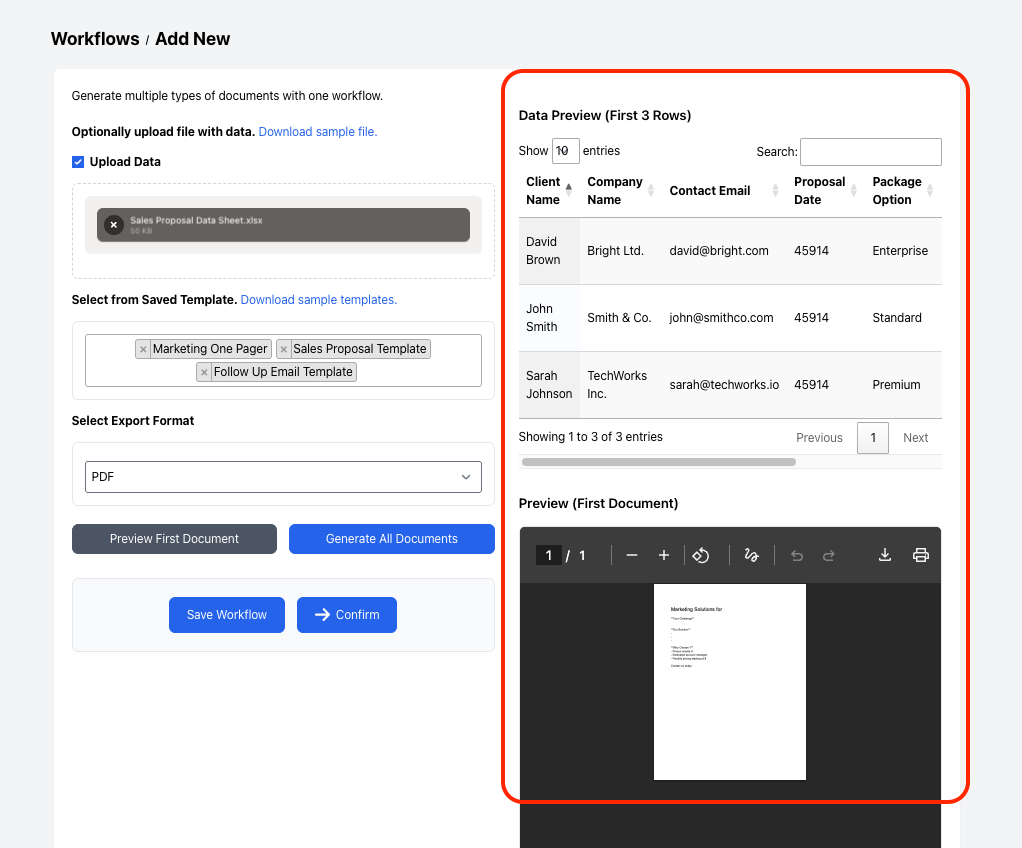
ActiveMerge will create polished, consistent files for every row in your dataset within minutes.
Step 8: Automate Delivery & Storage
Purpose: Ensure generated proposals and marketing files are delivered and archived automatically.
- Cloud Storage: Save proposals in Google Drive, Dropbox, or OneDrive, organized by Client or Campaign ID.
- Email Delivery: Send proposals directly to prospects or clients from your CRM.
- Internal Notifications: Trigger alerts in Slack or Microsoft Teams when new proposals are generated.


Conclusion
Sales and marketing teams need to balance personalization with efficiency. Manually creating proposals and materials wastes time, risks errors, and delays follow-ups.
With sales proposal automation powered by ActiveMerge Workflows, your team can:
Sales proposal automation transforms document creation from a repetitive task into a scalable, revenue-supporting system.
- Generate proposals, brochures, and pitch decks in seconds.
- Ensure brand consistency and accuracy across all materials.
- Deliver files automatically to prospects or campaign folders.
This frees sales reps and marketers to focus on building relationships, running campaigns, and closing deals—while automation handles the paperwork.
Real-World Use Cases
- New Lead Outreach: Automatically generate proposals and brochures tailored to each prospect.
- Event Campaigns: Send personalized follow-up materials to all attendees in one batch.
- Account Management: Regularly update and distribute account summaries or renewal packages.
- Agency Work: Deliver client-ready campaign kits or pitch decks for multiple accounts at once.
Frequently Asked Questions
- Can proposals include logos, images, or product tables?
Yes. Templates support logos, graphics, and structured tables for pricing and product features.
- Can I generate both proposals and pitch decks at the same time?
Absolutely. Workflows let you bundle multiple templates so each client gets a full package of materials.
- How many proposals can I generate at once?
ActiveMerge supports bulk generation for any dataset size—whether 10 prospects or 1,000.
- Can ActiveMerge integrate with my CRM?
Yes. Through Zapier, API, or direct Google Sheets sync, you can pull live CRM data into your workflows.

