

For most sales teams, proposals are a necessary but painful part of the sales cycle. Each new opportunity requires a custom document—personalized with client details, pricing, and scope of work. But creating these proposals manually is slow, repetitive, and error-prone.
- Why Automate Sales Proposals?
- Step-by-Step: Automating Proposal Generation
- Conclusion
Reps often copy and paste details from a CRM into a Word document, adjust formatting, and double-check that the numbers are correct. The process can take hours, especially for teams handling dozens of opportunities at once.
With Active Merge, this entire workflow becomes automated. By pulling deal information directly from your CRM and inserting it into pre-designed templates, you can generate professional, branded sales proposals in seconds.
This guide walks you through the process of setting up proposal automation—so your team spends less time writing and more time closing deals.
Why Automate Sales Proposals?
Before diving into the setup, let’s look at why automation is a game-changer:
- Save Time – Generate proposals instantly instead of hours of manual formatting.
- Consistency – Every proposal follows the same design, branding, and structure.
- Fewer Errors – Data comes directly from your CRM, reducing typos and outdated information.
- Personalization at Scale – Insert client-specific fields (name, company, deal value) without extra effort.
- Faster Response Times – Send proposals right after discovery calls—before competitors even respond.
Step-by-Step: Automating Proposal Generation
Here’s how to connect your CRM, Active Merge, and Zapier to build a smooth, end-to-end proposal automation workflow.
Step 1: Create an Active Merge Account
Before setting up automation, you’ll need an Active Merge account.
- Go to Active Merge Registration.
- Sign up using your work email.
- Once inside the dashboard, you’ll find three core areas:
- Templates – where you upload and manage your proposal templates.
- Integrations– where you connect CRM, Zapier, and storage apps.
- Document Generation – where you test and manage automated proposals.
Pro Tip: Save your API key from the dashboard — you’ll need it later when connecting Zapier.

Step 2: Prepare CRM Data Fields
Your CRM must have clean, structured data for automation to work.
- Review your CRM (HubSpot, Salesforce, Pipedrive, etc.) and confirm all essential fields exist.
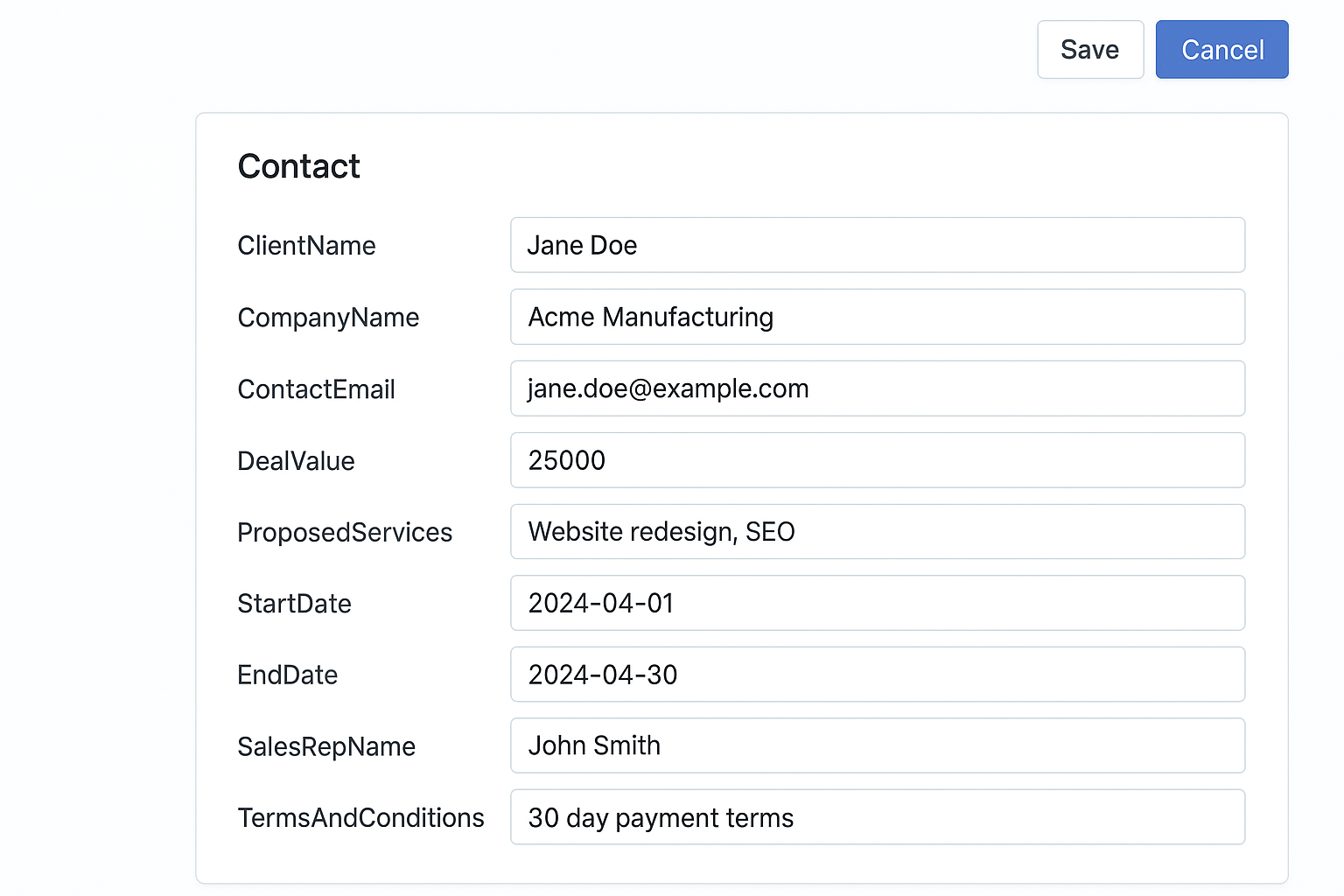
- Common fields you’ll need:
- ClientName (e.g., “Jane Doe”)
- CompanyName (e.g., “Acme Manufacturing”)
- ContactEmail
- DealValue (numeric, no special symbols)
- ProposedServices (bullet-point or comma-separated)
- StartDate / EndDate
- SalesRepName
- TermsAndConditions
- Standardize your data:
- Keep formatting consistent (dates as YYYY-MM-DD).
- Avoid extra spaces or symbols.
- Make sure dropdowns or picklists match how you want them displayed in proposals.
Pro Tip: If your CRM doesn’t store some of this data, create custom fields before moving forward.
Step 3: Build a Proposal Template
The template defines the structure and look of your proposals.
- Open Google Docs or Microsoft Word.
- Add branding elements:
- Company logo
- Custom headers/footers
- Brand colors & fonts
- Insert merge tags where CRM data should appear. Example:`
| Proposal for {ClientName} Company: {CompanyName} Deal Value: ${DealValue} Services: {ProposedServices} Prepared by: {SalesRepName} Timeline: {StartDate} – {EndDate} |
Don’t have a template yet? Download one from Active Merge’s Free Templates Library and customize it.
- Include standard sections:
- Executive Summary
- Project Scope
- Deliverables
- Pricing Breakdown
- Terms & Conditions
- Signature Line (digital or physical)
- Save as Word (.docx). Go to File → Download → Microsoft Word (.docx). Active Merge requires Word templates, not Google Docs format.
Pro Tip: Use short, descriptive merge tag names that match your CRM fields exactly (e.g., {DealValue} not {Deal Amount}).

Step 4: Upload Template to Active Merge
Now, connect your proposal template to Active Merge.
- Log in to your Active Merge dashboard.
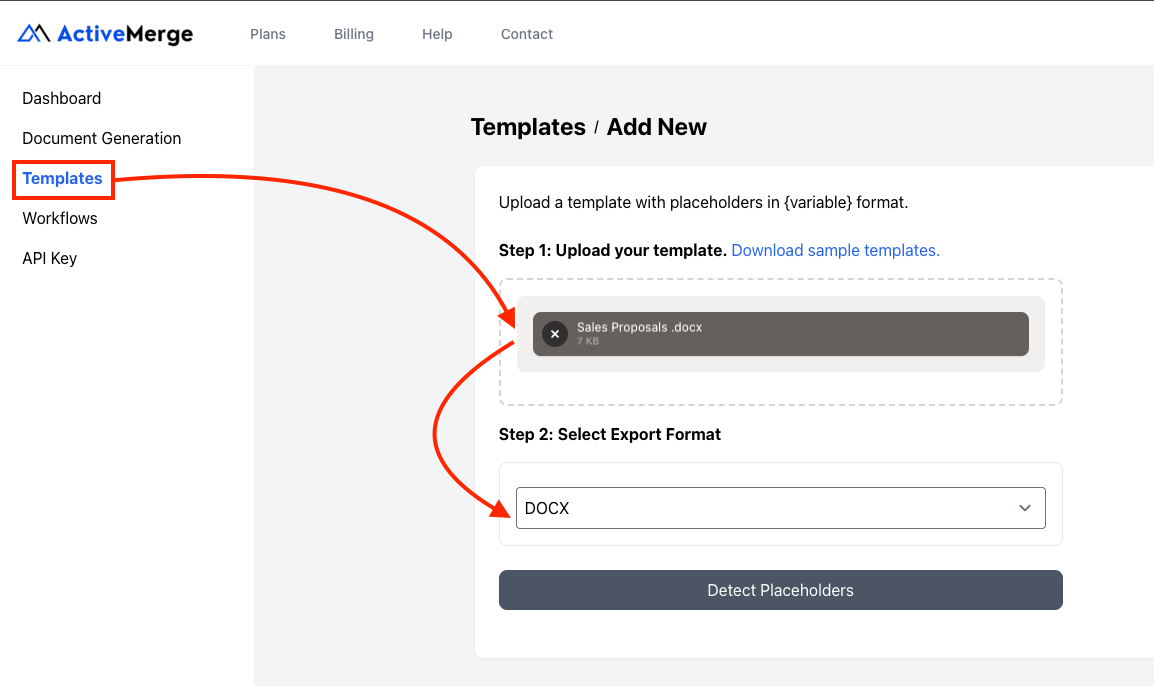
- Navigate to Templates → Add Template.
- Upload your .docx file.
- Name it clearly, e.g., “Standard Sales Proposal.”
- Review merge tags inside Active Merge — they must match your CRM field names exactly (case-sensitive).
Pro Tip: If something doesn’t line up, edit your CRM field name or template tag to keep consistency.
Step 5: Connect CRM Data with Zapier
Zapier acts as the automation bridge that transfers data from your CRM into Active Merge, so proposals generate automatically without manual input.
1. Create a New Zap
- Log in to your Zapier account.
- Click Create Zap in the top-right corner.
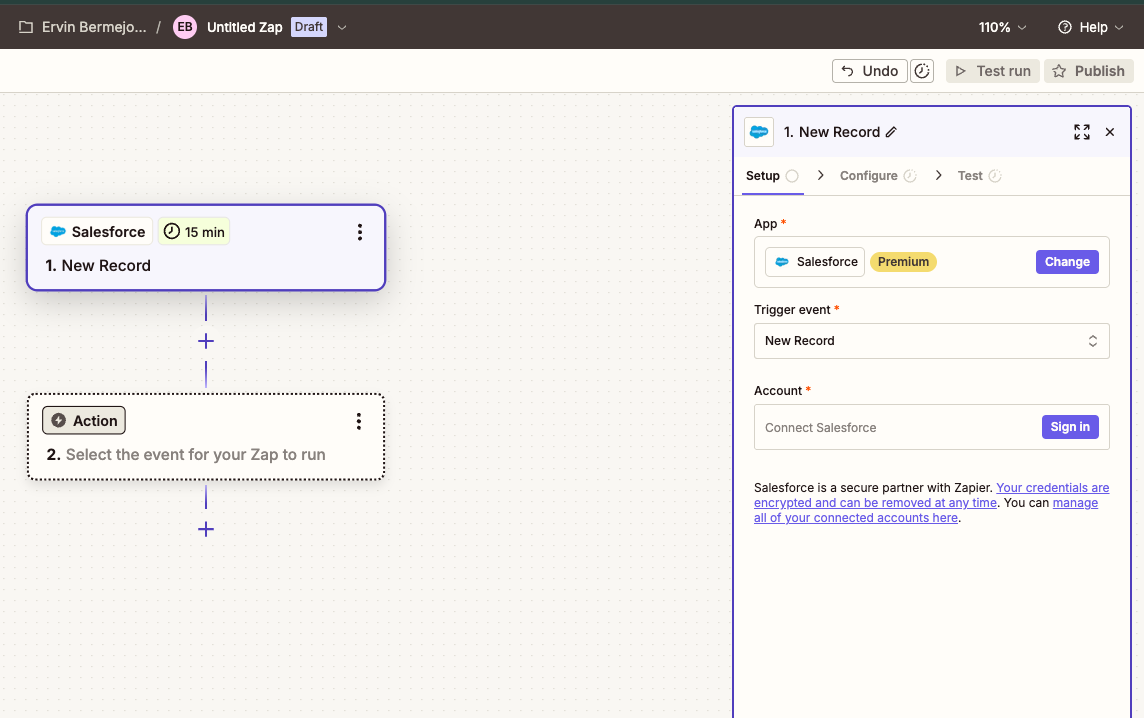
2. Set Up the Trigger (CRM App)
- Choose your CRM app (HubSpot, Salesforce, Pipedrive, Zoho, etc.).
- Select the trigger event:
- Example for HubSpot → New Deal Created.
- Example for Salesforce → Opportunity Stage Updated.
- Connect your CRM account to Zapier and grant permissions.
- Filter by pipeline or deal stage if needed (e.g., only trigger when a deal moves to Proposal Stage).
- Test the trigger: Zapier will pull in a recent deal record from your CRM so you can preview the fields.
3. Set Up the Action (Active Merge)
- Click the + Add Action step in Zapier.
- Search for Active Merge and select it.
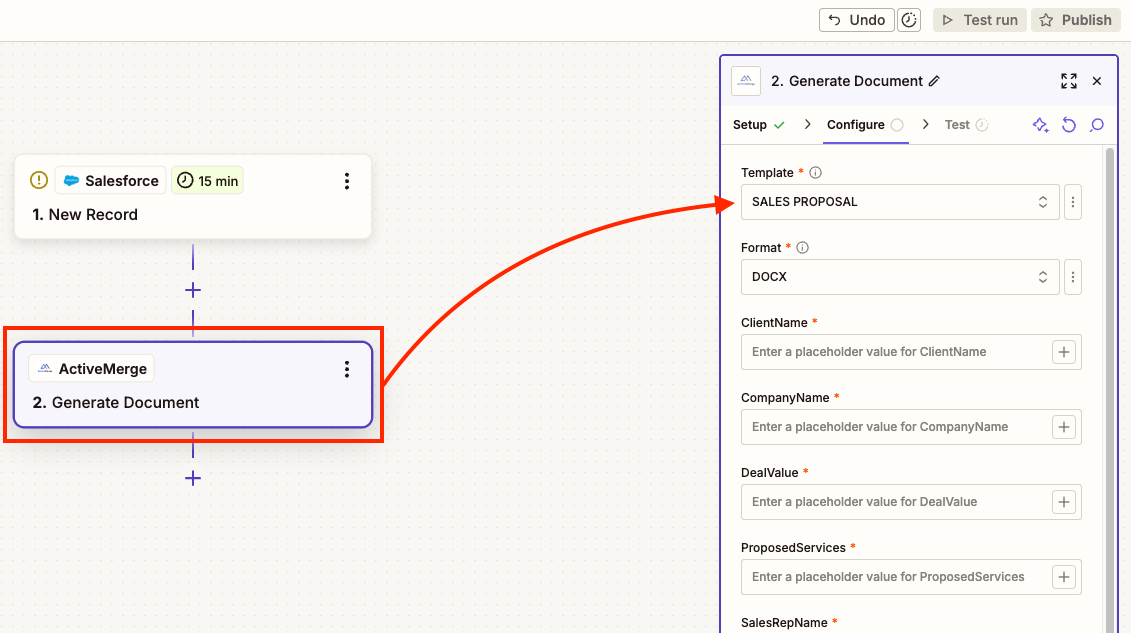
- Choose the action event → Generate Document.
- Connect your Active Merge account by pasting your API key (found under Account Settings → API Key in your Active Merge dashboard).
- Select the template you uploaded earlier (your proposal template).
4. Map CRM Fields to Template Tags
Now link CRM data to your proposal template fields:
| CRM Field (from HubSpot/Salesforce/etc.) | Template Tag (from Word file) |
| ContactName | {ClientName} |
| Company | {CompanyName} |
| Deal Amount | {DealValue} |
| Notes / Services | {ProposedServices} |
| Owner Name | {SalesRepName} |
| Start Date | {StartDate} |
| End Date | {EndDate} |
| Terms | {TermsAndConditions} |
Zapier will show a dropdown of CRM fields — select the correct field for each merge tag in your template.
5. Test the Zap
- Click Test & Review.
- Zapier will send sample CRM data into Active Merge.
- Check your Active Merge account → a draft proposal should appear under Documents.
- Open the generated proposal to confirm:
- Client name, company, and deal value are pulling correctly.
- Services, terms, and dates are in the right sections.
- Branding and formatting remain intact.
6. Troubleshooting
- If data doesn’t appear → check for typos in merge tag names (they must match exactly).
- If Zapier shows empty fields → confirm your CRM record contains test data in those fields.
- If formatting looks off → recheck your Word template for misplaced tags or styling issues.
Pro Tip:Before going live, run 3–5 different deal records through your Zap. This ensures your automation works for different deal sizes, service types, and client names without errors.
Step 6: Preview and Validate Proposals
Before automating fully, test with live CRM records.
- Generate a proposal for an actual client.
- Review for:
- Correct logos & branding.
- Properly formatted numbers (e.g., $50,000 instead of 50000).
- Accurate services, dates, and client info.
- Adjust tags, CRM fields, or template formatting as needed.
Pro Tip: Ask a colleague to review the generated proposal — fresh eyes often catch formatting mistakes.
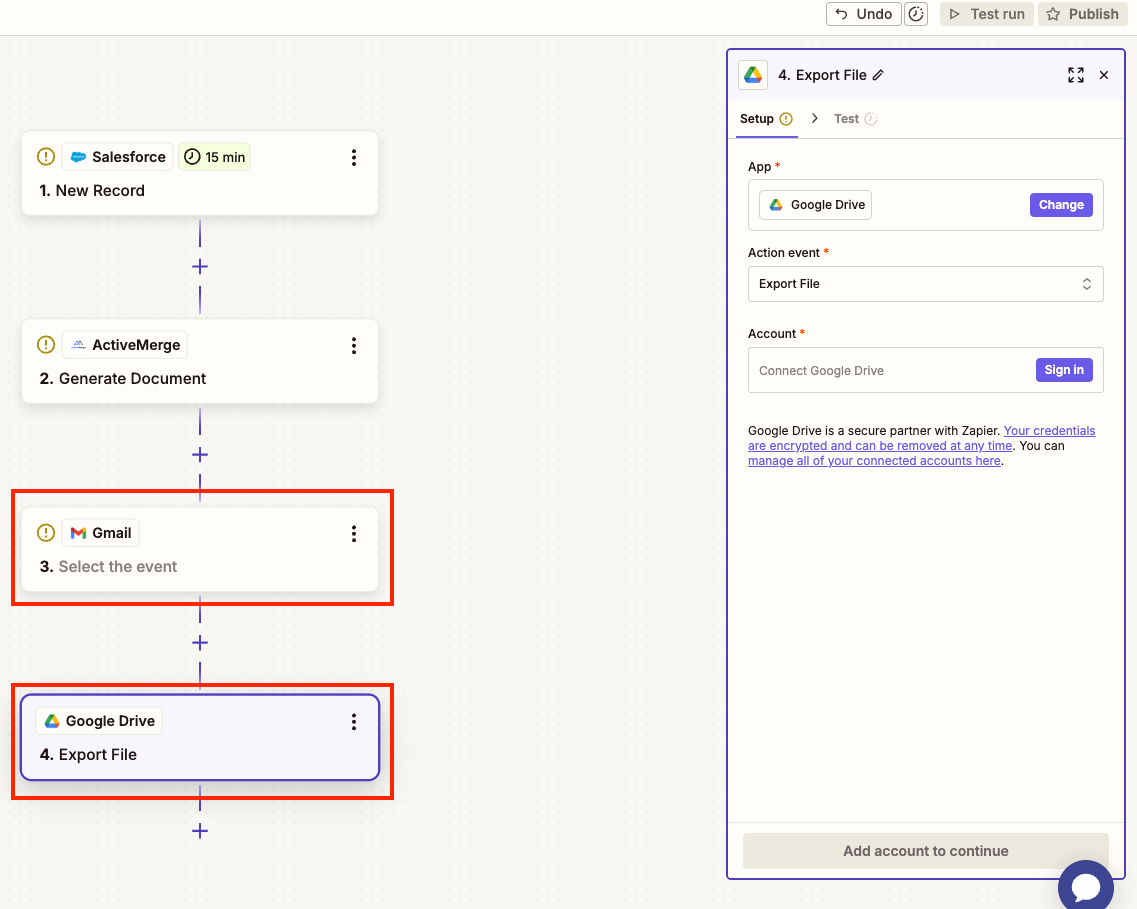
Step 7: Automate Delivery
Once proposals generate correctly, automate how they’re shared.
- Email Clients Directly: Add a Zapier step to send the generated PDF to the client.
- Attach to CRM Deal: Save the proposal to the deal record so the sales team has one source of truth.
- Cloud Storage: Store every proposal in Google Drive, Dropbox, or OneDrive for easy access.
- Sales Notifications: Use Zapier to send a Slack/Teams alert when a new proposal is ready.
Pro Tip: Keep a “Proposals” folder in your cloud storage with subfolders by client or deal ID — this makes audits and follow-ups easier.
Conclusion
Manually creating sales proposals is time-consuming and prone to errors, slowing down your team’s productivity. By connecting your CRM to Active Merge, every proposal is:
- Generated in seconds – No more manual copy-pasting or reformatting.
- Consistently branded and professional – Ensure every proposal reflects your company’s image.
- Accurate and up to date – Pull the latest client information and pricing automatically.
- Ready to send automatically – Reduce turnaround time and get proposals to clients faster.
With automation handling repetitive tasks, your sales team can focus on high-value work, like building relationships and closing deals, instead of formatting documents.
Real-World Use Cases
Automated sales proposals deliver value across industries:
- SaaS companies – Quickly standardize pricing tiers, subscription plans, and contracts for each prospect.
- Agencies – Create personalized scopes of work and service agreements without wasting time on repetitive edits.
- Consultants – Tailor timelines, deliverables, and pricing for individual clients while maintaining consistency.
- Manufacturers – Respond to RFPs and client requests faster with structured, professional proposals that are easy to update.
By streamlining proposal creation, Active Merge helps teams work smarter, reduce errors, and accelerate the sales cycle—making it easier to win more business.
Frequently Asked Questions
1. Can I create different proposal formats for different services?
Yes. You can upload multiple templates to Active Merge and use Zapier filters to pick the right one based on deal type.
2. Can proposals be signed digitally?
Absolutely. Once generated, you can send proposals to e-sign tools like DocuSign, PandaDoc, or HelloSign.
3. Will this work with my CRM?
Active Merge integrates with most major CRMs via Zapier—including HubSpot, Salesforce, Pipedrive, and Zoho CRM.

