
If you’ve drafted a long document in sections, you know how messy the end is. Each chapter in its own file, then an hour of copy-pasting, broken formatting, and a PDF that nobody can read on their phone, but in this guide we show you how to merge multiple word files and generate an ePUB document.
ActiveMerge’s Document Merge tool skips all of that. Upload your Word .docx files, put them in order, pick ePUB as the output, and download.
What is ePUB
ePUB is a reflowable format. The text adapts to whatever screen size the reader is using. Increase the font size, switch between portrait and landscape, open it on a phone, a tablet, or a dedicated e-reader — the content reformats automatically to fit. For anything meant to be read rather than printed, that’s a significant advantage.
ePUB is also the standard format for most e-reader platforms. Apple Books, Kobo, Google Play Books, and the majority of e-reader apps open .epub files natively.
Kindle requires one extra conversion step, but that’s a single click in Calibre or Amazon’s Send to Kindle tool — nothing that should slow you down.
When ePUB makes sense
Good candidates:
- Training manuals and onboarding guides (employees can read on their phone without squinting at a PDF)
- Course workbooks where each module is its own .docx file during authoring
- Internal policy documents that people actually need to read, not just file
- Long-form reports for stakeholders who prefer an e-reader
- Self-published writing going straight to a publishing platform
Before you start
All input files must be .docx, not .doc or .pdf. If you have older .doc files, open them in Word, go to File > Save As, and pick .docx.
The limits are 200 files per merge and 20 MB per file. Each merge costs 5 credits.
How to do it
1. Open Document Merge
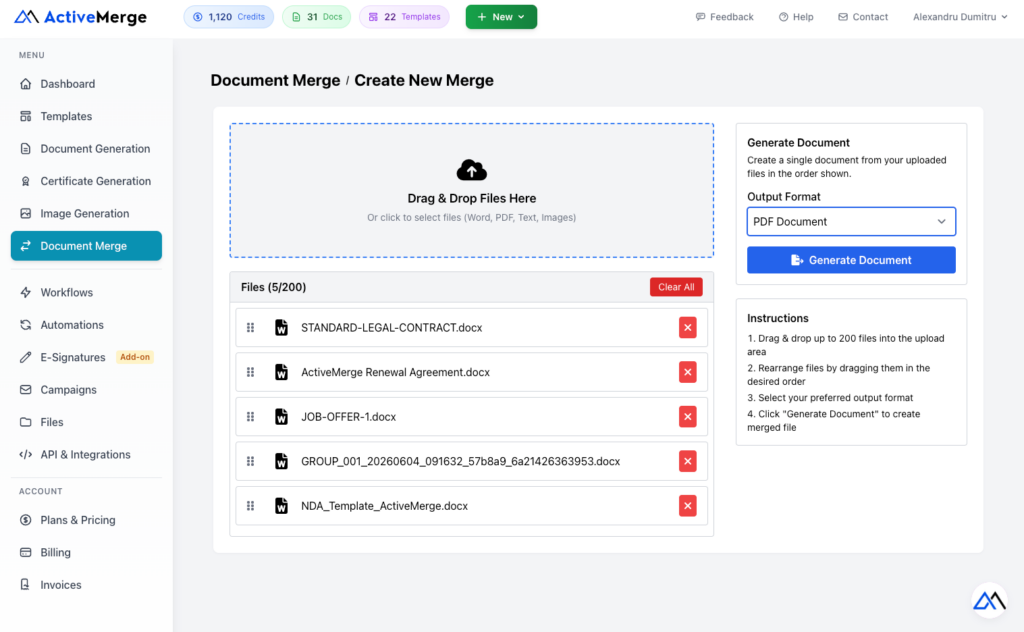
Go to Document Merge in the left sidebar and click New Merge.
2. Upload your files
Drag your Word .docx files into the upload area, or click to browse. You can add all your chapter files at once.
3. Set the order
Drag the files into the sequence you want. The merge engine combines them in the order shown. First file in, first chapter out.
4. Select ePUB as the output format
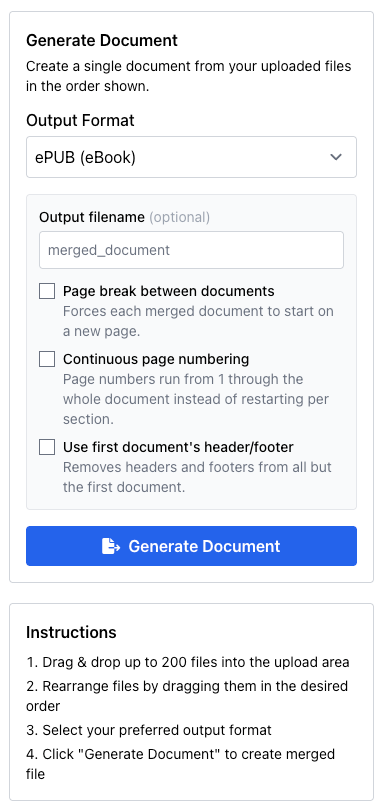
In the output format selector, choose ePUB.
5. Configure the options
Once ePUB is selected, four options appear:
| Option | What it does | When to use it |
|---|---|---|
| Custom output filename | Sets the name of the downloaded .epub file | Set this. Otherwise you get merged_document_[timestamp] |
| Page break between documents | Inserts a page break between each source file | Use if your .docx files don’t already end with a page break |
| Continuous page numbering | Runs page numbers from 1 through the whole document | Use if your source files have page numbers that restart |
| Use first document’s header/footer | Applies only the first file’s header/footer throughout | Use if each file has its own branding you want to consolidate |
The one you almost always want is Page break between documents. Without it, chapters run directly into each other.
6. Generate and download
Click Generate Document. When the file is ready, click the download link. It’s available for 24 hours.
Automating with the API
If you’re assembling documents programmatically, for example building a personalized guide per employee from a set of template chapters, you can call the Document Merge API directly.
POST /api/document-merge/merge
Content-Type: multipart/form-data
Authorization: Bearer YOUR_API_KEY
Request parameters:
files[]               = chapter-01.docx
files[]               = chapter-02.docx
files[]               = chapter-03.docx
format                = epub
output_filename       = employee-handbook       (optional)
page_break            = true                    (optional)
continuous_numbering  = true                    (optional)
strip_headers_footers = false                   (optional)
The response includes a temporary URL to the .epub file, valid for 24 hours. See the API docs for authentication and a full example.
Tips for a cleaner output
Use Word’s built-in heading styles (Heading 1, Heading 2) for section titles rather than manually bolding text. ePUB readers build the table of contents from heading styles. If your files use ad-hoc formatting, the TOC either won’t exist or won’t reflect your actual structure.
Add a manual page break at the end of each .docx file before uploading. It’s cleaner than relying on the merge option, which inserts a generic break rather than a chapter-aware one.
Large embedded images slow down e-reader rendering. Resize them to 96 dpi, no wider than 1200px, before embedding in Word.
Open the finished .epub in Apple Books or Calibre before distributing. Rendering varies between apps, and it’s better to catch formatting problems before the file goes out.
Common issues
Text from one document is running into the next.
Enable Page break between documents in the merge options, or add a manual page break at the end of each source .docx before uploading.
The ePUB has no table of contents.
TOC generation depends on heading styles. Replace manually bolded section titles with Word’s Heading 1 / Heading 2 styles, then re-run the merge.
File type error on upload.
Only .docx files work for ePUB output. Open the file in Word, go to File > Save As, and choose .docx.
The file is very large.
Large images are usually the cause. Compress them in Word before uploading: select an image, go to Picture Format > Compress Pictures.
I need to merge more than 200 files.
Do it in batches. Merge the first 200 into one .docx, then merge that result with the next batch. Do the intermediate merges as Word output and convert to ePUB in the final batch.

