
HR teams handle an enormous amount of paperwork every day—employee contracts, onboarding forms, performance reviews, payroll documents, training certificates, compliance checklists, and exit paperwork. These files often come in different formats (Word, PDFs, scanned images), and keeping them organized across multiple folders can quickly become overwhelming.
Instead of sending managers or auditors dozens of separate attachments, document automation for hr allows teams to merge everything into a single, consolidated PDF file. This makes records easier to review, ensures nothing is overlooked, and creates a professional package for compliance, reporting, or employee handovers.
That’s where ActiveMerge’s Document Merge feature makes the difference. With just a few clicks, HR teams can combine multiple employee records into a single PDF—perfect for audits, personnel files, or streamlined reporting.
Why HR Teams Need Document Merging
This is where document automation for hr becomes essential, helping HR departments centralize employee records and reduce manual work. For HR departments, merging documents into one file solves everyday challenges:
- Employee Records Management – Consolidate contracts, payroll stubs, and performance reviews into one master file.
- Audit-Ready Packages – Prepare complete compliance reports without missing attachments.
- Onboarding & Offboarding – Deliver professional employee packages during hiring or exit processes.
- Time Savings – Stop wasting hours sending individual files for each request.
- Error Reduction – Reduce the risk of misplacing documents or forgetting key records.
Step-by-Step: Merge Multiple HR Records into a Single PDF
The process below shows how document automation for hr works in practice using ActiveMerge’s Document Merge feature. With ActiveMerge’s Document Merge, you can merge up to 40 files into one clean, professional PDF in just minutes. This makes it easier for HR teams to prepare employee files, compliance reports, or complete onboarding/offboarding packages. Here’s the full detailed process:
Step 1: Log in to ActiveMerge
Before starting, make sure you have access to your organization’s ActiveMerge account.
- Go to the ActiveMerge platform and log in using your work email.
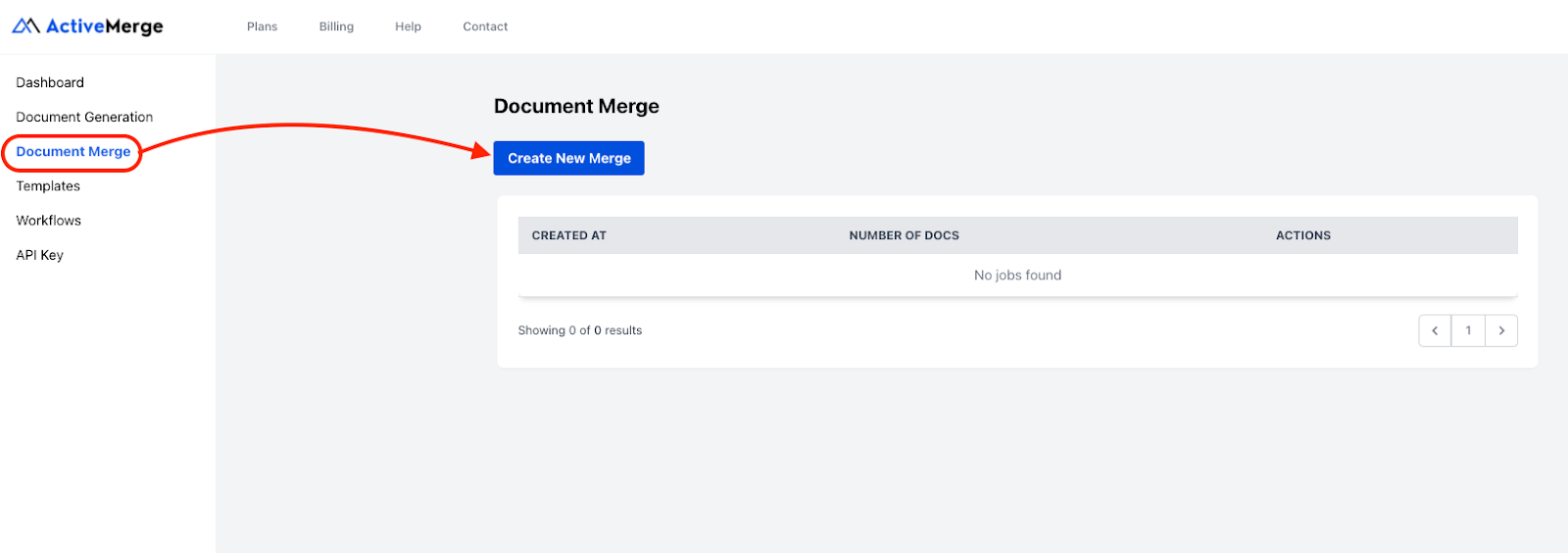
- From the dashboard, select Document Merge → Create New Merge.
- You’ll be redirected to the merge setup page, where the upload area and file management tools are available.

Inside your dashboard, you’ll also notice other sections like Workflows, Templates, and API Keys—but for this process, we’ll focus on the Document Merge option.
Tip for HR teams: If multiple HR staff members are handling employee files, create either a shared login or appoint an admin account holder. This ensures all records are merged following the same process, with consistent file naming conventions and archiving practices.
Step 2: Upload Your HR Records
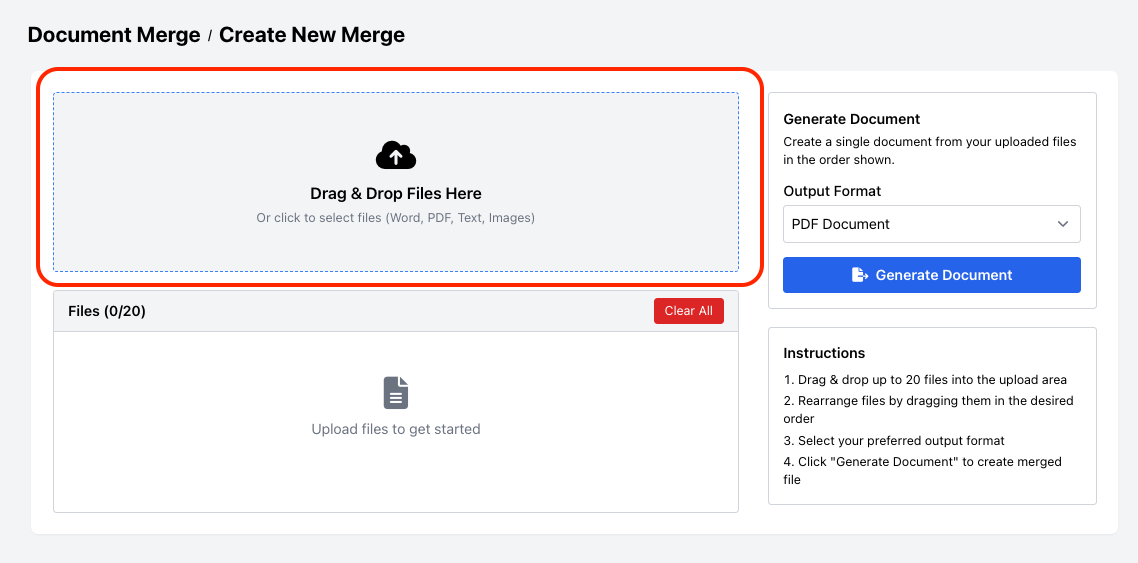
This is where you import the files you want to combine into a single PDF.
- Upload Options: Drag and drop your HR documents into the upload area, or click to manually browse your computer.
- Supported File Formats: Word (.doc/.docx), PDF, Text (.txt), and Images (.jpg/.png). This flexibility is especially useful when HR receives documents in mixed formats—for example, a scanned employee ID as an image, a signed contract as a PDF, and payroll reports as Word or Excel exports (saved as PDF).
- Upload Limits: You can upload up to 20 files at a time, which is more than enough for most employee folders or compliance sets.
Best Practice: Before uploading, rename your files with a consistent format so they’re easy to recognize and sort. For example:
- Employment_Contract_JaneDoe.pdf
- Payroll_Q1_2025_JaneDoe.pdf
- TrainingCertificate_Safety_JaneDoe.png
This makes it much easier to confirm you’ve included the right records, especially if you’re preparing files for multiple employees at once.
Step 3: Arrange Files in the Correct Order
The order you set here is exactly how your documents will appear in the merged PDF. A well-organized sequence makes it easier for managers, auditors, or employees to review.
Once files are uploaded, you will:
- See a list view of all uploaded documents.
- Use drag-and-drop controls to move files up or down into the correct sequence.
- Group related records together (e.g., contracts followed by payroll, then performance).
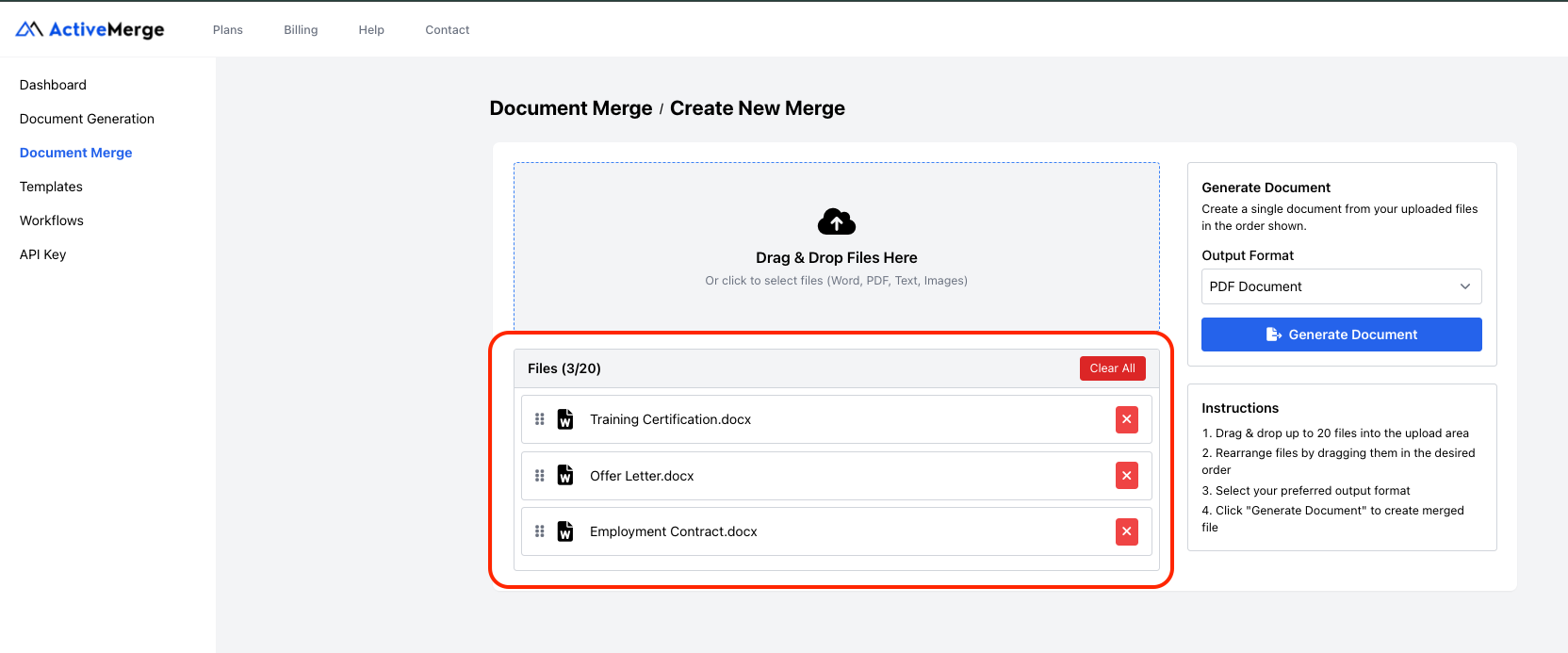
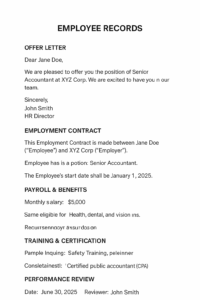
Example Order for a Complete Employee Package:
- Offer Letter
- Employment Contract
- Payroll & Benefits Documents
- Training & Certification Records
- Performance Reviews
- Exit Paperwork (if applicable)
Pro Tip: Think about the end user—whether it’s an auditor, HR director, or employee. Arrange the documents in the sequence that tells the clearest story of employment from start to finish. This not only looks professional but also reduces confusion during audits or reviews.
Step 4: Choose Output Format
After arranging the files, decide what type of document you want as the final output.
- PDF Document (Recommended)
- Creates a polished, secure, non-editable file.
- Best for compliance records, legal documents, and finalized employee files.
- Preserves signatures, formatting, and logos so nothing gets distorted.
- Word Document
- Select this option if you still need to make edits before final archiving.
- Useful for draft files, performance forms, or documents that require HR notes.
For HR teams, PDF is usually the best choice. It prevents accidental edits, ensures long-term record integrity, and is universally accepted by auditors, compliance bodies, and managers.
Step 5: Generate, Preview, and Download
Now comes the final step—generating your consolidated employee file.
- Click Generate Document to start the merge.
- ActiveMerge will automatically combine your files in the order you specified.
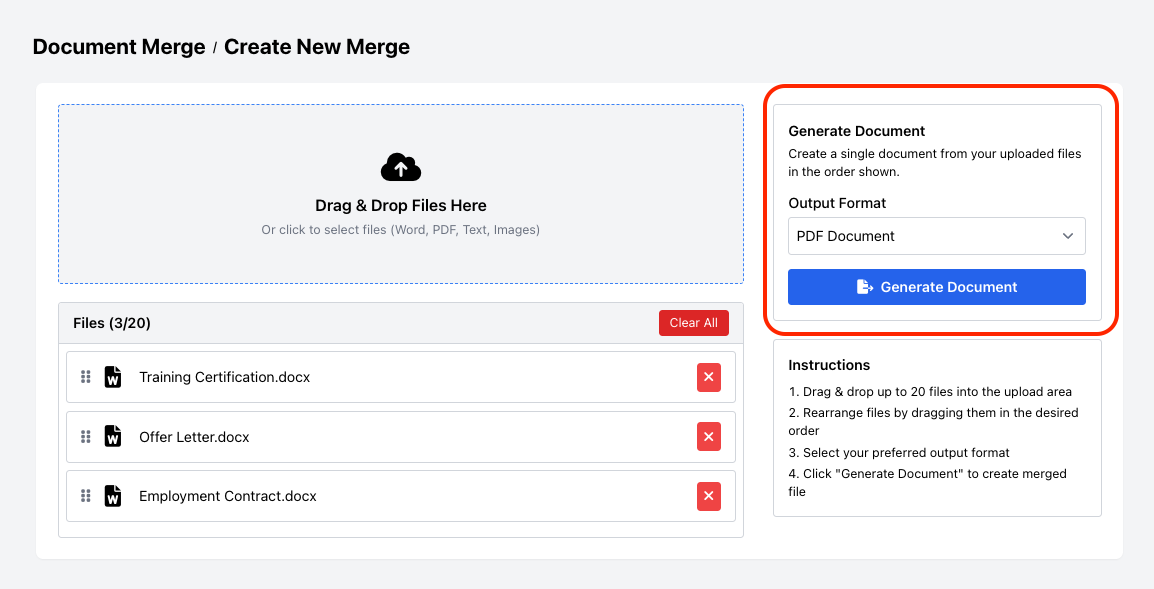
- Once processing is complete, you’ll be given two options:
- Preview Document – Open the file in a viewer to confirm formatting, sequence, and content before finalizing.
- Download – Save the merged PDF (or Word file) directly to your computer or upload it to your HR cloud storage (Google Drive, OneDrive, Dropbox).
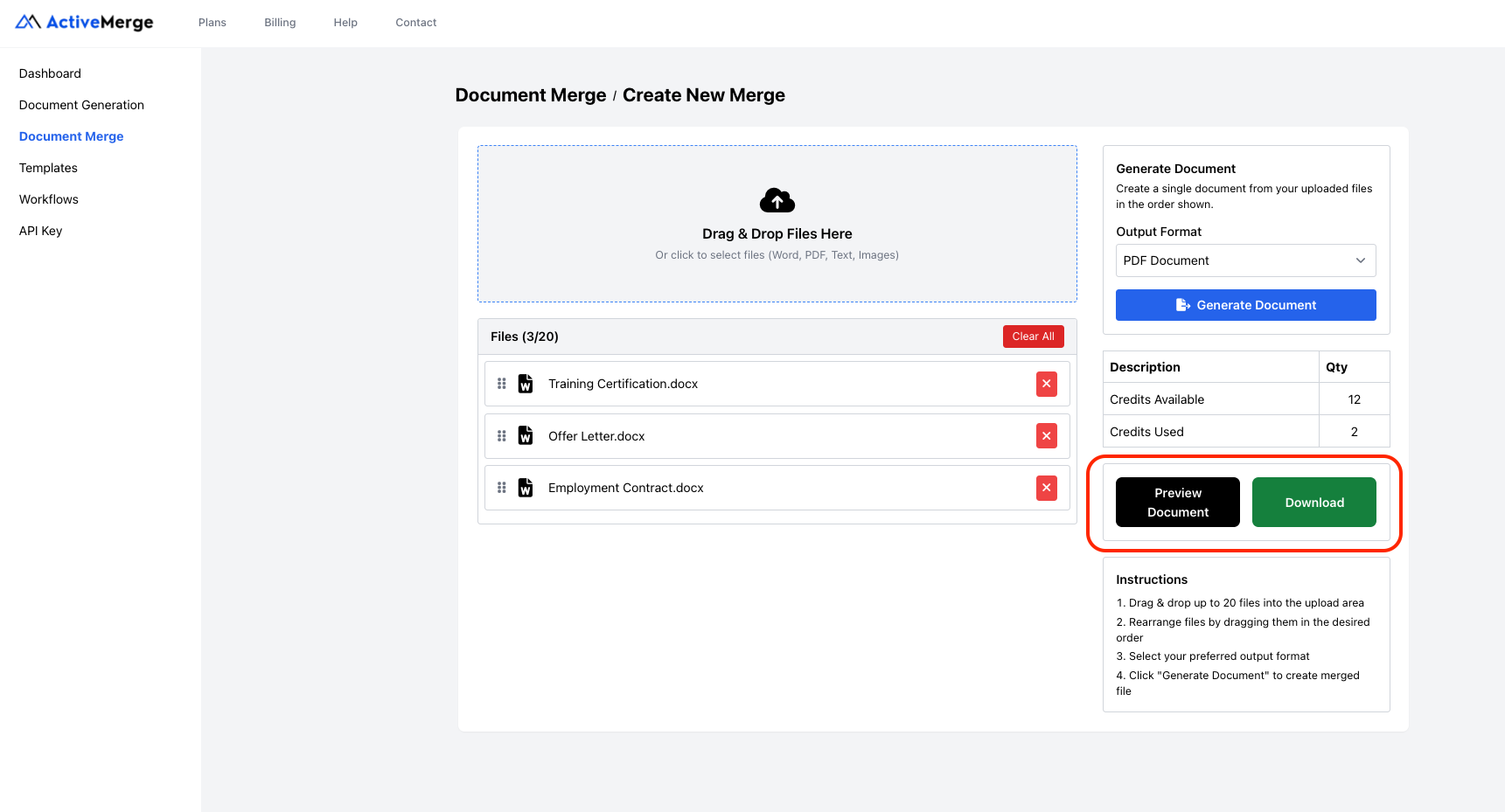
Note: You’ll also see a credit usage summary, which tracks how many ActiveMerge credits your merge consumed:
| Description | Qty |
| Credits Available | 18 |
| Credits Used | 2 |
Best Practice: Always use the Preview option first, especially when merging sensitive employee documents. This extra step helps catch any formatting issues, misplaced files, or missing records before sending the final package to managers, employees, or auditors.
Real-World Use Cases for HR Teams
Here’s how HR professionals are using document automation for hr with ActiveMerge’s Document Merge feature:
- New Hire Packages – Deliver contracts, benefits enrollment, and policy acknowledgments as a single PDF.
- Performance Reviews – Merge review forms, manager notes, and employee acknowledgments into one file.
- Compliance Audits – Bundle all legally required employee records for quick retrieval during audits.
- Employee Offboarding – Provide a single PDF with exit paperwork, final payroll, and benefits details.
- Training & Certification Tracking – Consolidate training certificates and compliance checklists for safety or skills audits.
Best Practices for HR Document Merging
To make the most of Document Merge, HR teams should:
- Standardize File Naming – Use consistent names (e.g., 2025_TrainingCertificate_JohnDoe.pdf).
- Use Employee Folders – Keep records grouped by employee, then merge into consolidated packages when needed.
- Secure Storage – Store final PDFs in encrypted cloud platforms like Google Drive, OneDrive, or Dropbox.
- Retain Originals – Always keep a copy of original files in case revisions or verifications are required.
Final Thoughts
With proper document automation for hr, managing employee documents doesn’t have to mean chasing down dozens of separate files. With ActiveMerge’s Document Merge, you can:
- Combine up to 20 HR files into one professional PDF.
- Save time and reduce errors in employee record management.
- Deliver polished, compliant, and organized packages to employees, managers, or auditors.
This simple but powerful tool helps HR teams stay efficient, compliant, and stress-free—no more drowning in paperwork or attachments.
Frequently Asked Questions
- What types of HR files can I merge with ActiveMerge?
You can merge contracts, payroll reports, performance reviews, training certificates, exit forms, and more in formats like Word, PDF, Text, or Images.
- Is there a limit on how many HR records I can merge?
Yes, up to 20 files per merge. For larger employee files, repeat the process and create multiple merged PDFs.
- Will formatting and signatures be preserved?
Yes. ActiveMerge ensures fonts, digital signatures, tables, and layouts remain intact in the final merged PDF.
- Can I reorder files after uploading?
Absolutely. Drag-and-drop lets you rearrange files in the exact order you want.
- Can I make edits to the merged file?
If you need to edit, select Word Document as the output format instead of PDF.

