
Law firms manage large amounts of client, case, and contract data — and effective Airtable contract management becomes essential for staying organized and efficient — often stored neatly in Airtable for tracking and collaboration.
But even with a well-organized Airtable base, one bottleneck remains: turning that data into actual legal documents such as retainer agreements, service contracts, NDAs, or client onboarding forms.
Manually copying client details into Word templates or exporting records to PDFs takes hours — and increases the risk of errors or inconsistent formatting.
ActiveMerge eliminates that problem and turns your workflow into a structured Airtable contract management system.
By connecting Airtable to ActiveMerge, you can automate Airtable contract management and generate client contracts directly from your records — complete with your firm’s branding, clauses, and formatting.
No copy-pasting, no manual editing, and no extra software needed. You can automatically send generated documents via email or send the contracts for e-signing.
Why ActiveMerge Enhances Airtable Contract Management
The Airtable + ActiveMerge integration transforms your database into a powerful document automation tool. With it, your firm can:
- Generate customized contracts, agreements, or engagement letters directly from Airtable data.
- Produce dozens of client-ready documents at once — with no manual edits.
- Maintain consistent legal formatting and branding across all documents.
- Attach finalized contracts back to Airtable records or sync them to Google Drive, Dropbox, or OneDrive.
- Reduce the risk of human error and save hours of paralegal or admin time each week.
This setup is ideal for:
- Law firms managing client intake and contract generation.
- Legal departments producing recurring service agreements.
- Real estate, IP, or employment lawyers handling bulk document generation for clients or cases.
Step-by-Step: Airtable Contract Management with Automated Contract Generation
Follow these steps to build a fully automated contract creation process — directly inside Airtable.
Step 1: Create Your ActiveMerge Account
First, set up your ActiveMerge account so you can manage templates, workflows, and integrations.
- Go to ActiveMerge and click Sign Up Free.

- Register using your work email address and create a secure password.
- Once logged in, explore the dashboard. You’ll see these main sections:
- Templates – for uploading and managing your contract templates.
- Workflows – for automating document creation in bulk.
- API Keys – for connecting to Airtable and other external tools.
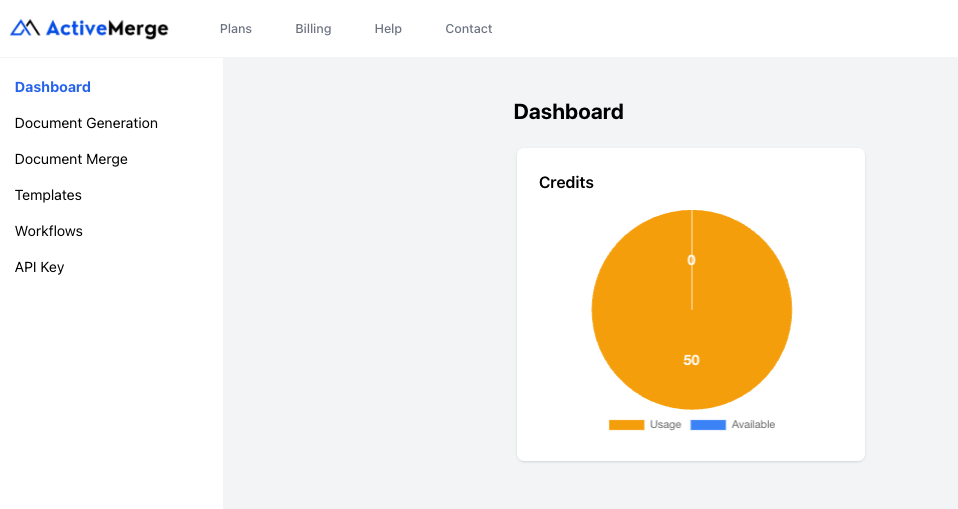
Pro Tip: The free plan allows you to generate up to 50 documents with no credit card required — perfect for testing your first workflow.
Step 2: Create a Contract Template in Word or Google Docs
This will be your master legal document that ActiveMerge uses to insert Airtable data automatically.
- Open Microsoft Word or Google Docs.
- Write your standard legal agreement — for example, a Client Service Agreement or Retainer Contract.
- Replace variable data fields (client name, address, date, rate, etc.) with merge placeholders wrapped in curly braces { }.
Here’s a sample contract template you can copy:
https://activemerge.com/templates/free-legal-contract-word-template/
Save the file in .docx format.
Upload it to ActiveMerge under Templates → Upload Template.

- Click Detect Placeholders to verify that all {fields} were recognized.

Best Practice: Make sure your placeholder names (e.g., {Client_Name}) exactly match your Airtable column headers.
Step 3: Generate an API Key
You’ll now connect ActiveMerge to Airtable using a secure API key.
- In your ActiveMerge dashboard, go to Settings → API Keys.
- Click Generate New API Key.
- Copy the key and keep it secure — you’ll need it when setting up the Airtable extension.
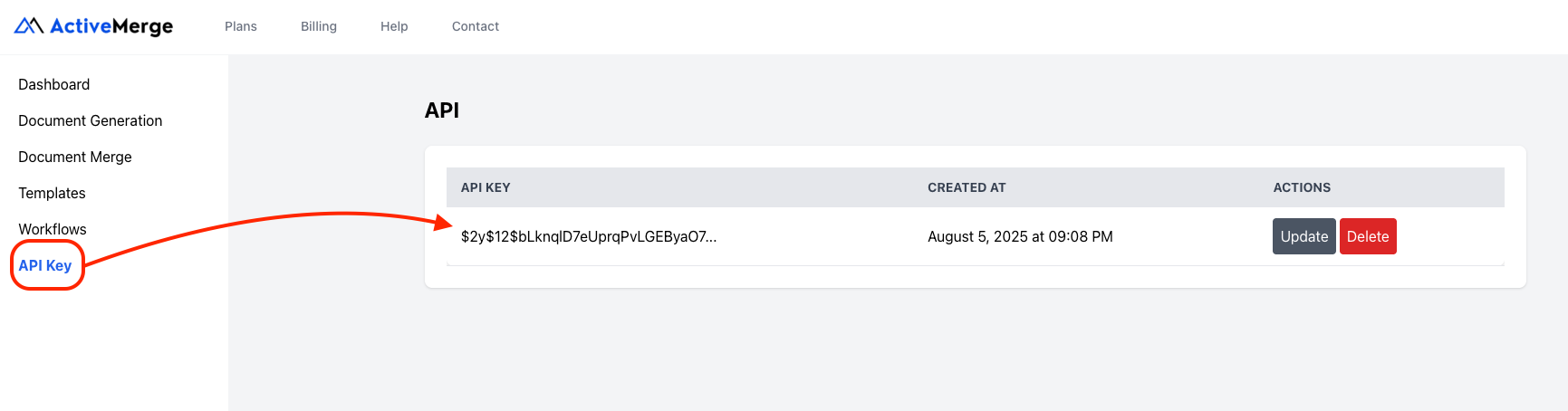
Important: Treat this like a password. Never share your API key publicly or embed it in shared documents.
Step 4: Set Up Your Airtable Base
Now, you’ll prepare the data source that powers your Airtable contract management workflow and feeds into your legal contract templates.
- Open your Airtable workspace and create a new Base (or use an existing one). You can name it something like “Client Contracts” or “Legal Agreements.”
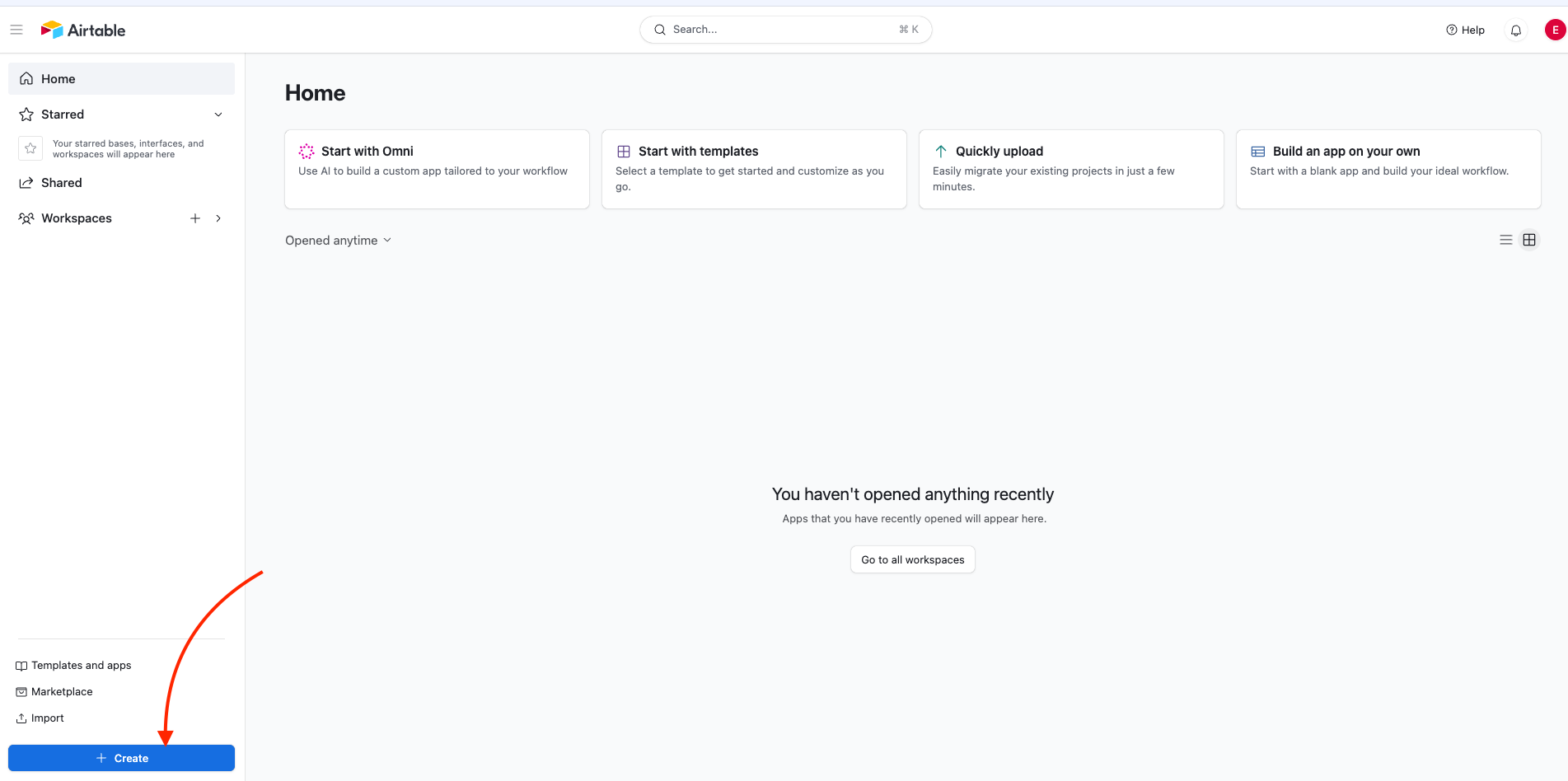
- Add columns that correspond to the placeholders you used in your ActiveMerge template. Each column should represent one merge field. Example:
| Client_Name | Client_Address | Law_Firm_Name | Attorney_Name | Agreement_Date | Start_Date | Case_Description | Retainer_Amount | Hourly_Rate | Payment_Terms | Jurisdiction |
| John Smith | 123 Oak Avenue, NY | Westbridge Legal Group | Sarah Tan | 2025-01-15 | 2025-01-16 | Contract review and negotiation | $2,000 | $250/hr | 15 | New York, USA |
| Maria Lopez | 45 Elm Street, LA | Westbridge Legal Group | Sarah Tan | 2025-02-01 | 2025-02-02 | Employment dispute consultation | $3,500 | $300/hr | 30 | California, USA |
- Fill in a few sample records for testing your setup before generating documents in bulk. You can always add more records later once your mapping works correctly.
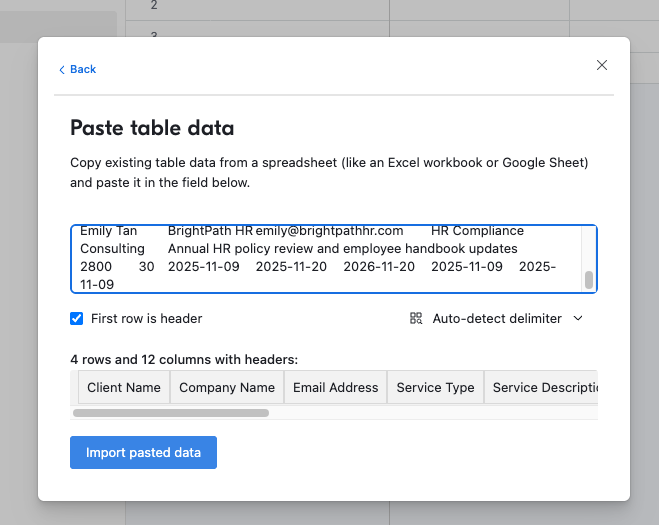
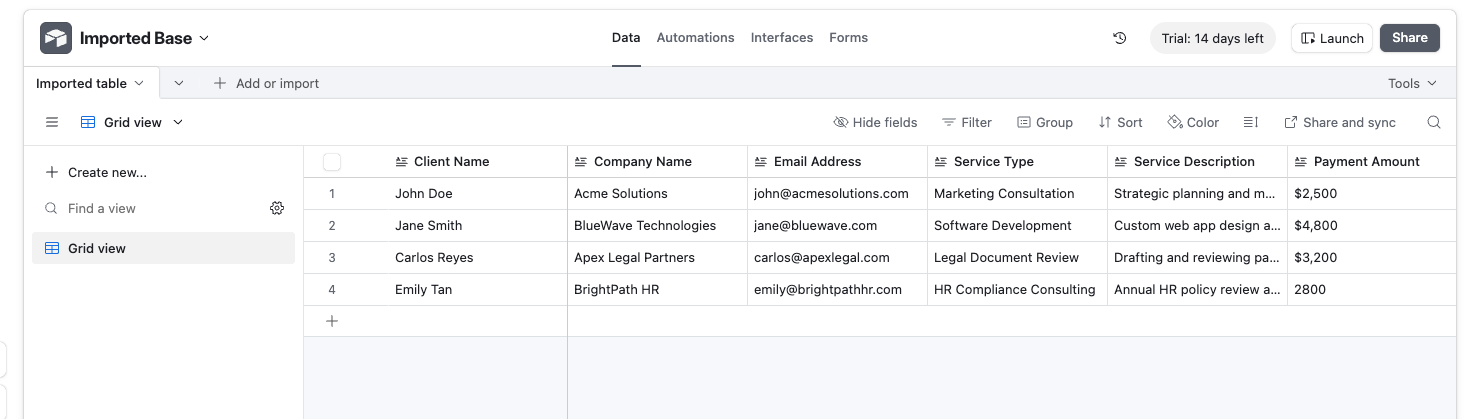
Best Practice: Use clear, consistent field names with underscores (_) instead of spaces to prevent placeholder mismatches. For instance, use Client_Name instead of Client Name, and ensure it matches exactly with {Client_Name} in your Word template.
Step 5: Install the ActiveMerge Document Generator Extension in Airtable
Now, bring ActiveMerge into Airtable to generate documents directly from your records.
- In your Airtable base, click Extensions → Add Extension.
- Search for ActiveMerge Document Generator in the Airtable Marketplace.
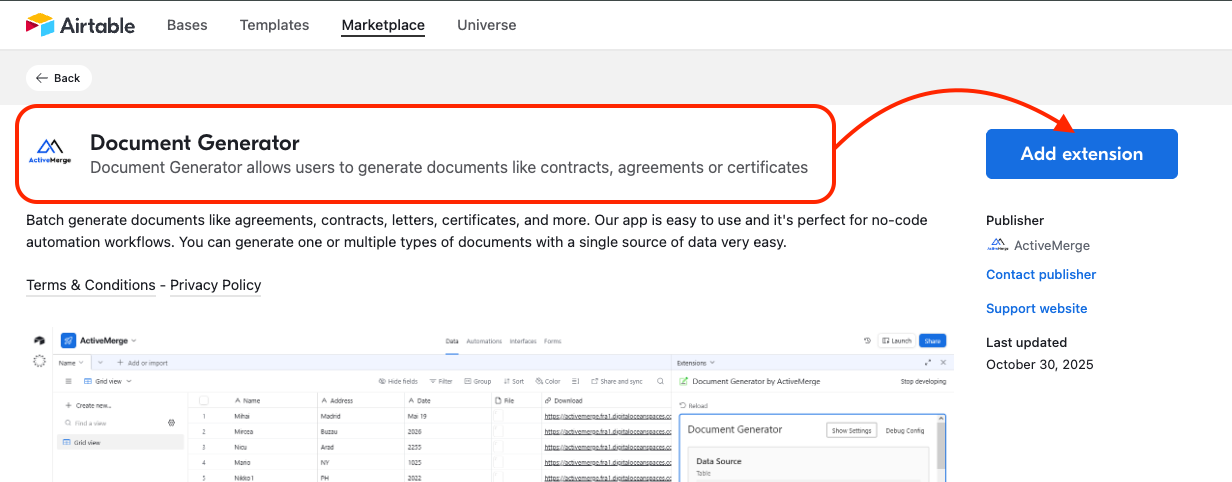
- Click Install and open the configuration panel.
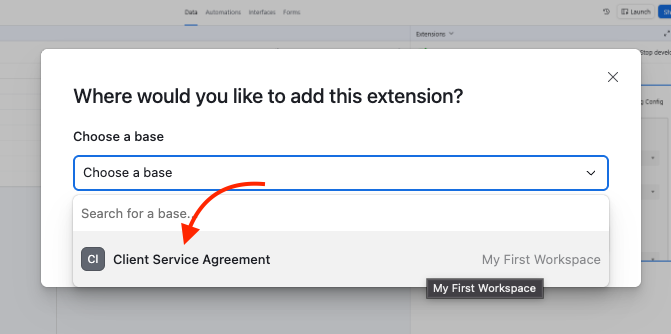
- Paste your ActiveMerge API Key from Step 3.
- Choose the template you uploaded earlier.
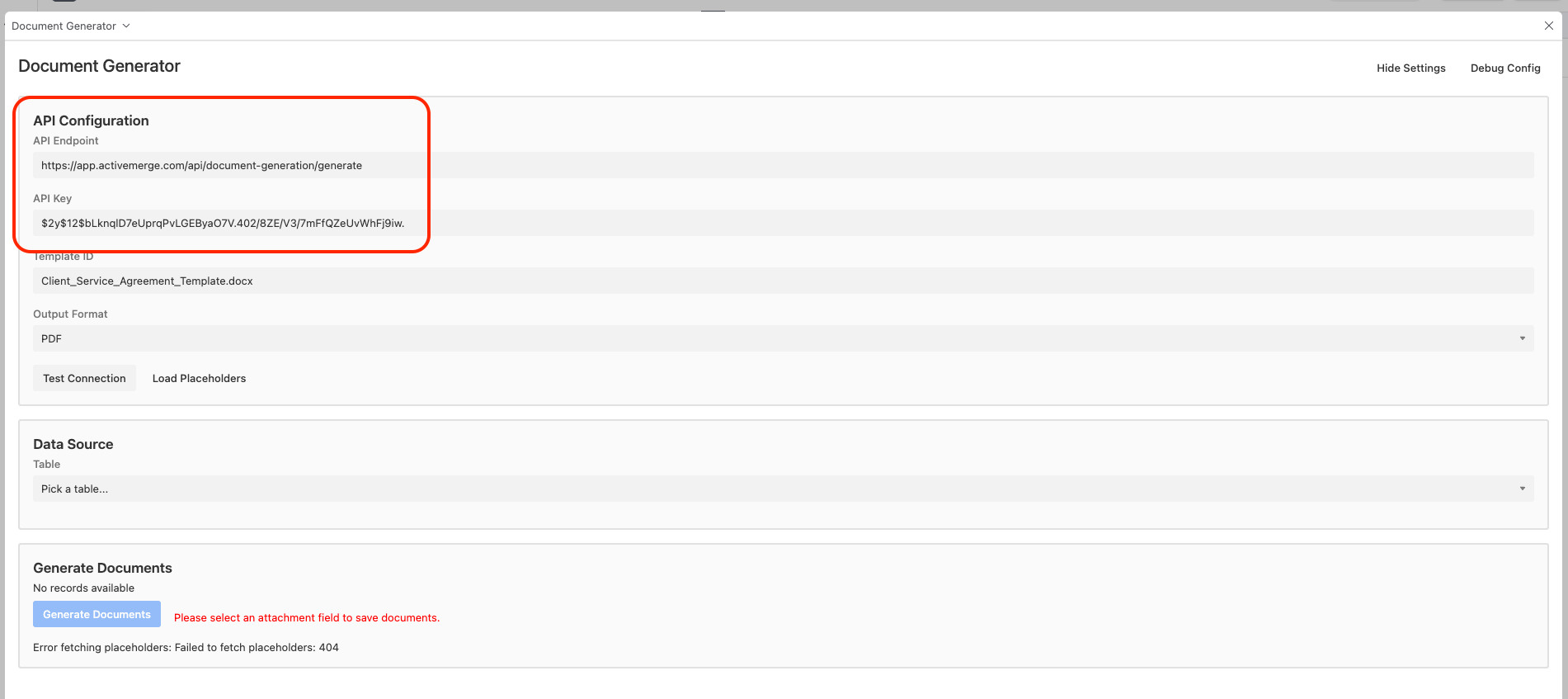
- Map each placeholder in the document to its corresponding Airtable field:
| Placeholder | Airtable Field |
| {Client_Name} | Client_Name |
| {Client_Address} | Client_Address |
| {Law_Firm_Name} | Law_Firm_Name |
| {Attorney_Name} | Attorney_Name |
| {Agreement_Date} | Agreement_Date |
| {Start_Date} | Start_Date |
| {Case_Description} | Case_Description |
| {Retainer_Amount} | Retainer_Amount |
| {Hourly_Rate} | Hourly_Rate |
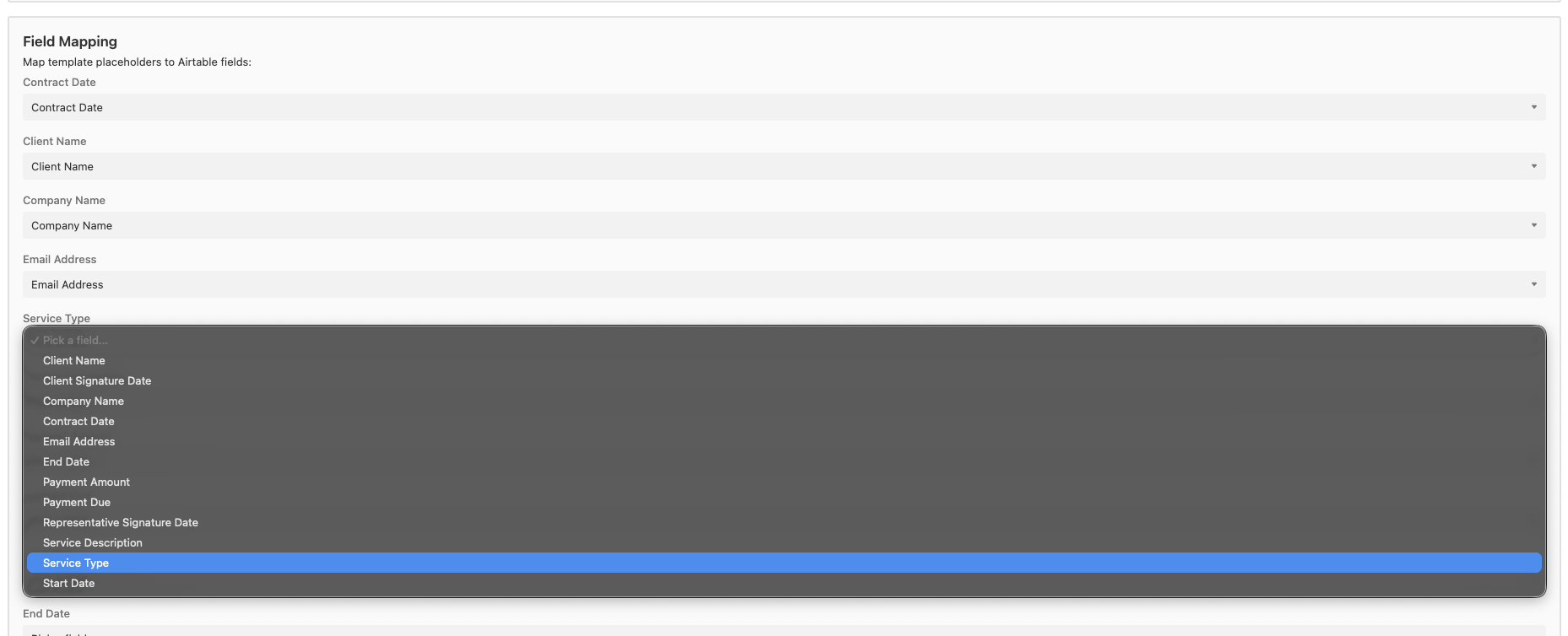
- Choose your output format (PDF or Word).
- Optionally, set your naming pattern: Client_Agreement_{Client_Name}.pdf
Step 6: Generate Contracts Automatically
You’re now ready to implement automated Airtable contract management by generating client contracts directly from your records.
- Open your Airtable base.
- Select one or more records.
- In the ActiveMerge extension panel, click Generate Document.
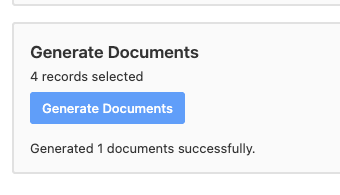
This is where Airtable contract management becomes fully automated:
- Pull each record’s data from Airtable.
- Replace placeholders in your Word template.
- Generate complete client contracts in seconds.
Each generated file will appear as a downloadable link or attachment in your Airtable record.
Once generated, contracts can be automatically delivered or stored:
- Attach to Airtable Records: Each record can include the final PDF for quick reference.
- Sync to Cloud Storage: Send files to Google Drive, Dropbox, or OneDrive folders automatically.
- Email Clients Automatically: Use Airtable Automations to send contracts right after they’re generated.
Example Automation:
- Trigger: When “Contract_File” is added to a record
- Action: Send email to {Client_Email} with the file attached
This setup keeps your legal workflows running smoothly — with contracts delivered faster and tracked properly.
Step 8: Review and Manage All Generated Contracts
Once ActiveMerge finishes processing, you can:
- View files directly inside Airtable (under your attachment column).
- Download or preview them.
- Manage them in your ActiveMerge dashboard under Workflows → Generated Documents.
Example File Outputs:
- Client_Agreement_John_Smith.pdf
- Client_Agreement_Maria_Tan.pdf
All neatly organized — one per client.
Real-World Use Cases for Law Firms
- Client Onboarding: Instantly generate engagement letters and service agreements.
- Case Management: Produce custom NDAs or settlement agreements from case records.
- Corporate & Compliance: Generate recurring documents like shareholder resolutions or contracts.
- Property Law Firms: Automate lease, tenancy, or purchase contracts for clients.
With ActiveMerge, every document your firm produces stays consistent, branded, and compliant — while freeing legal staff from manual drafting.
Best Practices
- Keep placeholders identical to Airtable field names.
- Always run a test preview before bulk-generating.
- Maintain clean, versioned templates in ActiveMerge for different contract types.
- Use automation to handle repetitive tasks — such as client delivery or archiving.
Conclusion
With ActiveMerge’s Airtable integration, law firms can modernize their Airtable contract management strategy by automating contract creation and eliminating manual drafting — generating dozens of accurate, branded agreements in just a few clicks. No more copy-pasting client details or reformatting documents. Just structured Airtable data, one master template, and automatic document generation.
Your team saves hours each week, reduces human error, and ensures that every client contract meets the same professional standard. Start automating your contracts with ActiveMerge today — and see how simple legal document generation can be.
Frequently Asked Questions
- Can I generate multiple contracts at once?
Yes. Select multiple records in Airtable and ActiveMerge will create a contract for each client automatically.
- Do I need Zapier or Make to automate?
No. The ActiveMerge Airtable extension works natively — no third-party automation tools needed.
- Can I use my firm’s logo and branding?
Absolutely. Upload templates with your logo, headers, and footers. ActiveMerge preserves all formatting.
- Which file types are supported?
You can generate Word (.docx) and PDF documents.