
Property managers and real estate agencies handle a large volume of paperwork daily — rental agreements, lease renewals, tenant applications, inspection reports, ID verifications, and payment receipts. These documents often come in different file formats (Word, PDF, scanned images), and keeping them organized across multiple tenants and properties can quickly become chaotic.
Instead of sending landlords, auditors, or property owners several separate attachments, real estate teams can save time and reduce confusion by merging all documents into a single, professionally formatted PDF. This makes it easier to review full lease histories, share complete property records, and ensure compliance with legal and financial requirements.
That’s where ActiveMerge’s Document Merge feature makes the difference. With just a few clicks, agencies can combine multiple rental-related files into one polished PDF — perfect for property portfolios, audit reports, or client handovers.
If all the files are Word (Docx) you can create a single Word file from multiple documents. And also use Airtable to merge multiple PDFs into one file.
Why Real Estate Teams Need Document Merging
For property management and real estate operations, merging documents into one file solves many recurring challenges:
- Tenant File Organization – Consolidate all rental agreements, applications, and inspection records in one place.
- Owner Reporting – Send landlords one clean file containing all tenant and property documents.
- Compliance Readiness – Keep audit-friendly, properly formatted lease records.
- Time Savings – Avoid sending or reviewing dozens of attachments per property.
- Error Reduction – Prevent missing or misplaced lease pages when sharing with legal or finance teams.
With Document Merge, your property records stay consistent, accessible, and ready to share — without manual file handling or reformatting.
Step-by-Step: Merge Multiple Rental Agreements into a Single PDF
Using ActiveMerge’s Document Merge, real estate professionals can merge up to 40 documents into one comprehensive PDF — ideal for property portfolios, lease summaries, or audit preparation. Here’s how:
Step 1: Log in to ActiveMerge
Start by accessing your agency’s ActiveMerge account.
- Visit the ActiveMerge platform and log in with your company credentials.
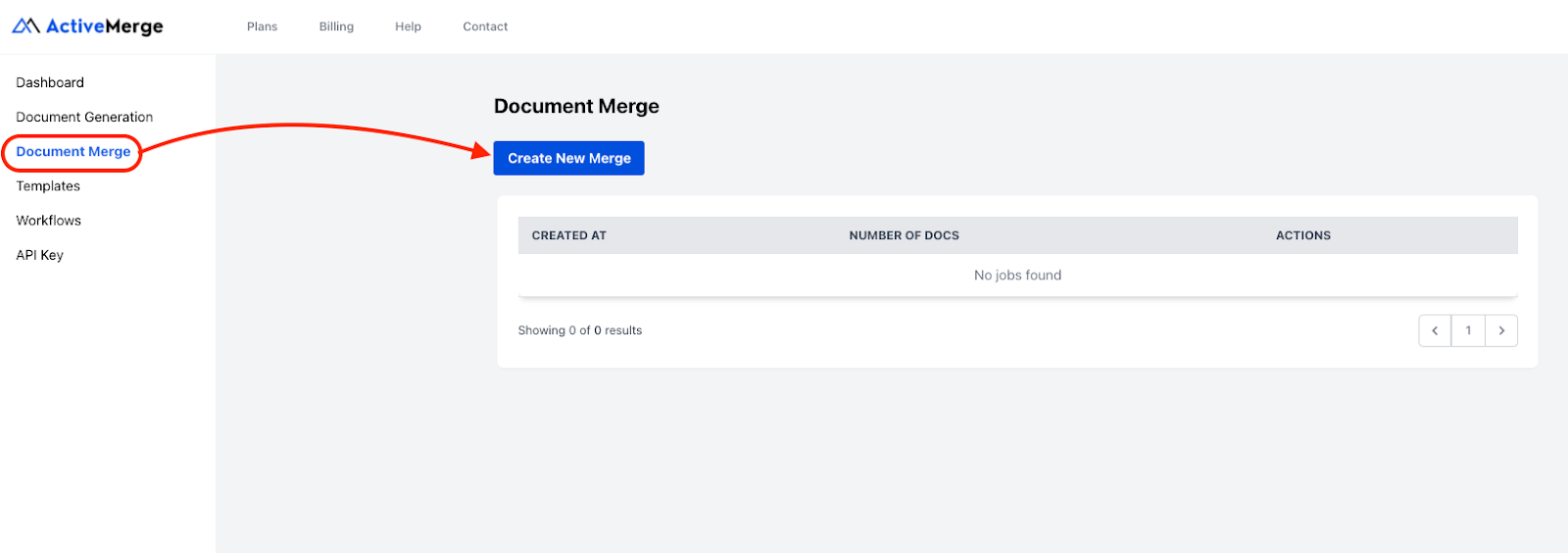
- From the main dashboard, select Document Merge → Create New Merge.
- You’ll be redirected to the merge setup page, where you can upload and manage files to be combined.

Inside your dashboard, you’ll also notice other sections like Workflows, Templates, and API Keys—but for this process, we’ll focus on the Document Merge option.
Tip for property managers: If multiple agents work on property files, create a shared account or designate an admin user to handle merging. This ensures uniform file naming, consistent processes, and reliable recordkeeping across all listings.
Step 2: Upload Your Rental Agreement Files
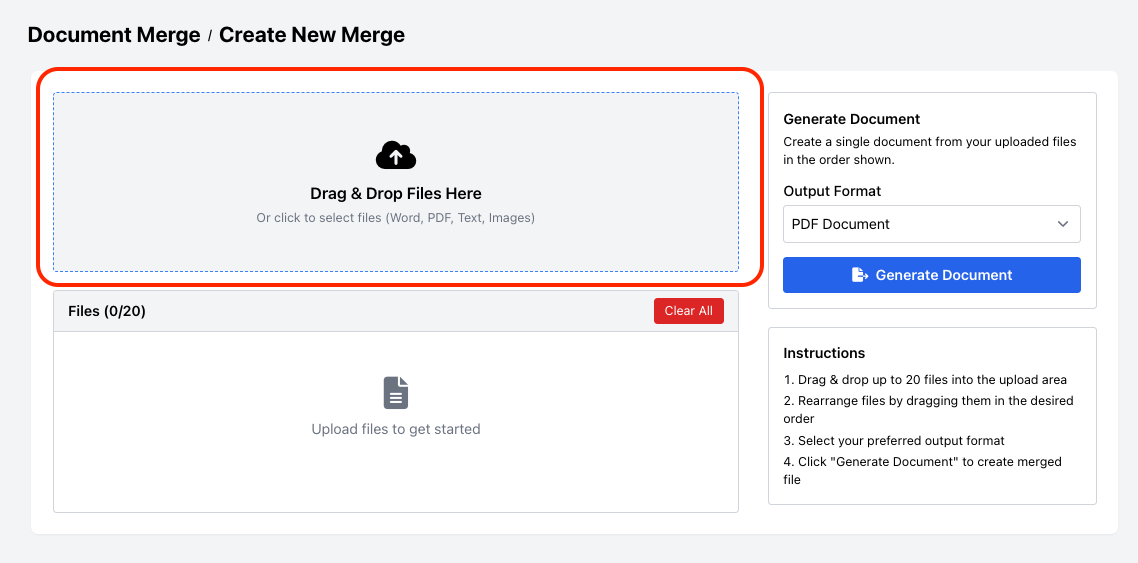
This step is where you’ll upload the documents you want to combine into one complete property file.
Upload Options:
- Drag and drop your lease-related files directly into the upload area.
- Or, click to browse and select files manually from your computer.
Supported File Types: ActiveMerge accepts PDF, Word (.doc/.docx), Text (.txt), and Images (.jpg/.png). This makes it easy to merge mixed file types, such as a signed PDF lease, a scanned tenant ID, and property inspection photos.
Upload Limit: You can upload up to 20 files per merge, which is more than enough for most tenant or property portfolios.
Best Practice: Rename your documents before uploading using a clear, consistent structure.
For example:
RentalAgreement_Unit5A_JohnDoe.pdf
InspectionReport_Unit5A.pdf
TenantID_JohnDoe.png
PaymentReceipt_Unit5A_Jan2025.pdf
This helps you instantly confirm which files belong to which property or tenant.
Step 3: Arrange Files in the Correct Order
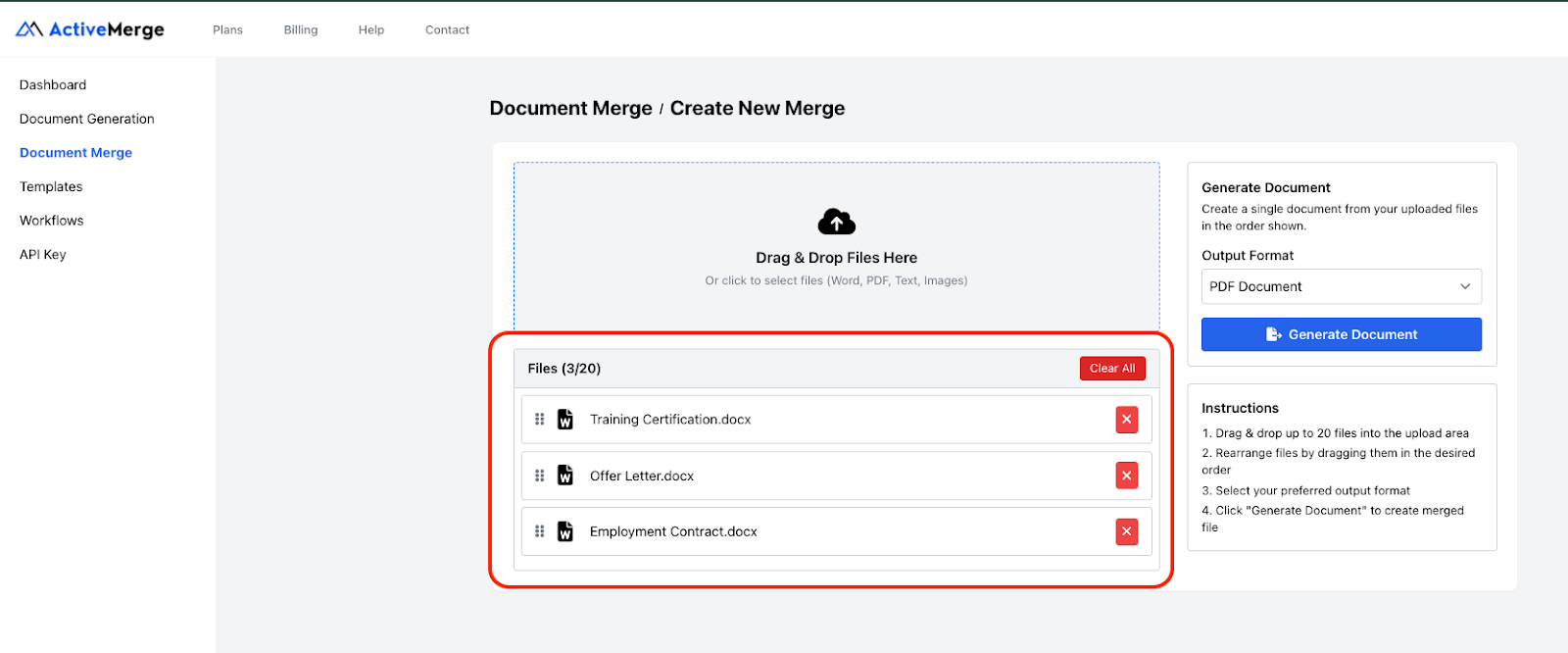
After uploading, the order you choose will determine how the merged PDF is displayed. Organized sequencing helps owners, managers, and auditors navigate the file easily.
Here’s what to do:
- View your uploaded documents in the list panel.
- Drag and drop each file to reorder them.
- Group related files logically — such as agreements first, followed by inspection and payment documents.
Example Order for a Complete Rental File:
- Tenant Application Form
- Signed Rental Agreement
- Tenant ID and Proof of Address
- Property Inspection Report
- Rent Payment Receipts
- Lease Renewal Documents
Pro Tip: Think of your merged file as a story of tenancy — from application to lease renewal. Arrange documents in that natural order for clarity and professionalism.
Step 4: Choose Output Format
Now decide what type of file you want as your final output.
- PDF (Recommended): Creates a secure, professional, and non-editable file that’s perfect for sharing with owners, auditors, or legal teams. It preserves signatures, page layout, and branding exactly as uploaded.
- Word Document: Choose this if you need to make edits before sending or archiving. Useful for preparing draft lease bundles or editable owner reports.
Recommendation: Most real estate agencies prefer PDF — it ensures authenticity, consistency, and compliance across all shared records.
Step 5: Generate, Preview, and Download
Now you’re ready to create your merged rental file.
- Click Generate Document to start the merge process.
- ActiveMerge automatically compiles your documents in the exact order you arranged.
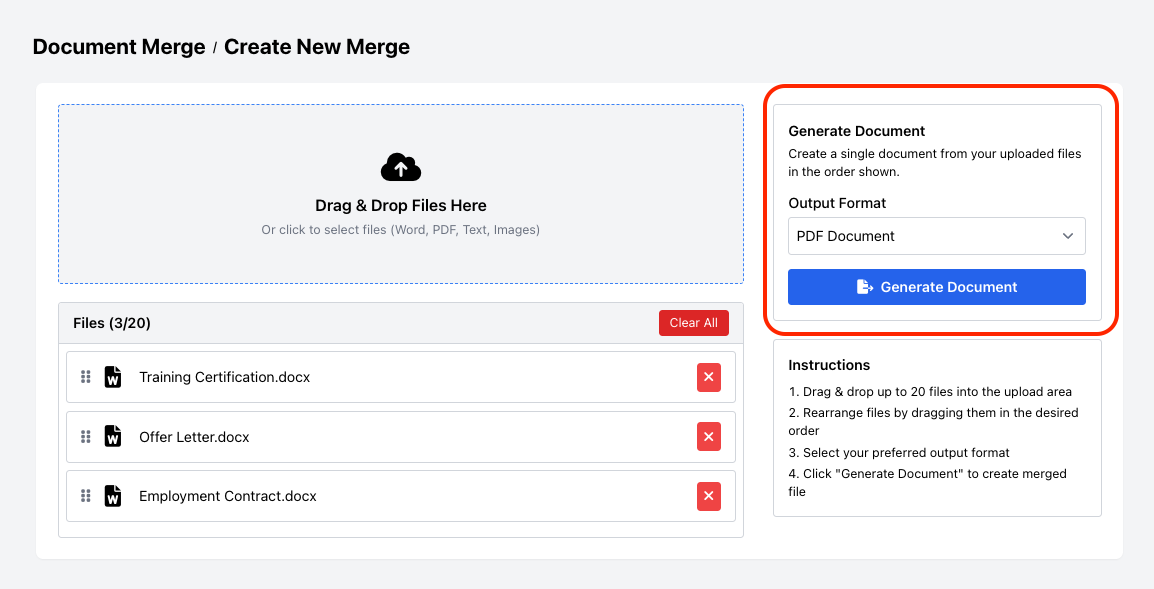
- Once complete, you’ll have two options:
- Preview Document – Review layout, page order, and formatting before finalizing.
- Download – Save the merged PDF to your local drive or directly upload to cloud storage (Google Drive, Dropbox, OneDrive).
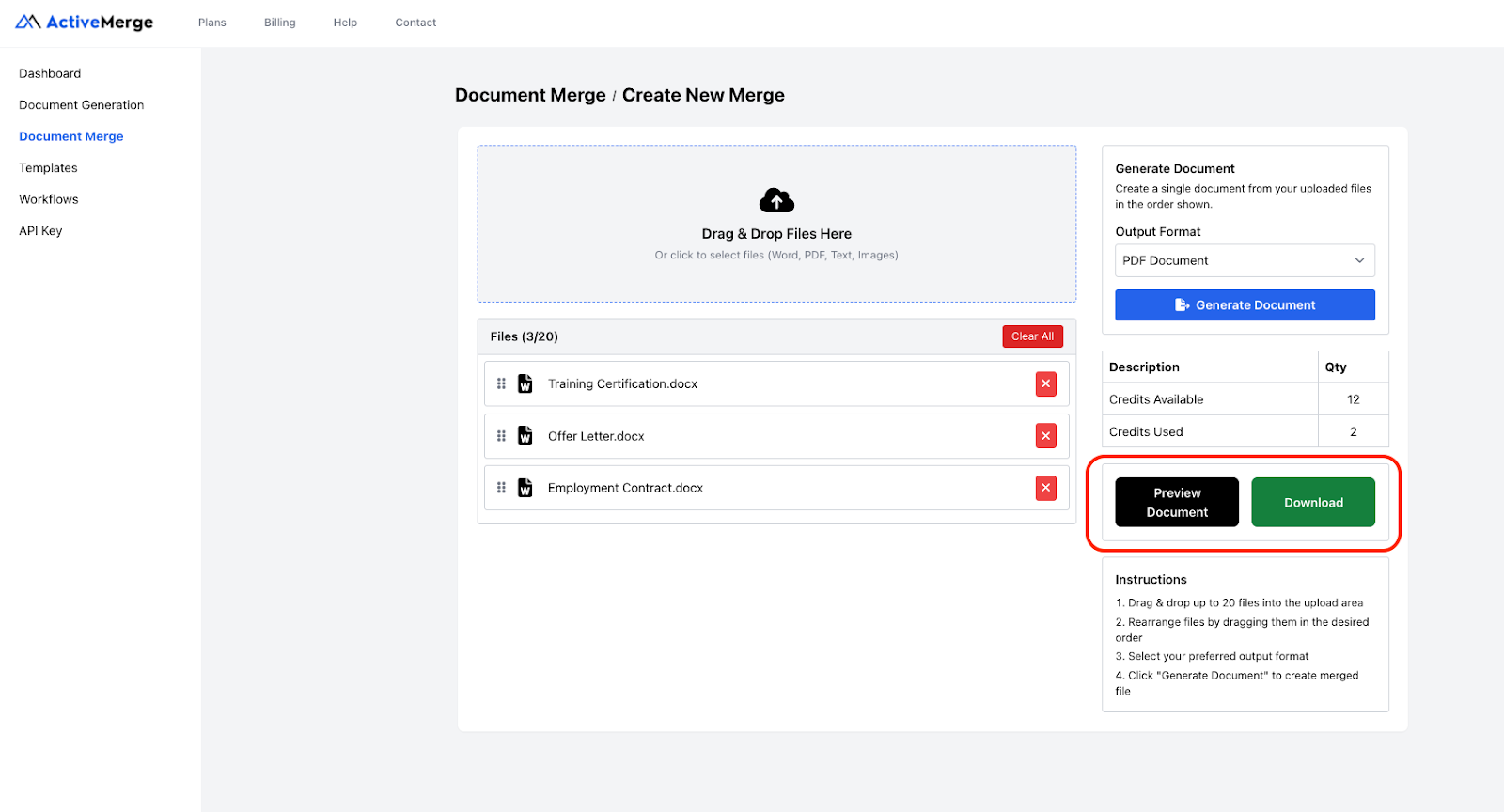
You’ll also see a credit summary, showing how many merge credits were used in this operation:
| Description | Qty | Credits Used |
| Available Credits | 18 | — |
| Merge Operation | 1 | 2 |
Sample Result:
Best Practice: Always preview the document before downloading — especially for legal records like leases or compliance bundles. It ensures all tenant information and agreement pages are properly aligned before sending to clients or landlords.
Real-World Use Cases for Real Estate Teams
Here’s how property professionals are already using Document Merge in ActiveMerge:
- Property Owner Reports – Combine tenant agreements, inspection photos, and receipts into one file for monthly updates.
- Audit Preparation – Merge all legal rental files for a single building or unit for quick compliance checks.
- Tenant Portfolios – Create comprehensive lease history files for long-term tenants.
- Lease Renewal Packages – Combine old and new agreements for reference during renewals.
- Property Handovers – Deliver a complete document pack when transferring property management duties.
Best Practices for Real Estate Document Merging
To keep your process smooth and organized:
- Standardize File Names: Use clear, consistent naming like 2025_RentalAgreement_Unit5A.pdf.
- Group by Property or Tenant: Create folders for each property, then merge as needed.
- Store Securely: Use encrypted cloud storage for long-term access.
- Keep Originals: Always save unmerged copies in case revisions are required later.
Final Thoughts
Real estate document management doesn’t have to mean juggling multiple attachments or folders. With ActiveMerge’s Document Merge, agencies can:
- Merge up to 20 lease-related documents into one professional PDF.
- Save hours of manual work while maintaining accuracy and consistency.
- Deliver polished, complete, and compliant records to landlords, auditors, or tenants.
This powerful yet simple feature helps property teams stay organized, professional, and compliant — no more messy attachments or misplaced agreements. Visit ActiveMerge today!
Frequently Asked Questions
1. What types of property files can I merge with ActiveMerge?
You can merge rental agreements, inspection reports, payment receipts, tenant applications, ID scans, and lease renewals — in PDF, Word, Text, or Image formats.
2. Is there a limit on how many files I can merge?
Yes — you can merge up to 20 files per operation. For larger portfolios, repeat the process to create separate PDFs per property or unit.
3. Will formatting and signatures stay intact?
Absolutely. ActiveMerge preserves your original formatting, digital signatures, and tables in the final PDF.
4. Can I rearrange documents after uploading?
Yes — simply drag and drop to reorder them before merging. This ensures your output file follows your preferred structure.
5. Can I still edit the merged file?
Yes — if you choose Word Document as your output format, you can make final adjustments before archiving or sharing.

