
Property management agreements are crucial contracts that define the responsibilities, obligations, and expectations between property owners and management agencies. Preparing these agreements manually can be tedious, time-consuming, and prone to errors—especially for agencies managing multiple properties or clients.
- I Why Automating Property Management Agreements Matters
- II What Is ActiveMerge’s Document Generation Feature?
-
III
Step-by-Step: How to Generate Property Management Agreements
- III.I Step 1: Register for an ActiveMerge Account
- III.II Step 2: Prepare Owner and Property Data
- III.III Step 3: Upload Data to ActiveMerge
- III.IV Step 4: Upload Your Property Management Agreement Template
- III.V Step 5: Select the Export Format
- III.VI Step 6: Generate the Agreements
- III.VII Step 7: Preview and Validate Agreements
- III.VIII Step 8: Download or Share Agreements
- III.IX Step 9: Automate the Workflow (Optional)
- IV Real-World Example
- V Final Thoughts
- VI Frequently Asked Questions
ActiveMerge’s Document Generation feature simplifies this process by automatically merging structured client and property data with pre-built templates. With just a few steps, agencies can create accurate, professional property management agreements at scale.
In this guide, we’ll show real estate agencies how to automate property management agreement creation using ActiveMerge.
Why Automating Property Management Agreements Matters
Property management agreements govern relationships between property owners and agencies, covering important topics such as:
- Duties and responsibilities of the management agency
- Fee structures and payment terms
- Maintenance obligations and tenant communications
- Termination clauses and legal compliance
Manually preparing each agreement often leads to:
- Wasted time: Copying, pasting, and updating contract fields for multiple clients.
- Errors and inconsistencies: Typos, incorrect property details, or mismatched terms.
- Compliance risks: Failing to include jurisdiction-specific clauses or updated terms.
- Bottlenecks: Slow contract preparation delays client onboarding and reduces trust.
Automation solves these issues by:
- Standardizing agreements across all properties and clients.
- Reducing administrative workload so staff can focus on client relationships.
- Ensuring accuracy and compliance using a master template updated regularly.
- Improving client experience with faster agreement turnaround.
What Is ActiveMerge’s Document Generation Feature?
ActiveMerge allows you to automatically generate documents by merging structured data with templates. For property management agencies, this means:
- Uploading owner and property data from spreadsheets.
- Uploading a property management agreement template with placeholders.
- Choosing the output format (PDF, DOCX, or PPTX).
- Generating and downloading professional, customized agreements instantly.
This eliminates manual editing, ensures consistency, and saves hours of administrative work.
Step-by-Step: How to Generate Property Management Agreements
Follow these steps to fully automate property management agreement generation.
Step 1: Register for an ActiveMerge Account
Before you can generate agreements, you need an ActiveMerge account:
- Go to the ActiveMerge registration page.
- Click Sign Up and enter your work email address and a secure password.
- Check your email inbox for a verification link and click it to confirm your account.
- Log in to your dashboard using your credentials.

Dashboard Overview:
- Document Generation: Start new jobs to generate documents automatically from templates and data.
- Document Merge: Combine multiple documents into a single file, useful for reports or multi-part agreements.
- Templates: Store, manage, and edit all your document templates.
- Workflows: Automate multi-step document processes and batch generation.
- API Keys: Connect ActiveMerge to Zapier, Make, or other tools for automated workflows and integrations.
Best Practices:
- If your agency has multiple staff generating documents, create separate user accounts to track activity and maintain security.
- Choose a strong, unique password for each account to protect sensitive client data.
Step 2: Prepare Owner and Property Data
Structured data is the backbone of automated document generation.
- Open a spreadsheet program such as Google Sheets or Microsoft Excel.
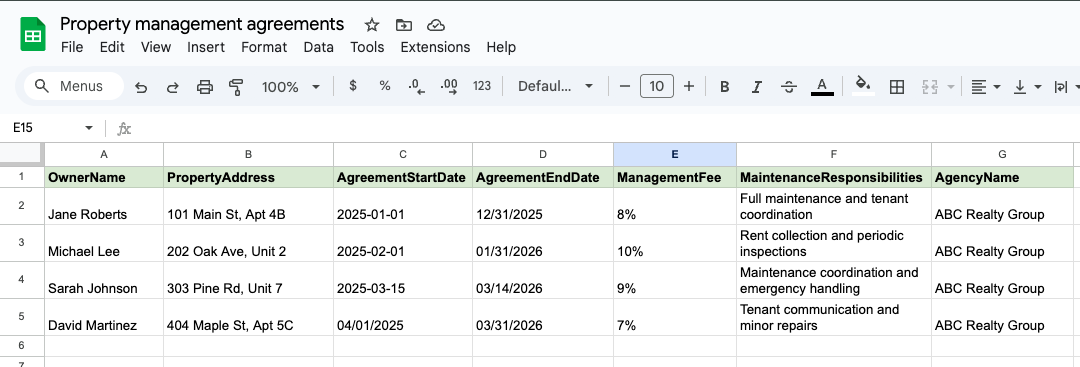
- Create column headers that correspond to the fields in your property management agreements. Common headers include:
- OwnerName
- PropertyAddress
- AgreementStartDate
- AgreementEndDate
- ManagementFee
- MaintenanceResponsibilities
- AgencyName
- Enter the property and owner information in each row. Each row will generate a separate agreement.
Example Spreadsheet:
- Save the spreadsheet as CSV or XLSX.
Best Practices:
- Ensure headers exactly match placeholders in your template. For example, {OwnerName} in your Word template must correspond to OwnerName in your spreadsheet.
- Remove any unnecessary spaces or special characters in headers.
- Test a small batch of data first to ensure correct formatting.
Step 3: Upload Data to ActiveMerge
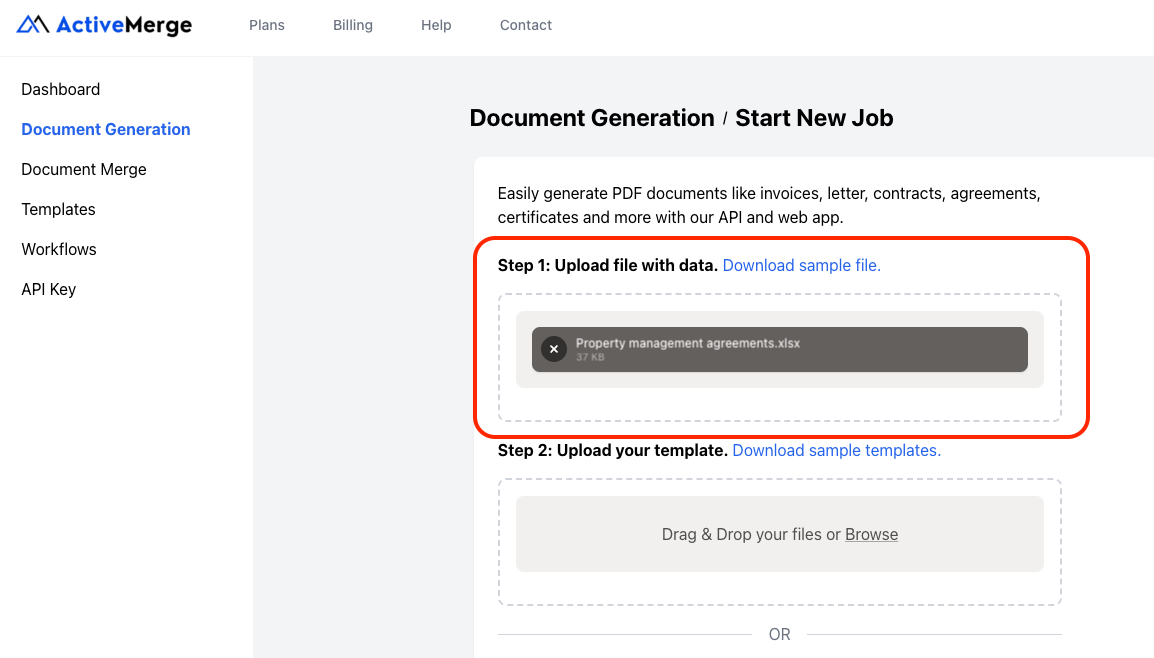
- Log in to ActiveMerge and navigate to Document Generation → Start New Job.

- Under Step 1: Upload File with Data, drag and drop your spreadsheet or click Browse to select the file from your computer.
- ActiveMerge will analyze the spreadsheet, detect columns, and prepare the data for merging.
Tips:
- Use consistent date formats (e.g., MM/DD/YYYY) to avoid errors.
- Ensure that numeric fields like ManagementFee are properly formatted as numbers.
Step 4: Upload Your Property Management Agreement Template
The template contains the text and placeholders that will be replaced with your data.
1. Create Your Template
- Open Microsoft Word or Google Docs.
- Write your property management agreement with all standard clauses: scope of services, fees, responsibilities, term, termination, and legal compliance.
- Replace client-specific information with placeholders that match your spreadsheet headers.
Example Template Text:
| This Property Management Agreement is entered into on {AgreementStartDate} between {AgencyName} (“Agency”) and {OwnerName} (“Owner”) for the property located at {PropertyAddress}. The agreement will remain in effect until {AgreementEndDate}. The management fee shall be {ManagementFee} of the monthly rental income. The Agency will handle the following maintenance responsibilities: {MaintenanceResponsibilities}. |
Note: You can also visit the Free Templates section on Active Merge to download pre-built contracts you can customize.
2. Save the Template
- Save as .DOCX.
- Ensure clean formatting and correct placeholder spelling.
3. Upload to ActiveMerge
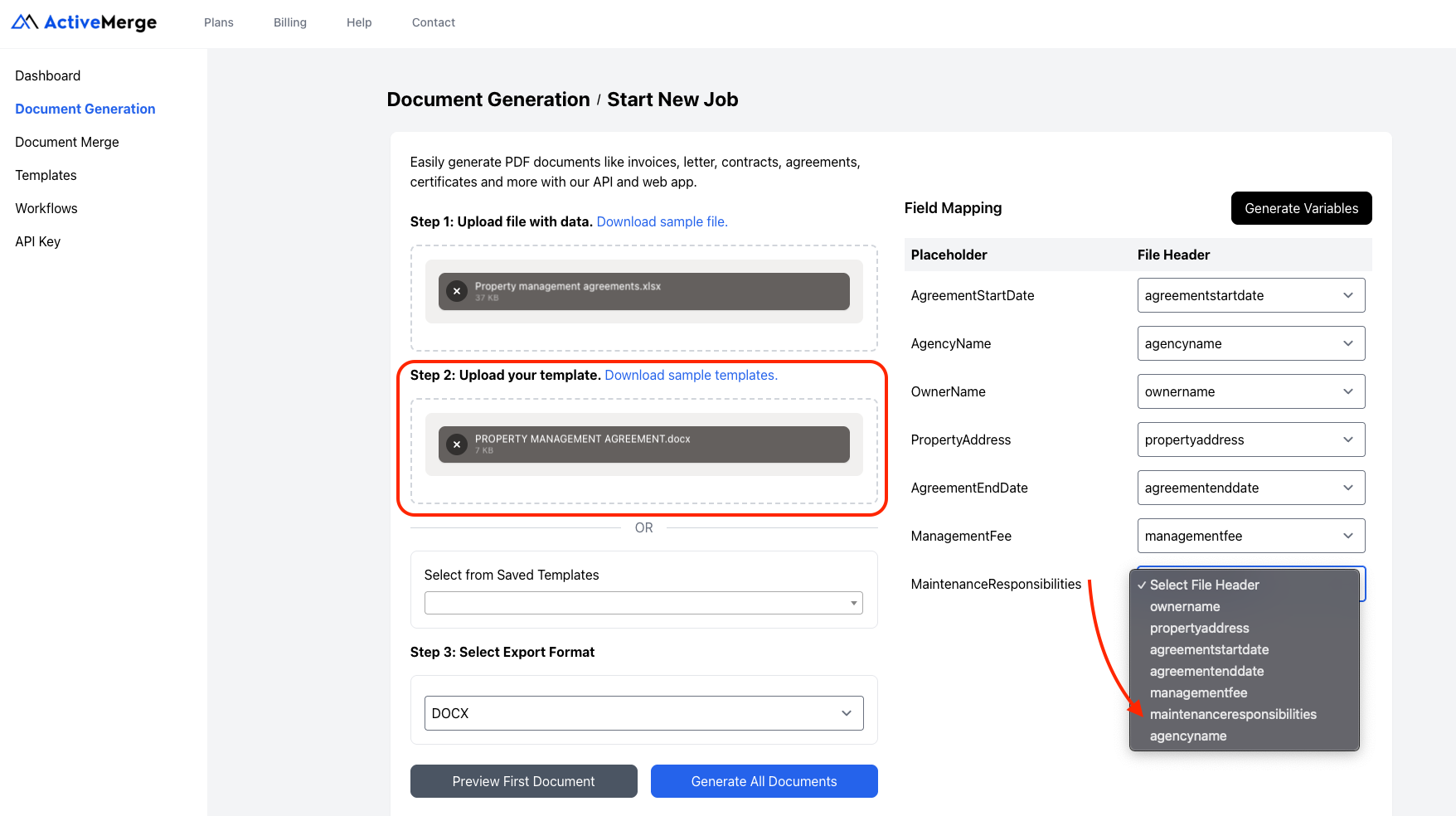
- Navigate to Document Generation → Step 2: Upload Your Template.
- Drag and drop the DOCX file or select from your computer.
- If you have saved templates, select from Saved Templates.
- Click Detect Placeholders to confirm all placeholders are recognized.
- Name your template and click Save.
Tips:
- Avoid using spaces or special characters in placeholders.
- Keep optional sections flexible for agreements that may not use all fields.
Step 5: Select the Export Format
- Under Step 3: Select Export Format, choose the file format for the agreements:
- PDF: Recommended for finalized agreements to prevent edits.
- DOCX: Useful if you need to make adjustments after generation.
- PPTX: Rarely used, for presentations or property summaries.
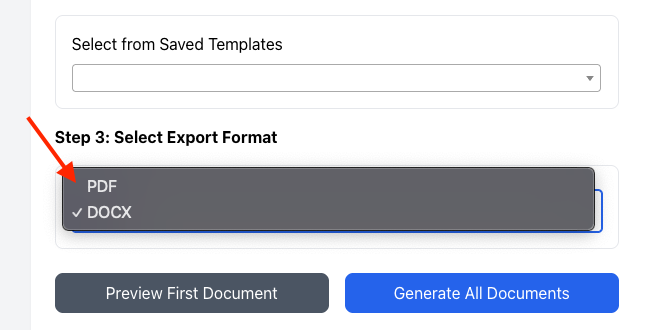
- For property management agreements, PDF is generally the best choice to ensure a professional and consistent layout.
Step 6: Generate the Agreements
- Click Generate Documents.
- ActiveMerge will merge your spreadsheet data with the template. Each row generates a unique agreement.
- Generation is usually completed in seconds, even for large batches.

Tips:
- For large datasets, allow a few extra seconds for processing.
- Check the document list for any errors after generation.
Step 7: Preview and Validate Agreements
- Open a few generated agreements to ensure accuracy.
- Confirm that all placeholders have been replaced with correct tenant or owner data.
- Check formatting, alignment, and that no fields are missing.
- If errors are found, correct your spreadsheet or template and regenerate.
Best Practice: Always preview at least three agreements when using a new template or dataset.
ActiveMerge offers multiple distribution options:
- Download as ZIP: Quickly download all agreements for storage or printing.
- Share via Email: Send agreements directly to property owners using integrated email workflows.
- Save to Cloud Storage: Connect to Google Drive, Dropbox, or OneDrive for automatic storage in designated folders.

Tips:
- Organize files by property address or owner name for easy retrieval.
- For recurring agreements, consider naming files with the year or lease period.
Step 9: Automate the Workflow (Optional)
- Connect ActiveMerge to Zapier or Make.
- Trigger agreement generation automatically when a new property or owner is added to your property management system.
- Automatically email agreements to property owners.
- Save finalized documents in cloud storage.
Best Practice: Automation is ideal for agencies managing hundreds of properties, reducing human error and saving significant time.
Real-World Example
A property management firm oversees 100 rental units across multiple buildings. Every year, they must renew property management agreements. Without automation, preparing all agreements manually would take several days.
Using ActiveMerge:
- They export a property and owner data spreadsheet.
- Upload one standardized agreement template.
- Generate 100 personalized agreements in under a minute.
This reduces workload, improves accuracy, and speeds up client onboarding.
Other Documents Agencies Can Automate
ActiveMerge can also handle:
- Lease renewal letters
- Security deposit receipts
- Move-in/move-out inspection reports
- Eviction notices
- Tenant onboarding guides
Final Thoughts
Manually preparing property management agreements is inefficient and error-prone. ActiveMerge enables agencies to:
- Standardize agreements
- Automatically merge owner and property data
- Generate dozens or hundreds of agreements in minutes
- Ensure compliance and accuracy
Automation saves time, reduces risk, and improves client experience. Real estate agencies can now scale their document workflows efficiently.
Frequently Asked Questions
What types of documents can ActiveMerge generate for real estate agencies?
ActiveMerge can generate property management agreements, lease renewal letters, tenant onboarding documents, inspection reports, eviction notices, and more. Any document that uses structured data and placeholders can be automated.
How does ActiveMerge handle property-specific information?
ActiveMerge merges spreadsheet or CSV data into your template, replacing placeholders like {OwnerName} or {PropertyAddress} with the correct values for each agreement.
Can I generate multiple agreements at once?
Yes. ActiveMerge supports batch generation. Upload your data sheet, and it will create personalized agreements for each property automatically.
In which formats can I export the generated agreements?
Generated documents can be exported as PDF (recommended), DOCX (editable), or PPTX (for presentations).

