

Financial professionals often deal with a mountain of files every week: invoices, bank statements, tax forms, payroll reports, expense receipts, audit files, and more. These documents are often scattered across different formats (Word, Excel, PDF, images), making it time-consuming to organize, share, or archive them.
- I Why Financial Teams Need Document Merging
- II Step-by-Step: Merge Multiple Financial Documents into a Single PDF
- III Real-World Use Cases for Finance Teams
- IV Best Practices for Financial Document Merging
- V Bonus: Share Your Final PDF Securely with FileDrop
- VI Conclusion
- VII Frequently Asked Questions
For many firms, finding a reliable way to merge financial documents quickly and securely has become essential to maintaining efficiency and compliance.
Instead of sending clients or auditors dozens of separate files, it’s far more efficient to merge financial documents into a single, professional PDF package. This not only makes reviewing easier but also ensures consistency and reduces the risk of missing attachments.
That’s where ActiveMerge’s Document Merge feature comes in. With just a few clicks, you can combine multiple files into a single, well-ordered PDF—perfect for financial reporting, audit submissions, or client handovers.
Why Financial Teams Need Document Merging
For accounting firms, finance departments, and auditors, document merging solves common pain points:
- Audit-Ready Packages – Quickly combine invoices, receipts, and reconciliations into a single file for external or internal audits.
- Client Deliverables – Provide consolidated PDF reports that look professional and are easier for clients to review.
- Regulatory Compliance – Ensure all required financial records are stored together in one secure document.
- Time Savings – Stop wasting hours attaching, renaming, and emailing dozens of individual files.
- Error Reduction – Avoid missing or duplicating files when everything is consolidated into one PDF.
The ability to merge financial documents into one structured file improves workflow clarity and simplifies compliance processes.
Step-by-Step: Merge Multiple Financial Documents into a Single PDF
With ActiveMerge’s Document Merge, you can easily merge financial documents—up to 20 files—into one clean PDF in just minutes.Here’s exactly how the process works:
Step 1: Log in to ActiveMerge
Before you begin, you’ll need access to your ActiveMerge account.
- Go to ActiveMerge and log in using your work email.
- From your dashboard, click on Document Merge → Create New Merge.
- You’ll be taken to the setup page where you can start uploading and arranging your documents.

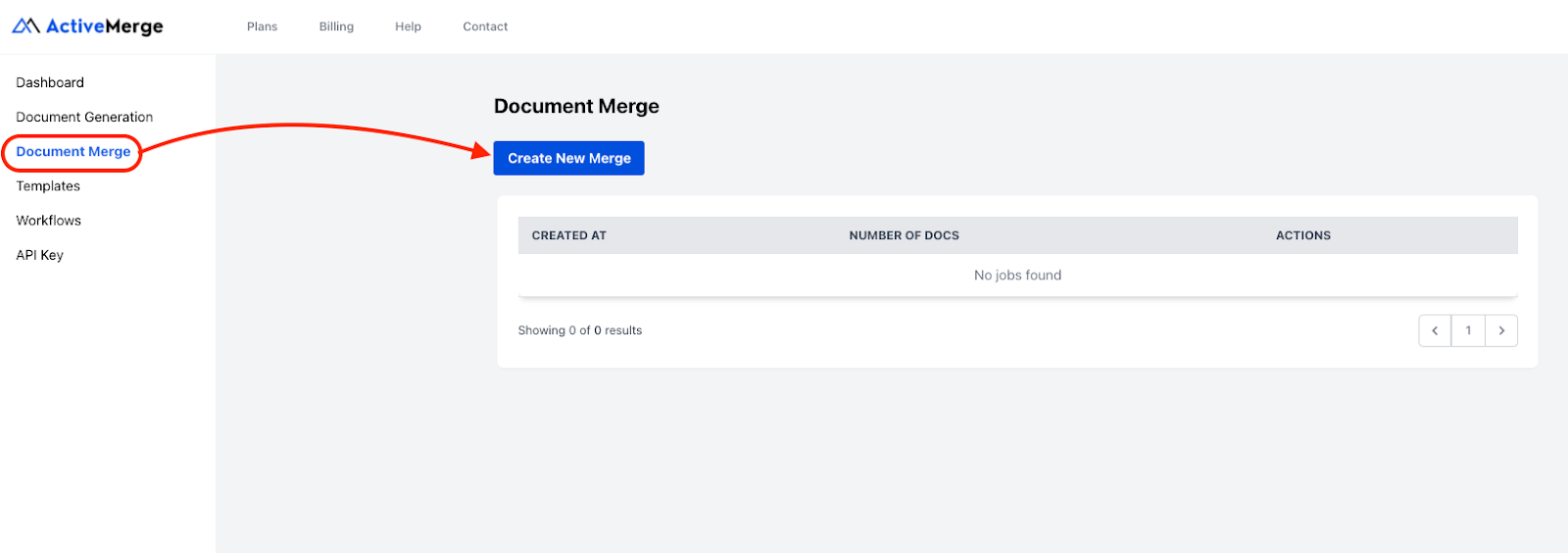
Tip: If you’re part of a finance team, it’s best to create a shared team login or designate an admin so everyone follows the same process.
Step 2: Upload Your Financial Files
This is where you bring in the financial documents you want to combine.
- Drag and drop your files into the upload box, or click to browse your computer.
- You can upload a mix of file types—Word, PDF, Text, or Images. This is particularly useful for scanned receipts, payroll slips, or bank statements that arrive as different formats.
- Upload up to 20 files in one merge. If you need to merge more than that, simply repeat the process with the next set of files.
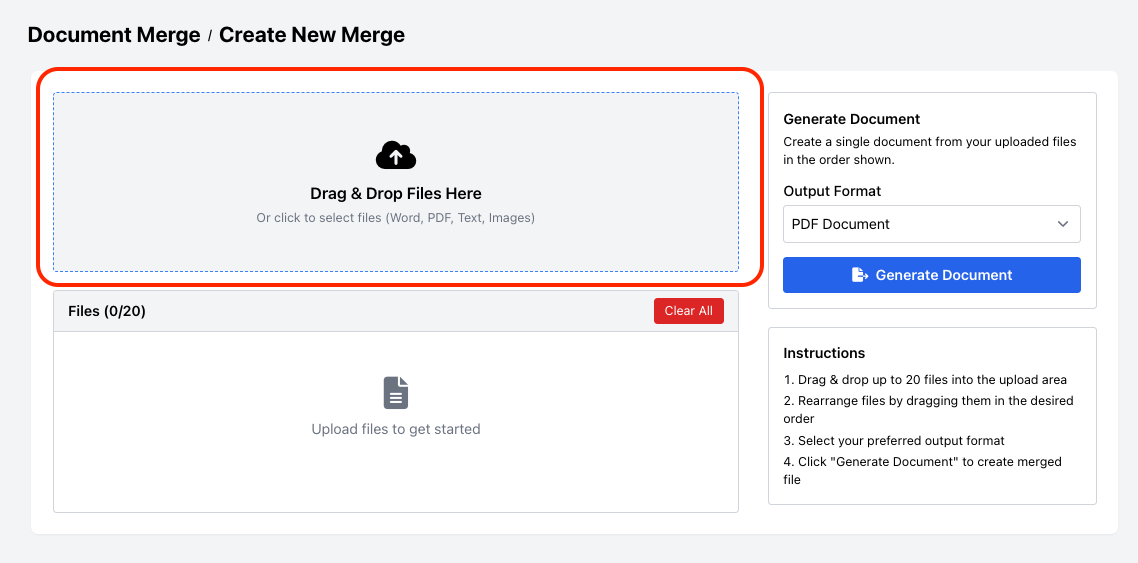
Best Practice: Rename your files clearly before uploading (e.g., 2025_Q1_BalanceSheet.pdf or Invoice_AcmeCorp_July.pdf) so they’re easier to identify in the list.
Step 3: Arrange Files in the Correct Order
The order you place your files determines how they appear in the merged PDF.
- Once uploaded, you’ll see a full list of your files.
- Use drag-and-drop to move documents up or down the list.
- Place them in the exact order you want the final PDF to follow.

For example, a typical monthly reporting package might look like this:
- Cover Letter or Executive Summary
- Income Statement
- Balance Sheet
- Payroll Report
- Invoices and Receipts
Pro Tip: Always think about the reader. Arrange files in the order that makes the most sense for auditors, clients, or managers reviewing the document.
Step 4: Choose Output Format
After ordering your files, decide what format the final document should take.
- Under Output Format, select PDF Document to generate a polished, non-editable report package.
- If you still want flexibility to edit the final file, choose Word Document instead.
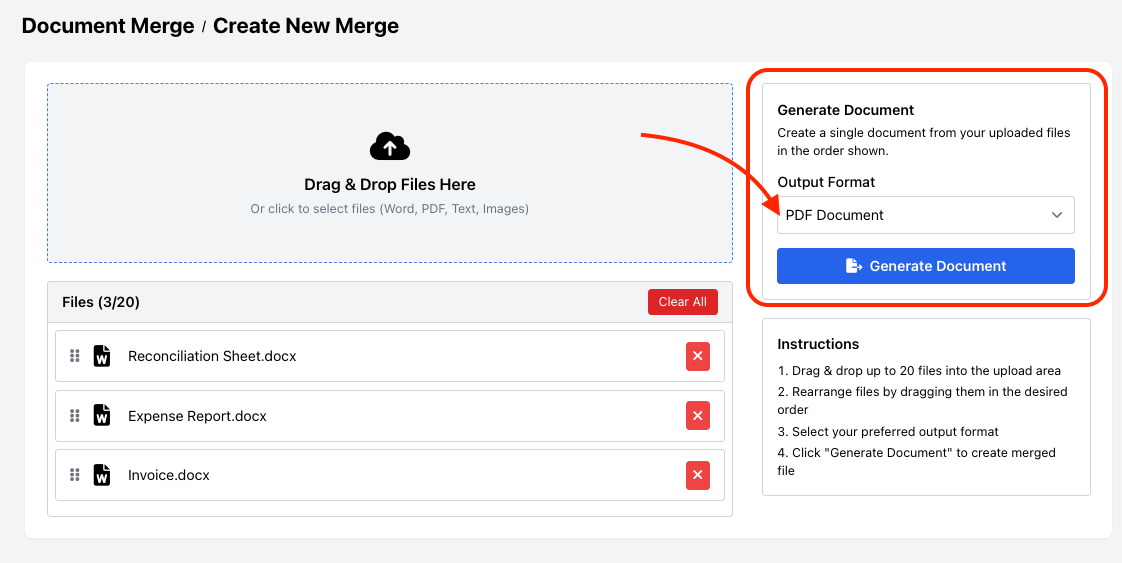
For most financial reporting and compliance needs, PDF is the recommended option since it preserves formatting, is widely accepted, and ensures no accidental changes can be made.
Step 5: Generate, Preview, and Download
Now it’s time to create your final merged file.
- Click Generate Document.
- ActiveMerge will instantly merge your files in the order you specified.
- Along with the file options, you’ll also see your ActiveMerge credit usage summary.
- Once processing is complete, you’ll be given two options:
- Preview Document – Open the merged file in a viewer to check formatting, order, and content before finalizing.
- Download – Save the final merged file directly to your computer, or upload it to your preferred cloud storage solution (Google Drive, Dropbox, OneDrive).
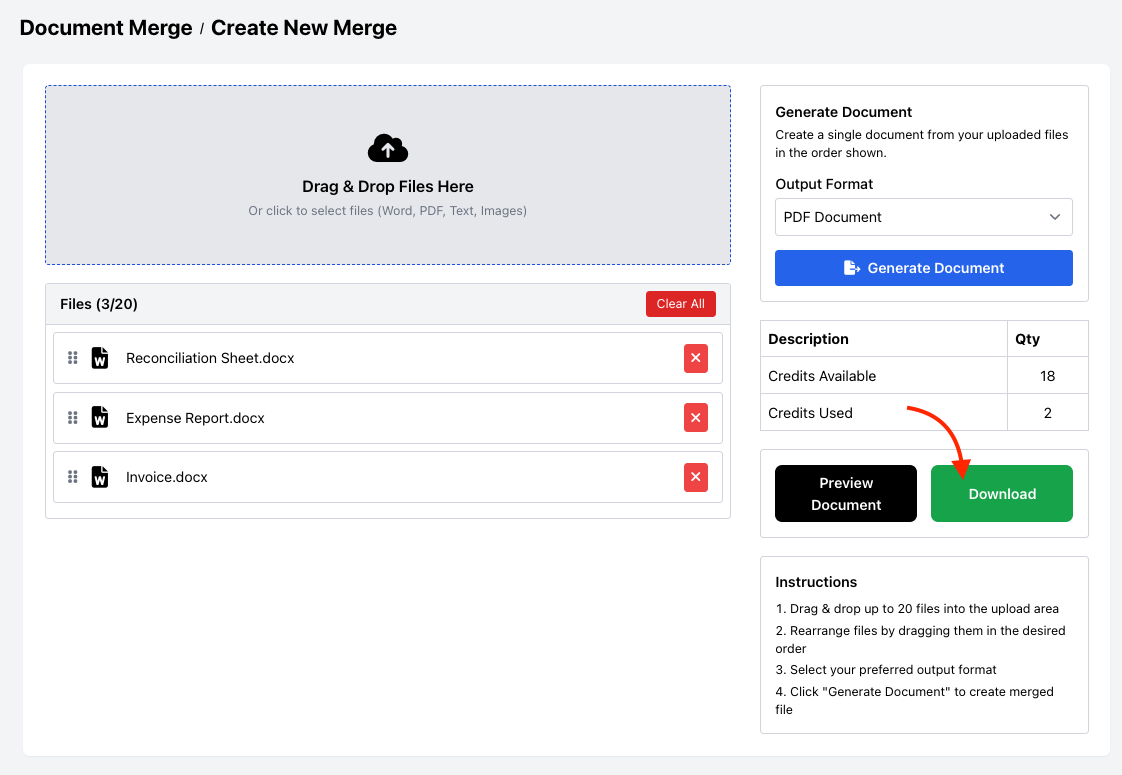
Pro Tip: Always preview before downloading if you’re merging complex financial documents (e.g., multiple reports, scanned receipts, and invoices). This ensures everything looks perfect before archiving or sharing.
Real-World Use Cases for Finance Teams
- Monthly Client Reports – Bundle all financial statements, invoices, and supporting schedules into one deliverable.
- Audit Submissions – Prepare a clean, chronological package for internal or external auditors.
- Tax Preparation – Merge receipts, expense reports, and forms into a single PDF for tax filings.
- Board Presentations – Combine narrative reports with financial charts into one polished file for stakeholders.
- Vendor/Customer Files – Keep all transaction records with a supplier or client together in one document.
Best Practices for Financial Document Merging
- Standardize File Naming: Use clear, consistent names before uploading (e.g., 2025-08_Invoice_AcmeCorp.pdf).
- Use Chronological Order: Place documents in the order they’ll be reviewed to minimize back-and-forth.
- Secure Storage: After merging, store final PDFs in encrypted cloud storage (Google Drive, OneDrive, Dropbox).
- Keep Originals: Always archive original files separately in case edits or re-checks are needed later.
Once your HR records are merged into a single PDF, you don’t need to rely on email attachments or unsecured file transfers. With FileDrop’s PDF Hosting, you can instantly share the final file using a secure, trackable link.
Here’s how it works:
- Upload your merged PDF to FileDrop.
- Get a secure, unique link to share with managers, auditors, or employees.
- Control access with password protection, expiration dates, or view/download permissions.
This way, your HR team maintains compliance, avoids oversized email issues, and ensures sensitive employee documents are always delivered securely.
For a full walkthrough, check out FileDrop’s guide: How to Host and Share PDFs Securely Using FileDrop (Without Email or Cloud Access).
Conclusion
Managing financial documents doesn’t have to mean juggling dozens of separate files. With ActiveMerge’s Document Merge, you can:
- Combine up to 20 files into one professional PDF
- Save time and reduce errors
- Deliver clean, consistent financial packages to clients, auditors, or regulators
This simple but powerful feature helps financial professionals stay organized, compliant, and efficient. Instead of drowning in attachments, you’ll have one polished file—ready to send, share, or archive.
Frequently Asked Questions
- What file types can I merge with ActiveMerge?
You can merge Word, PDF, Text, and Image files (JPG, PNG).
- Is there a limit to how many files I can merge?
Yes, you can upload up to 20 files per merge.
- Will the formatting of my documents be preserved?
Yes. Fonts, images, tables, and layouts are maintained in the final merged PDF.
- Can I rearrange the files after uploading?
Absolutely. You can drag and drop files into the exact order you want before generating.
- Can I edit the merged PDF afterward?
The merged file is locked as a PDF, but you can select “Word Document” as the output format if you want to make edits later.

