
Recognizing employees with training completion certificates or awards is a great way to celebrate milestones and boost motivation. But preparing certificates manually — typing names, dates, and achievements into Word or Canva — is time-consuming, inconsistent, and prone to mistakes.
- I Why HR Automation Tools Matter for Certificate Management
- II Why Automate Employee Certificates?
-
III
Step-by-Step: Using HR Automation Tools to Automate Certificate Generation
- III.I Step 1: Create Your ActiveMerge Account
- III.II Step 2: Prepare Your Employee Data Source
- III.III Step 3: Create a Certificate Template in ActiveMerge
- III.IV Step 4: Upload the Template to ActiveMerge
- III.V Step 5: Set Up the Automation in Make (Trigger + Action)
- III.VI Step 6 (Optional): Automatically Save Certificates to Google Drive
- III.VII Step 7 (Optional): Email Certificates to Employees Automatically
- III.VIII Step 8: Activate Your Scenario
- IV Bonus: Share Certificates Securely with FileDrop
- V Conclusion
Many HR automation tools promise efficiency, but few allow teams to automate document generation and certificate delivery in a seamless workflow.
The solution: using HR automation tools to automate certificate generation and distribution. By combining Make (formerly Integromat) for workflow automation with ActiveMerge for document generation, HR teams can instantly create and distribute professional certificates — directly from a spreadsheet or HR system.
This guide walks you through every step, with sample data and templates you can copy to set up certificate automation in your organization.
Why HR Automation Tools Matter for Certificate Management
HR automation tools help teams eliminate repetitive administrative work by connecting data sources, document templates, and delivery systems into one streamlined workflow.
Why Automate Employee Certificates?
HR teams face recurring challenges when preparing certificates:
- Repetition: Manually entering employee details for each certificate.
- Errors: Misspelled names, wrong dates, or missing information.
- Inconsistency: Different templates or formats depending on who makes them.
- Delays: Preparing 50 certificates for a training session can take hours.
Automation solves these problems by generating certificates in minutes — personalized, accurate, and branded consistently. By leveraging HR automation tools, teams can standardize recognition processes while reducing errors and saving hours of manual effort.
Step-by-Step: Using HR Automation Tools to Automate Certificate Generation
From training completions to recognition awards, certificates are a regular part of HR operations. With ActiveMerge, you can merge structured data into reusable templates. Adding Make ensures the entire process runs automatically — from data input to certificate delivery.
Here’s how to set it up.
Step 1: Create Your ActiveMerge Account
- Go to ActiveMerge and create a free account.

- Once inside, explore the dashboard. The key areas are:
- Document Generation – create certificates instantly.
- Templates – upload and manage your certificate layouts.
- Workflows – connect automation tools like Make or Zapier.
- API Keys – enable secure integrations with other HR systems.
For this workflow, we’ll focus on Templates and Workflows. These features make ActiveMerge one of the most effective HR automation tools for managing document-based processes like certificate generation.
Step 2: Prepare Your Employee Data Source
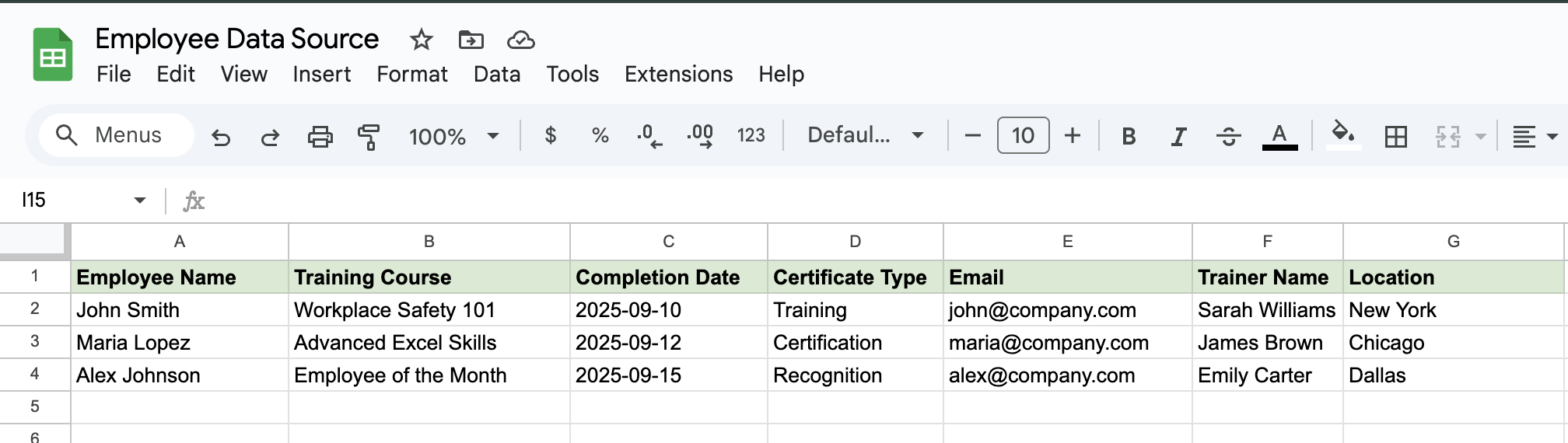
Automation needs structured data. Most HR automation tools rely on structured data to generate accurate outputs, making clean spreadsheet formatting essential. The easiest way to start is with a Google Sheet. Each row = one certificate, and each column = a detail that changes.
Example Employee Data Sheet:
Tips:
- Use consistent headers (e.g., “Employee Name” instead of “Name”).
- Add any extra columns you need, like Trainer Name or Award Title.
- Keep the sheet in Google Drive for secure team access.
Step 3: Create a Certificate Template in ActiveMerge
Now let’s create the certificate design your automation will use.
- Open Microsoft PowerPoint or Google Slides.
- Paste your certificate text and formatting.
- Replace employee-specific fields with merge placeholders.
Certificate Example:

Notes:
- All placeholders inside { } will be auto-filled from the Google Sheet:
- {EmployeeName} → Employee Name
- {TrainingCourse} → Training Course
- {CompletionDate} → Completion Date
- {CertificateType} → Certificate Type
- {TrainerName} → Trainer Name
- {Location} → Location
Step 4: Upload the Template to ActiveMerge
- Log in to ActiveMerge.
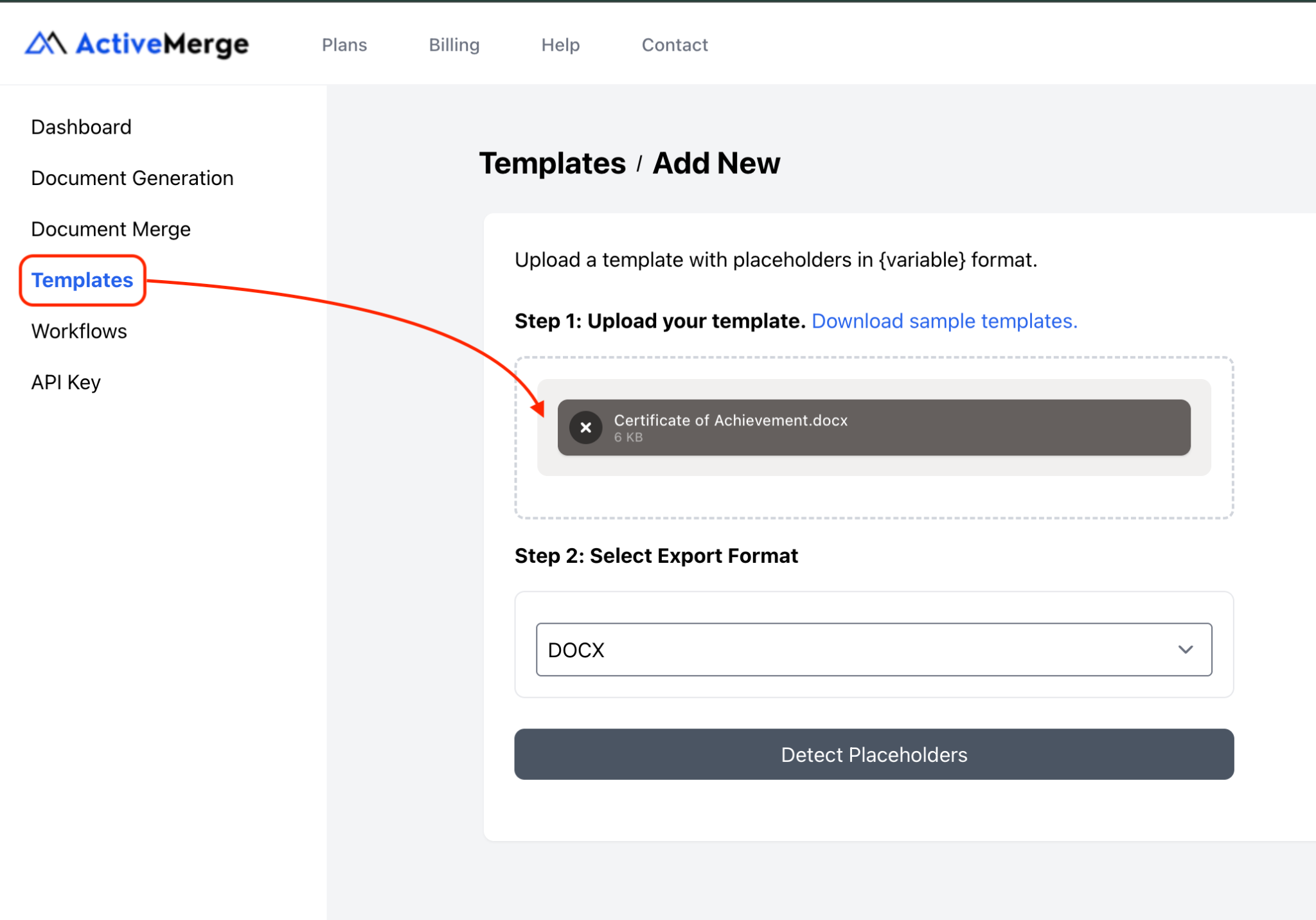
- Go to Templates → Add Template.
- Upload your .docx file.
- Click Detect Placeholders to confirm your merge fields.
- Give the template a clear name, e.g., Training Certificate Template.
Important: Placeholder names must match your spreadsheet headers exactly.
For example: {Employee Name} in your template must match Employee Name in your sheet.
Step 5: Set Up the Automation in Make (Trigger + Action)
Now we’ll connect Google Sheets (data source) with ActiveMerge (certificate generator).
1. Create a Scenario in Make
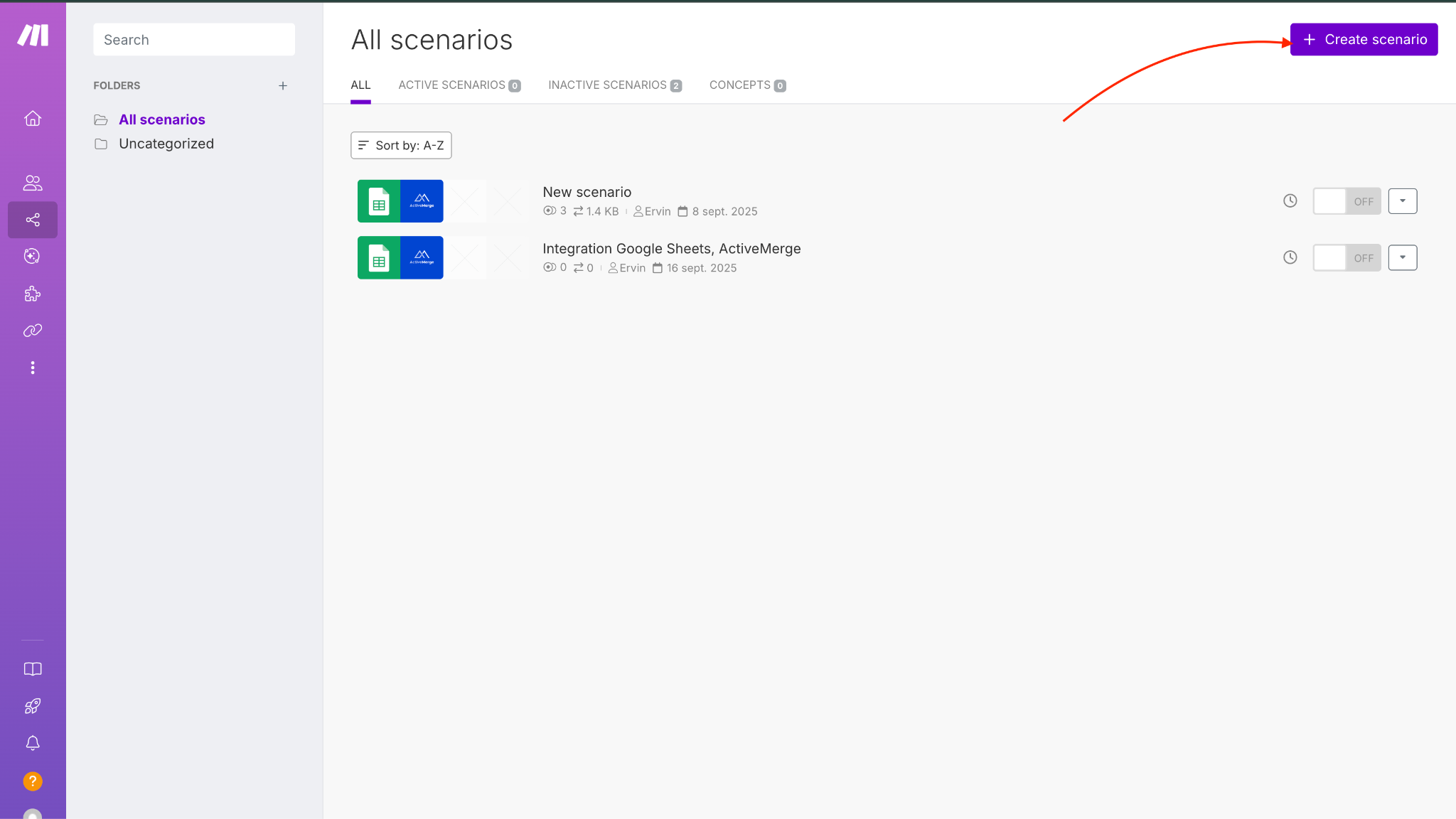
- Log in to Make and click Create a new scenario.
2. Add Google Sheets as the Trigger
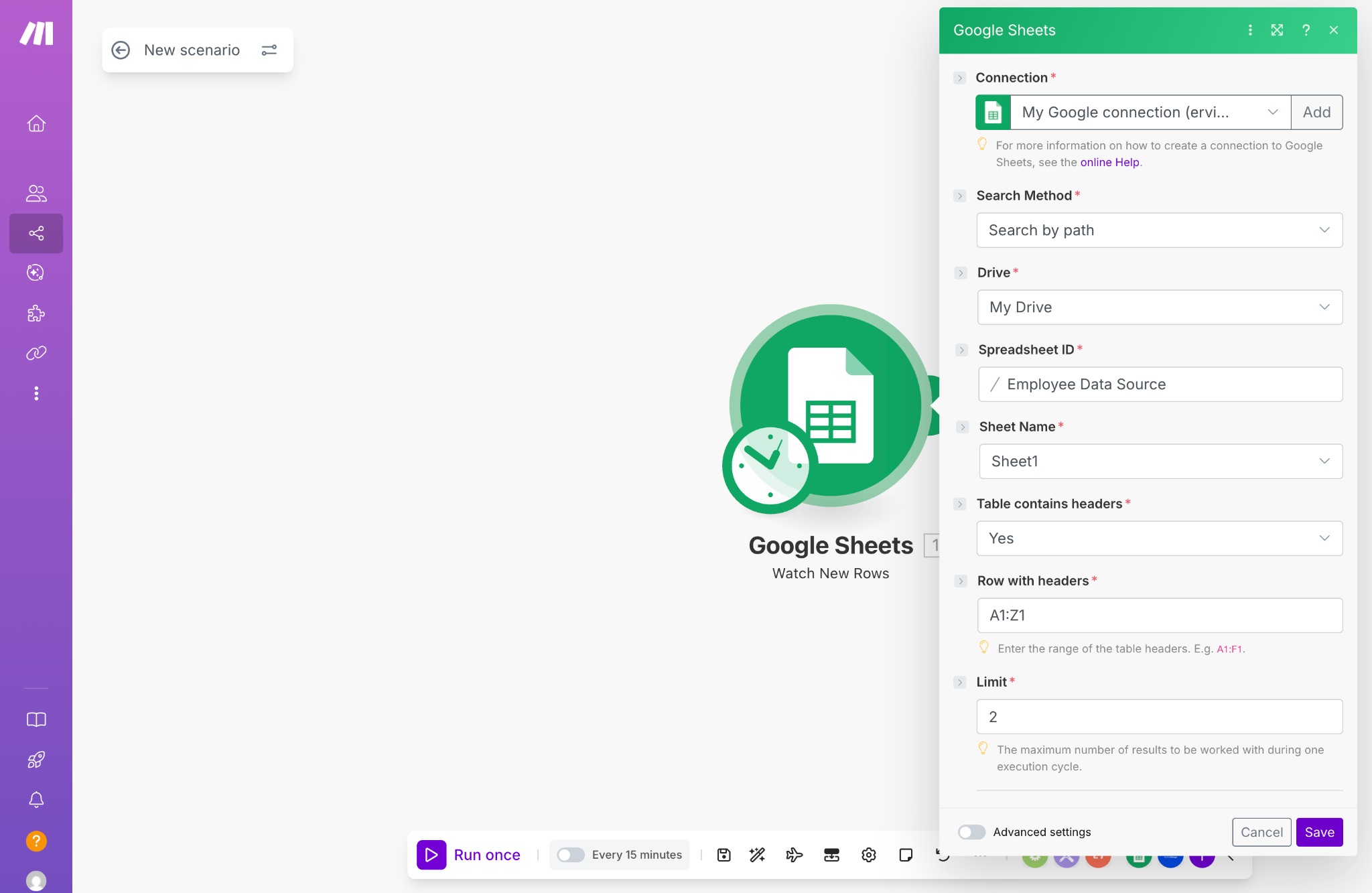
- Add a Google Sheets module.
- Choose Watch Rows as the trigger.
- Connect your Google account.
- Select the spreadsheet and worksheet with employee data.
- Configure it to run when new rows are added.
3. Generate an API Key in ActiveMerge
- In ActiveMerge, go to API Keys.
- Click Generate New Key.
- Copy and securely store the key.- Treat this like a password — don’t share it.
4. Add ActiveMerge as the Action
- Add an HTTP/ActiveMerge module.
- Select Generate Document.
- Paste your API key.
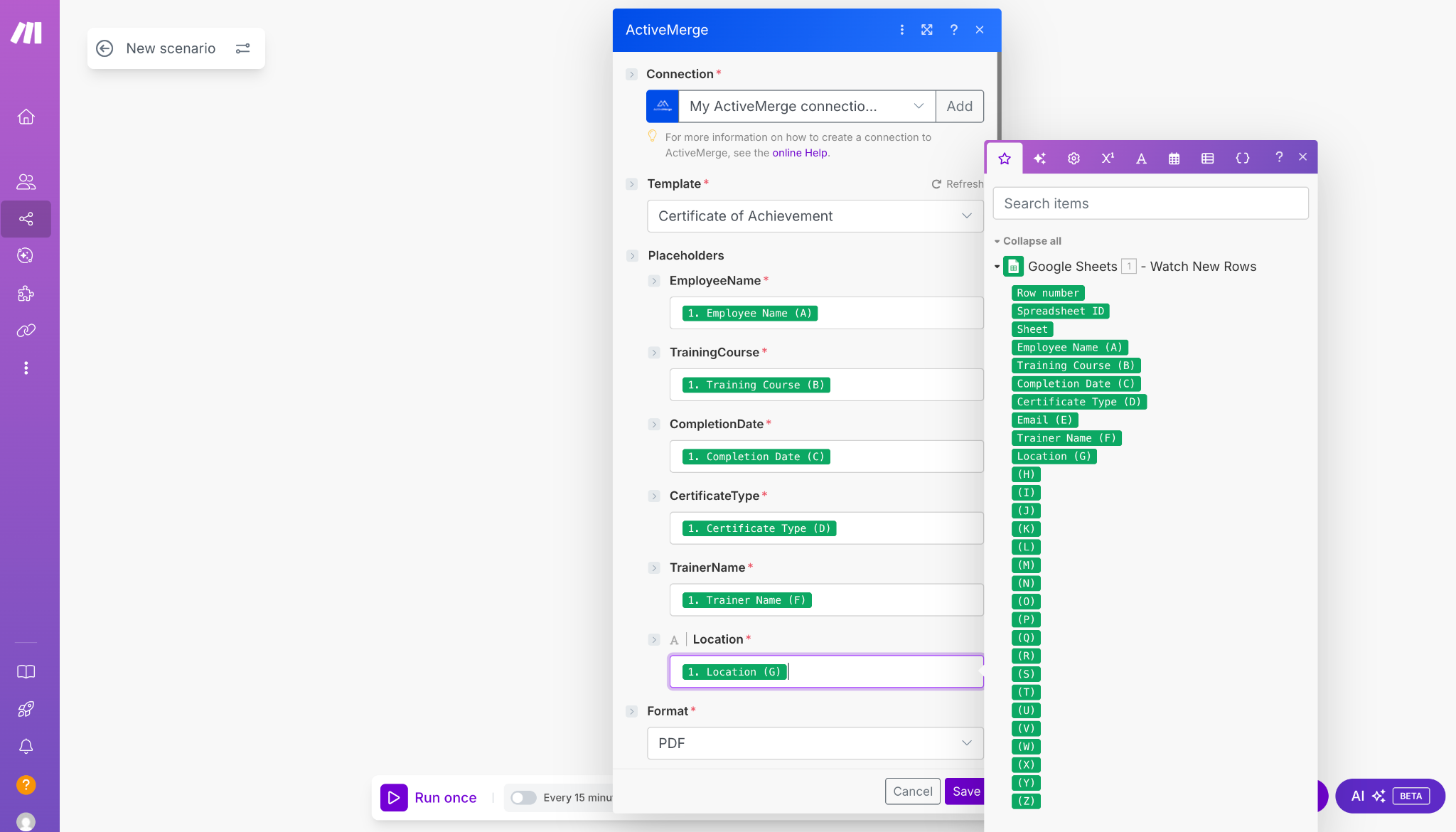
- Choose your uploaded certificate template.
- Map placeholders to spreadsheet columns:
- {Employee Name} → Employee Name
- {Training Course} → Training Course
- {Completion Date} → Completion Date
- {Certificate Type} → Certificate Type
5. Test the Module
- Run a test with one spreadsheet row.
- Check that the output certificate correctly merges all fields.
Pro Tips:
- Add filters so the workflow only runs for certain certificate types (e.g., “Training” only).
- Double-check spelling in both template and sheet — automation repeats whatever you input.
Step 6 (Optional): Automatically Save Certificates to Google Drive
To organize certificates in one place:
- Add a Google Drive module in Make.
- Choose Upload File.
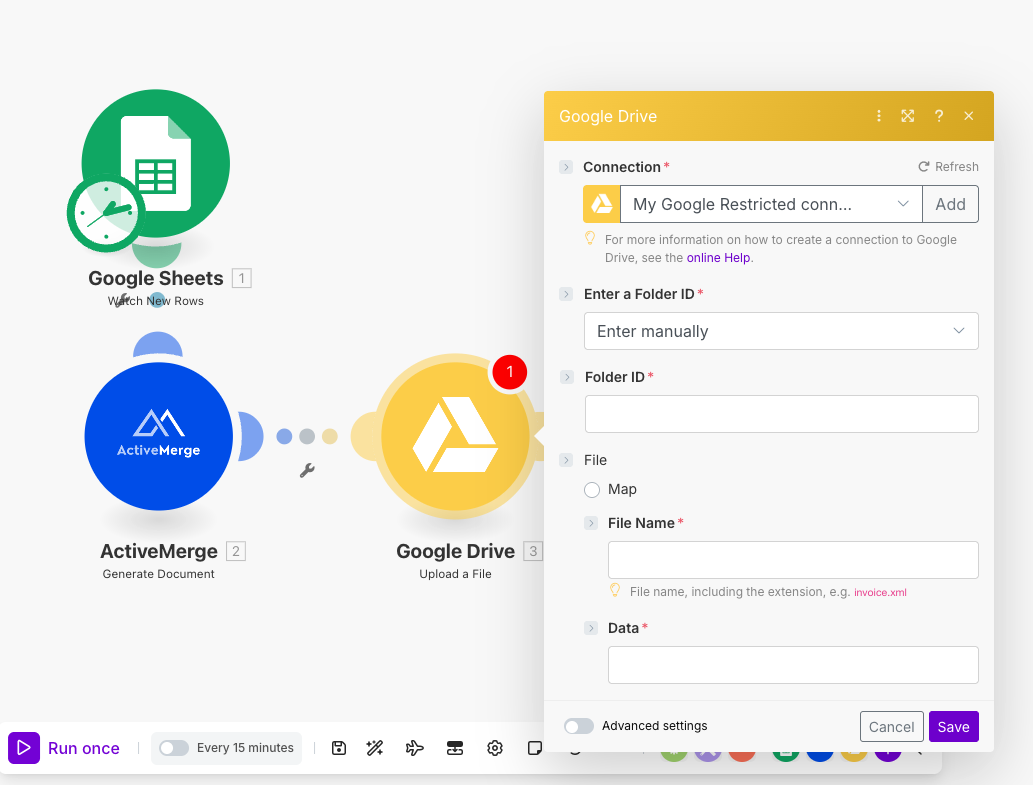
- Map the output file from ActiveMerge.
- Select a destination folder, e.g., /Certificates/2025/September.
Create subfolders by employee name, course, or month for easy searching later.
Step 7 (Optional): Email Certificates to Employees Automatically
Send certificates directly to employees as soon as they’re generated.
- Add a Gmail/Outlook/Email module in Make.
- Set the To field → Employee Email column.
- Attach the generated certificate file.
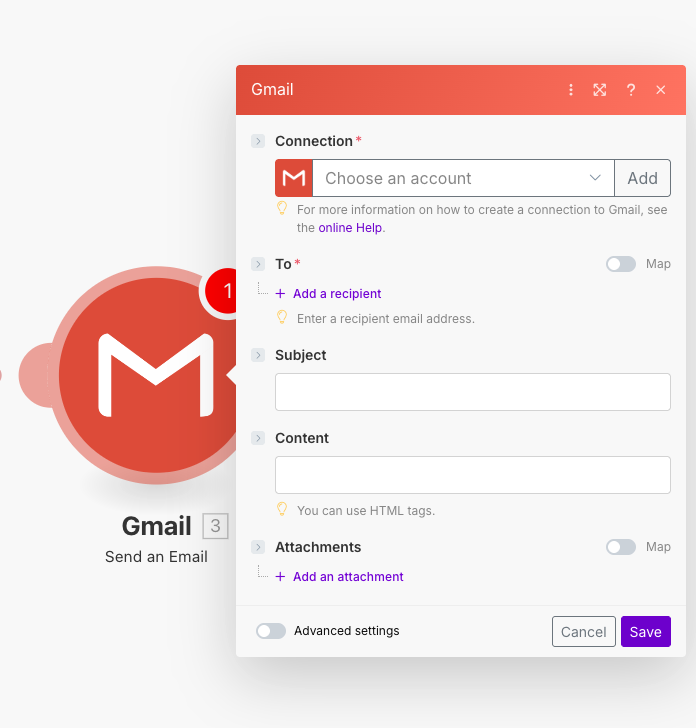
- Customize the email:
- Subject: Congratulations, {Employee Name}!
- Body: Hi {Employee Name}, attached is your certificate for completing {Training Course}.
Always test with one sample row before rolling out to everyone.
Step 8: Activate Your Scenario
Once testing is successful:
- Turn on your scenario in Make.
- From now on, every new spreadsheet row will automatically:
- Generate a personalized certificate in ActiveMerge.
- Save it to Google Drive (optional).
- Email it to the employee (optional).
Your HR team no longer has to touch Powerpoint or Canva — certificates are ready instantly.
Real-World Example
An HR department managing monthly compliance training automated certificates with Make + ActiveMerge.
- Before: 2 HR staff spent 6 hours preparing 100 certificates.
- After: Certificates generated in under 30 minutes.
- Results: Zero spelling mistakes, consistent branding, and faster delivery.
Now, employees receive certificates automatically right after completing training.
Instead of emailing certificates, HR can upload them to FileDrop PDF Hosting and share via secure links.
Benefits:
- Password protection for sensitive records.
- Expiration dates for time-limited certificates.
- View/download tracking for compliance reporting.
See our guide: How to Host and Share PDFs Securely Using FileDrop (Without Email or Cloud Access)
Conclusion
By automating employee certificate generation with Make + ActiveMerge, HR teams can:
- Save time: No more manual editing.
- Ensure accuracy: Eliminate typos in names and dates.
- Maintain consistency: Every certificate follows the same branded template.
- Deliver recognition faster: Employees receive certificates immediately after achievements.
This workflow turns a tedious HR task into a seamless, automated process — ensuring every employee feels recognized without adding extra work to your team.
Ready to streamline recognition? Sign up for ActiveMerge and start automating your certificates today.
Frequently Asked Questions
Can I customize the design of the certificates?
Yes. You can upload any certificate template (Word or Google Doc) to ActiveMerge and add placeholders for employee details. This allows your HR team to maintain brand consistency with logos, fonts, and colors.
What employee data can be used to generate certificates?
Any structured data stored in Google Sheets, Excel, or your HR system can be mapped. Common fields include Employee Name, Training Title, Completion Date, and Instructor Name.
How are the generated certificates delivered to employees?
Certificates can be saved automatically to Google Drive or OneDrive for recordkeeping, or emailed directly to employees using Make’s Gmail or Outlook integration.
Is this process secure for employee information?
Yes. ActiveMerge never exposes raw data in public links, and files can be routed through secure cloud storage. You can also share certificates securely via FileDrop with password protection and expiration options.

