
Hiring new employees comes with a lot of paperwork — especially employment contracts. Manually drafting, personalizing, and sending each contract takes time, increases the risk of errors, and slows down the onboarding process.
- I Why Manual Employment Contract Creation Holds HR Back
- II What Is ActiveMerge?
-
III
Step-by-Step: Auto-Generate Employment Contracts with ActiveMerge
- III.I Step 1: Create an ActiveMerge Account
- III.II Step 2: Build Your Employment Contract Template in Google Docs
- III.III Step 3: Upload the Template to ActiveMerge
- III.IV Step 4: Prepare Your Hiring Spreadsheet in Google Sheets
- III.V Step 5: Set Up the Automation in Make (Trigger + Action)
- III.VI Step 6 (Optional): Automatically Save Contracts to Google Drive
- III.VII Step 7 (Optional): Email Contracts to Employees Automatically
- III.VIII Step 8: Activate Your Scenario
- IV Real-World Example: Bulk Hiring Automation
- V Ready to Automate Your Employment Contracts?
What if you could generate accurate, customized employment contracts automatically — directly from your hiring spreadsheet? That’s exactly what ActiveMerge enables HR teams to do.
By connecting a contract template with your employee data in Google Sheets, you can generate hundreds of contracts in minutes. And with the Make integration, you can even automate sending those contracts to new hires, cutting hours of manual work.
The first rule of any technology used in a business is that automation applied to an efficient operation will magnify the efficiency. The second is that automation applied to an inefficient operation will magnify the inefficiency.
Bill Gates – Microsoft
In this post, we’ll walk through the complete step-by-step process to streamline contract generation using ActiveMerge, Google Sheets, and Make.
Why Manual Employment Contract Creation Holds HR Back
HR teams often struggle with contract creation because:
- Time-consuming manual edits: Filling in each contract with names, roles, start dates, and salary details is repetitive and slow.
- Error-prone processes: Typos or missing information can lead to confusion or legal risks.
- Inconsistent formatting: Multiple versions or edits cause tracking challenges.
- Scaling difficulties: As hiring ramps up, manual contract prep becomes unsustainable.
Automating contract generation helps HR teams avoid these pitfalls, improve accuracy, and onboard employees faster.
What Is ActiveMerge?
ActiveMerge is a cloud-based document automation platform designed for professionals who create personalized documents at scale. HR teams can:
- Upload a contract template (Microsoft Word .docx)
- Add employee data via spreadsheet
- Automatically generate customized contracts for each employee
It’s secure, easy to use, and integrates with Make for fully automated workflows.
Step-by-Step: Auto-Generate Employment Contracts with ActiveMerge
This section walks you through the exact process of setting up document automation for employment contracts. Whether you’re onboarding ten new hires or fifty, these steps will help you generate customized contracts at scale — using your hiring spreadsheet, a pre-built contract template, and automation tools like Make.
Step 1: Create an ActiveMerge Account
Start by creating your free account at ActiveMerge.
After signing up, your dashboard will give you access to several core features that you’ll use in this workflow:
- Upload contract templates: Accepts DOCX and PDF files for your employment contracts.
- Generate secure API keys: These keys allow external automation tools like Make to connect with ActiveMerge securely.
- Integrate with third-party tools: Connect with Make, WordPress, or your custom apps.
- Monitor document activity: View logs of generated documents, including errors and download history.

Tips:
- Use a professional email for your ActiveMerge account to ensure automated emails and notifications are properly delivered.
- Explore the dashboard’s sample templates to understand how placeholders work before uploading your own contracts.
Step 2: Build Your Employment Contract Template in Google Docs
Before generating contracts, create a standardized template that includes dynamic placeholders.
- Open Google Docs and create a new document.
- Draft your standard employment contract content. Wherever you want personalized data to appear (like names, start dates, salaries), use curly bracket merge tags {}.
Example Template:
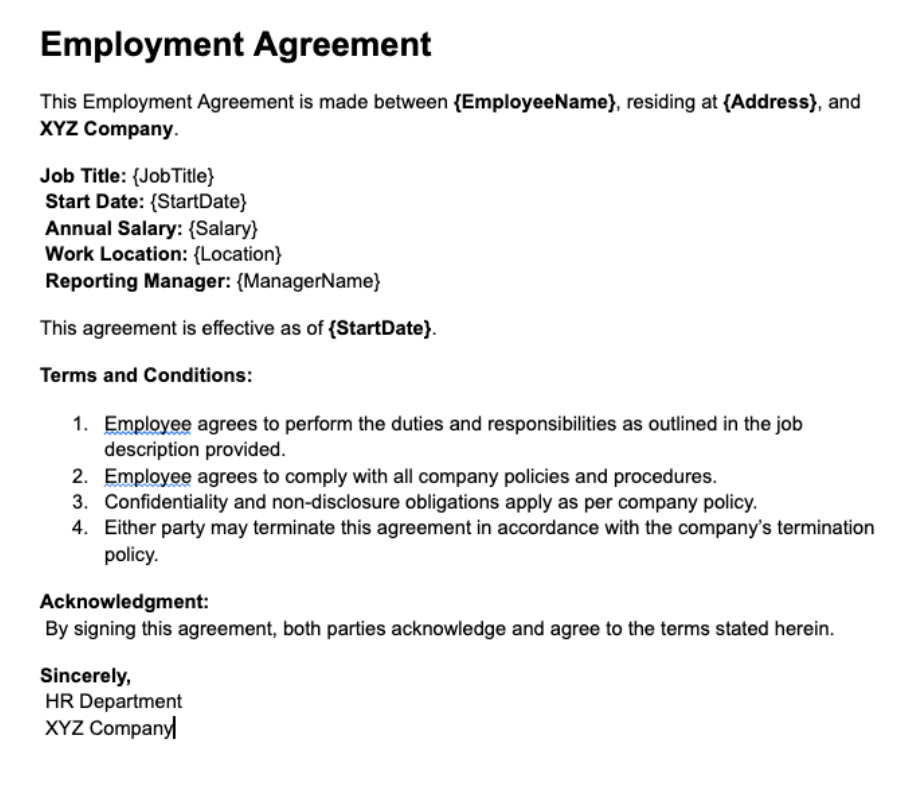
- Once your template is ready, go to File > Download > Microsoft Word (.docx) and save the file locally.
Don’t have a contract template? Visit Active Merge’s Free Templates section to download pre-built legal documents that you can customize.
Tips:
- Ensure placeholders are consistent and match exactly with spreadsheet headers.
- Avoid special characters or spaces in placeholder names.
- If you don’t have a template ready, visit ActiveMerge’s Free Templates to download pre-built legal documents that you can customize.
Step 3: Upload the Template to ActiveMerge
- Log in to your ActiveMerge dashboard.
- Navigate to the Templates tab and click Add Template.
- Upload your .docx file.
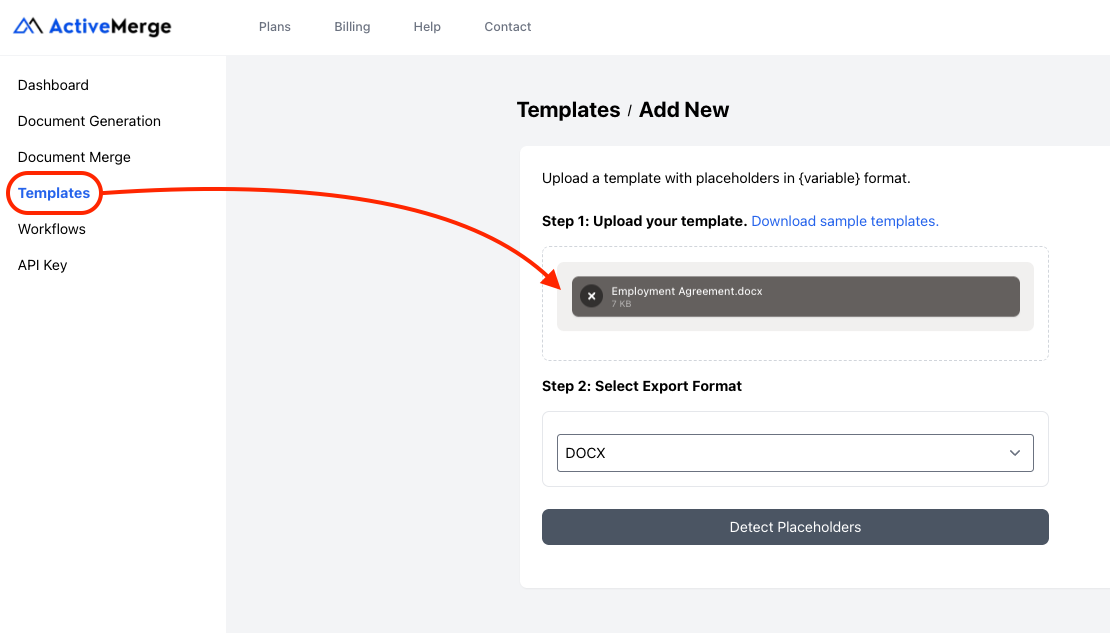
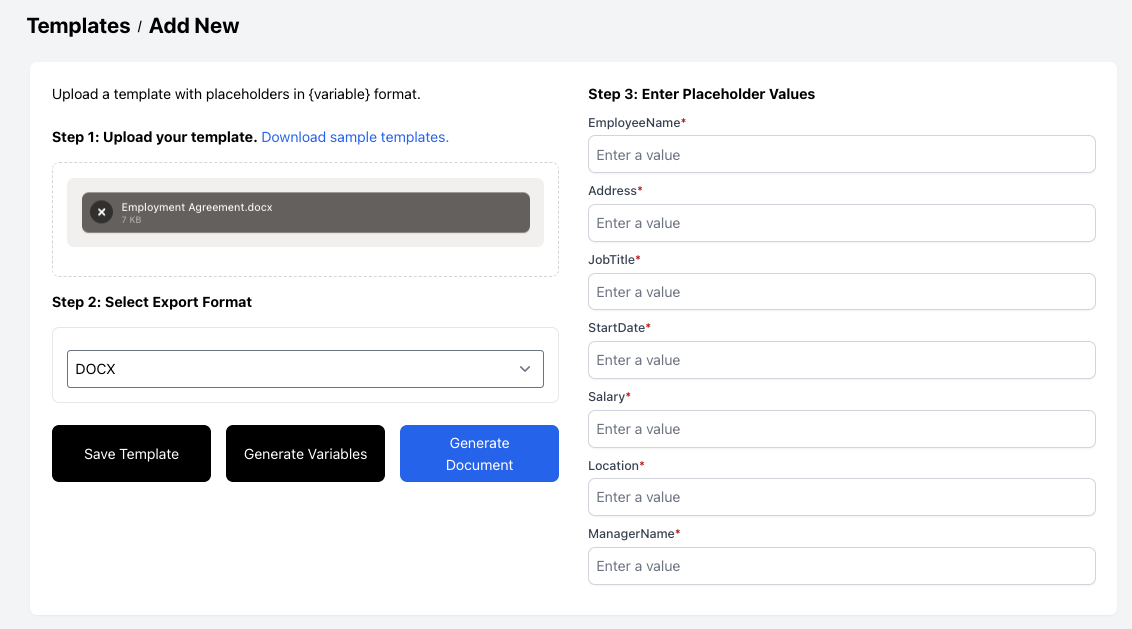
- Click Detect Placeholders — ActiveMerge will automatically identify all your {fields}.
- Verify that each detected field matches your intended merge data.
- Give your template a clear name, such as Employment Contract Template.
Important:
- Placeholder names must match your spreadsheet column headers exactly.
- Any mismatch may result in blank fields in your generated contracts.
Step 4: Prepare Your Hiring Spreadsheet in Google Sheets
Your Google Sheet will serve as the source of data for generating contracts.
- Create a new Google Sheet.
- Each row represents a new hire; each column should match a placeholder in your template.
Example Spreadsheet:
Tips:
- Use clear, exact column headers with no spaces or special characters.
- Ensure all columns are complete to avoid errors during generation.
- Include an Email column if you plan to automate sending contracts.
Step 5: Set Up the Automation in Make (Trigger + Action)
Make (formerly Integromat) allows you to fully automate contract generation from your spreadsheet.
Set Up Google Sheets as the Trigger:
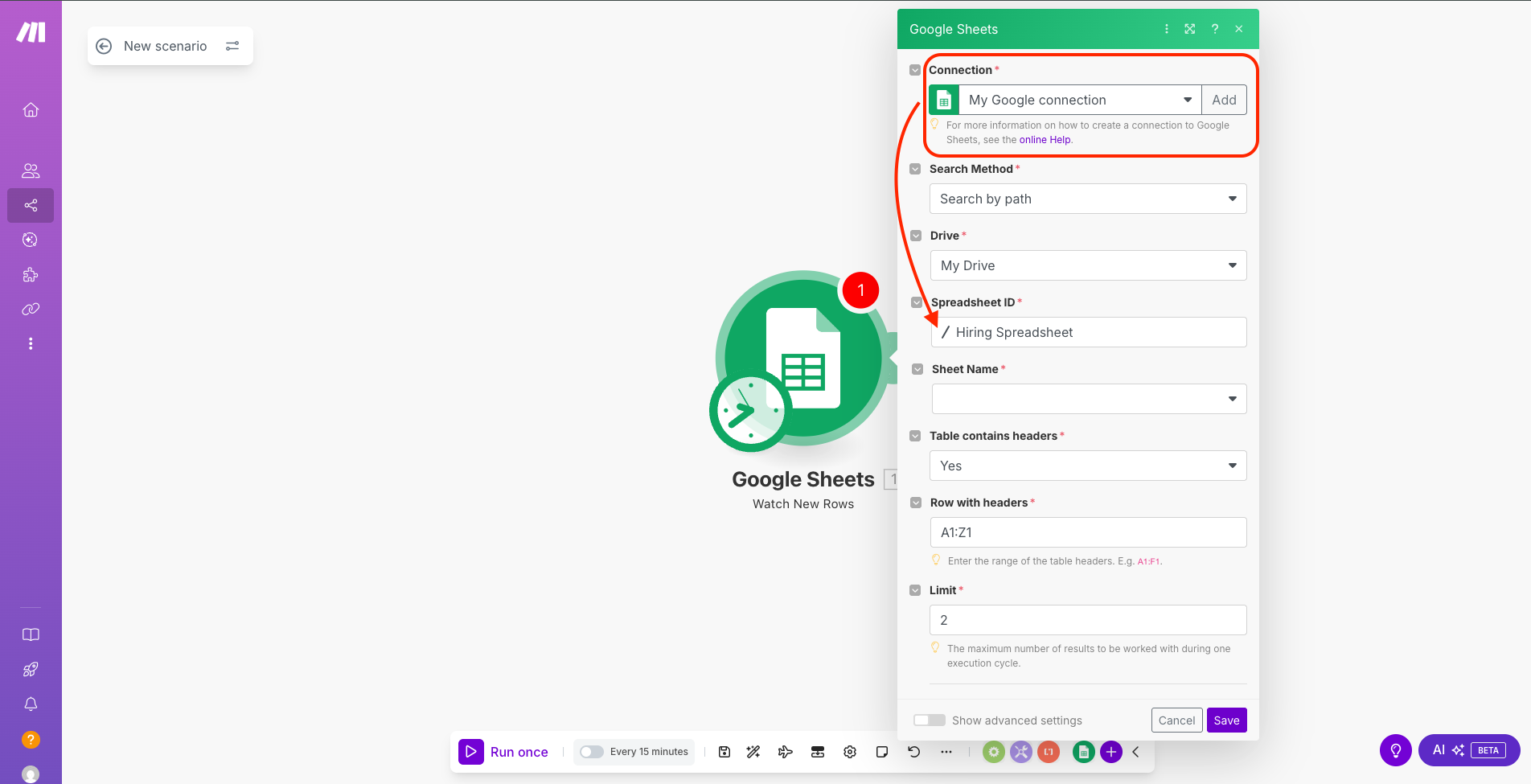
- Open Make and create a new scenario.
- Add a Google Sheets module and select the trigger: Watch Rows.
- Connect your Google account and authorize access.
- Choose the spreadsheet and worksheet containing your hiring data.
- Configure the module to trigger when new rows are added.
Generate an API Key in ActiveMerge:
| Go to the API Keys section in the ActiveMerge dashboard. Click Generate New API Key. Copy and securely save the key — you may not be able to view it again. Tip: Treat your API key like a password — do not share publicly. |
Set Up ActiveMerge as the Action:
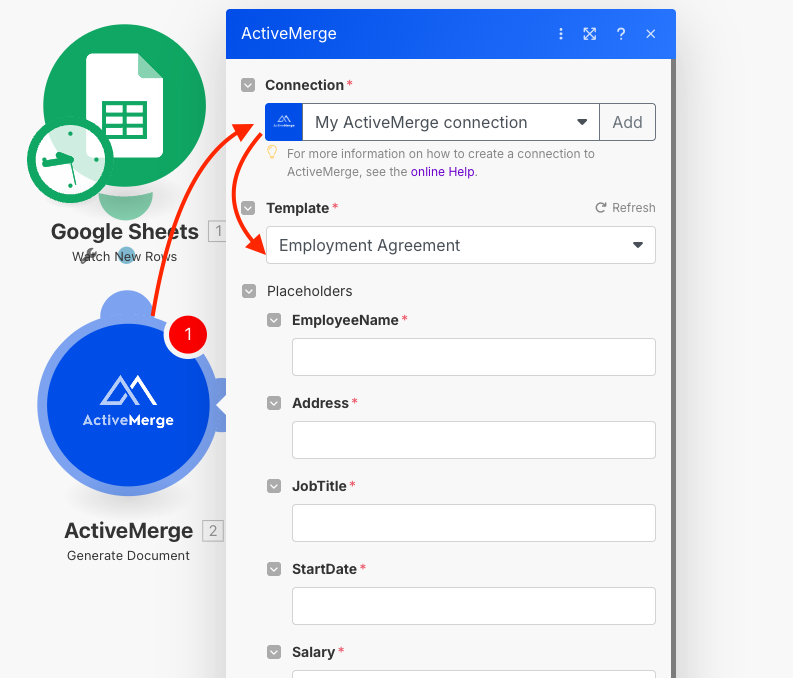
- Add an HTTP/ActiveMerge module.
- Select Generate Document as the action.
- Paste your ActiveMerge API key.
- Select the template you uploaded earlier.
- Map each placeholder to the corresponding spreadsheet column:
- {EmployeeName} → EmployeeName
- {Address} → Address
- {JobTitle} → JobTitle
- {StartDate} → StartDate
- {Salary} → Salary
- {Location} → Location
- {ManagerName} → ManagerName
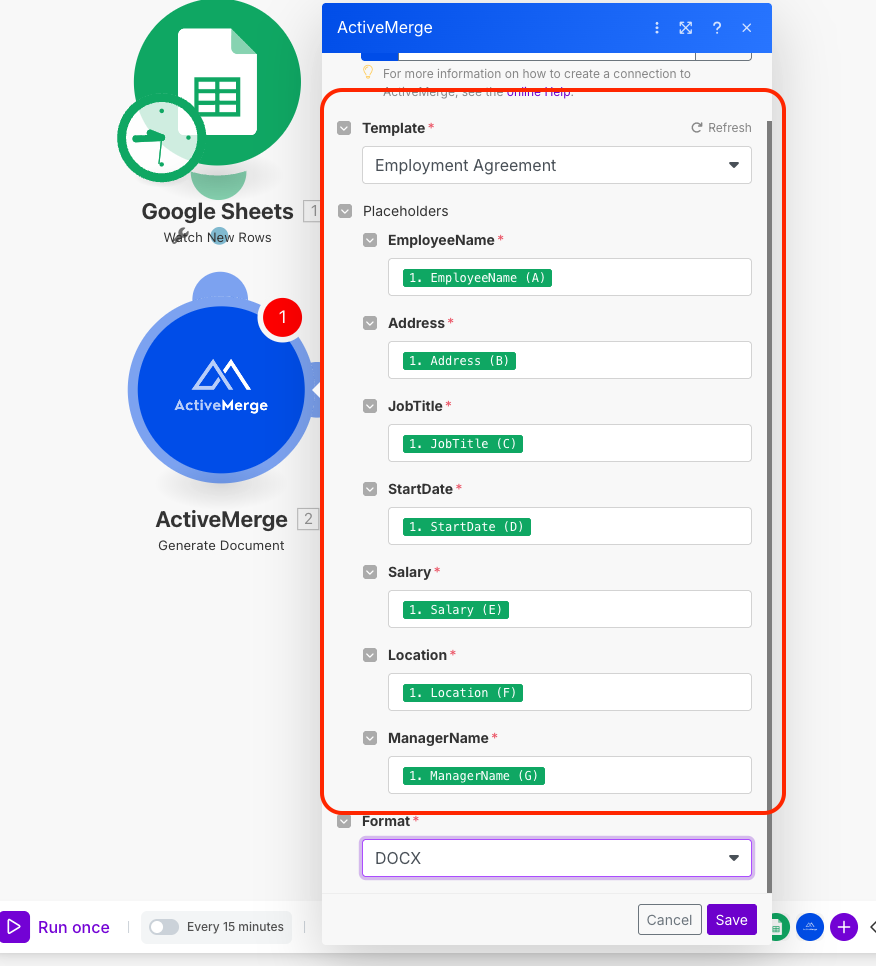
- Test the module to ensure it generates a sample contract correctly.
Tips:
- Double-check that all placeholders are mapped correctly.
- Make allows you to add filters or conditions if you only want contracts generated for certain rows.
Step 6 (Optional): Automatically Save Contracts to Google Drive
- Add a Google Drive module in Make.
- Select Upload File.
- Map the file output from the ActiveMerge module.
- Choose a destination folder, e.g., /Employment_Contracts.
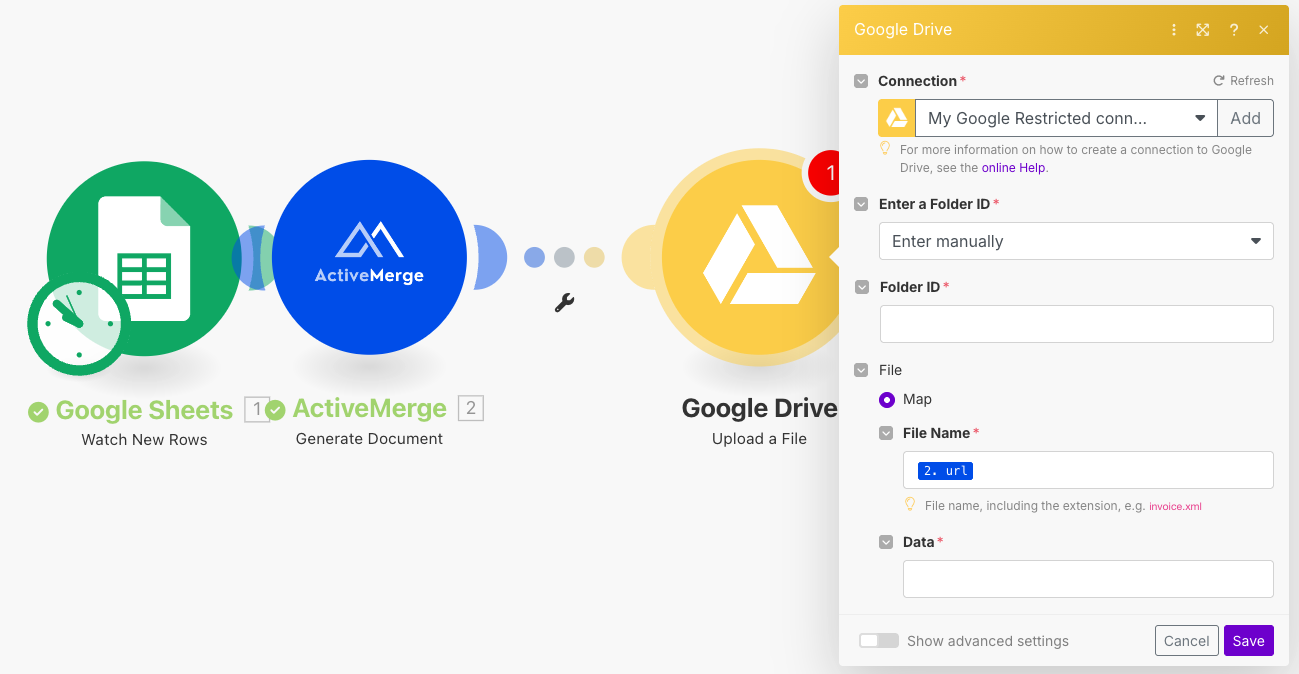
Tip: Create a dedicated folder for new hires to keep all contracts organized.
Step 7 (Optional): Email Contracts to Employees Automatically
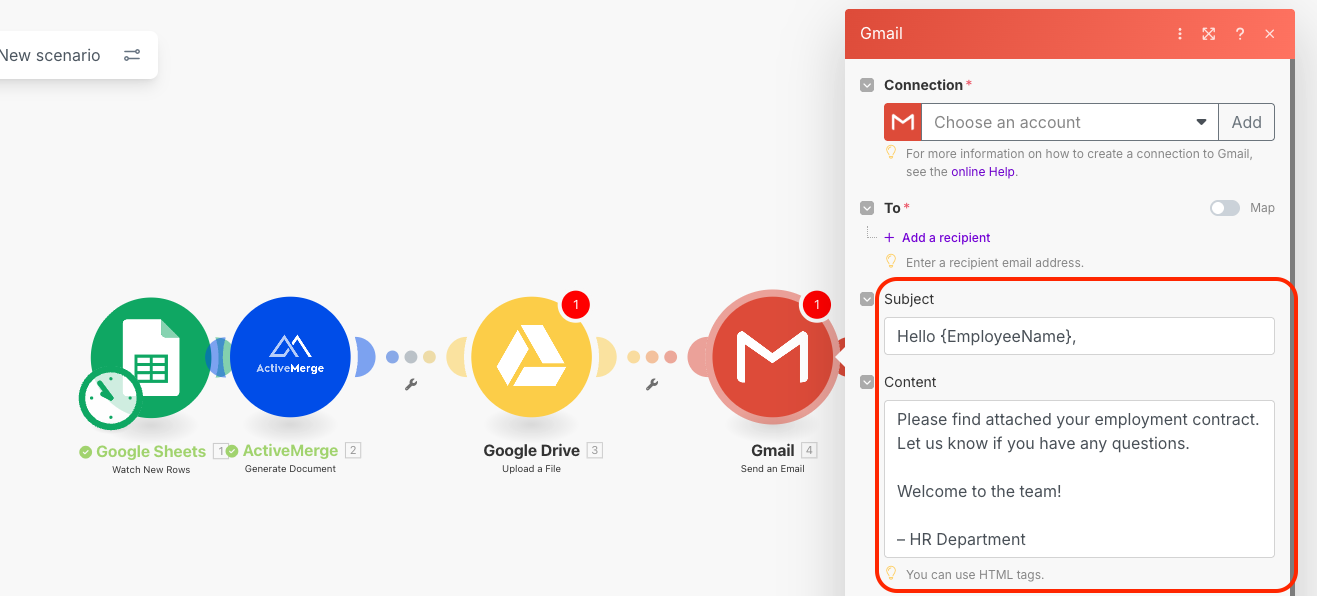
- Add a Gmail (or other email service) module in Make.
- Set the To field to the Email column from your spreadsheet.
- Attach the ActiveMerge-generated contract file.
- Customize the email body:
Tip: Test with one sample row first to ensure formatting and attachments are correct.
Step 8: Activate Your Scenario
- Once all modules are tested and working correctly, turn on your scenario in Make.
- From now on, every new row added to your spreadsheet will automatically:
- Generate a personalized employment contract
- Save it to Google Drive (optional)
- Email it to the new hire (optional)
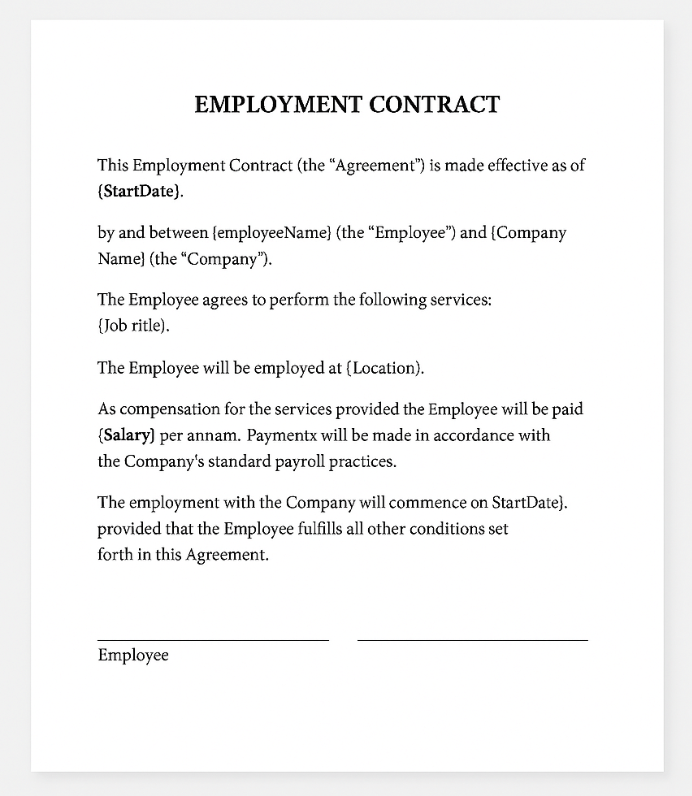
This automation eliminates manual edits, reduces errors, and accelerates your onboarding workflow.
Final Output Example:
Real-World Example: Bulk Hiring Automation
A healthcare provider needed to onboard 40 new nurses across multiple locations. Using ActiveMerge and Make, their HR team:
- Uploaded a single contract template
- Pasted employee info into a spreadsheet
- Generated and emailed all contracts within 15 minutes
They saved dozens of work hours and eliminated manual errors during peak hiring season.
Ready to Automate Your Employment Contracts?
Don’t let manual contract prep slow your hiring down. With ActiveMerge and Make, you can generate professional, error-free employment contracts in minutes — automatically — every time you add a new hire to your spreadsheet.
Why HR Teams Choose ActiveMerge for Employment Contracts
- Eliminate repetitive manual edits
- Reduce errors and ensure consistent formatting
- Automate contract delivery to new hires
- Easy-to-use, cloud-based, and secure platform
- Supports DOCX and PDF templates
- Integrates seamlessly with Google Sheets and Make
Get started today at ActiveMerge and transform your HR document workflows.

