
Using Make and ActiveMerge to generate documents is a breeze.
What you need:
- Make Account
- ActiveMerge Account
- Word or Powerpoint Template with {placeholder} tags for merging the data.
- Data source: form, Google Sheet, etc. – this comes from a tool in Make
For this tutorial, we’ll focus on Workflows + Templates.
Prepare Your Client Data Source
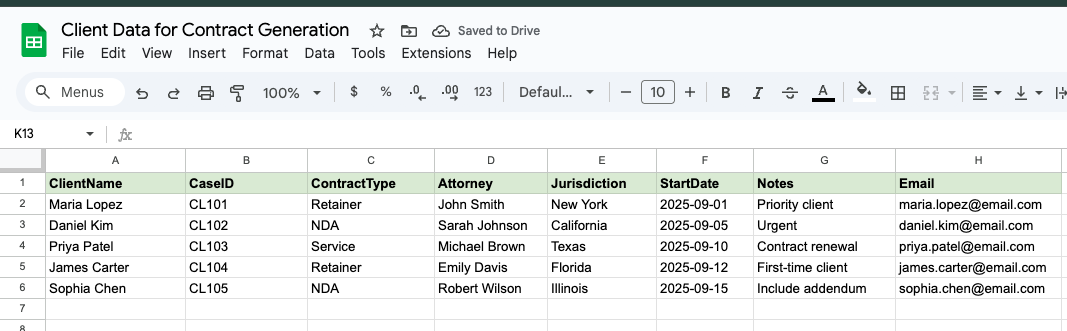
Automation requires structured data. The easiest way to start is with Google Sheets. Each row represents one client, and each column represents contract fields.
Here’s an example sheet you can copy:
Pro Tip:
- Use consistent headers like Client Name, Start Date, Fee.
- Add any legal details your firm always includes (jurisdiction, payment terms, etc.).
- Store the sheet in a shared Google Drive for secure team access.
Create a Contract Template in ActiveMerge
Next, upload your firm’s standard contract template to ActiveMerge. This could be a Word document or Google Doc that your team already uses.
Replace client-specific fields with merge placeholders so ActiveMerge can fill them automatically.
Here’s an example:
| This {Contract Type} Agreement (“Agreement”) is entered into on {Start Date} between {Client Name}, located at {Address}, and [Your Law Firm Name]. The agreement shall remain in effect until {End Date}. The agreed-upon fee for services is {Fee}. This Agreement shall be governed by the laws of {Governing Law}. |
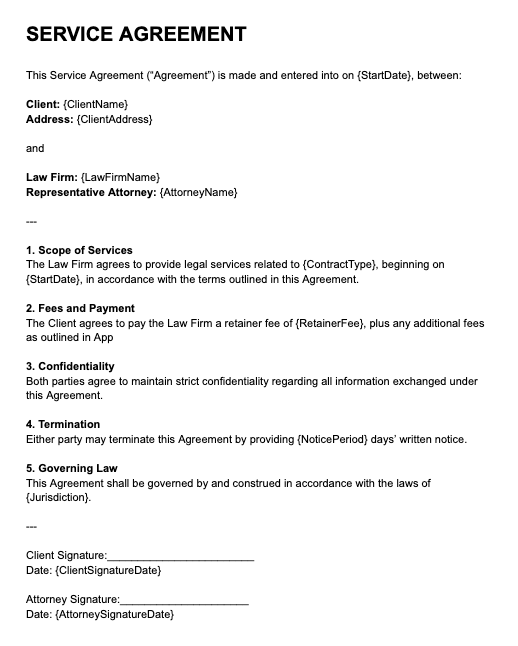
When ActiveMerge runs, it will replace {Client Name} and other placeholders with real client data from your spreadsheet.
Pro Tip: Test with one or two placeholders first, then expand to a full contract once you’re comfortable.
Upload the Template to ActiveMerge
- Log in to your ActiveMerge dashboard.
- Navigate to the Templates tab and click Add Template.
- Upload your .docx file.
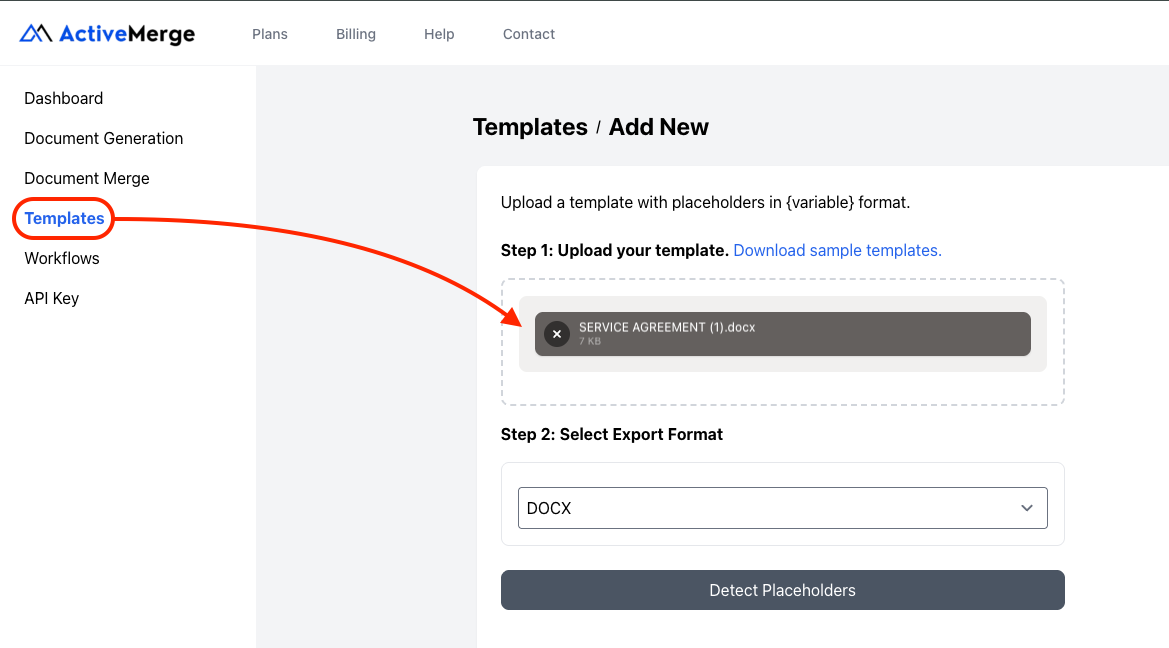
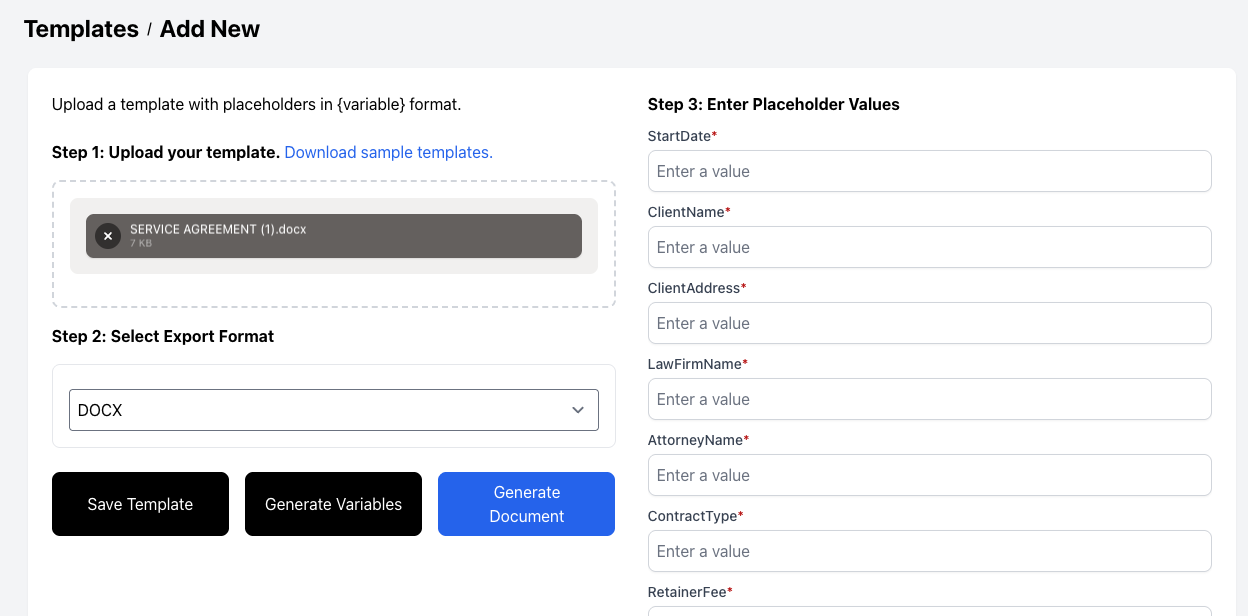
- Click Detect Placeholders — ActiveMerge will automatically identify all your {fields}.
- Verify that each detected field matches your intended merge data.
- Give your template a clear name, such as Service Agreement Template.
Important:
- Placeholder names must match your spreadsheet column headers exactly.
- Any mismatch may result in blank fields in your generated contracts.
Set Up the Automation in Make (Trigger + Action)
Make (formerly Integromat) allows you to fully automate contract generation directly from your client spreadsheet.
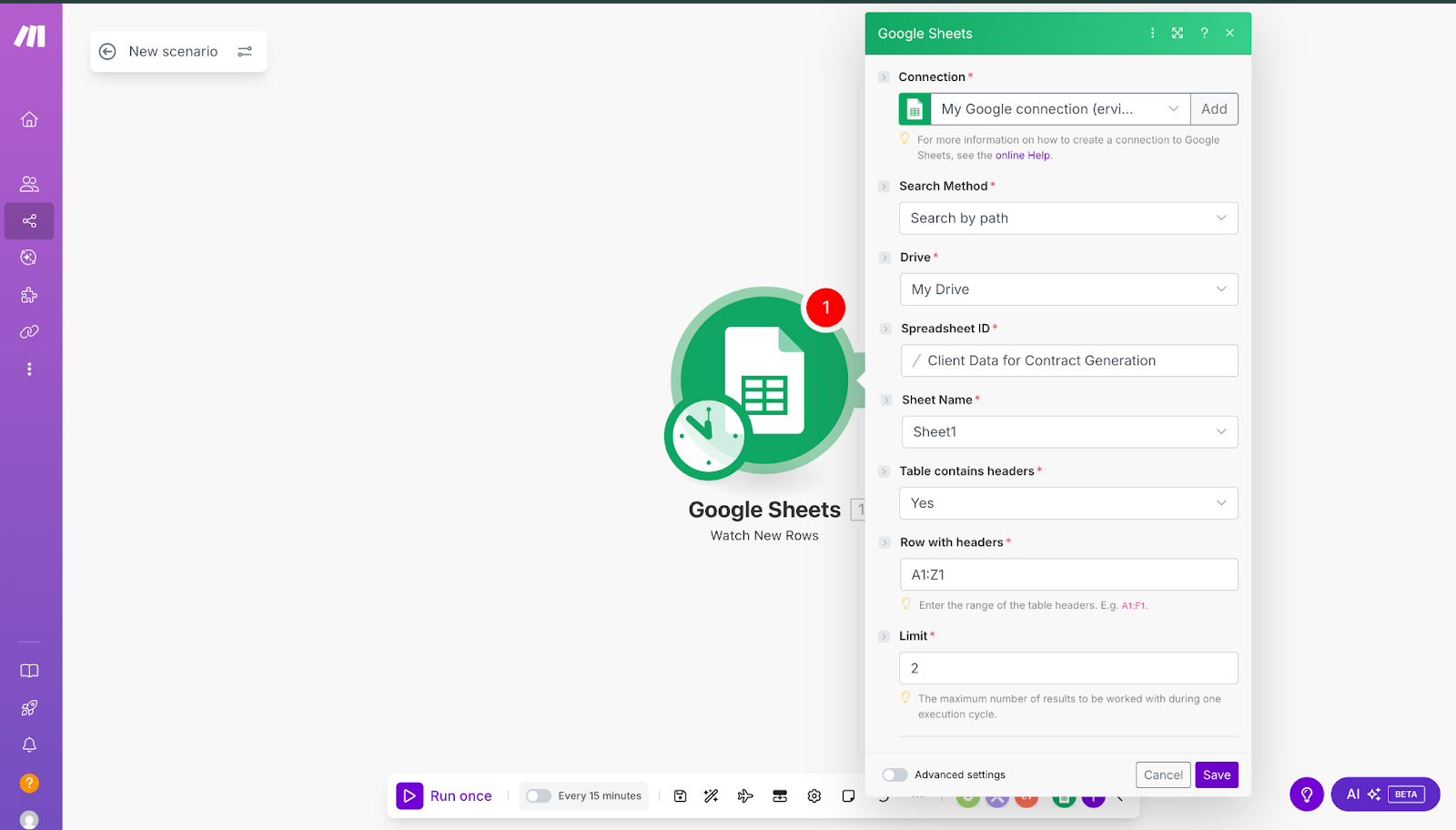
Set Up Google Sheets as the Trigger:
- Open Make and create a new scenario.
- Add a Google Sheets module and select the trigger: Watch Rows.
- Connect your Google account and authorize access.
- Choose the spreadsheet and worksheet containing your client data.
- Configure the module to trigger whenever new rows are added.
Generate an API Key in ActiveMerge:
| Go to the API Keys section in the ActiveMerge dashboard. Click Generate New API Key. Copy and securely save the key — you may not be able to view it again. Tip: Treat your API key like a password — do not share publicly. |
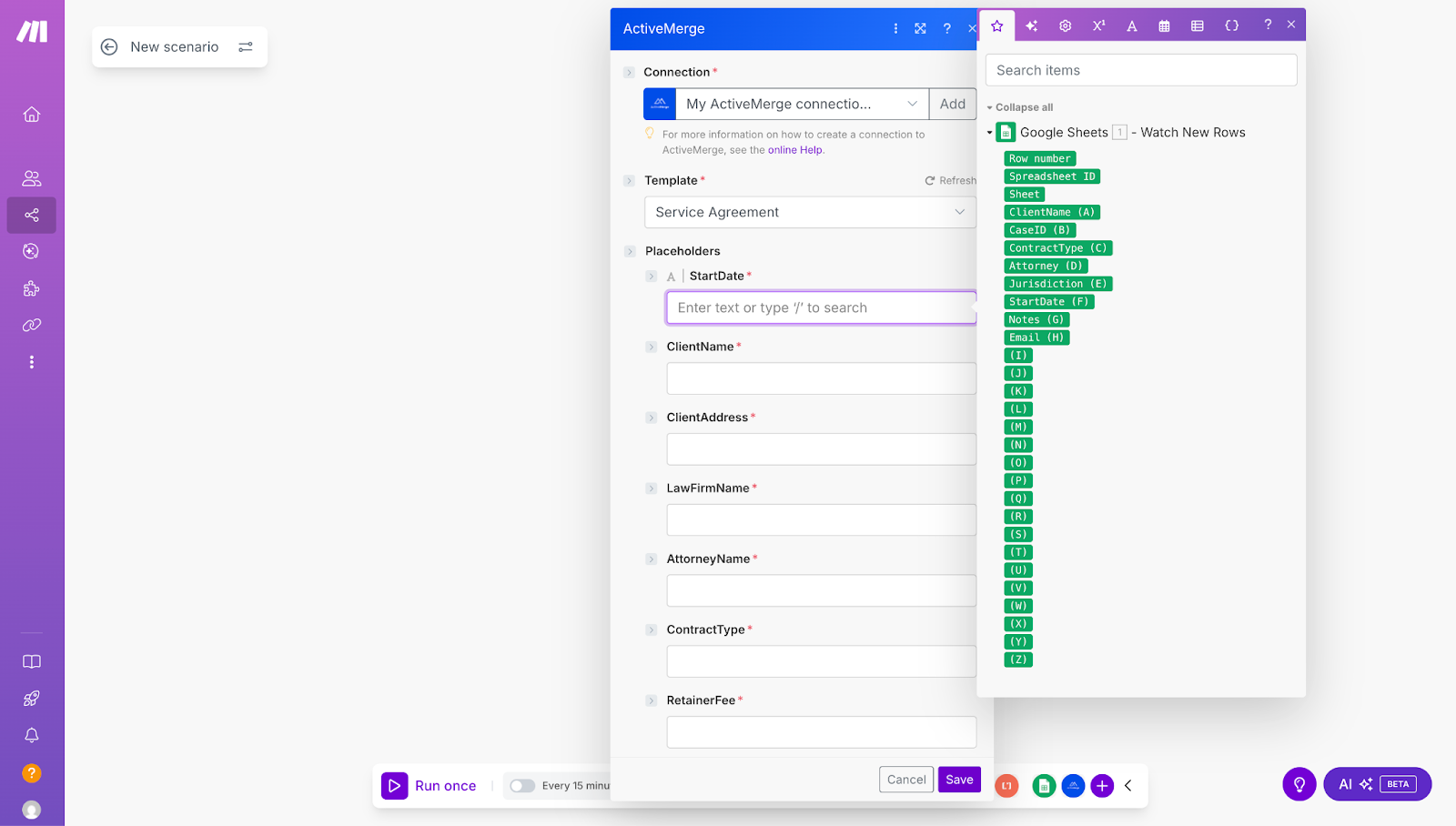
Set Up ActiveMerge as the Action:
- Add an HTTP/ActiveMerge module.
- Select Generate Document as the action.
- Paste your ActiveMerge API key.
- Select the contract template you uploaded earlier.
- Map each placeholder to the correct spreadsheet column:
- {ClientName} → Client Name
- {ContractType} → Contract Type
- {StartDate} → Start Date
- {EndDate} → End Date
- {Fee} → Fee
- {GoverningLaw} → Governing Law
- Test the module to ensure a sample contract is generated correctly.
Tips:
- Double-check that all placeholders match exactly.
- Add filters so the workflow only runs for specific contract types (e.g., NDAs).
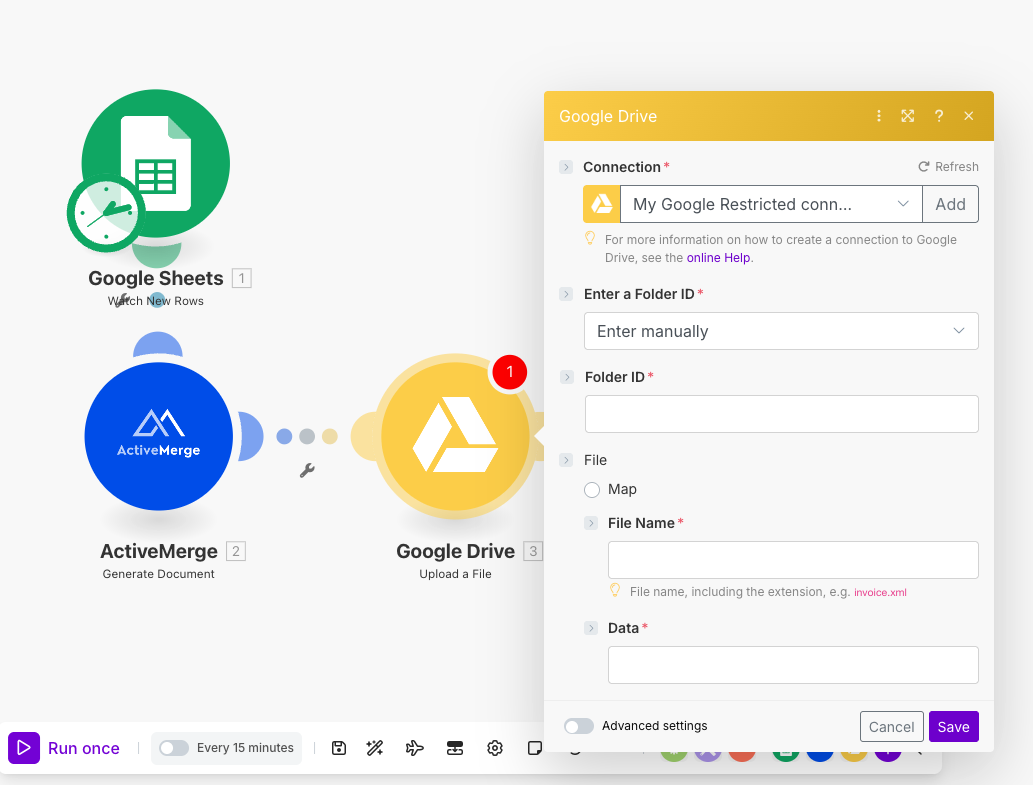
(Optional): Automatically Save Contracts to Google Drive
If your firm wants a centralized folder for all contracts:
- Add a Google Drive module in Make.
- Select Upload File.
- Map the file output from the ActiveMerge module.
- Choose a destination folder, such as /Client_Contracts.
Tip: Create subfolders by client name or contract type to keep everything organized.