

Bringing new employees on board is more than just paperwork and passwords. It’s their first real experience with your company’s culture. A warm, personalized welcome letter can go a long way in making someone feel like they made the right decision.
- I Why Is a Welcome Letter Important?
- II Step 1. Prepare Your Welcome Letter Template
- III Step 2. Create a Spreadsheet of New Employees
- IV Step 3. Sign in to ActiveMerge
- V Step 4. Upload Your Spreadsheet
- VI Step 5. Upload Your Template
- VII Step 6. Generate the Welcome Letters
- VIII Step 7. Review and Send
- IX Get the Free Welcome Letter Template
- X Final Thoughts
- XI Frequently Asked Questions
With ActiveMerge, you don’t have to write each welcome letter by hand. You can automate the document generation process and still make it feel personal.
Why Is a Welcome Letter Important?
A welcome letter sets the tone for the employee’s journey with your company. It gives them a sense of belonging from day one. It tells them, “We’re ready for you, and we’re glad you’re here.”
A good letter can:
- Ease first-day jitters
- Reinforce your company values
- Provide clarity on what’s coming next
- Show that you care
When you personalize these letters for each new hire—using their name, job title, start date, and team details—it becomes more than just a formality. It becomes meaningful. That’s where ActiveMerge makes things easier.
Step 1. Prepare Your Welcome Letter Template
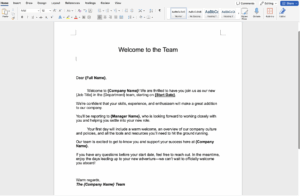
Start with one solid welcome letter. This will be your base template. Use merge tags in the letter where personal details will go. For example:
Hi {Full Name},
Welcome to {Company Name}! We’re excited to have you join us as a {Job Title} starting on {Start Date}.
Use simple formatting and keep it warm and friendly. You can write it in Microsoft Word.
Step 2. Create a Spreadsheet of New Employees
Next, make a spreadsheet with all the employee info you want to include. Your columns should match the merge tags in your letter:
- Full Name
- Job Title
- Start Date
- Department
- Manager Name
- Company Name
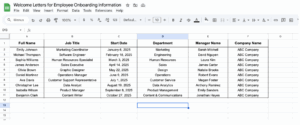
Each row is a different employee.
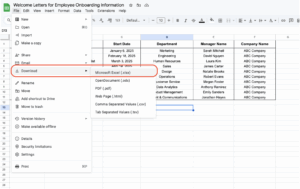
ActiveMerge only supports Microsoft Excel files. If you’re working in Google Sheets, you’ll need to download your spreadsheet in Excel (.xlsx) format. To do this, go to File > Download > Microsoft Excel (.xlsx).
Step 3. Sign in to ActiveMerge
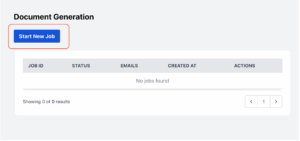
Go to activemerge.com and log in. If you don’t have an account yet, you can create one in a few clicks. Once inside, go to your dashboard and click “New Merge” to get started.
Step 4. Upload Your Spreadsheet
Next, upload the spreadsheet you created earlier. You can import it directly from your device.
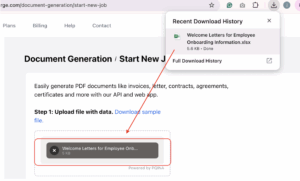
ActiveMerge will match your spreadsheet data with your template tags.
Step 5. Upload Your Template
Upload your welcome letter template. ActiveMerge will detect your merge tags automatically.
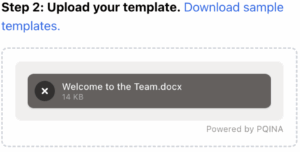
You’ll see a preview of the template, and the tags will be listed. Make sure they match your spreadsheet column names.
Step 6. Generate the Welcome Letters
Click the “Merge” button. ActiveMerge will instantly generate a separate, personalized letter for each employee based on the data. You can download the letters as PDFs or doc.
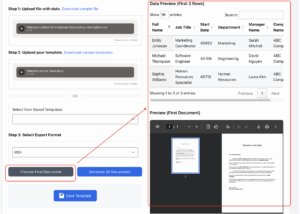
Step 7. Review and Send
Take a quick look through the generated letters. Make sure everything looks right. Then send them off or schedule them to be sent on a specific date.
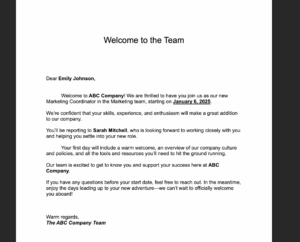
You can even automate this process if you’re onboarding employees regularly.
Get the Free Welcome Letter Template
Get a copy of the Free Welcome Letter template. You can download the Google Docs template in Microsoft Word (.docx) format, as ActiveMerge only supports Word documents.
Final Thoughts
Onboarding doesn’t have to be cold and robotic just because it’s automated. Tools like ActiveMerge let you keep the human touch while saving time. It’s not just about efficiency—it’s about making people feel seen from day one.
Try looking at onboarding not just as a checklist, but as a welcome party in words. Automation just helps you send the invites faster.
Frequently Asked Questions
What is ActiveMerge?
ActiveMerge is a document automation tool that lets you generate personalized documents in bulk using templates and spreadsheet data.
Do I need coding skills to use ActiveMerge?
Not at all. It’s built for non-tech users. If you know how to use a spreadsheet and a word processor, you’re good to go.
Can I use ActiveMerge for other HR tasks?
Yes! You can create offer letters, onboarding checklists, training reminders, and even exit documents—all in bulk and personalized.

