

Businesses across all industries manage a wide variety of client documents—contracts, proposals, invoices, performance reports, onboarding forms, compliance records, meeting summaries, and communication logs.
These files often live across different folders, storage platforms, and formats, making it difficult to compile a complete and organized client package when needed.
Whether a client requests their full file, your team must prepare for a quarterly review, or an auditor needs complete documentation, you may find yourself downloading multiple files, reordering pages manually, renaming documents, or stitching PDFs together one by one. This process is tedious, inconsistent, and prone to errors.
ActiveMerge’s Document Merge feature solves this instantly. With just a few clicks, you can combine multiple client records into a single, professionally organized PDF—ideal for client reporting, account summaries, compliance reviews, or internal handovers.
This guide walks you through how to use Document Merge to consolidate client documents quickly and accurately, using the same detailed, step-by-step structure as your existing published content.
Why Businesses Need Client Document Merging
Client accounts often span years of interactions, and keeping these records organized is essential for service quality, compliance, and internal documentation. Merging client files into one unified document provides clear advantages:
Client Account Management
Combine proposals, signed agreements, invoices, status reports, and emails into one complete, easy-to-review package.
Audit and Compliance Requirements
Prepare all legally or contractually required documentation without tracking down individual files.
Internal Team Handover
Consolidate everything your team needs when transferring clients between account managers or departments.
Client Offboarding
Deliver a clean, well-organized file containing all relevant records, ensuring complete transparency.
Time Savings and Error Reduction
Eliminate the hours spent manually sorting and merging files.
Whether you manage clients in consulting, finance, real estate, IT, marketing, legal services, or SaaS, merging files into a single document helps maintain consistency, accuracy, and professionalism.
Step-by-Step: Merge Multiple Client Records into a Single PDF
With ActiveMerge’s Document Merge feature, you can merge up to 40 client files into one clean, professional PDF in just minutes. This makes it easier for teams to prepare account summaries, compliance packages, audit-ready files, onboarding/offboarding documents, or full client histories. Here’s the complete, detailed process:
Step 1: Log in to ActiveMerge
Before starting, make sure you have access to your organization’s ActiveMerge account.
- Go to the ActiveMerge platform and sign in using your work email.
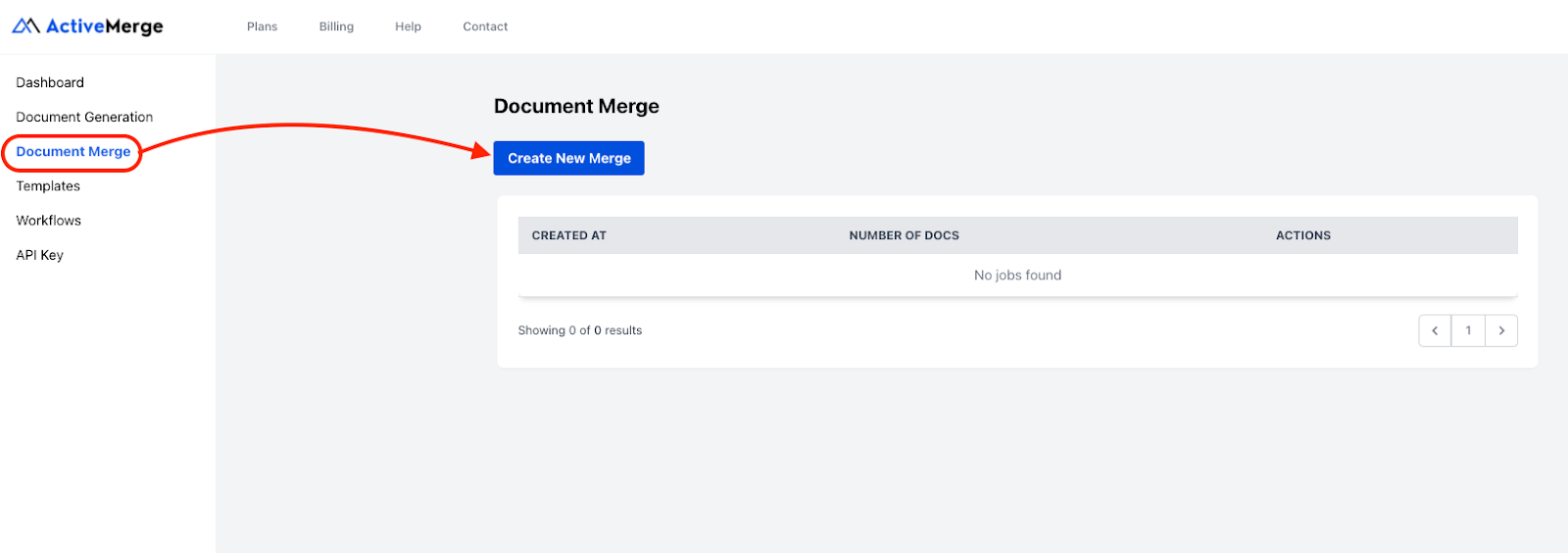
- From the main dashboard, select Document Merge → Create New Merge.
- You’ll be redirected to the merge setup page, where the upload area and file organization tools are available.

Inside the dashboard, you’ll also see other sections such as Workflows, Templates, and API Keys—but for this process, we will focus on the Document Merge feature.
Tip for client-facing teams: If multiple team members handle client records, consider using a shared login or assigning an account owner. This ensures consistent merging practices, naming conventions, and file management across your team.
Step 2: Upload Your Client Records
This is where you add the files you want to combine into a single PDF.
Upload Options:
- Drag and drop your documents into the upload area, or
- Click to browse your computer and select files manually
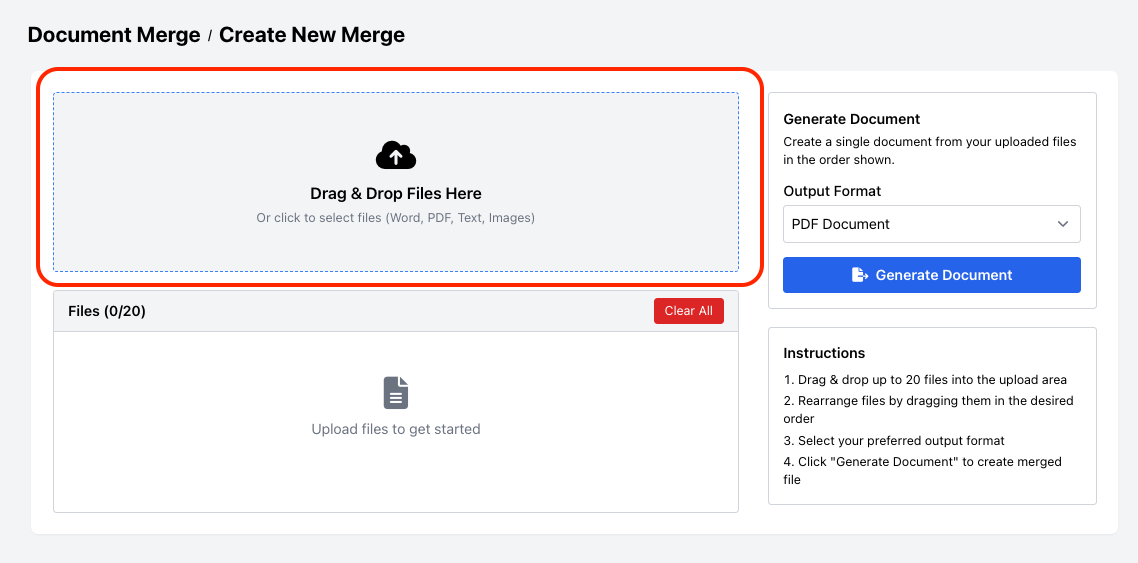
Supported File Types:ActiveMerge handles mixed formats, including:
- Word (.doc/.docx)
- Text (.txt)
- Images (.jpg/.png)
This is especially useful when client files come in varied formats—such as scanned IDs, PDF reports, contract Word documents, or images exported from your CRM.
Upload Limits: You may upload up to 20–40 files at once, depending on your plan.
Best Practice: Before uploading, rename the documents to ensure clarity and prevent confusion.
For example:
- ClientA_OnboardingForm.pdf
- ClientA_Contract_2024.pdf
- Invoice_ClientA_Q1_2024.pdf
- ProjectReport_ClientA_Monthly.pdf
- ComplianceForm_ClientA.jpg
Clear file names will help you verify accuracy and order files more easily in the next step.
Step 3: Arrange Files in the Correct Order
The sequence you choose determines how the final merged PDF will appear. A clear, logical order makes it easier for clients, auditors, or internal teams to review.
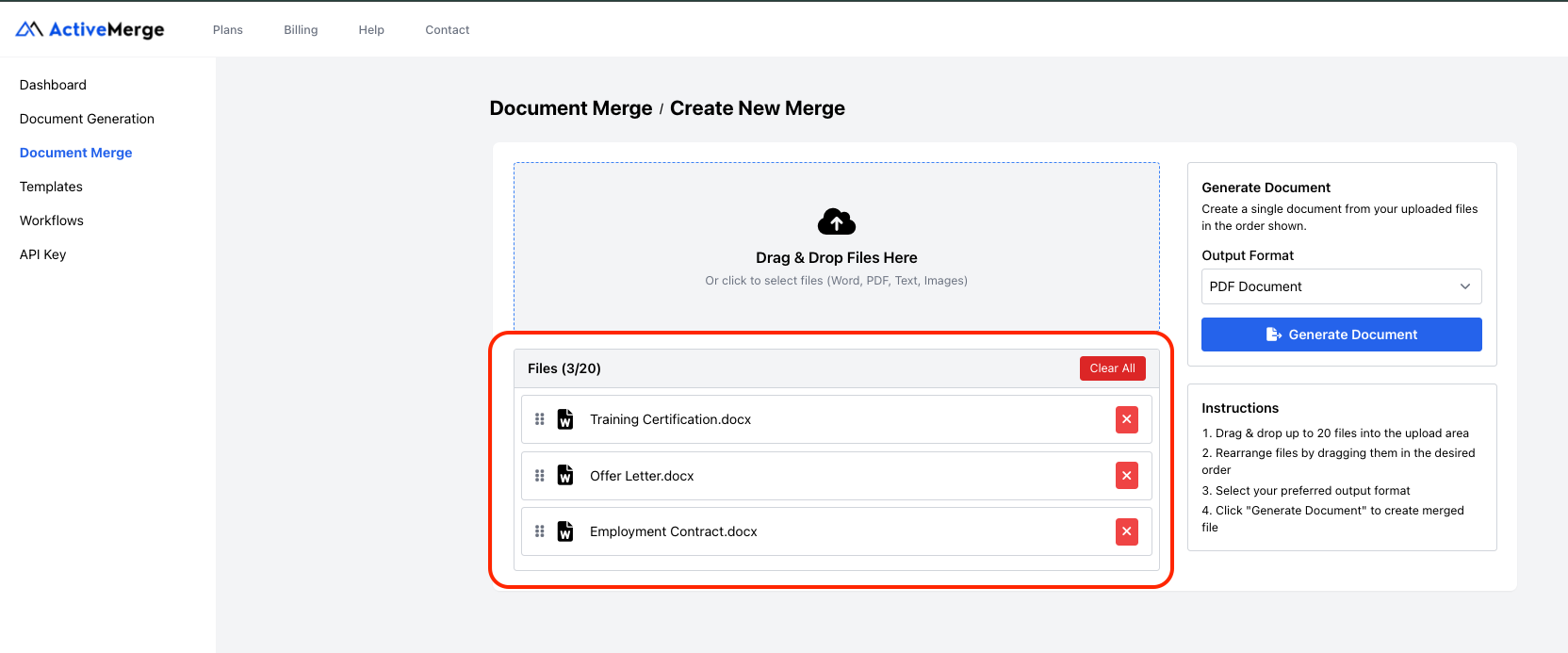
Once your files are uploaded, you will:
- See a list of all documents in the upload panel
- Use simple drag-and-drop controls to rearrange your files
- Group related documents together for readability
Example Order for a Complete Client Package:
- Client Information Sheet
- Signed Agreement
- Proposals or Scope Documents
- Invoices and Payment History
- Project Deliverables or Reports
- Communication Logs or Meeting Notes
- Compliance or Verification Files
- Offboarding or Closeout Summary (if applicable)
Pro Tip: Think about how someone unfamiliar with the account would read the file from start to finish. Organizing client records chronologically or by category improves clarity and presents a more professional final document.
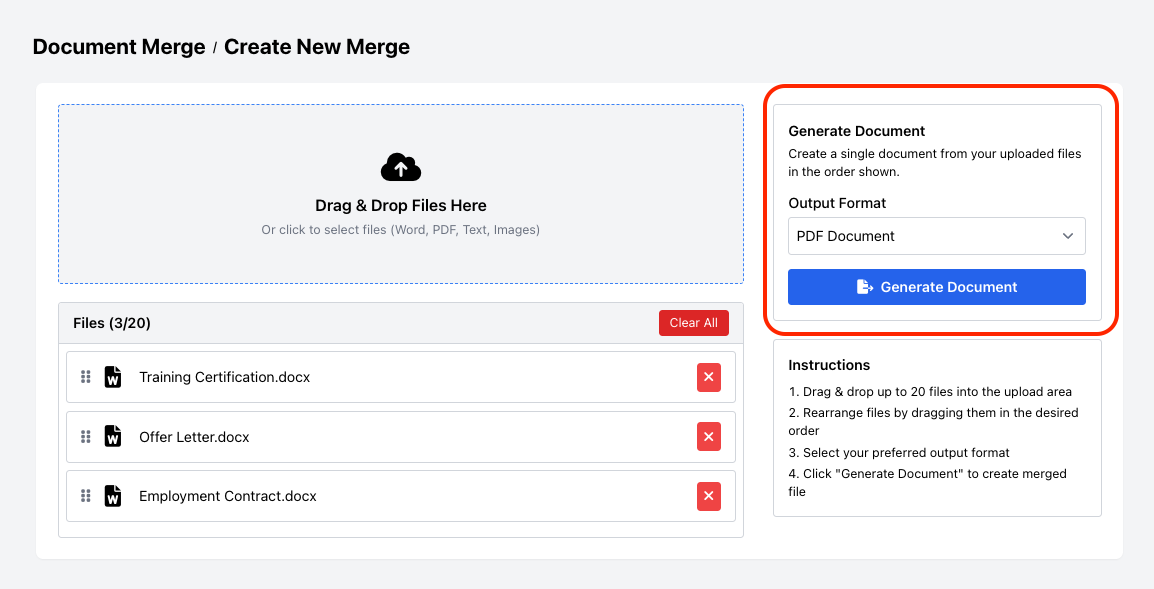
Step 4: Choose Output Format
Next, select the type of document you want ActiveMerge to produce.
PDF Document (Recommended)
- Creates a polished, secure, non-editable final record
- Preserves all formatting, images, signatures, and layout
- Ideal for finalized client packages, audits, and compliance files
Word Document
Choose this only if you plan to make additional edits before archiving or sending.
For most client-management workflows, PDF is preferred because it ensures long-term integrity and prevents accidental modifications.
Step 5: Generate, Preview, and Download
Now it’s time to create your consolidated client file.
- Click Generate Document to begin the merge.
- ActiveMerge will automatically combine all files in the exact order you arranged them.
- Once processing is complete, you’ll see two options:
Preview Document
Open a preview to verify:
- Correct file order
- Clean formatting
- Accurate page transitions
- Clarity of scans, signatures, and images
Download
Save the merged PDF (or Word file) directly to your computer or upload it to:
- Google Drive
- Dropbox
- OneDrive
- Your client’s folder in your CRM or internal drive
You’ll also see your credit usage summary, for example:
| Description | Qty |
| Credits Available | 18 |
| Credits Used | 2 |
Best Practice: Always preview the file before sending or archiving, especially for sensitive client accounts. This ensures nothing is missing, mis-ordered, or incorrectly formatted before the document is delivered to your client, manager, or auditor.
ActiveMerge offers also an amazing tool to generate PDF documents from Word or PowerPoint files.
Once your HR records are merged into a single PDF, you don’t need to rely on email attachments or unsecured file transfers. With FileDrop’s PDF Hosting, you can instantly share the final file using a secure, trackable link.
Here’s how it works:
- Upload your merged PDF to FileDrop.
- Get a secure, unique link to share with managers, auditors, or employees.
- Control access with password protection, expiration dates, or view/download permissions.
This way, your HR team maintains compliance, avoids oversized email issues, and ensures sensitive employee documents are always delivered securely.
For a full walkthrough, check out FileDrop’s guide: How to Host and Share PDFs Securely Using FileDrop (Without Email or Cloud Access).
Real-World Use Cases for Client Document Merging
Client Account Summaries
Send clients a unified document that includes contracts, invoices, reports, and deliverables.
Audits and Compliance Requests
Prepare a complete client documentation set quickly and accurately.
Internal Handover Packages
Share full client histories with new account managers or departments.
Client Offboarding
Deliver an organized package containing all past agreements, communication records, and closing documents.
Professional Presentations
Combine proposals, case studies, and past work samples into one polished file.
Best Practices for Managing Client Document Packages
To ensure consistency and accuracy across your team:
- Use standardized file naming conventions
- Group documents per client before merging
- Maintain a clear storage structure in your cloud drive
- Keep original files in case revisions are needed
- Use role-based storage access for sensitive client data
These practices ensure smooth operations and maintain high-quality client documentation.
Final Thoughts
Managing client records does not have to involve tracking down separate files or creating manual PDF merges. With ActiveMerge’s Document Merge feature, you can:
- Combine multiple client files into one professional PDF
- Reduce administrative overhead
- Improve accuracy and consistency
- Present client information in a clean, organized format
- Save time across your operations
This feature helps teams stay efficient, compliant, and organized—making client record preparation faster, clearer, and significantly more professional.
Frequently Asked Questions
What types of client files can I merge with ActiveMerge?
You can merge contracts, invoices, reports, meeting notes, onboarding forms, compliance documents, and more—across PDF, Word, text, and image formats.
Is there a limit to how many files I can merge at once?
Yes. You can merge up to 20–40 files depending on your ActiveMerge plan.
Will the formatting, layout, and signatures be preserved?
Yes. ActiveMerge ensures all formatting remains intact in the final merged PDF.
Can I reorder files after uploading them?
Yes. You can freely drag and drop files into the correct sequence.
Can I edit the final merged file?
If you select Word as the output format, you can edit the document. PDF is recommended for finalized records.

