

Businesses that rely on Airtable document generation for managing structured data — such as employee records, rental agreements, invoices, or training logs — often face the same bottleneck: turning that data into professional documents still takes too much time.
Manually copying information into Word templates or exporting data into PDFs doesn’t scale. It slows down teams and introduces human error.
That’s where ActiveMerge’s Airtable integration comes in, providing a powerful solution for seamless document generation without manual work. It lets you automatically support Airtable document generation (like contracts, certificates, or reports) directly from your Airtable records — no copy-pasting, no manual editing, and no extra automation platform required.
In this guide, we’ll show you exactly how to connect Airtable to ActiveMerge, create dynamic templates, and generate documents instantly from your data — all within the Airtable interface.
We also have a native integration with Airtable directly in our web app.
Why Use ActiveMerge for Airtable Document Generation?
ActiveMerge extends Airtable’s capabilities by adding true document automation. Here’s what you can achieve:
- Generate PDFs, Word, or PowerPoint documents directly from Airtable data.
- Bulk-generate documents for multiple records in one click.
- Maintain consistent branding using pre-approved company templates.
- Store generated documents back in Airtable or your connected storage.
- Eliminate manual errors caused by copy-pasting or formatting issues.
This integration is ideal for HR teams, real estate agencies, legal offices, schools, and any department that works with recurring document creation.
Step-by-Step: Airtable Document Generation Using ActiveMerge
Below is the complete step-by-step guide — following the same structure used in ActiveMerge’s official documentation.
Step 1: Create Your ActiveMerge Account
To start, you’ll need an ActiveMerge account.
- Go to ActiveMerge and click Sign Up Free.

- Register using your work email address and set a secure password.
- Once you’re in the dashboard, you’ll see the main sections:
- Templates – for uploading and managing your document templates
- Workflows – for automating large-scale document creation
- API Keys – for integrating with platforms like Airtable
Pro Tip: The free plan lets you generate up to 25 documents — perfect for testing before upgrading.
Step 2: Create a Dynamic Template in ActiveMerge
The template is the core of your automation. It defines the structure and placeholders where Airtable data will go.
- Open Microsoft Word, PowerPoint, or Google Docs.
- Write your standard document — for example, a rental agreement, invoice, or certificate.
- Replace variable fields with merge placeholders enclosed in curly braces { Name}, {Date}, {Client_Address}.
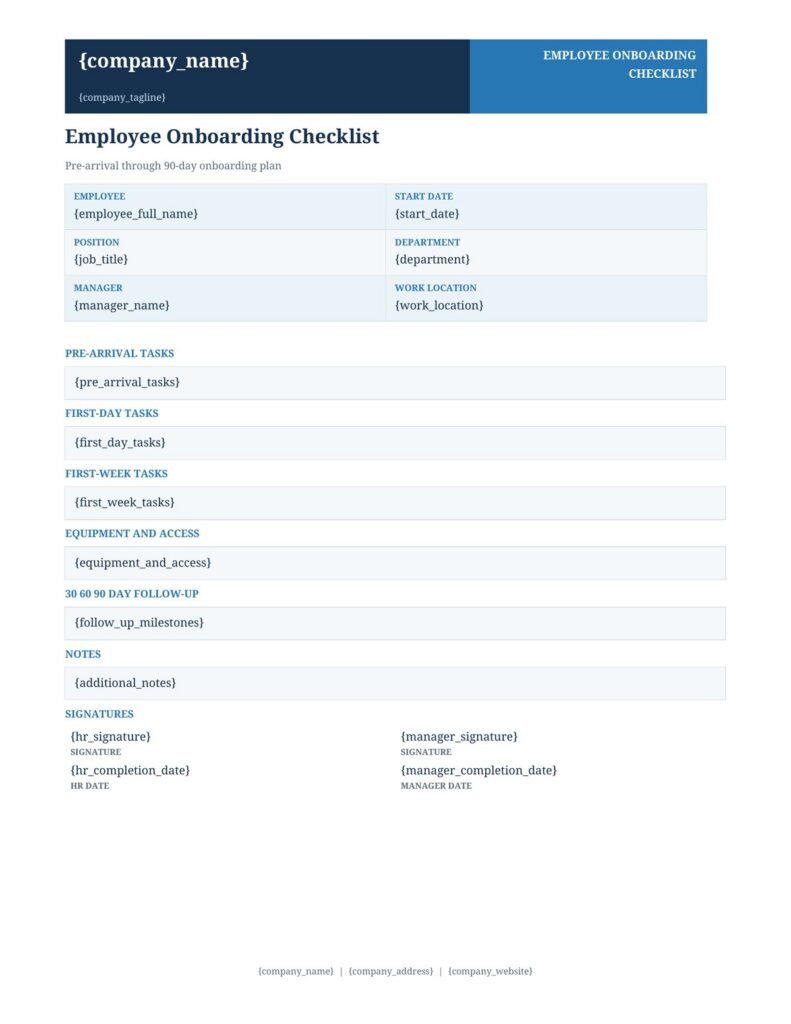
Save your file in .docx, .pptx, or .pdf format.
- Log in to your ActiveMerge account and upload the file under Templates → Upload Template.
- Click Detect Placeholders — ActiveMerge will automatically find all {fields} inside the document.


Tip: Make sure placeholder names match exactly with your Airtable column headers (case and spacing matter).
Step 3: Generate an API Key
Your API key is what connects Airtable’s extension to your ActiveMerge account.
- In the ActiveMerge dashboard, go to Settings → API Keys.
- Click Generate New API Key.
- Copy and store your key securely — you won’t be able to view it again later.
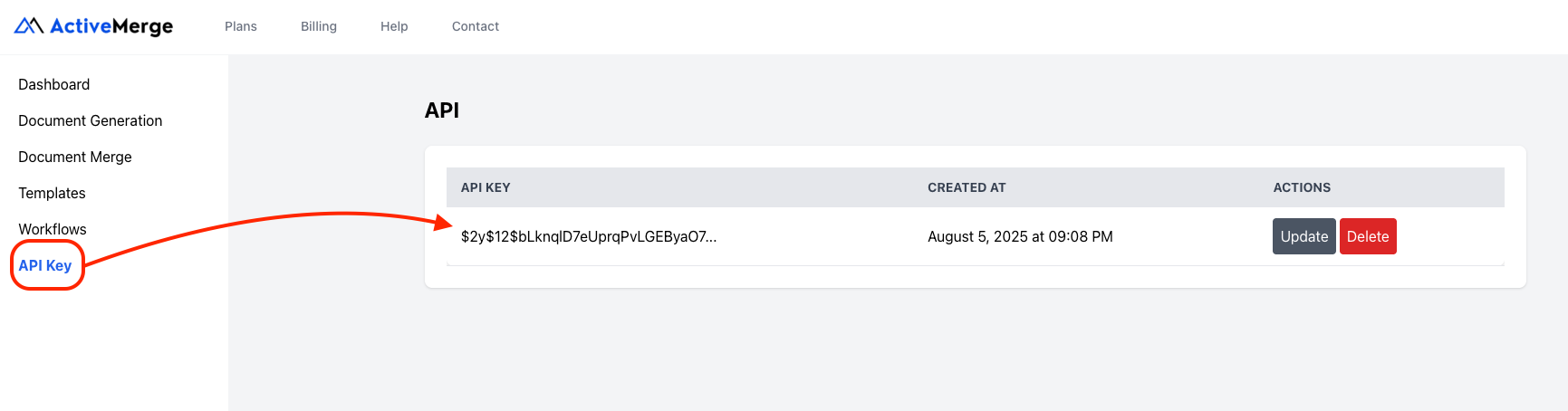
Important: Treat your API key like a password. Don’t share it publicly or commit it to shared scripts.
Step 4: Set Up Your Airtable Base
Now, you’ll prepare the data source that will feed into your documents.
- Open your Airtable workspace and create a new Base (or use an existing one).
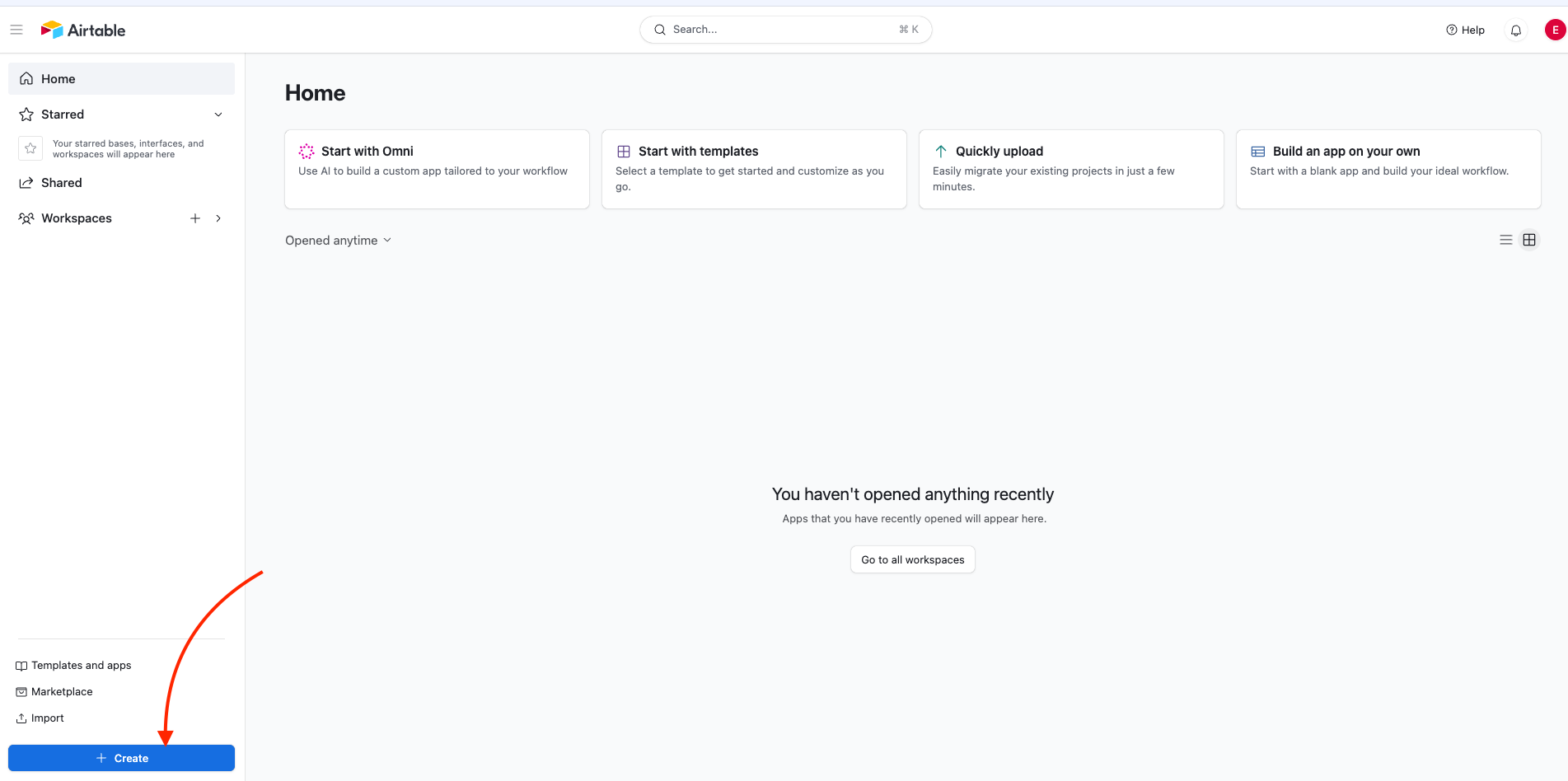
- Add columns that correspond to the placeholders in your ActiveMerge template.
- Example:
| Tenant_Name | Tenant_Address | Property_Manager | Property_Address | Start_Date | End_Date | Monthly_Rent |
| John Smith | 123 Oak Lane | Karen Lee | 45 River View Dr | 2025-01-01 | 2025-12-31 | $1,200 |
- Fill in a few sample records for testing.
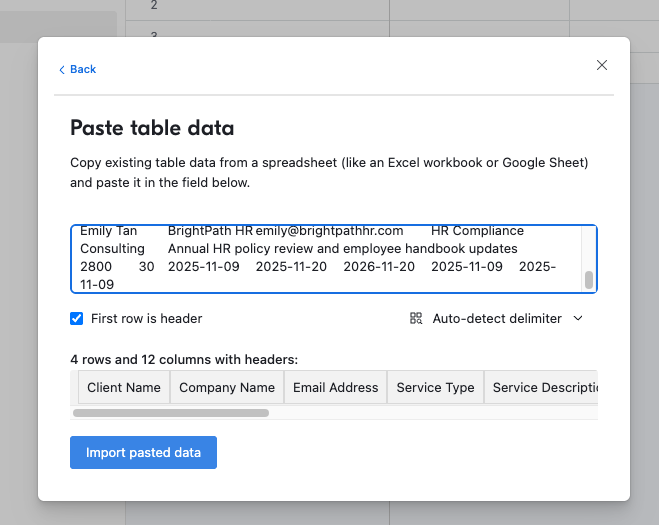
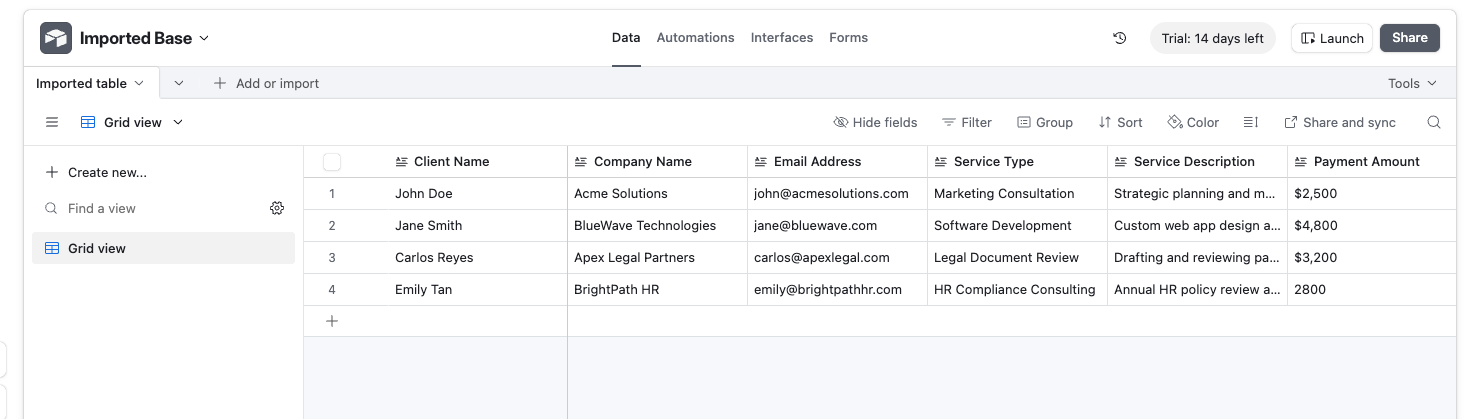
Best Practice: Use clear, consistent field names with underscores (_) instead of spaces to prevent placeholder mismatches.
Step 5: Install the ActiveMerge Document Generator Extension
Airtable extensions (formerly “Apps”) allow third-party tools to run directly within your workspace.
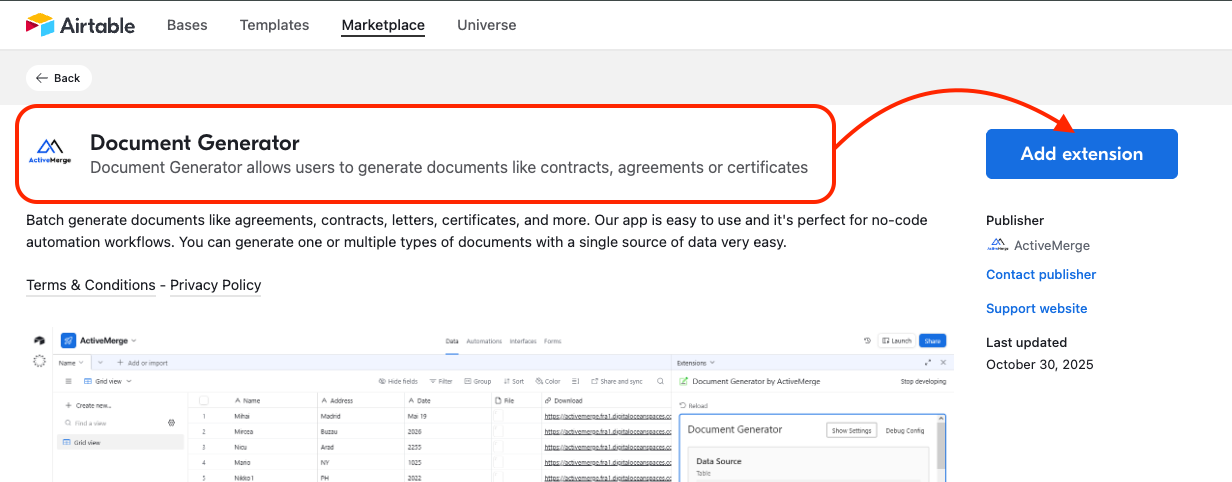
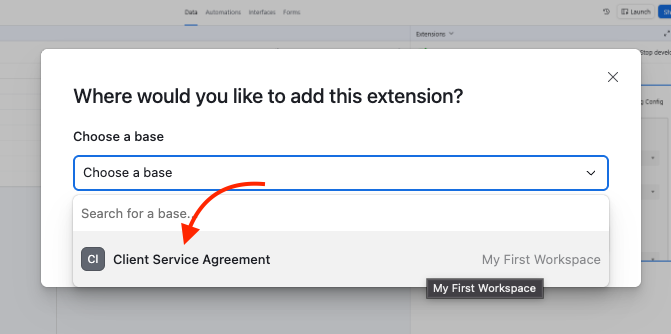
- Inside your Airtable base, click Extensions → Add Extension.
- Search for “ActiveMerge Document Generator” in the Airtable Marketplace.
- Click Install and open the configuration panel.
- Paste your API Key from ActiveMerge.
- Choose the template you uploaded earlier.
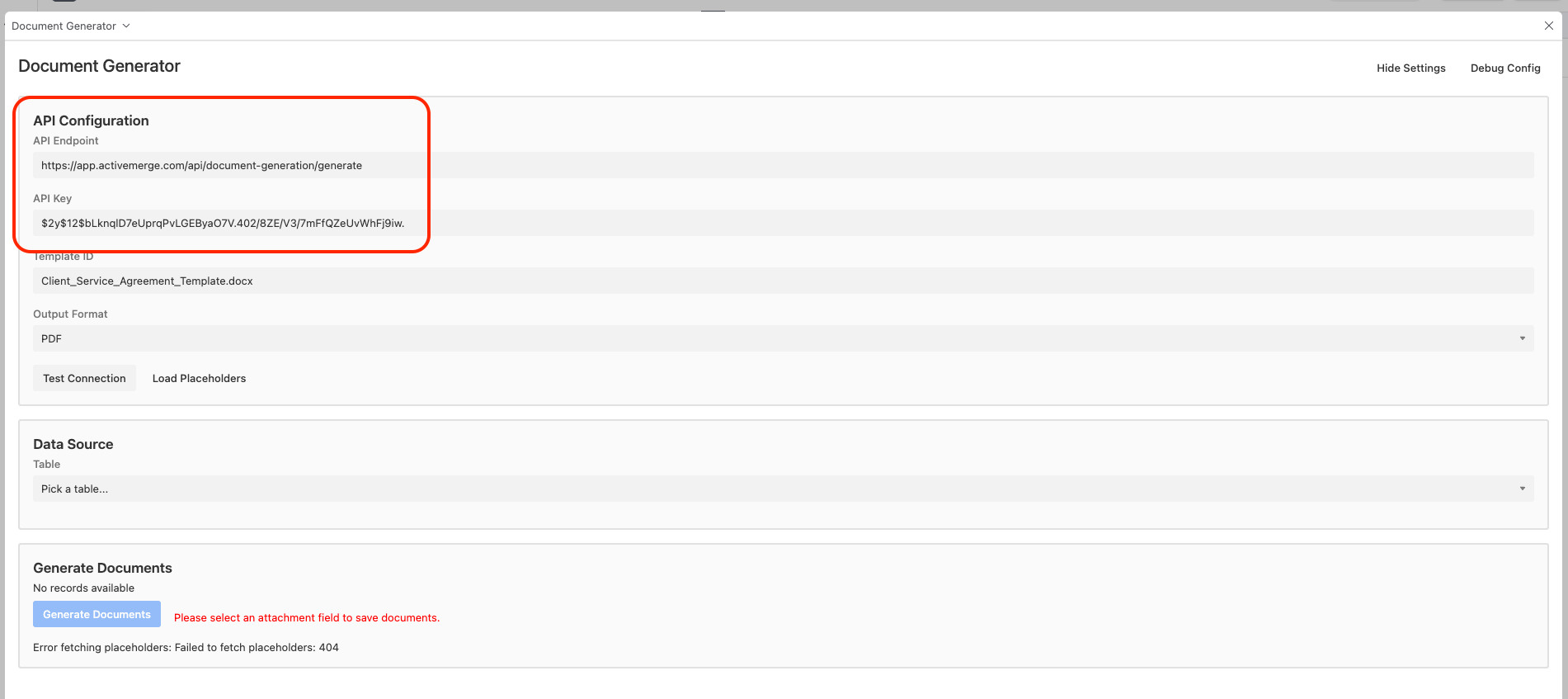
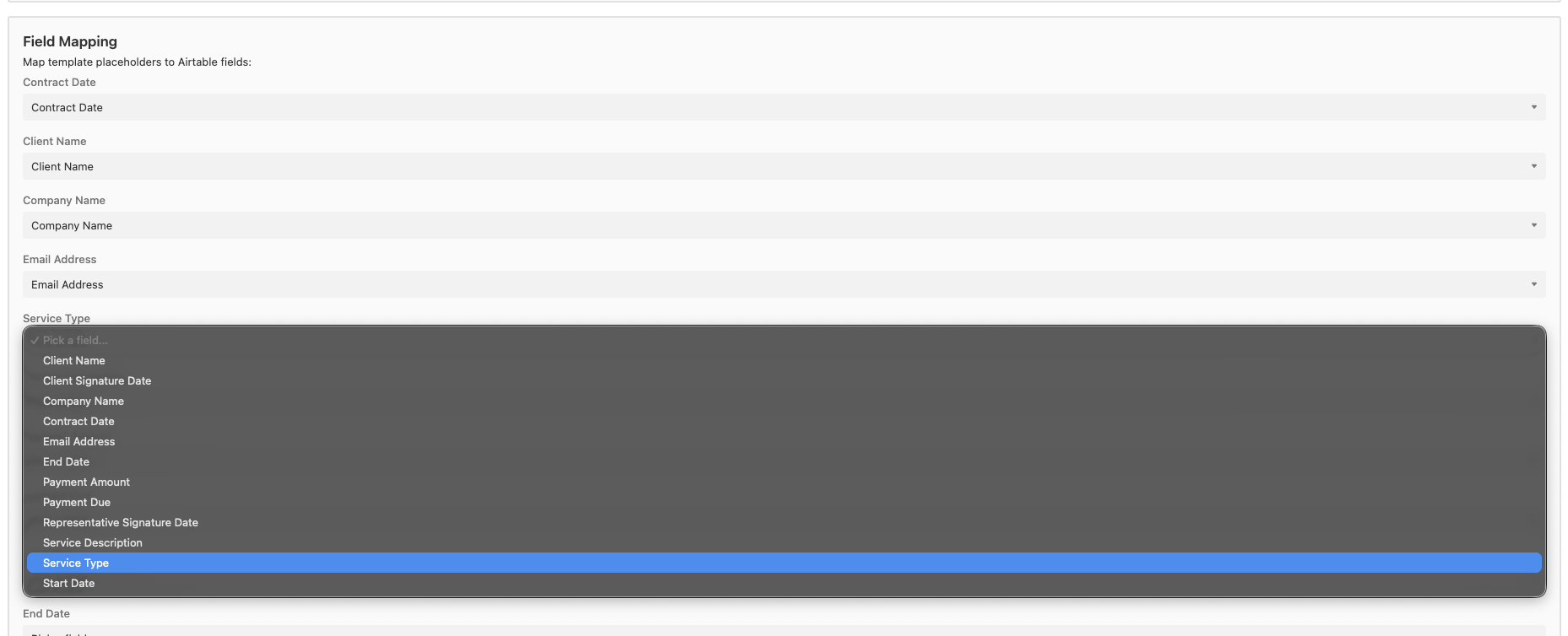
- Map each field from Airtable to its matching placeholder:
- {Contract Date} → “Contract Date” field
- {Client Name} → “Client Name” field
- {Company Name} → “Company Name” field
- {Email Address} → “Email Address” field
- Choose output settings:
- Document type (PDF, DOCX, PPTX)
- Whether to attach generated files directly to the record or store only a download link
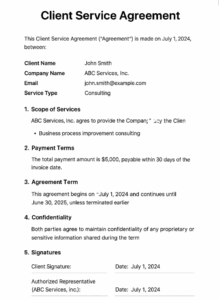
Tip: Use the naming pattern Client_Service_Agreement_{Client_Name}.pdf to automatically label each generated document with the client’s name.
Step 6: Generate Your Documents
Now the fun part — Airtable document generation directly inside your workspace.
- Go to your ActiveMerge extension panel.
- Select one record (or multiple records at once).
- Click Generate Document.
- ActiveMerge processes your selected records, replaces placeholders with real Airtable data, and produces final files.
- Once done, each file will automatically appear as an attachment or link in the corresponding Airtable record.
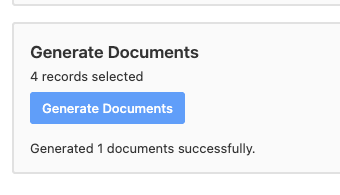
Pro Tip: You can bulk-generate 10, 20, or even 100 documents at once — perfect for teams managing multiple clients, tenants, or employees.
Once your documents are generated, you have several options:
- Attach to Airtable Records: Files appear right inside your base for instant access.
- Export to Storage: Download or sync to Google Drive, OneDrive, or Dropbox.
- Automate Delivery: Use Airtable’s built-in Automations to email generated documents to clients or teammates automatically.
 |
Example automation:
- Trigger: “When a new document file is added”
- Action: “Send an email to Tenant_Email with attachment”
This turns Airtable into a lightweight document automation system — without ever leaving your workspace.
Step 8: View Your Generated Documents
After ActiveMerge finishes creating your documents from Airtable, you can easily access the final files in two ways — directly inside Airtable or from your ActiveMerge dashboard.
Option 1: View the Document in Airtable
If you connected ActiveMerge to a File Attachment field in your Airtable base:
- Go back to your Airtable base and open the table where your records are stored.
- Look for the attachment column (for example, Generated Agreement).
- You’ll see a new file automatically uploaded for each record — one document per client.
- Click on the file thumbnail to preview, download, or open the generated document.
Example: If you used the file naming pattern Client_Agreement_{Client_Name}.pdf, each row in Airtable will now contain its own personalized agreement, such as:
- Client_Agreement_John_Smith.pdf
- Client_Agreement_Sarah_Tan.pdf
This keeps every client’s document right where the rest of their data lives — in Airtable.
Real-World Examples of Airtable + ActiveMerge Automation
- Real Estate Agencies: Automatically generate lease agreements when new tenants are added.
- HR Departments: Create personalized employment letters or training certificates from employee records.
- Finance Teams: Generate invoices, statements, or payment receipts from transaction logs.
- Schools or Training Centers: Issue completion certificates when students finish courses.
Best Practices for Smooth Automation
- Match placeholder names exactly — even capitalization matters.
- Use test records before generating in bulk.
- Include date formatting in Airtable (e.g., YYYY-MM-DD) for cleaner output.
- Keep your templates simple and clean — fewer formatting layers make generation faster.
- Monitor document credits — the free plan includes 50 documents per month.
Conclusion
By connecting Airtable and ActiveMerge, you unlock powerful Airtable document generation that transforms static data into polished, ready-to-send documents in minutes.
No more copy-pasting or reformatting. Just upload your template, map your fields, and generate beautiful, consistent documents right from your Airtable base.
Whether you’re managing tenant leases, HR records, or client invoices, this integration simplifies your workflow and saves hours every week.
Start with ActiveMerge today and experience how effortless document automation can be.
Frequently Asked Questions
Can I generate documents directly without using Make or Zapier?
Yes. ActiveMerge’s Airtable extension works natively. You can generate documents directly inside Airtable — no third-party automation platform needed.
What file types are supported?
You can generate Word (.docx), PowerPoint (.pptx), or PDF documents.
Can I generate multiple files at once?
Absolutely. Select multiple records in Airtable and click “Generate Document” to bulk-create files instantly.
Where are my generated files stored?
Documents are attached to your Airtable records or stored as download links — depending on your settings.

