
Creating legal contracts is essential but repetitive work for law firms. Whether it’s retainer agreements, non-disclosure agreements (NDAs), or service contracts, every document must be precise, consistent, and customized to the client.
- Why Automate Contract Preparation?
-
Step-by-Step: Automate Contract Creation with ActiveMerge and Make
- Step 1: Create Your ActiveMerge Account
- Step 2: Prepare Your Client Data Source
- Step 3: Create a Contract Template in ActiveMerge
- Step 4: Upload the Template to ActiveMerge
- Step 5: Set Up the Automation in Make (Trigger + Action)
- Step 6 (Optional): Automatically Save Contracts to Google Drive
- Step 7 (Optional): Email Contracts to Clients Automatically
- Step 8: Activate Your Scenario
- Real-World Example
- Bonus: Share Contracts Securely with FileDrop
- Conclusion
Law firms looking to automate contract creation can eliminate repetitive drafting work while improving accuracy and turnaround time.
The challenge? Manual drafting slows down firms. Lawyers or paralegals often spend hours copy-pasting client details, editing templates, and reformatting clauses — leaving room for human error and delays.
The good news: you can automate contract creation entirely using structured data and document generation tools. By connecting Make with ActiveMerge (for document generation), your firm can generate accurate, branded contracts in bulk, directly from structured client data like spreadsheets or your CRM.
This guide will walk you through each step to set up a contract automation workflow, complete with sample data and templates you can copy.
Why Automate Contract Preparation?
Why Law Firms Need to Automate Contract Creation:
As client volume grows, the need to automate contract creation becomes critical. Manual drafting limits scalability, while automation ensures contracts are generated quickly, consistently, and without formatting inconsistencies.
Law firms face recurring problems with manual document work:
- Repetition: Entering client names, addresses, and contract terms repeatedly.
- Errors: Mistakes in fees, dates, or client details can cause compliance issues.
- Inconsistency: Different lawyers use slightly different formats or versions.
- Delays: Reviewing and formatting contracts eats into billable hours.
With automation, contracts are generated in minutes, not hours — consistently formatted, accurate, and client-ready.
Step-by-Step: Automate Contract Creation with ActiveMerge and Make
Law firms draft a wide range of contracts every day — from NDAs and retainer agreements to service contracts and client letters. While essential, preparing these documents manually is slow, repetitive, and increases the risk of errors or inconsistencies.
With ActiveMerge Workflows, your firm can generate customized contracts in bulk by combining structured client data with standardized templates. And by connecting ActiveMerge with Make, you can go a step further — automatically generating, storing, and even sending contracts without manual intervention.
Below, we’ll walk through the full process of setting up an automated contract generation workflow for your law firm, using Google Sheets, ActiveMerge, and Make.
Step 1: Create Your ActiveMerge Account
Start by creating your free ActiveMerge account. Once logged in, you’ll see the dashboard, where you can access:
- Document Generation – for creating contracts on demand.
- Document Merge – to combine multiple records into one file.
- Templates – where you upload and manage legal document templates.
- Workflows – for generating multiple types of documents from one data set.
- API Key – if your firm wants direct system integration.

For this tutorial, we’ll focus on Workflows + Templates.
Step 2: Prepare Your Client Data Source
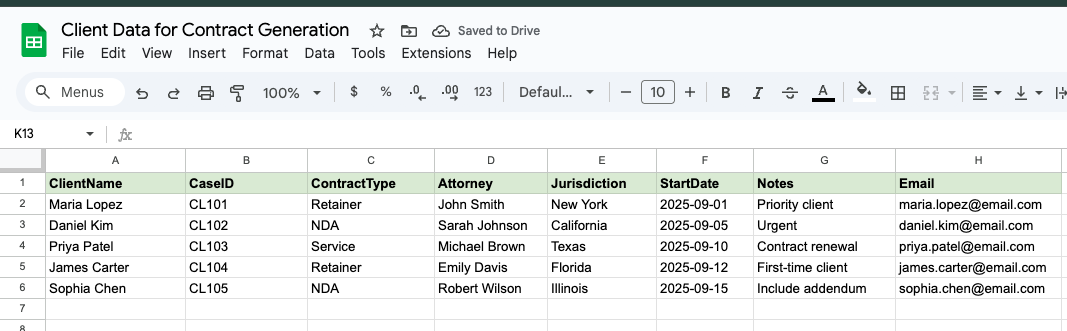
Automation requires structured data. Structured data is the foundation required to successfully automate contract creation at scale. The easiest way to start is with Google Sheets. Each row represents one client, and each column represents contract fields.
Here’s an example sheet you can copy:
Pro Tip:
- Use consistent headers like Client Name, Start Date, Fee.
- Add any legal details your firm always includes (jurisdiction, payment terms, etc.).
- Store the sheet in a shared Google Drive for secure team access.
Step 3: Create a Contract Template in ActiveMerge
Next, upload your firm’s standard contract template to ActiveMerge. This could be a Word document or Google Doc that your team already uses.
Replace client-specific fields with merge placeholders so ActiveMerge can fill them automatically.
Here’s an example:
| This {Contract Type} Agreement (“Agreement”) is entered into on {Start Date} between {Client Name}, located at {Address}, and [Your Law Firm Name]. The agreement shall remain in effect until {End Date}. The agreed-upon fee for services is {Fee}. This Agreement shall be governed by the laws of {Governing Law}. |
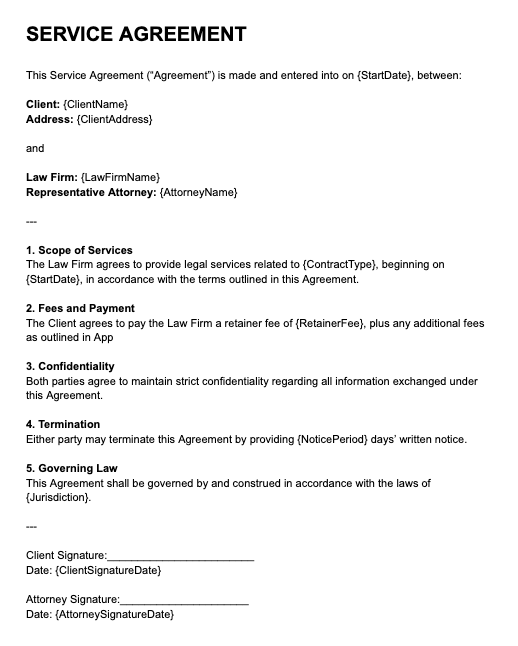
When ActiveMerge runs, it will replace {Client Name} and other placeholders with real client data from your spreadsheet.
Pro Tip: Test with one or two placeholders first, then expand to a full contract once you’re comfortable.
Step 4: Upload the Template to ActiveMerge
- Log in to your ActiveMerge dashboard.
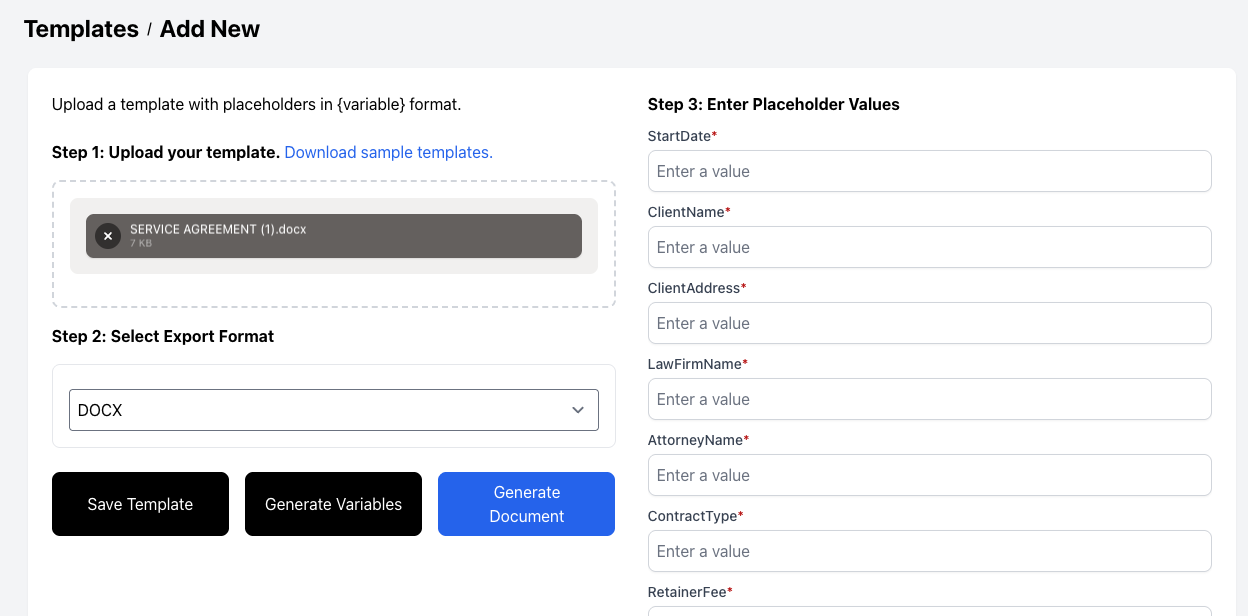
- Navigate to the Templates tab and click Add Template.
- Upload your .docx file.
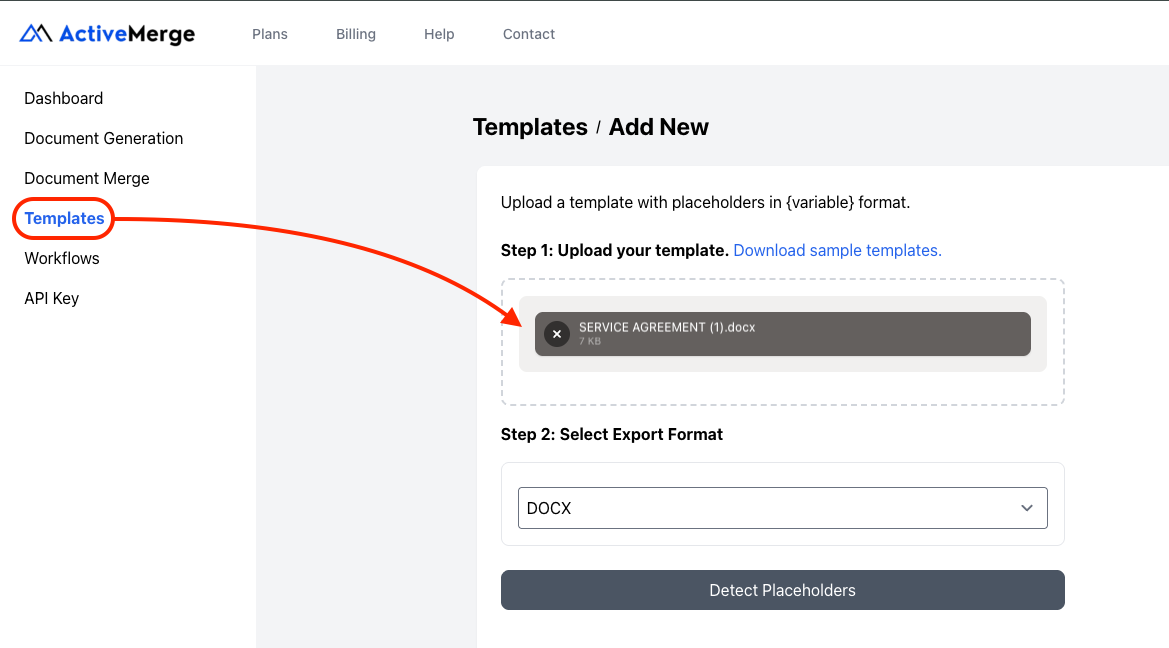
- Click Detect Placeholders — ActiveMerge will automatically identify all your {fields}.
- Verify that each detected field matches your intended merge data.
- Give your template a clear name, such as Service Agreement Template.
Important:
- Placeholder names must match your spreadsheet column headers exactly.
- Any mismatch may result in blank fields in your generated contracts.
Step 5: Set Up the Automation in Make (Trigger + Action)
Make (formerly Integromat) allows you to fully automate contract generation directly from your client spreadsheet. This integration enables your firm to automate contract creation from intake to delivery without manual intervention.
Set Up Google Sheets as the Trigger:
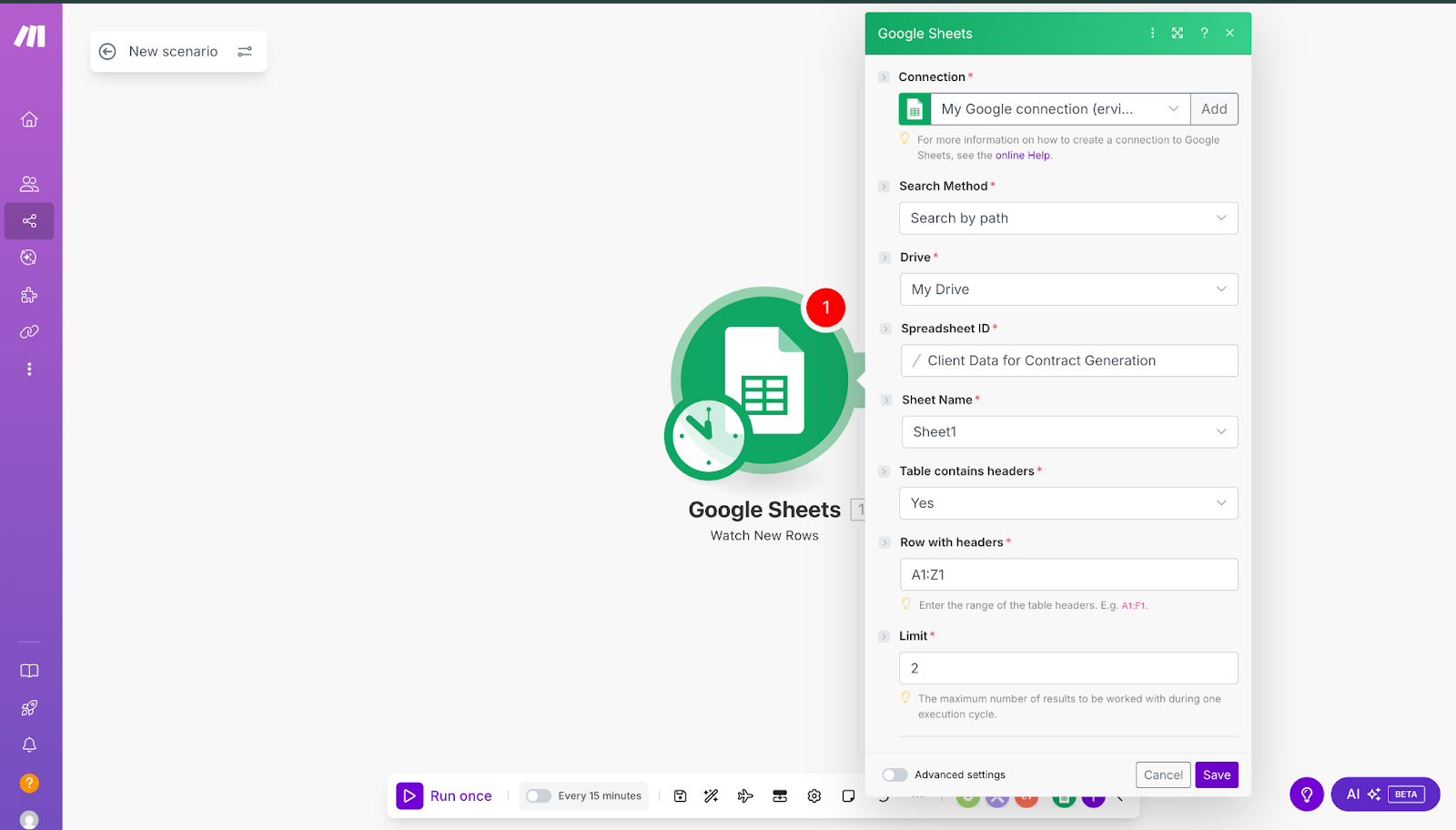
- Open Make and create a new scenario.
- Add a Google Sheets module and select the trigger: Watch Rows.
- Connect your Google account and authorize access.
- Choose the spreadsheet and worksheet containing your client data.
- Configure the module to trigger whenever new rows are added.
Generate an API Key in ActiveMerge:
| Go to the API Keys section in the ActiveMerge dashboard. Click Generate New API Key. Copy and securely save the key — you may not be able to view it again. Tip: Treat your API key like a password — do not share publicly. |
Set Up ActiveMerge as the Action:
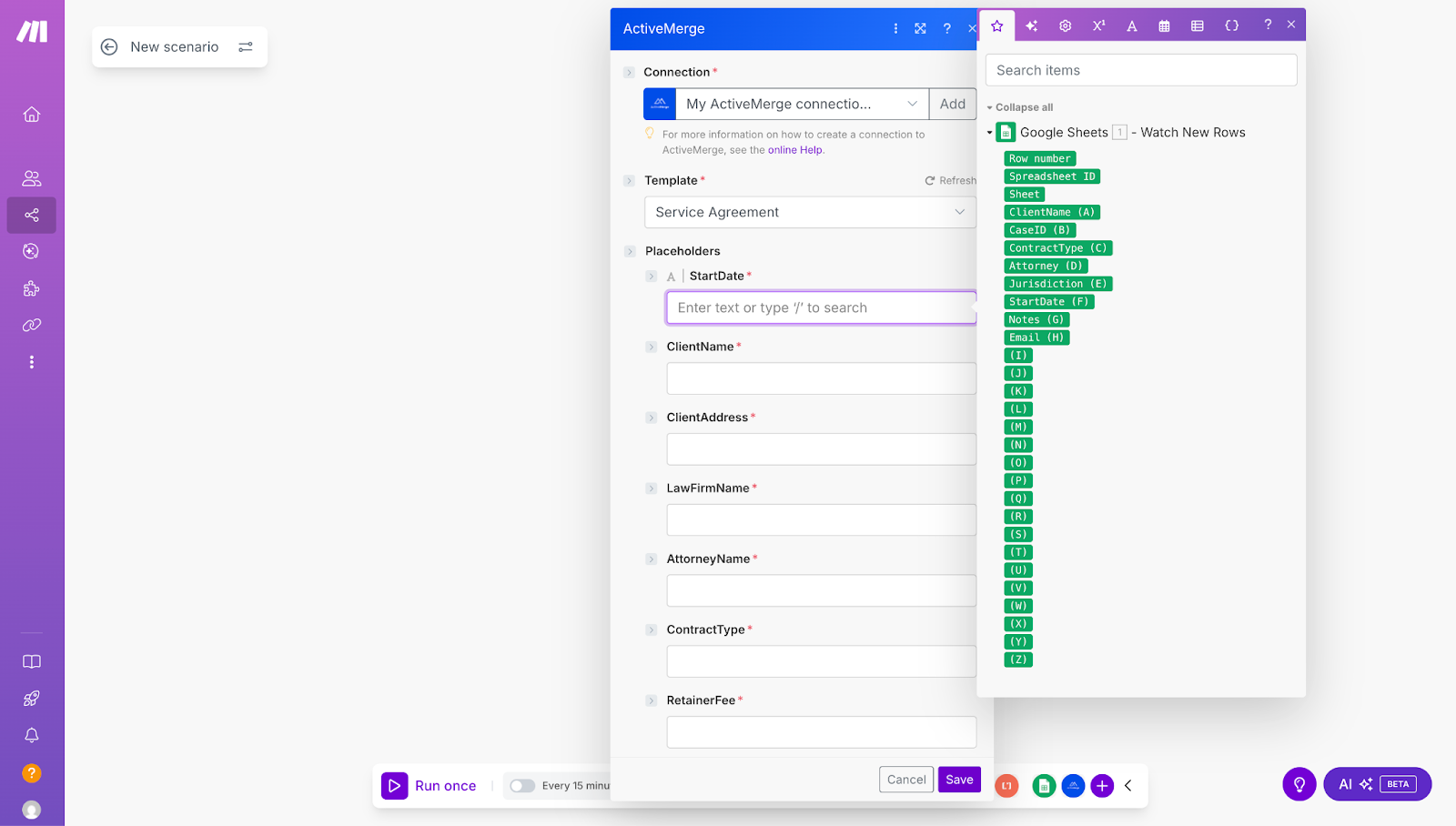
- Add an HTTP/ActiveMerge module.
- Select Generate Document as the action.
- Paste your ActiveMerge API key.
- Select the contract template you uploaded earlier.
- Map each placeholder to the correct spreadsheet column:
- {ClientName} → Client Name
- {ContractType} → Contract Type
- {StartDate} → Start Date
- {EndDate} → End Date
- {Fee} → Fee
- {GoverningLaw} → Governing Law
- Test the module to ensure a sample contract is generated correctly.
Tips:
- Double-check that all placeholders match exactly.
- Add filters so the workflow only runs for specific contract types (e.g., NDAs).
Step 6 (Optional): Automatically Save Contracts to Google Drive
If your firm wants a centralized folder for all contracts:
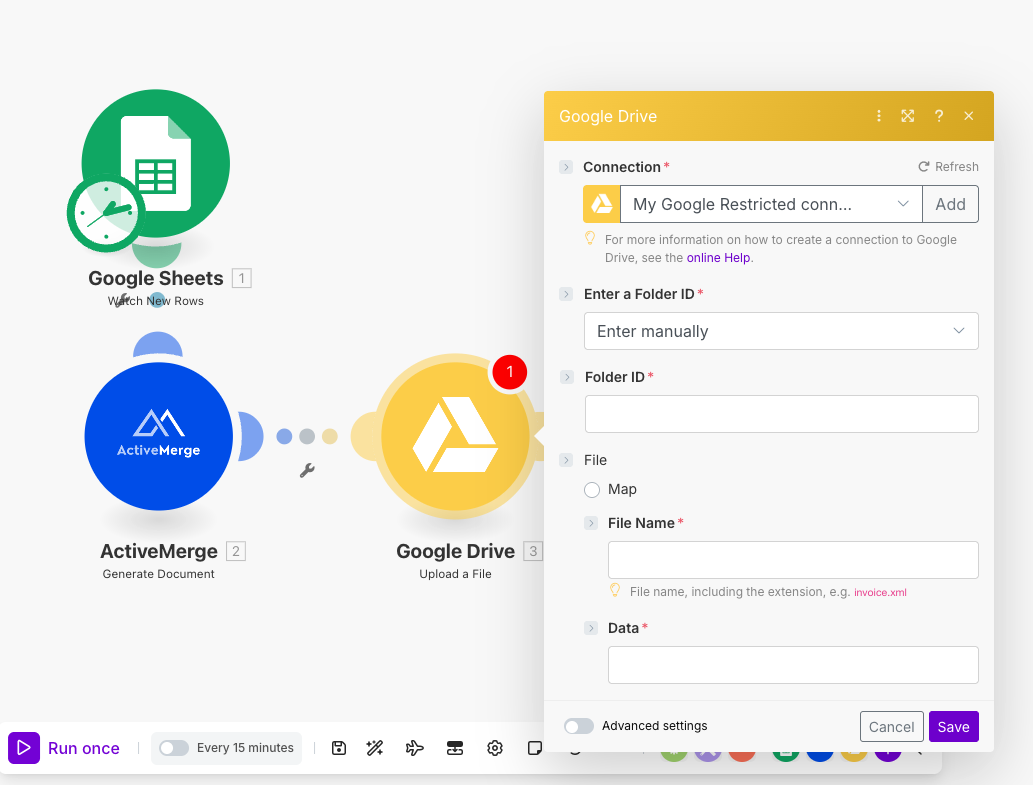
- Add a Google Drive module in Make.
- Select Upload File.
- Map the file output from the ActiveMerge module.
- Choose a destination folder, such as /Client_Contracts.
Tip: Create subfolders by client name or contract type to keep everything organized.
Step 7 (Optional): Email Contracts to Clients Automatically
Want contracts delivered instantly?
- Add a Gmail (or other email service) module in Make.
- Set the To field to pull from the Email column in your spreadsheet.
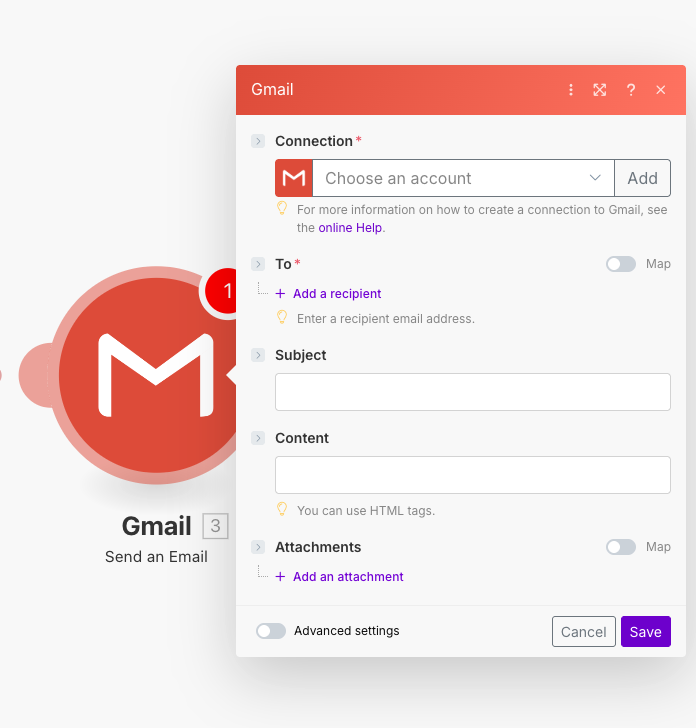
- Attach the contract file generated by ActiveMerge.
- Customize the subject line and email body with client details.
Tip: Test with one sample row before going live to ensure the attachment and formatting look correct.
Step 8: Activate Your Scenario
Once everything is tested and confirmed:
- Turn on your scenario in Make.
- From now on, every new row in your client spreadsheet will automatically:
- Generate a personalized, accurate contract
- Save it to Google Drive (optional)
- Email it securely to the client (optional)
Sample document output:
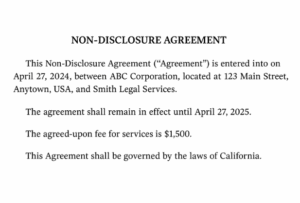 |
This automation eliminates repetitive edits, reduces errors, and ensures your contracts are professional and consistent — every single time.
Real-World Example
A boutique law firm managing dozens of NDAs each month automated contract generation using Make + ActiveMerge. Their results:
- Drafting time reduced from 1 hour per contract to under 10 minutes.
- Zero errors in client names, dates, or clauses.
- Standardized contracts across the entire firm.
The firm now uses this process for retainer agreements, service contracts, and client letters.
Instead of attaching contracts to emails, upload them to FileDrop PDF Hosting and share via a secure link.
Benefits include:
- Password protection.
- Expiration dates for time-sensitive agreements.
- View/download permissions to control access.
For a detailed guide, check out: How to Host and Share PDFs Securely Using FileDrop (Without Email or Cloud Access).
Conclusion
By choosing to automate contract creation with Make + ActiveMerge, law firms gain, law firms gain:
- Speed: Generate contracts in minutes.
- Accuracy: Eliminate manual copy-paste errors.
- Consistency: Ensure every agreement follows firm standards.
- Security: Deliver documents safely with FileDrop.
This workflow transforms contract preparation from a time-consuming task into a streamlined, automated process, freeing up your team for higher-value client work.
Ready to get started? Sign up for ActiveMerge today and automate your firm’s contracts.
Frequently Asked Questions
Do I need coding experience to set up contract automation with Make and ActiveMerge?
No coding is required. Make provides a visual drag-and-drop interface, and ActiveMerge uses templates with placeholders that automatically populate from your spreadsheet or CRM. You can set up the entire workflow by following the step-by-step process in the guide.
Can I generate multiple types of contracts at once?
Yes. By creating separate templates for each contract type (NDAs, retainer agreements, service contracts, etc.) and mapping them in Make, your workflow can generate multiple contract types automatically from the same client data source.
What happens if a placeholder in my template doesn’t match the spreadsheet column header?
Any mismatch will result in blank fields in the generated contract. Always ensure that your spreadsheet headers exactly match the placeholder names in your ActiveMerge template. Testing with a sample row before going live helps prevent errors.
Can I automatically send contracts to clients after generation?
Yes. By adding an email module (like Gmail) in your Make scenario, contracts can be automatically sent to clients as soon as they are generated. You can customize the email subject, body, and attachments to ensure professional and secure delivery.
Need a starting point? Download our free Legal Contract template.

